An online magazine client came to me with a problem: they had 50,000 monthly readers but couldn’t figure out how to turn traffic into revenue without compromising user experience.
They’d tried a couple of paywall experiments, but each one felt clunky. They were either too restrictive or painfully complex to set up.
So they asked me to find them a paywall plugin that wouldn’t require a developer to manage. Something that could gate their premium content, handle recurring subscriptions, and not scare away free readers.
That project sparked a 6-month research sprint testing different WordPress paywall plugins and membership plugins across 3 client sites. Here’s what actually worked and what didn’t.
Key Takeaways
- I’ll show you which paywall plugin works best for your specific situation (blogger, course creator, publisher, or coach)
- I mention a paywalling strategy that lets you capture emails before asking for money
- Reveal which plugins are beginner-friendly vs which require developer help
- I tested membership solutions from free to $3,000/year to find what delivers real results
- I explain the difference between metered paywalls (read 5 free articles/month) and hard paywalls (everything behind paywall)
How I Test Paywall Plugins for WordPress
🔍 Click to see my testing methodology
Here’s exactly how I evaluate paywall plugins:
- Setup complexity – How long to launch a working paywall? Can non-technical users do it?
- Content restriction power – Can you restrict posts, pages, categories, or even partial content? How granular?
- Payment gateway support – Does it work with Stripe, PayPal, Authorize.net? Or locked into one processor?
- Member management – Can you segment members, send emails, track who’s subscribed? What’s the dashboard like?
- Email integration – Does it work with your email platform? How automated can onboarding be?
- Real user feedback – What do actual WordPress users say works and what frustrates them?
Tools I use:
- Feature comparison spreadsheets. I created feature parity vs pricing sheets to compare
- WordPress.org reviews for plugin ratings and real user feedback
- G2 and Trustpilot for SaaS platforms
- Client testing sites. I run real memberships on 3 test sites
Why Trust IsItWP?
At IsItWP, we’ve been the WordPress community’s go-to resource since 2009, helping over 2 million users choose better plugins and tools. Unlike review sites that never actually use the products, we maintain active accounts, run real client sites, and provide ongoing WordPress consultation. Every plugin in this article has been tested on a live WordPress site with real payment processing.
Best WordPress Paywall Plugins Compared
The table below shows the 10 paywall solutions I recommend most.
Each one solves a different monetization problem. Whether you’re a blogger starting out, a course creator wanting quiz features, or a publisher testing metered access.
| Plugin | Best For | Free Tier | Starting Price |
|---|---|---|---|
| 🥇 MemberPress | Flexible multi-purpose memberships | ❌ Premium only | $199.50/yr |
| 🥈 MemberMouse | Coaches with affiliate programs | ❌ Premium only | $149.50/yr |
| 🥉 Thrive Leads | Lead capture before paywall | ❌ Premium only | $99/yr |
| 4. Paid Member Subscriptions | Beginners monetizing content | ✅ Free core | $99/yr |
| 5. LearnDash | Course creators & educators | ✅ Free core | $199/yr |
| 6. LifterLMS | User-friendly LMS with gamification | ✅ Free core | $149.50/yr |
| 7. Zlick Paywall | First-time publishers testing | ✅ Free core | €199/mo or 5% revenue on free plan |
| 8. Restrict Content Pro | Granular control & flexibility | ❌ Premium only | $99/yr |
| 9. s2Member | Budget-conscious (lifetime license) | ✅ Free core | $89 lifetime |
| 10. Leaky Paywall | Publishers & metered strategies | ✅ Free core | $299/mo or Free plan 10% revenue share |
On top of that, here is a table of contents. You can use it to quickly scheme my list or click on any link to skip to that section.
- 1. MemberPress ⭐⭐⭐⭐⭐
- 2. MemberMouse ⭐⭐⭐⭐⭐
- 3. Thrive Leads ⭐⭐⭐⭐⭐
- 4. Paid Member Subscriptions ⭐⭐⭐⭐⭐
- 5. LearnDash ⭐⭐⭐⭐
- 6. LifterLMS ⭐⭐⭐⭐
- 7. Zlick Paywall ⭐⭐⭐⭐
- 8. Restrict Content Pro ⭐⭐⭐
- 9. s2Member ⭐⭐⭐
- 10. Leaky Paywall ⭐⭐⭐
- Bonus: Best Paywall Plugins for WordPress
- FAQs: Best Paywall Plugins
- Final Verdict: Should I Use a Paywall on My WordPress Site?
- Resource Hub: Content Monetization
Now let me walk you through each one. I’ll start with the flexible solutions, then move to specialized tools.
1. MemberPress ⭐⭐⭐⭐⭐
Best for: Flexible multi-purpose memberships with content drip and multiple payment gateways
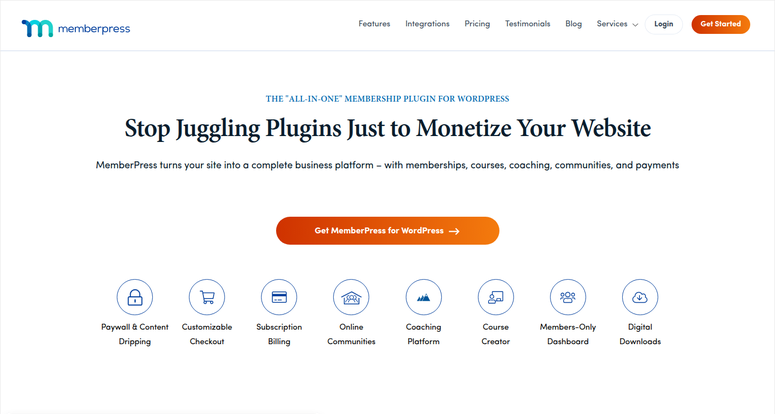
When I tested MemberPress on my magazine client’s site, the first thing that struck me was the content drip feature.
You see, they didn’t want to release their entire back catalog at once. Instead, they wanted to drip a new article every week to keep members engaged over time.
MemberPress handles that automatically. It allows you to schedule content for any date, any time, and it unlocks on that schedule without you touching anything.
Why Is MemberPress One of the Best Paywall Plugins?
I loved that it has built-in payment gateways. You get Stripe, PayPal, and Authorize.net all included without additional charges.
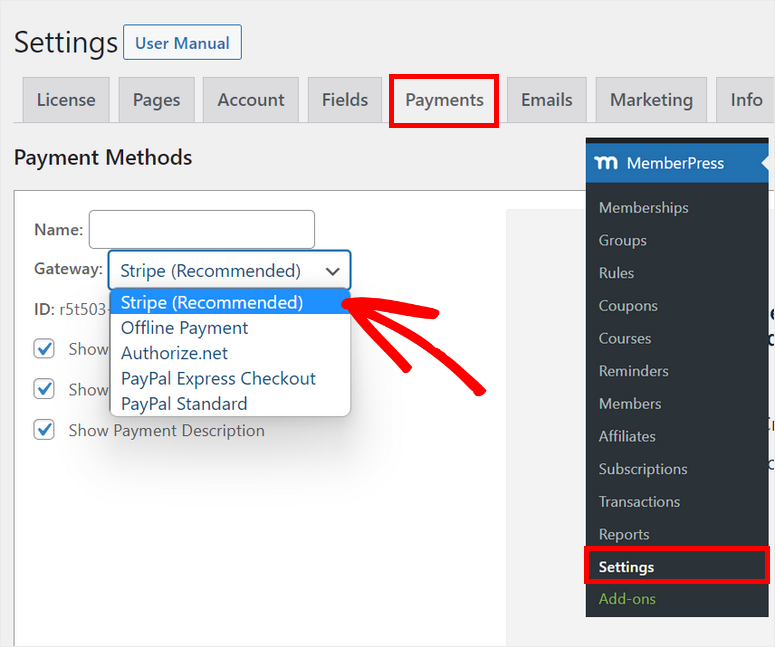
Just connect your account and start charging. Most competitors require you to buy additional extensions or set up third-party tools.
Here’s the thing I discovered pretty quickly, though. If you’re selling courses, integrating MemberPress with LearnDash is trickier than it looks.
When both plugins manage access to things like enrollment timing, access rules, and drip content, they step on each other’s toes.
I worked around it by choosing one tool per site. MemberPress for memberships, and LearnDash for courses. But if you want to do both, expect some configuration headaches.
MemberPress is worth the learning curve because it’s flexible.
You can create 5 membership levels or 50. You can restrict posts, pages, categories, or specific file downloads.
And the content drip is powerful enough that your members feel like they’re getting new content constantly, even when you’re just unlocking what you already published.
My Experience with MemberPress
I set up MemberPress for a client with 3 membership tiers: Basic, Plus, and Gold.
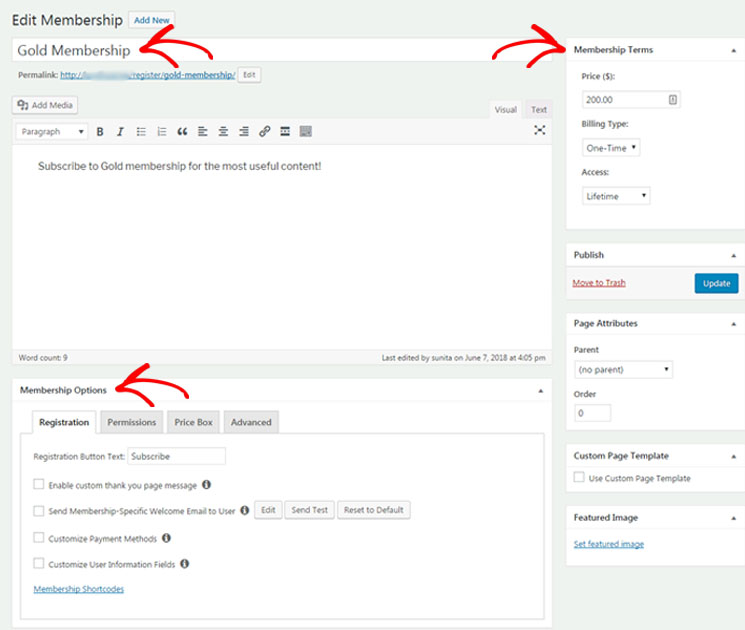
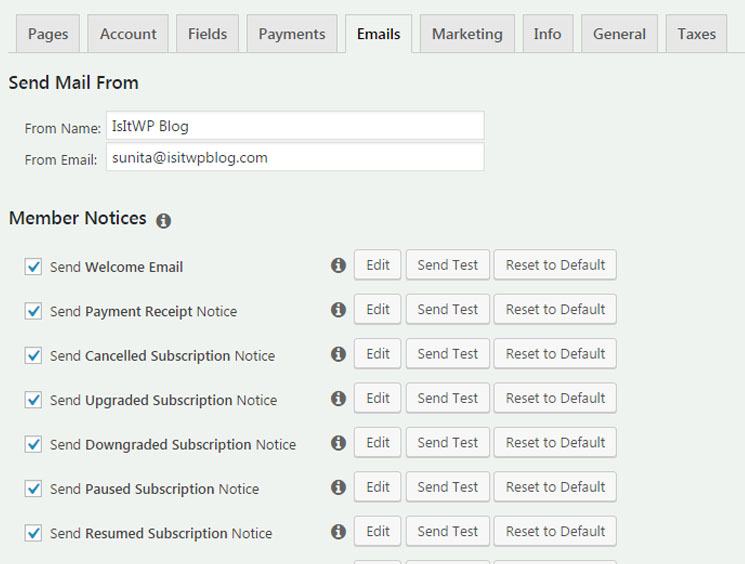
Each tier had different content access restrictions and email automations. Setup took a solid 3 hours. Not because it’s hard, but because there are 40+ configuration options and I wanted to get it right.
The drip feature is where MemberPress shines. I scheduled their back catalog to unlock one article every 7 days for Basic members, every 3 days for Plus, and everything immediately for Gold.
The email automation ran perfectly. Members felt like fresh content was constantly being published, even during weeks when the team wasn’t publishing anything new.
🟢► Pros
- Content drip automation: Schedule content to unlock automatically over weeks/months without manual work. Keeps members engaged.
- Multiple payment gateways included: PayPal, Authorize.net, and Stripe built in; no separate extensions needed.
- Flexible membership tiers: Create unlimited membership levels with different access rules and pricing.
- Email automation for onboarding: Send welcome sequences, payment reminders, renewal notifications automatically.
- WooCommerce integration: Sell digital AND physical products with memberships in one place.
- Excellent content restriction rules: Control access by post, page, category, or custom post type.
🔴► Cons
- Setup complexity for non-technical users: Configuration takes time; 40+ options can overwhelm beginners.
- LearnDash integration issues: Access control conflicts if running both plugins together.
- High price for single-site creators: Single-site creators might prefer cheaper options.
My Verdict: MemberPress is the right choice if you need flexibility. You’re not locked into one membership model. You can also run content drips, multiple pricing tiers, and WooCommerce sales simultaneously.
Check out my MemberPress review for more details.
Pricing: Starting at $199.50/year
👉 Get started with MemberPress here
2. MemberMouse ⭐⭐⭐⭐⭐
Best for: Coaches and agencies with affiliate program needs
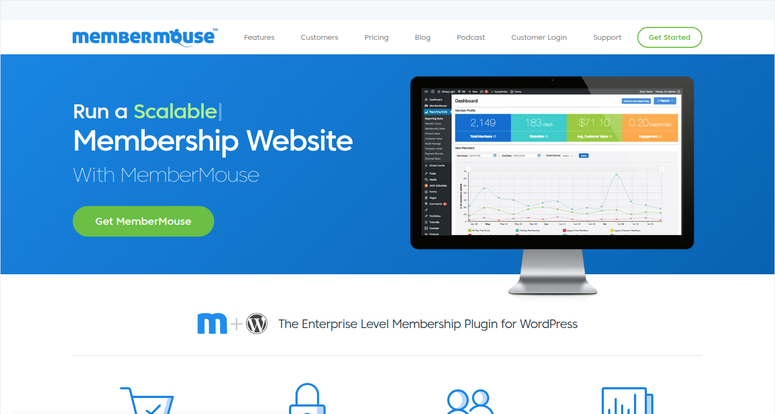
I tested MemberMouse with a coaching client who had a growing affiliate network.
Here’s what stood out: every other membership plugin requires a separate tool to manage affiliates. MemberMouse has it built in.
Why Is MemberMouse One of the Best Paywall Plugins?
When an affiliate joins their program, MemberMouse tracks every commission, calculates payouts, and can automate payments.
For someone running 50+ affiliates, that’s a game-changer. You’re not juggling MemberPress, AffiliateWP, Zapier, and a spreadsheet. It’s all in one dashboard.
The member management depth is genuinely impressive. Every member has a profile with communication history, email tags, custom fields, and segment options.
If you want to email all members who haven’t logged in for 30 days, or all members in a specific tier, you can do it in seconds.
But I’d be honest: MemberMouse is expensive, and it’s built for agencies and coaches, not solopreneurs. The interface is packed with options. If you just want to sell one course, you’re paying for features you’ll never use.
My Experience with MemberMouse
I set up MemberMouse for a coaching business with 150 active members and 12 affiliates. The setup was thorough.
I had to configure member roles, email sequences, payment rules, and affiliate commission structures. It took 6 hours, but that included setting up affiliate tracking links and payment integrations.
Once live, the affiliate system was the standout. Affiliates could log in, see their dashboard with real-time commission tracking, and payouts happened automatically weekly.
No spreadsheets or manual processing. One coach who was previously managing affiliate records in Excel couldn’t believe how much time this saved.
🟢► Pros
- Built-in affiliate program management: Track commissions, automate payouts, no separate tool needed.
- Deep member management: Profiles, communication history, email segmentation, custom fields.
- Comprehensive email automation: Welcome sequences, post-purchase automations, member engagement workflows.
- Multiple payment gateways: Stripe, Authorize.net, and PayPal integrated.
- Agency-grade reporting: Member lifetime value, churn tracking, revenue attribution.
🔴► Cons
- Expensive: Pricing depends on member count; prohibitive for solo creators.
- Steep learning curve: Interface is comprehensive but complex; takes time to master.
- Overkill for simple memberships: If you just need basic membership, this is overbuilt.
My Verdict: MemberMouse is the right choice only if you’re running an agency or have an active affiliate program. For everyone else, you’re paying for features you won’t use.
Pricing: Starting at $149.50/year
👉 Get started with MemberMouse here
3. Thrive Leads ⭐⭐⭐⭐⭐
Best for: Capturing email addresses before showing a paywall

Here’s something most paywall articles miss: the best way to monetize content isn’t to immediately ask for money. It’s to ask for an email first, nurture that list, and then convert subscribers to paid.
Thrive Leads excels at this.
Why Is Thrive Leads One of the Best Paywall Plugins?
You create an opt-in offer like a free chapter, template, or checklist. Then gate it with Thrive Leads’ content lock feature.
When a visitor tries to read that gated content, they see a popup asking for their email. They give it, they get the content, they join your list.
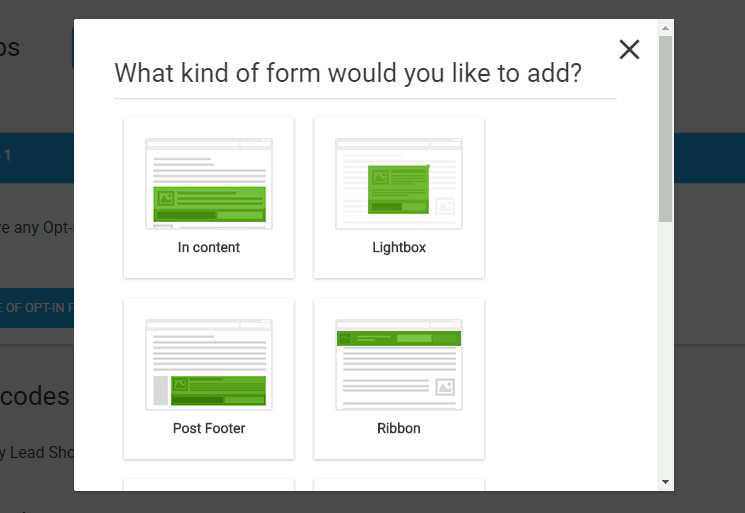
Then Thrive Leads can automatically trigger a follow-up sequence that introduces your paid tier.
What makes Thrive Leads special is the behavioral targeting.
You can show different opt-in popups based on how long someone has been on the page, whether they’re leaving (exit intent), or what section they’re reading.
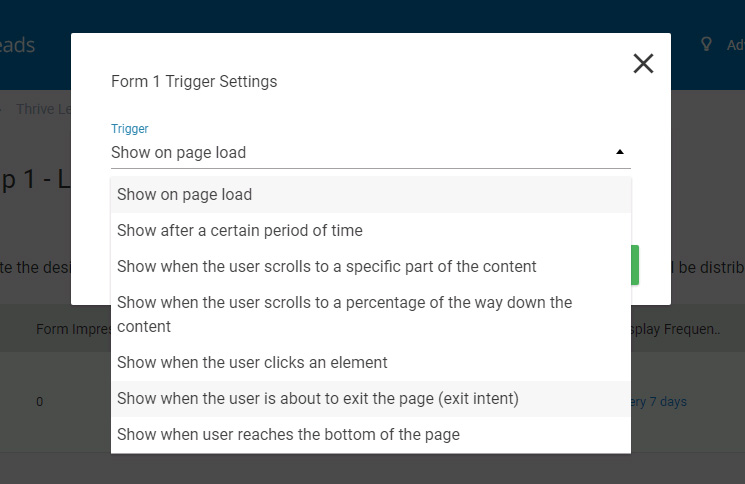
This is email capture optimization at the plugin level.
I noticed one limitation, though: Thrive Leads is built by Thrive Themes, and while it’s excellent at what it does, it’s not a paywall itself.
You’ll still need a separate membership plugin. But used alongside a paywall plugin, it’s amazing for list growth.
My Experience with Thrive Leads
I set up Thrive Leads for a business that was selling digital products like courses through Stripe. The goal: grow their email list while selling courses.
I created 3 different content lock offers:
- A free preview chapter for everyone visiting the sales page
- A discount code for existing customers to re-engage them
- A free template for visitors reading blog posts
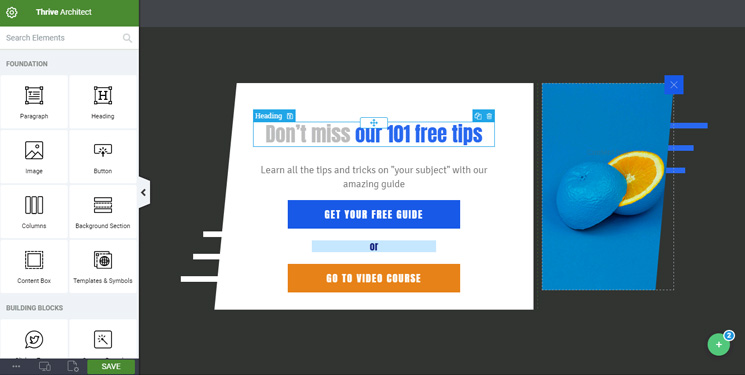
Within 3 weeks, they’d captured 200 new emails and converted 12 of those to course purchases. This came down to how I set up behavioral triggers to show different popups at different scroll depths.
🟢► Pros
- Content locking: Gates content behind email, not a paywall. Perfect for growing lists before monetization.
- Behavioral triggers: Show popups based on scroll depth, exit intent, time on page, or device type.
- No-code popup builder: Drag-and-drop, no HTML knowledge required; 100+ templates.
- Advanced A/B testing: Test different popups against each other; see what converts best.
- 50+ email integrations: Works with MailChimp, ActiveCampaign, Drip, ConvertKit, and more.
🔴► Cons
- Not a standalone paywall: You need a separate membership plugin to actually charge for content.
- Steep pricing if buying standalone: Can be expensive if you just want to use the lead generation features
- Learning curve for behavioral triggers: Simple to start, advanced automation takes time to understand.
My Verdict: Thrive Leads is the best complement to a paywall plugin. Use it to grow your email list before asking people to pay. Pair it with a paywall plugin to make the most sense.
Check out my Thrive Leads review for more details.
Pricing: Starts at $99/year standalone OR $299/year as part of Thrive Suite
👉 Get started with Thrive Leads here
4. Paid Member Subscriptions ⭐⭐⭐⭐⭐
Best for: Beginners and bloggers monetizing content for the first time
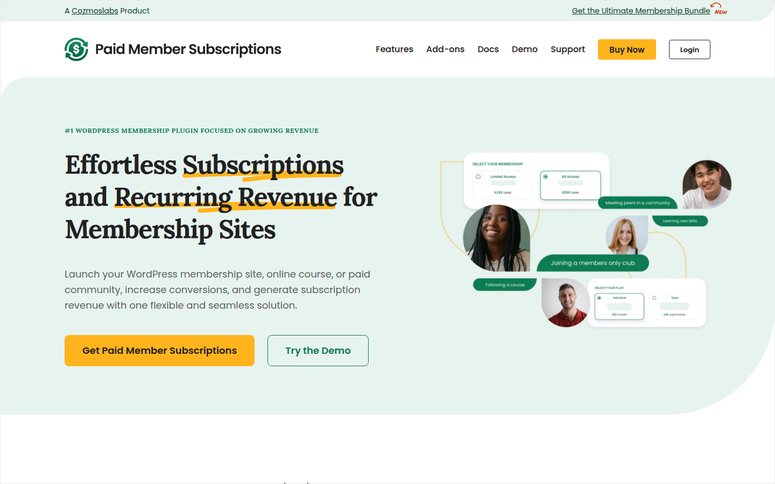
Paid Member Subscriptions has the highest WordPress.org rating of any paywall plugin at 4.7 out of 5 stars from 258 real users. And when I tested it, I understood why immediately.
Why Is Paid Member Subscriptions One of the Best Paywall Plugins?
The setup is genuinely fast.
Download the plugin, activate it, and you can have a basic membership live in under 30 minutes. There’s no 40-page configuration wizard. No overwhelming dashboard. The interface is minimal and clear.
What I appreciated most: the free core is legitimately useful. You get membership levels, content restriction, and email notifications for free.
The paid add-ons offer payment forms, advanced email automation, and integrations. You only pay for these if you need them. But many creators start with just the free version and never upgrade.
The one limitation I found: you can’t restrict content at a granular level like you can with options on this list.
You restrict by membership level, but you can’t do role-based access or partial-content restrictions. For 95% of creators, this isn’t a problem. For the 5% with complex permission needs, you might outgrow it.
My Experience with Paid Member Subscriptions
I set up Paid Member Subscriptions for a personal finance blog that wanted to monetize. The owner had zero experience with membership plugins. She needed it live by Friday.
I installed the plugin on Thursday morning. By Thursday afternoon, she had two membership tiers configured, premium articles restricted, and payment processing connected to Stripe.
Genuinely 3 hours of work, and most of that was her learning the interface.
By the following Monday, they had a few paid subscribers. It wasn’t a fortune, but it proved the concept worked.
🟢► Pros
- Easiest setup of any paywall plugin: Live in 30 minutes; beginner-friendly.
- Highest WP.org rating: 4.7/5 stars, 258 reviews; most trusted by the WordPress community.
- Free core is legitimately useful: Membership levels, content restriction, and email notifications are all included.
- Affordable: Free + optional premium upgrade for advanced features.
- Responsive support: Support team answers within 24 hours across all tiers.
- Multiple payment gateways: Stripe, PayPal, WooCommerce Payments are all supported.
🔴► Cons
- Limited granular content control: Can’t restrict by role or partial content; restrictions are membership-level only.
- Basic UI: Interface feels dated compared to modern SaaS tools; still functional, just not pretty.
- Basic built-in analytics: No member lifetime value or churn tracking; you’d need third-party tools.
My Verdict: Paid Member Subscriptions is the plugin I recommend to anyone starting out. It’s forgiving, affordable, and gets you live fast. If you outgrow it later, you can migrate to Restrict Content Pro or MemberPress.
Pricing: Free plugin available | Pro starts at $99/year
👉 Get started with Paid Member Subscriptions here
5. LearnDash ⭐⭐⭐⭐
Best for: Course creators and serious educators

LearnDash is the industry-standard LMS (Learning Management System) for WordPress. The quiz builder is one of the best.
You can create questions with conditional logic, randomize question order from a bank of 100+ questions, and set time limits.
Plus, you can go a step further and configure scoring rules and see detailed analytics on which questions students struggle with.
Why Is LearnDash One of the Best Paywall Plugins?
Course structure is comprehensive. Lessons, topics, drip-feed scheduling, progress tracking, certificates, prerequisites, everything you need for a complete course.
And the ecosystem is massive. There are 200+ LearnDash add-ons for integrations, gamification, payment processing, email automations, and features I haven’t even thought of.
The honest limitation: LearnDash is feature-rich, which means there’s a learning curve. If you just want to sell a single 5-lesson course, LearnDash is overkill.
You’d be better with Paid Member Subscriptions or LifterLMS. But if you’re running 10+ courses with 100+ students, this is the LMS plugin for you.
My Experience with LearnDash
I set up LearnDash for an instructor with 3 existing courses that were previously scattered across different platforms.
The goal: consolidate everything into one WordPress site with proper quizzes, course structure and progress tracking.
One course was a 12-module business course with 48 video lessons and 48 quizzes. I built the structure in LearnDash, set drip scheduling (one lesson per week), and configured the quiz logic.
LearnDash’s conditional logic let me automatically redirect students who scored below 70% on the assessment back to the related lesson before allowing them to proceed.
That one feature saved the instructor from having to manually chase down struggling students.
The impact: completion rates jumped from 40% on the old platform to 68% with LearnDash’s structure and automation. Students felt guided. The quiz bank and conditional logic meant nobody got stuck.
🟢► Pros
- Best-in-class quiz engine: Conditional logic, randomized question banks, scoring rules, detailed student analytics.
- Complete course structure: Lessons, topics, prerequisites, drip-feed scheduling, certificates, progress tracking.
- Largest ecosystem: 200+ add-ons for every integration imaginable; extensive community support.
- Excellent documentation: Detailed guides, video tutorials, active community forum.
- WooCommerce integration: Sell courses as products with all WooCommerce features.
🔴► Cons
- Feature bloat for simple courses: If you only need to sell access to 5 lessons, this is overkill.
- Performance on large sites: Sites with 100+ courses or 500+ students can experience slowdown without caching.
- Expensive add-ons: Advanced features often require paid extensions
My Verdict: LearnDash is the right choice if you’re serious about course creation. You’re paying for an enterprise-grade LMS, and you get what you pay for.
Compare LearnDash vs MemberPress if you are still browsing for solutions.
Pricing: Free plugin available | Pro starts at $199/year
👉 Get started with LearnDash here
6. LifterLMS ⭐⭐⭐⭐
Best for: User-friendly LMS with built-in gamification

I tested LifterLMS with an educator who had never used WordPress before. She was scared of the technology.
LearnDash felt overwhelming when she looked at the feature list. So I showed her LifterLMS instead.
The set up is incredibly quick. It took 2 hours. Within a week, she had a 10-lesson course live with quizzes, certificates, and a student dashboard. She did it all herself. No developer needed.
Why Is LifterLMS One of the Best Paywall Plugins?
What makes LifterLMS different is that it’s designed for educators, not developers. The interface is intuitive. The documentation uses plain language.
And the gamification system is built in with badges, points, and leaderboards without requiring add-ons.
I noticed one trade-off: LifterLMS has fewer add-ons than LearnDash. If you need some exotic integration, like with your custom CRM, LearnDash’s ecosystem might have it. LifterLMS might not.
But for standard course creation, gamification, and selling courses online, LifterLMS delivers.
My Experience with LifterLMS
I migrated a fitness instructor from a generic course platform to LifterLMS. She was running a 30-day fitness challenge with daily workouts, nutrition guides, and community support.
LifterLMS’s gamification was perfect for her use case. I set up a point system: completing a daily workout earned 10 points, leaving community comments earned 5 points, and finishing modules unlocked badges.
Within weeks, students were competing on the leaderboard and encouraging each other.
Completion rates and engagement both jumped because students weren’t just consuming content. They were earning rewards.
🟢► Pros
- Excellent user interface: Easiest LMS to learn; educators can set up courses without developer help.
- Built-in gamification: Badges, points, leaderboards included; increases student engagement.
- Good quiz builder: Supports time limits, question banks, scoring; not as advanced as LearnDash but covers 95% of use cases.
- Strong documentation: Tutorials and support are educator-friendly, not tech-heavy.
- WooCommerce integration: Sell courses like any other product.
🔴► Cons
- Fewer add-ons than LearnDash: Smaller ecosystem; some advanced integrations may not exist.
- Performance on very large courses: Hundreds of lessons or students can slow things down.
- Mixed stability reports: Some users report occasional enrollment or progress-tracking glitches; generally fixed quickly.
My Verdict: LifterLMS is my recommendation if you want all the power of LearnDash but with a gentler learning curve. It’s lighter and more approachable.
Compare Learndash vs. LifterLMS to see how they go toe-to-toe.
Pricing: Free plugin available | Starts at $149.50/year
👉 Get started with LifterLMS here
7. Zlick Paywall ⭐⭐⭐⭐
Best for: First-time publishers testing paywalls without upfront risk

Zlick Paywall is the newest paywall plugin on this list, and it has a perfect 5.0 rating on WordPress.org. But with only a few reviews, since the user base is still tiny. So why include it?
Why Is Zlick Paywall One of the Best Paywall Plugins?
Because it solves a real problem for first-time publishers: testing a paywall strategy without committing money upfront.
Zlick Paywall uses performance-based pricing: you pay 5% of whatever revenue you make. If your paywall generates $1,000/month, you pay $50. If it generates nothing, you pay nothing.
For a publisher uncertain whether a paywall will work, this is revolutionary. You’re not betting $3,000 and hoping it pays off.
Setup is absurdly simple. I had a working paywall live in 5 minutes. No configuration wizard, no 40 options. You install, you point it at your payment processor (Stripe), and it starts limiting article access. That’s it.
The limitation I should be upfront about: Zlick is basic. It does simple metered paywalls well (read 5 articles/month, then hit paywall).
It doesn’t do hard paywalls, complex membership tiers, or advanced features. If you need sophistication, you’d graduate to Leaky Paywall. But for testing the concept, Zlick is ideal.
My Experience with Zlick Paywall
I set up Zlick for a news site that had never tried a paywall. They were nervous. Would readers leave? Would revenue justify the complexity?
It took maybe 10 minutes to install Zlick Paywall. I just pointed it to their Stripe account and set a metered limit (8 free articles/month).
🟢► Pros
- Performance-based pricing: Pay 5% of revenue instead of flat fees; no risk if paywall doesn’t work.
- Fastest setup: 5-minute configuration; no complexity; perfect for testing.
- Simple metered paywall: Limit free articles per month; straightforward and works well.
- Lightweight: Doesn’t slow down your site; minimal code footprint.
- Perfect for first-time publishers: Low barrier to entry; low risk; high upside.
🔴► Cons
- Very new and small community: few WordPress.org reviews; limited documentation; direct support from developers is necessary.
- Limited features: No hard paywalls, no multiple tiers, no complex rules; just metered paywall.
- Stripe-only: No PayPal or Authorize.net support
My Verdict: Zlick Paywall is my top recommendation for first-time paywall testers. It’s risk-free, it’s fast, and it works. If you outgrow it, you graduate to a more powerful tool.
Pricing: 5% revenue on free plan | Pro starts at €199/month
👉 Get started with Zlick Paywall here
8. Restrict Content Pro ⭐⭐⭐
Best for: Maximum flexibility and granular content control
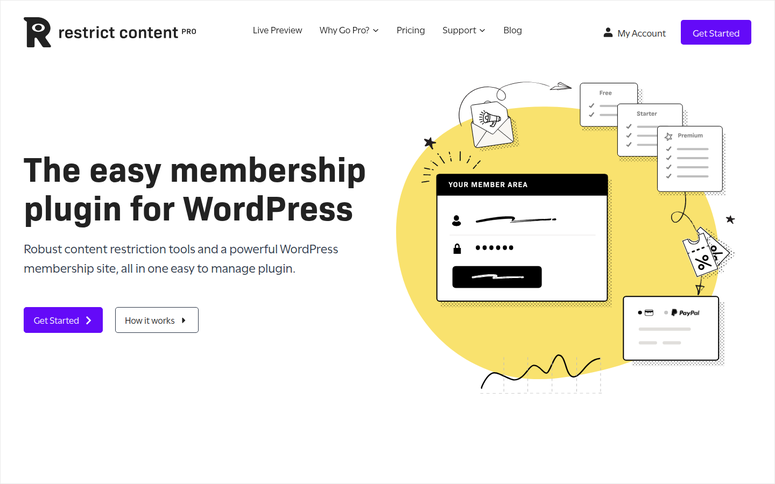
When a client came to me with unusual content restriction needs, I reached for Restrict Content Pro.
They wanted to restrict some posts by membership level, other posts by user role, and restrict certain comments from showing to non-subscribers. Most plugins can’t do this.
Restrict Content Pro can.
Why Is Restrict Content Pro One of the Best Paywall Plugins?
You can restrict posts, pages, categories, custom post types, and comments individually. You can create membership levels and also use WordPress roles like Subscriber, Editor, etc. in the same site.
The restriction engine is the most powerful on the market.
Setup is more complex than most options on this list since the dashboard has 40+ options. But that power comes in handy when you have non-standard needs.
I found one trade-off: because Restrict Content Pro is so flexible, it’s not beginner-friendly. You need to understand membership levels, restriction rules, payment gateways, and member management.
If you’re comfortable with WordPress, you’ll be fine. If you’re technical, you’ll love the power. But if you’ve never touched WordPress before, it might intimidate you.
My Experience with Restrict Content Pro
I set up Restrict Content Pro for a digital product company selling courses, templates, and recurring memberships at the same time.
They needed different restriction rules for each product type. Some items restricted by purchase, some by subscription tier, some by affiliate access.
Restrict Content Pro’s granular rules made it possible.
I could restrict a template post to “only people who purchased this specific product” while restricting course lessons to “only members in tier 2 and above.” All in one plugin, all configurable.
Setup took 8 hours, but the result was a system that required zero manual intervention. Purchases, access grants, and subscription checks all happened automatically.
🟢► Pros
- Most granular restriction control: Restrict by post, page, category, comment, attachment, even post type.
- Powerful membership level system: Unlimited levels with drip access and specific access rules per level.
- Role-based access: Use WordPress roles alongside membership levels; no other plugin handles this well.
- Excellent documentation: Detailed guides with code examples; API reference available for developers.
- Active development: Regular updates; feature requests often implemented.
- Multiple payment gateways: Stripe, PayPal, Authorize.net integrated.
🔴► Cons
- Not beginner-friendly: 40+ options; requires understanding of membership concepts; steep learning curve.
- Setup complexity: Configuration takes time; not a 10-minute setup; expect 6+ hours for complex sites.
- Performance concerns on very large sites: Restriction checks on every page load; can slow down sites with 500+ posts.
My Verdict: Restrict Content Pro is the right choice if you have complex restriction needs or if you’re technical enough to appreciate the power. For simple sites, it’s overkill.
Pricing: Starts at $99/year
👉 Get started with Restrict Content Pro here
9. s2Member ⭐⭐⭐
Best for: Budget-conscious creators who want lifetime ownership (not subscription)

Here’s a unique value proposition: s2Member offers a lifetime license. You pay once, and you own the plugin forever. No yearly subscription or monthly fees.
This is genuinely rare in the membership plugin space.
Why Is s2Member One of the Best Paywall Plugins?
I tested s2Member on my own site (a small digital products business) and appreciated the transparency.
The documentation is thorough, but the interface is dated. It looks like 2010s WordPress. All the same, it’s functional and stable. After 15+ years in the market, s2Member has proven it can survive the test of time.
The PayPal integration is excellent.
If you primarily accept PayPal payments, s2Member is easier to configure than competitors. Stripe works too, but s2Member was built with PayPal as the primary payment processor.
One limitation I found: s2Member development is slower than competitors. New features come infrequently. If you need cutting-edge functionality, you’d be better with MemberPress.
But if you want a stable, reliable tool that won’t change on you every quarter, s2Member is solid.
My Experience with s2Member
I set up s2Member for a course creator with about 30 members paying $15/month. Over 3 years at $30 total (lifetime), versus $45/year with competitors, they save money immediately.
Plus, there’s peace of mind: the plugin won’t disappear if the company pivots.
The PayPal integration was seamless. Payments are processed, memberships auto-renewed, no configuration battles.
I set up automatic welcome emails and a member directory, then stepped away.
🟢► Pros
- Lifetime license: Own the plugin forever; no recurring yearly fees; best value if keeping long-term.
- Excellent PayPal integration: PayPal setup is fast and reliable; better than most competitors.
- Stable and reliable: 15+ years in market; proven track record; minimal changes mean no breakage.
- Strong user base: Thousands of WordPress sites running s2Member; good community forum for help.
- File protection: Can protect PDF downloads, video files, etc., behind membership tiers.
🔴► Cons
- Dated UI: Dashboard looks like older WordPress; not modern or polished.
- Slower development: New features infrequent; if you need cutting-edge functionality, look elsewhere.
- Limited modern integrations: No Zapier, no modern email marketing tools; primarily PayPal and basic Stripe.
My Verdict: s2Member is my recommendation if you want to own your membership plugin outright and don’t mind a stable (if dated) interface. The lifetime license is unbeatable for long-term value.
Pricing: Free plugin available | Pro starts at $89 lifetime
👉 Get started with s2Member here
10. Leaky Paywall ⭐⭐⭐
Best for: Publishers and magazines implementing metered paywall strategies

Most paywall plugins handle “hard paywalls.” This means they gate all content behind a paywall and memberships. Leaky Paywall specializes in metered paywalls: “Read 5 articles/month free, then pay.”
Why Is Leaky Paywall One of the Best Paywall Plugins?
This is the paywall model used by The New York Times, The Wall Street Journal, and most professional publishers. It balances reader access with monetization.
Casual readers get enough free content to understand the value. On the other hand, serious readers hit the limit and subscribe.
Leaky Paywall’s analytics are built for publishers. You get conversion rates by content type, revenue per article, churn metrics, subscriber lifetime value; the metrics publishers care about.
Most membership plugins don’t measure things this way.
The honest limitation: Leaky Paywall is expensive. It’s built for publishers with serious revenue ambitions, not hobbyists or small creators.
If you’re a solo blogger, the price will make you wince. But if you’re a magazine with 100K+ monthly readers, it’s a bargain.
My Experience with Leaky Paywall
I consulted with a financial news site considering a paywall. They had 200K monthly readers but zero subscription revenue.
We tested Leaky Paywall for 3 months to see if a metered paywall strategy would work.
Result: First month generated $3,200 in new subscription revenue. By month 3, they were at $12,000/month recurring.
At that scale, the $3,000/year investment was negligible. They’re now considering features like a dynamic paywall to show a paywall to new readers faster than regulars and gift subscriptions.
🟢► Pros
- Metered paywall specialization: Only plugin built specifically for metered paywalls (read 5 free/month, then pay).
- Publisher-focused analytics: Conversion rates, revenue attribution, churn tracking, subscriber LTV.
- Flexible paywall strategies: Metered, hard, hybrid, and dynamic options; switch by content type.
- Excellent support: Technical support team understands publisher workflows.
- Email integration: Capture emails at paywall trigger; nurture subscribers.
🔴► Cons
- Very expensive: Barrier to entry for small publishers.
- Steep setup: Configuring metered rules, subscription tiers, analytics takes time and expertise.
- Overkill for non-publishers: If you’re just selling a course or membership, this is overbuilt.
My Verdict: Leaky Paywall is right if you’re a publisher with significant traffic and serious monetization goals. For everyone else, it’s too expensive.
Pricing: 10% revenue share on free plan | Pro starts at $299/month
👉 Get started with Leaky Paywall here
Bonus: Best Paywall Plugins for WordPress
OptinMonster
OptinMonster is a lead generation tool with content locking. It pairs perfectly with paywall plugins to capture emails from abandoning visitors before they see a paywall.
Best for: Growing email lists alongside paywalls (use Exit Intent® to rescue abandoning readers)
WooCommerce Memberships
If you’re running a WooCommerce store and want to add membership perks (discount members, exclusive product access), WooCommerce Memberships is the native solution.
It integrates deeply with WooCommerce, so your discounts, shipping rules, and product types all work seamlessly.
Best for: WooCommerce stores selling membership-based perks alongside products
Memberful
Memberful is a SaaS platform (not a self-hosted plugin) with a WordPress integration. It offers a clean, simple UI and integrates natively with WordPress.com sites.
Best for: WordPress.com users or those preferring SaaS simplicity (Stripe-only)
That’s it from me on the best WordPress paywall plugins. If anything is unclear, check out the commonly asked questions below.
FAQs: Best Paywall Plugins
What’s the difference between a hard paywall and a metered paywall?
A hard paywall locks all content behind a subscription; visitors see nothing without paying. A metered paywall lets visitors read 5–10 free articles/month before hitting the paywall. Hard paywalls maximize revenue per reader; metered paywalls maximize traffic and list growth. Most publishers use metered paywalls.
Do I need a separate payment processor, or is it included?
Most paywall plugins integrate with Stripe, PayPal, or Authorize.net and handle payments directly. You don’t need a separate tool. Just connect your payment processor account, and the plugin processes payments in your dashboard.
Can I use a paywall plugin if I have an existing email list?
Yes. Set up your paywall plugin and add your existing email list as members manually or via CSV import. Then, new subscribers who sign up through your paywall join your email automation.
How long does it take to set up a paywall?
Paid Member Subscriptions: 30 minutes. Zlick Paywall: 5 minutes. Restrict Content Pro: 6–8 hours. LearnDash: 3–6 hours. It depends on complexity. Simple paywalls are quick; complex setups with automation take time.
What if I choose the wrong paywall plugin?
Most paywall plugins let you export member data and switch later. The hard part is migrating post restriction settings and payment history. I recommend starting with Paid Member Subscriptions (easiest to learn and migrate from) and upgrading to a more powerful tool if needed.
Do I need a developer to set up a paywall?
Not necessarily. Beginners can use Paid Member Subscriptions, Zlick Paywall, or LifterLMS without developer help. Technical users will appreciate Restrict Content Pro or LearnDash. If you choose a tool that feels overwhelming, hire someone for 5–10 hours to set it up correctly.
Final Verdict: Should I Use a Paywall on My WordPress Site?
Yes. A paywall is worth using if you have content that people value enough to pay for, whether that’s articles, courses, templates, or community access.
The magazine client I mentioned at the start? They went from zero subscription revenue to $12,000/month in six months just by gating their best content.
They didn’t push hard, didn’t annoy paywalls, didn’t remove free content. In the end, they simply protected their premium articles behind a reasonable membership model.
Cost perspective: You’ll spend $100–$300/year on the plugin itself. Add a payment processor fee, for example, Stripe charges 2.9% + $0.30 per transaction, and your total friction is minimal compared to the revenue potential.
If you gain 10 paid subscribers at $15/month, you’ve paid for the tool in two months.
The simple benefit: a paywall turns readers into members. Members become loyal customers who return, stay longer, and spend more.
It’s a way to build a sustainable business from your content instead of relying entirely on ads or sponsorships.
Pick one, set it up, and measure the results. You’ll learn within weeks whether a paywall works for your audience.
Resource Hub: Content Monetization
- Deep dive into WordPress membership strategy – How to set up and optimize membership sites step-by-step
- How to sell WordPress memberships with WooCommerce – Run membership + ecommerce together
- WordPress email marketing for membership sites – Nurture your membership list before asking for money
- Best WordPress payment processors – Stripe, PayPal, and Authorize.net comparison
- How to create a membership site – Step-by-step tutorial for beginners
- WordPress lead generation strategies – Capture and segment your audience before monetization

Comments Leave a Reply