I spent three hours trying to build a wedding cost calculator for a client.
I opened a spreadsheet, mapped out the math, then stared at WPForms wondering how to translate my formulas into field IDs.
Sadly, I got the venue calculation wrong twice. The catering math broke when I added guest counts.
Then I discovered something that made me feel slightly foolish: There are AI form builders that can build the entire calculator from a single sentence.
No spreadsheets, no formula debugging, or field ID headaches. Just type what you want, and the calculator appears in under 5 minutes.
After doing my research, I learned that WPForms and Formidable Forms are the best WordPress tools that allow you to build your AI forms with calculators just by chatting with them like you would your favorite chatbot.
In this tutorial, I walk you through exactly how I do it.
Key Takeaways
- I’ll show you how AI builds complete calculator forms from simple text prompts (no coding or spreadsheets needed)
- Two methods – WPForms for dead-simple calculators and Formidable Forms for advanced AI logic
- I reveal the exact prompts I used to create a wedding cost estimator in under 5 minutes
- Tested both tools to find which AI actually understands calculator formulas (one broke my venue math twice)
- I’ll show you the formula review trick that catches AI mistakes before your calculator goes live
Plus, you can use the table of contents below to skip to the exact method you want to read about.
- Method 1: WPForms AI Form Builder (Easier for Beginners)
- Method 2: Formidable Forms (Advanced AI Logic & Custom Calculations)
- WPForms vs Formidable Forms: Which AI Calculator Builder Should You Use?
- FAQs: AI-Powered Calculators in WordPress
- Final Verdict: Should You Use AI to Build WordPress Calculators?
- Resource Hub: More Form Building Tutorials
How I Test Calculator Builders
🔍 Click to see my testing methodology.
Here’s exactly how I evaluate AI calculator builders:
- AI Prompt Understanding: Does it build the right fields from plain English? I test with wedding costs, mortgage payments, and project quotes.
- Formula Accuracy: I compare AI-generated formulas against spreadsheet calculations. One tool confused multiplication with addition on my first try.
- Form Field Logic: Can it create dropdown menus with different price points? Does it multiply guest counts correctly?
- Customization Ease: After AI generates the form, how quickly can manual tweaks be made? I time myself making changes.
- Real-World Scenarios: I built three different calculators (wedding, mortgage, service quote) to test if AI handles various math types.
- Formula Review Process: I always check the generated formulas before publishing. Field IDs need to match, operators need to be correct.
I run each calculator with test data to catch errors before they reach real visitors.
Why Trust IsItWP?
At IsItWP, we’ve been the WordPress community’s go-to resource since 2009, helping over 2 million users choose better WordPress tools and plugins.
Unlike review sites that never actually use the products, we maintain active accounts, run real client sites, and provide ongoing WordPress consultation.
I personally tested both WPForms and Formidable Forms AI features on three different calculator types before writing this guide.
Method 1: WPForms AI Form Builder (Easier for Beginners)
WPForms is the best form builder for WordPress because it is the easiest way to build forms without touching code.
With over 6 million active users, WPForms stands out as the top form builder for beginners and small businesses.
The drag-and-drop interface works exactly like you’d expect. You pick fields, drop them in place, and your form appears.
But here’s what changed everything: WPForms recently added AI form generation. Now the plugin combines its already-solid Calculator addon with AI that understands plain English prompts.
Instead of manually configuring calculation fields and writing formulas, you type what you want. The AI builds the entire calculator in seconds.
I tested this with a wedding cost estimator that would’ve taken me 45 minutes to build manually. The AI version? Done in 4 minutes.
If you need to create forms using AI for other purposes, WPForms handles those, too. But for calculators specifically, the combination of AI plus the Calculations addon is unmatched.
Let me walk you through the entire process of building a form calculator with WPForms’ AI.
Step 1: Install WPForms Pro and the Calculator Addon
First, you’ll need WPForms Pro. The free version of WPForms is great, but it won’t work for this.
Specifically, you need the Elite plan because that’s the plan that includes the Calculations addon. So, go to the official site of WPForms and purchase the plan.
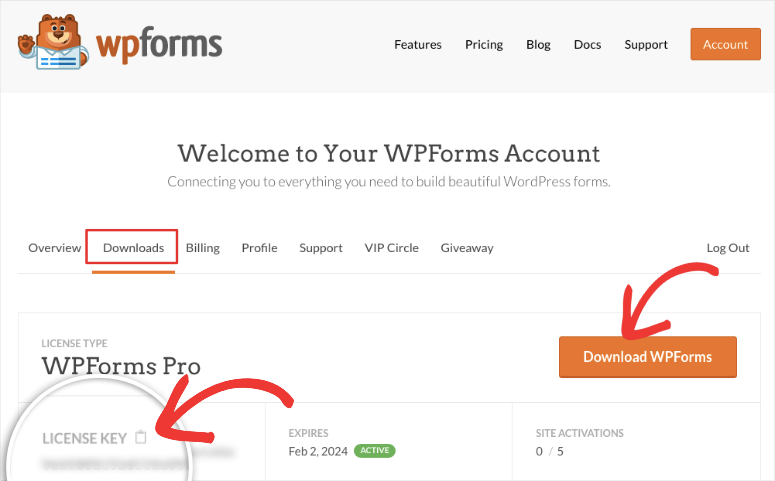
After purchasing, grab your license key from the Downloads section of your WPForms account. Then head to your WordPress dashboard.
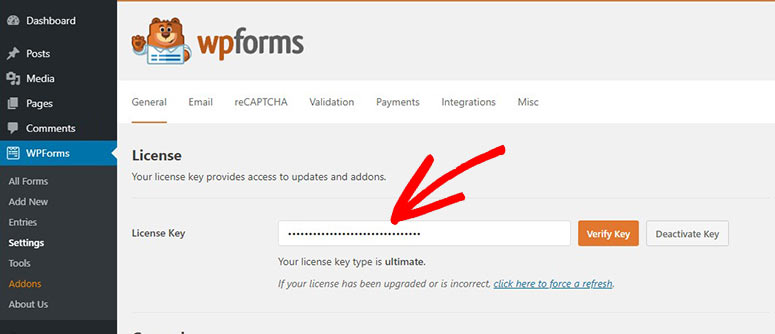
Once you install it in your WordPress dashboard, go to WPForms » Settings and paste your license key. Click the “Verify Key” button.
Check out this post if you want a step by step tutorial on how to set up WPForms.
After you install and activate WPForms Pro, install the Calculations addon. To do this, go to WPForms » Addons, search for “Calculations,” and click the Install Addon button.
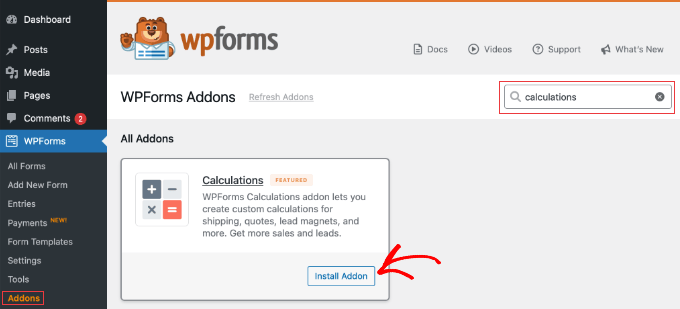
The addon installs automatically with no configuration needed. Now you’re ready to build calculators with AI.
Step 2: Create a New Form with AI
Go to WPForms » Add New Form in your WordPress dashboard.
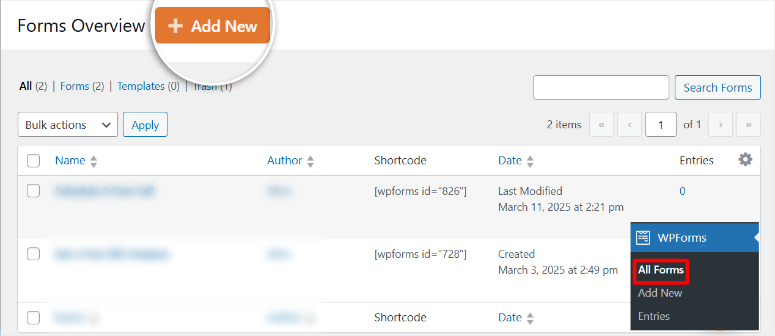
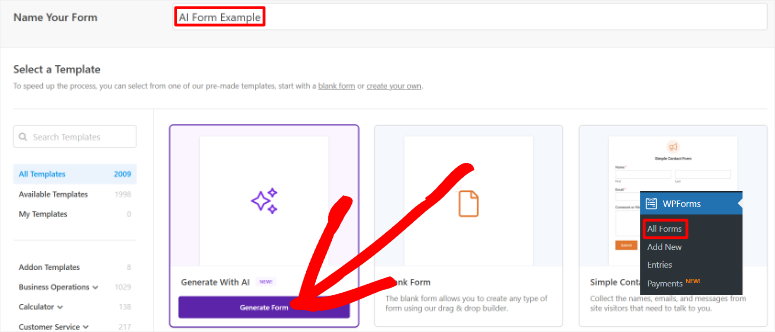
You’ll see over 2,000 pre-made templates. These templates work great for standard forms. Plus, if you have a design background, you can start from scratch. But we’re going to create a form with AI fully.
So, click the Generate With AI tab at the top.
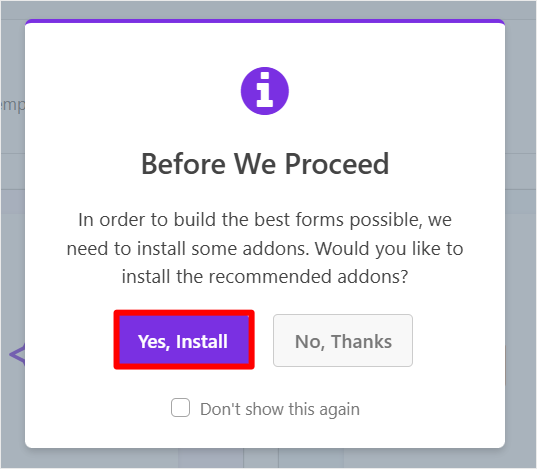
Here’s the good thing with WPForms: if you haven’t installed the right addons for your calculator, it automatically detects what you need and asks to install them.
Click Yes, Install, and WPForms handles the rest, ensuring manual addon hunting. But if you had already installed the addons, WPForms will skip this step.
Step 3: Use AI to Build Your Calculator
Once you select Generate Forms with AI, you will see the AI Form Builder interface as your next screen.
Notice how it looks like ChatGPT, Claude, or Gemini? That’s intentional. WPForms designed it to match the AI tools you already know.
This means less learning curve. Just chat with it like you would with any AI assistant.
On top of that, you’ll see preset prompts for common forms at the bottom. Things like “restaurant customer satisfaction survey” or “job application for a web designer.” These work great for quick starts.
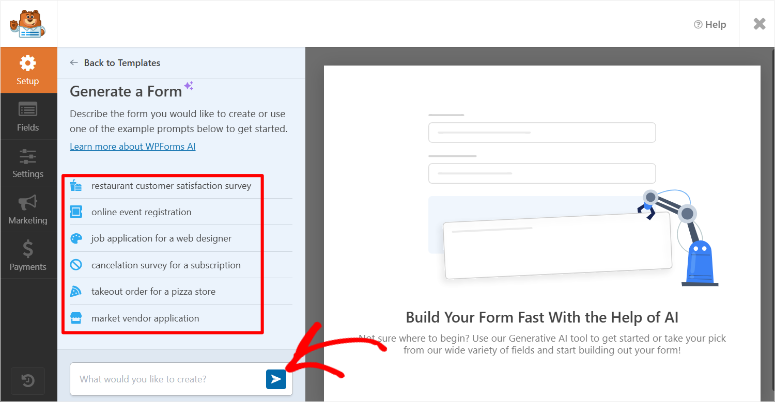
But let’s build something custom from ‘scratch.’
I’ll start simple. Let me add basic contact fields first (name and email). Here’s the prompt I used:
Prompt: “Create a Contact Form with the following fields: Name (Required), Email (Required), Phone Number (Optional), Company Name (Optional), Subject (Required), Message (Required, Multi-line text), Newsletter Signup Checkbox (Labeled: Subscribe to our newsletter), CAPTCHA (To prevent spam submissions). Ensure the form is user-friendly, mobile-responsive, and styled to match a modern website design.”
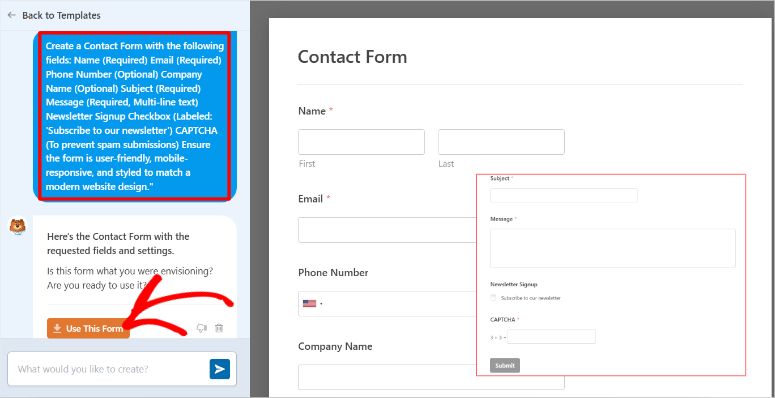
The AI generates those fields instantly and places them with the correct hierarchy on the form. You can actually use it as it is as your site’s contact form.
See how it created everything exactly as requested? Name, email, phone, company name, subject, message field, newsletter checkbox, and CAPTCHA. All there.
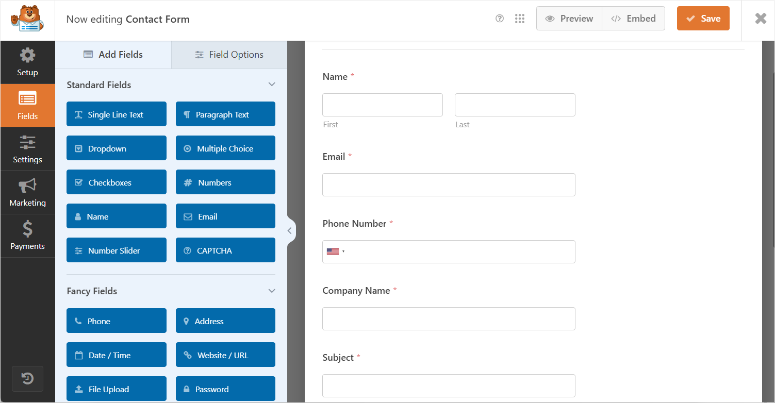
But we’re not done. Now comes the calculator part.
In the same chat, I’ll add the calculator logic. Here’s my prompt for a wedding cost estimator:
Prompt: “Now add a Wedding Cost Estimator with these fields: Wedding Guest Count (number field), Venue Selection (dropdown with options: Outdoor Garden $5,000, Ballroom $8,000, Beach $6,000), Catering Level (dropdown with options: Basic Buffet $50/guest, Premium Plated $75/guest, Gourmet Experience $100/guest), and a Total Estimated Wedding Cost field that calculates: (Guest Count × Catering Cost per guest) + Venue Cost.”
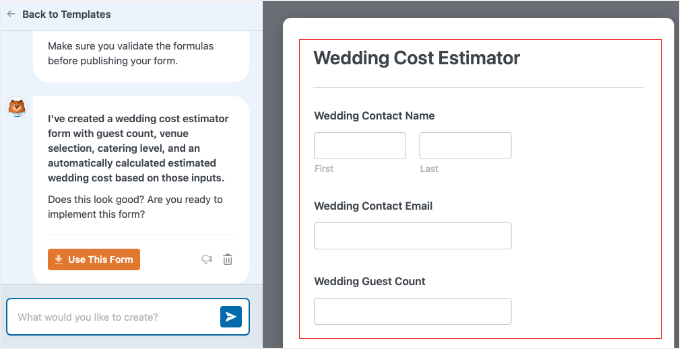
The AI adds the calculator fields immediately. Guest count field, venue dropdown with prices, catering dropdown with per-guest costs, and the calculated total field.
The best part? All the math is configured automatically.
⚠️ Quick note: I broke this into two prompts for demonstration purposes. You can absolutely use one combined prompt to build the entire form at once. Here’s what that would look like:
Combined Prompt:
Create a Wedding Cost Estimator form with the following fields:

Contact Information:
- Wedding Contact Name (required)
- Wedding Contact Email (required)
- Phone Number (optional)

Calculator Fields:
- Wedding Guest Count (number field)
- Venue Selection (dropdown with options: Outdoor Garden $5,000, Ballroom $8,000, Beach $6,000)
- Catering Level (dropdown with options: Basic Buffet $50/guest, Premium Plated $75/guest, Gourmet Experience $100/guest)
- Total Estimated Wedding Cost (calculated field that multiplies guest count by catering level per person and adds venue cost)

Make the form mobile-responsive and user-friendly.
Both approaches work since the AI understands either way.
If you’re building simpler calculators like quote calculators for project estimates, the same process applies. Just describe what you need calculated.
Step 4: Review and Customize Your AI-Generated Form
The AI creates your form, but you’re not stuck with exactly what it generated.
You have two options for changes:
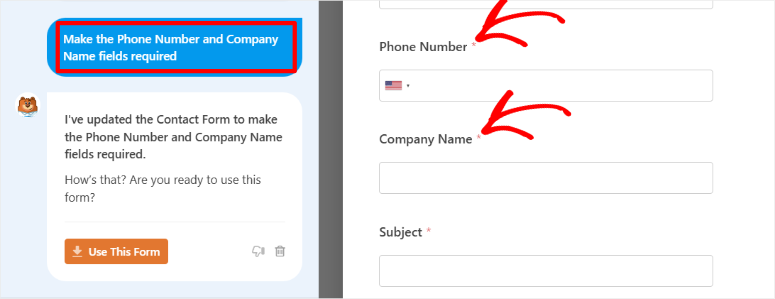
Option 1: Use another AI prompt to modify the form. For example, type something like “Make the Phone Number and Company Name fields required,” and the AI updates them.
Once you are happy with the form, simply hit Use This Form.
Option 2: Use the drag-and-drop builder manually. For this, click any field to edit it. Then, drag new fields from the left sidebar. You can also delete fields you don’t need.
Check out my WPForms review to see how to edit the form with the drag and drop builder.
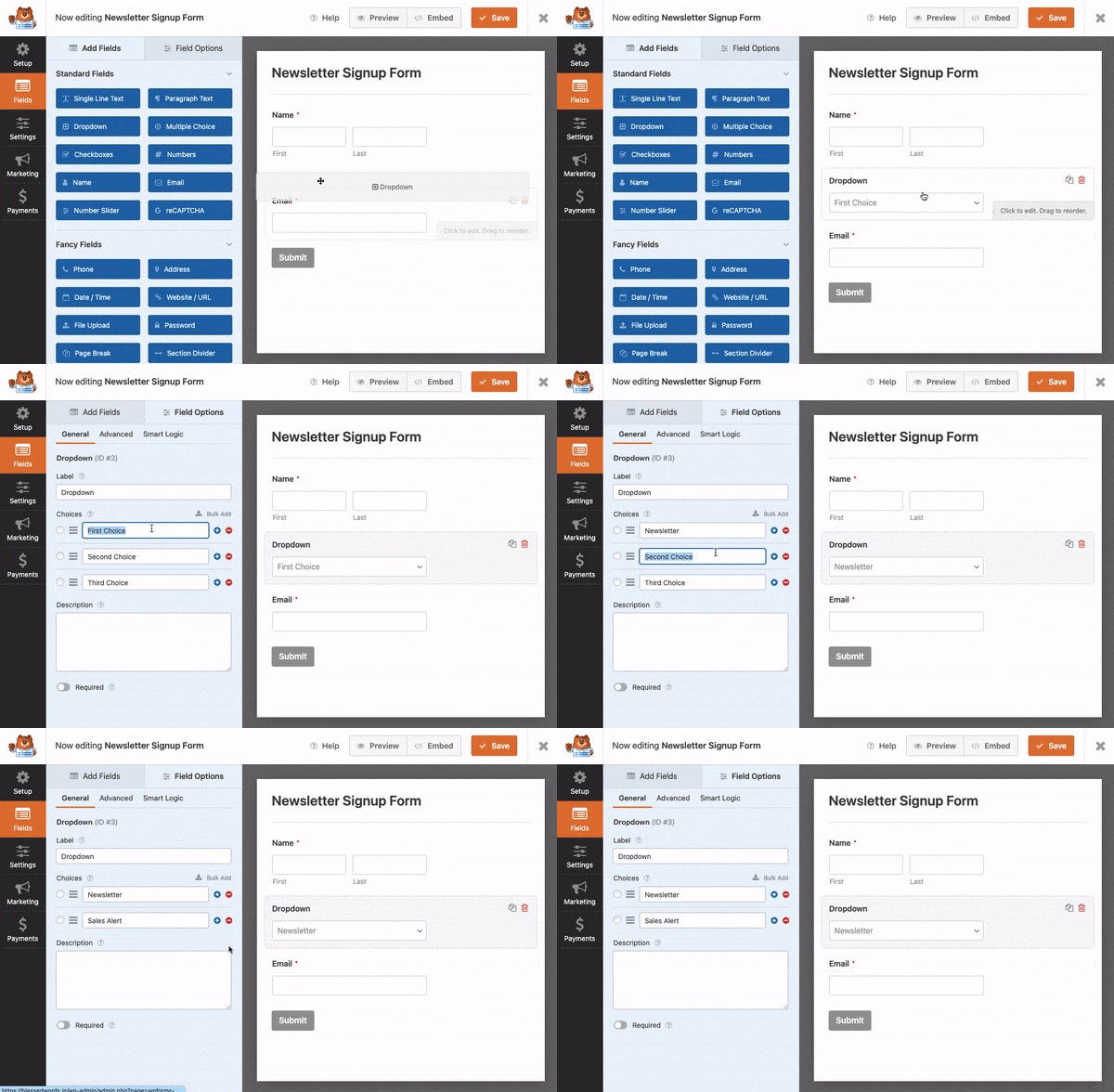
Here’s the thing: AI gets it about 90% right. That last 10%? Personalizing your form so it suits your brand. And it takes about 30 seconds.
But there’s one critical step: always review your calculator formula.
To do this, click on the field with the calculator. In my case, it is “Total Estimated Wedding Cost field.”Then, on the left sidebar, go to Field Options and select the Advanced tab.
You should see the Enable Calculation toggle already automatically switched on. Below that sits your formula. Look at it. Does the math make sense?
In my wedding calculator, the formula shows: {field_6} * {field_7} + {field_8}
That translates to: Guest Count (field 6) × Catering Cost (field 7) + Venue Cost (field 8).
Perfect. That’s exactly the math I asked for.
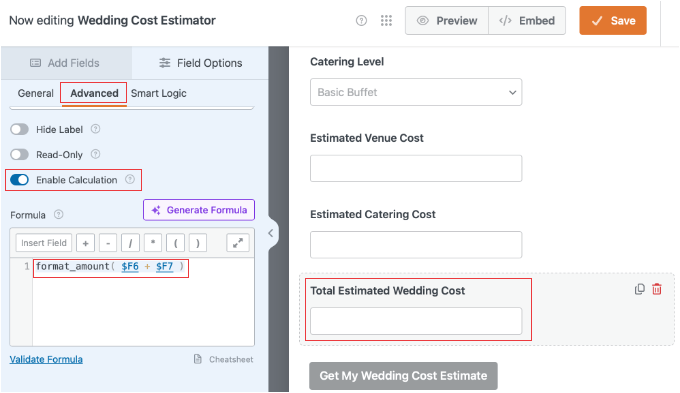
If you see something wrong (like it added instead of multiplied), fix it here. Click the Cheatsheet button to see which field IDs correspond to which fields.
This formula review catches the mistakes that would lead to the wrong price estimates, which could damage your brand, or worse, bring friction with your clients.
Step 5: Embed Your Calculator on Your Site
Your AI calculator is ready. Great! It’s time to add it to your website. All you have to do is click the Embed button at the top right of the screen.
You’ll see a popup with embedding options:
- Select Existing Page: Add the calculator to a page you’ve already created
- Create New Page: WPForms creates a new page and adds the calculator automatically
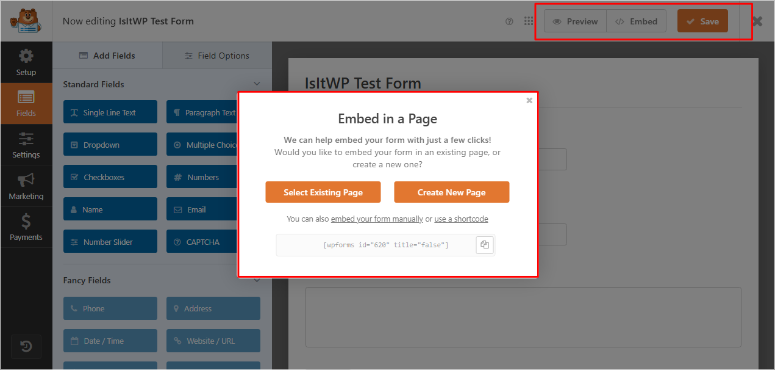
Both work great depending on the situation. But if you want more control over where the calculator appears, you have two other methods:
Method 1: Use a shortcode. Copy the shortcode shown in the popup and paste it anywhere on your site. Works in posts, pages, and widgets.
Method 2: Use the WPForms block. Open the page or post editor, add a new block, search for “WPForms,” and select your calculator from the dropdown.
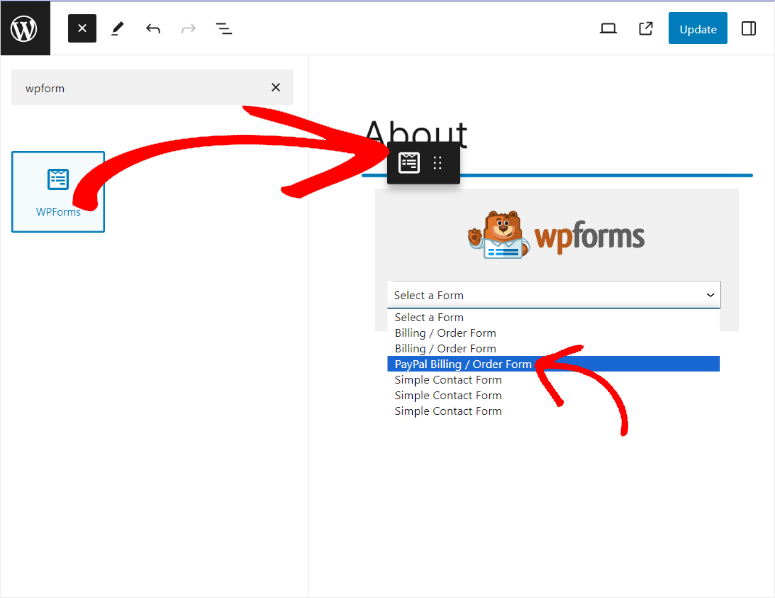
Pick whichever method fits your workflow.
That’s it. Your AI-powered calculator is live.
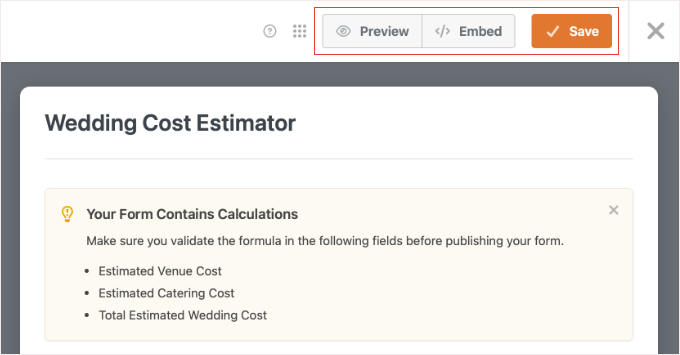
Visitors can now select venue options, enter guest counts, choose catering levels, and see instant cost calculations. No page reloads required.
The entire process from “Add New Form” to published calculator? Under 10 minutes.
If you’re building other types of forms like multi-page surveys or opt-in forms, WPForms handles those the same way. The AI adapts to whatever you describe.
Now, let’s look at how to build an AI form with calculators using Formidable Forms.
Method 2: Formidable Forms (Advanced AI Logic & Custom Calculations)
Formidable Forms takes a different approach to AI calculators.
Where WPForms focuses on simplicity, Formidable Forms excels at giving you more control over calculator logic.
The plugin has always been the go-to choice for advanced forms that want features like conditional logic, multi-step forms with calculations at each stage, and forms that connect to external databases.
Recently, Formidable added AI features.
But instead of AI building the entire calculator for you (like WPForms), Formidable’s AI acts more like a smart field that processes user inputs and returns calculated recommendations.
Let me show you how it works.
Step 1: Install Formidable Forms Pro and the AI Addon
Just like WPForms, you’ll need a Pro version of Formidable Forms. The free version doesn’t include the AI features.
After purchasing, log in to your Formidable Forms account and grab your license key.
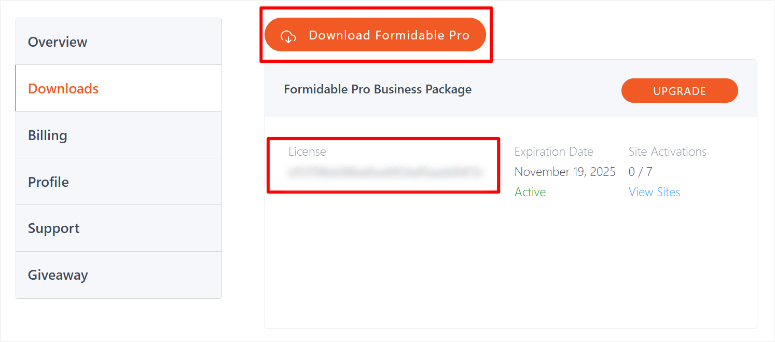
Then, in your WordPress dashboard, install the forms plugin like you would any other. If you face issues, check out my tutorial on how to install plugins.
Once installed, you need to use the “License Key” you copied earlier to activate it.
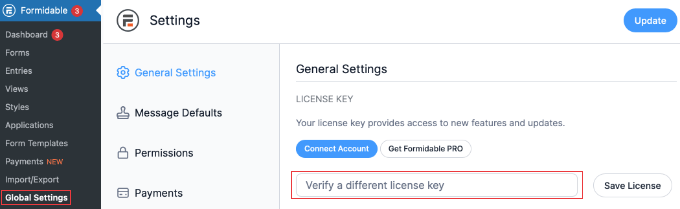
To do this, go to Formidable » Global Settings and scroll down to the “License Key” section. Here, paste your key and click “Save License.”
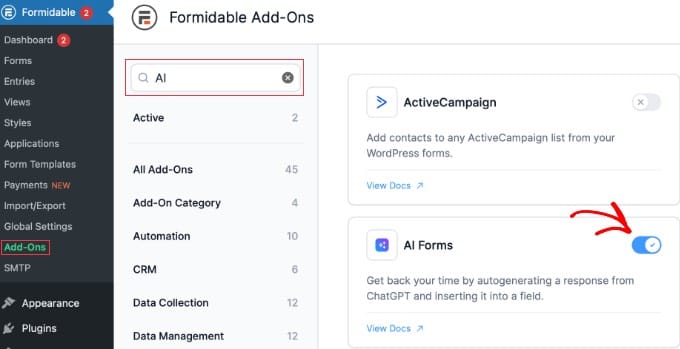
Next, activate the AI Forms addon by going to Formidable » Add-Ons and searching for “AI.”
You’ll see the AI Forms addon. Click the toggle switch to activate it.
Check out my Formidable Forms review to see how to properly install it and set up addons if you face any issues.
That’s it for setup. Now, let’s build a calculator
Step 2: Generate Your Calculator Framework with AI
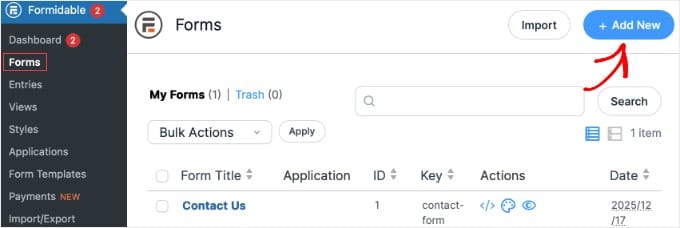
Go to Formidable » Forms and click the + Add New button.
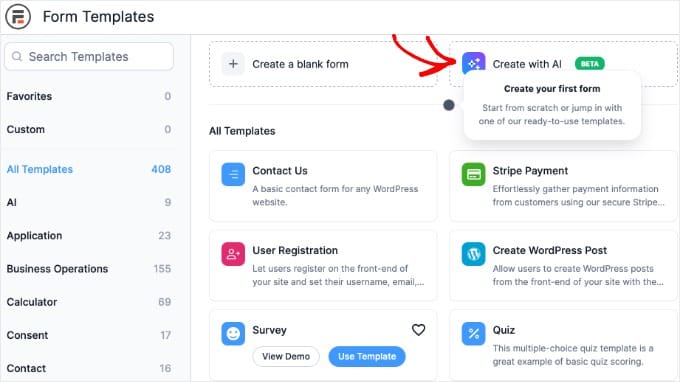
You’ll see the Form Templates screen with dozens of options to choose from. Instead of picking a template, click the Create with AI button in the top right.
A popup appears called “Create form with AI.”
Here’s where Formidable differs from WPForms. This AI popup creates the basic form structure (the input fields), but it won’t automatically build the calculation logic yet. That comes in Step 3.
At the top, you’ll see a dropdown for AI model. Choose from ChatGPT 3.5 Turbo, ChatGPT 4, or Gemini. I recommend picking the latest version of whichever model you prefer for better accuracy.
Then, in the text box, describe your form and be specific about what fields you need.
For my mortgage calculator example, I used this prompt:
Prompt: “Create a Mortgage Calculator form. Ask for Loan Amount, Interest Rate, and Loan Term.”
Click Continue.
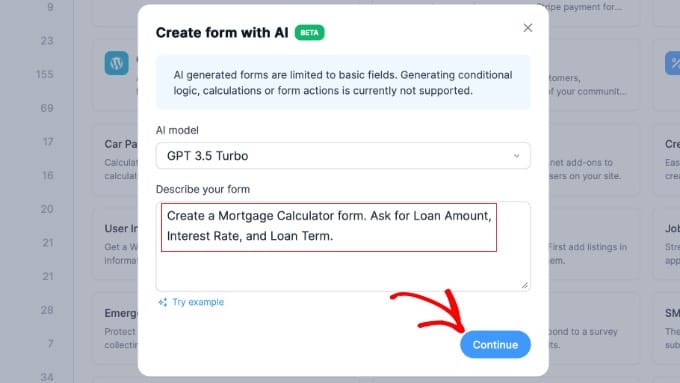
This creates the skeleton. The real magic happens in the next step when we add the AI field that does the actual calculating and provides recommendations.
Step 3: Add the AI Field for Smart Calculations
Now you’re in the form builder. You’ll see your three fields: Loan Amount, Interest Rate, and Loan Term. Time to add the AI field that performs calculations and gives personalized responses.
In the left sidebar under Add Fields, click on AI (it’s in the Advanced Fields section).
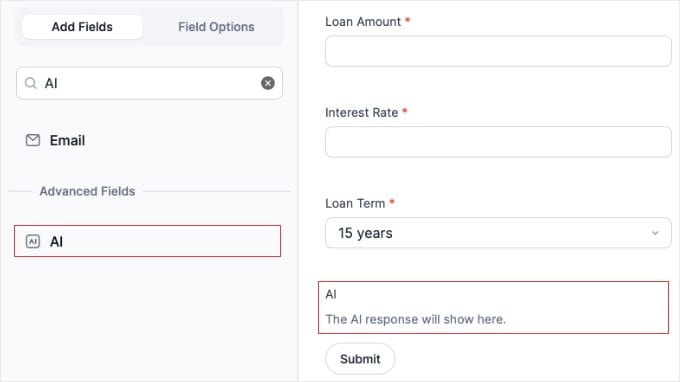
After this, the AI field gets added to your form. To proceed, click on it to configure the settings.
You’ll see three main configuration areas:
1. Hide Response (checkbox): Check this if you want to hide the AI response field label. Usually you leave this unchecked so visitors see where the calculation appears.
2. Guide Prompt: This tells the AI how to behave. Think of it as instructions you’d give a human calculator.
3. AI Question: This is where you include the user’s form inputs using Field IDs.
Here’s where Formidable gets powerful but slightly technical.
To include user answers in your AI prompt, you need to use Field IDs. These look like [100], [101], [102], etc.
How do you find your Field IDs?
Click the three dots (…) button in the bottom-right corner of the AI Question text area. You’ll see a dropdown showing all your form fields with their IDs.
For example:
- Loan Amount might be
[100] - Interest Rate might be
[101] - Loan Term might be
[102]
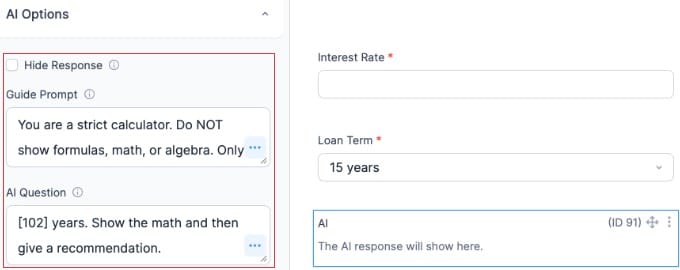
Now here’s the prompt I used for my mortgage calculator:
Guide Prompt:
You are a strict calculator. Do NOT show formulas, math, or algebra. Only show the final monthly payment amount clearly.
AI Question:
Calculate the monthly payment for a loan of [100] with an interest rate of [101]% over [102] years. Show the math step-by-step, then give a recommendation on whether this is a good loan amount for the borrower. Format the answer as a bulleted list to make it easier to read.
Replace [100], [101], and [102] with your actual Field IDs.
The AI will take whatever the user enters in those fields and calculate the monthly mortgage payment. Plus, it provides personalized advice.
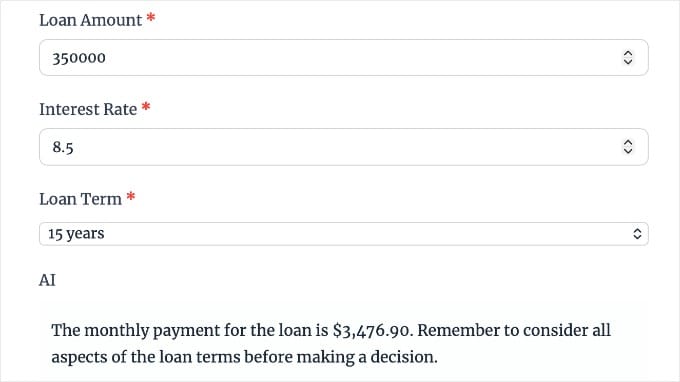
See the difference from WPForms? This doesn’t just multiply numbers. The AI actually thinks about the inputs and responds with helpful context. But the downside is that Formidable Forms needs technical understanding.
You can customize the Guide Prompt to change how the AI formats its answer. For example, if you want bullet points, add that to the prompt.
Want it to sound encouraging? Tell the AI to be positive. Want warnings about high interest rates? Specify that.
This flexibility is why Formidable Forms works better for advanced calculators like job application forms with scoring or quote generators that need to explain pricing tiers.
Step 4: Configure Form Settings for Instant Results
Your calculator works, but there’s one setting that makes it feel professional: instant results without page reloads.
To add this, click on the Settings tab at the top of the form builder, then go to Settings » General.
Finally, scroll down to the AJAX section.
Here, make sure the Load and save form builder page with AJAX checkbox is checked.
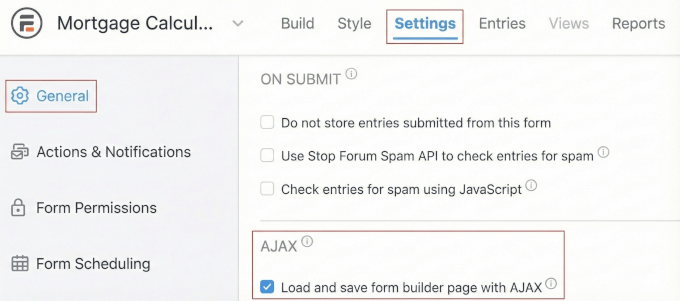
This prevents the entire page from reloading every time someone clicks the Calculate button. As a result, the AI response appears instantly without any disruption.
This helps users stay on the same page while the result just appears below the form. This gives a cleaner experience.
Second important setting: Scroll back up to the ON SUBMIT section in the same General settings tab.
Here, verify that Do not store entries submitted from this form is UNCHECKED.
Why does this matter?
If this is a lead generation tool, which most calculators are, you want to save every calculation. That way, you can follow up with people who used your mortgage calculator, BMI calculator, wedding estimator, or service quote tool.
Those saved entries become your leads. Don’t throw them away by checking that box.
For calculators meant purely for visitor self-service with no lead capture, you can check it. But most of the time, leave it unchecked.
Step 5: Set Up Actions & Display Results
Next, click on the Actions & Notifications tab in the left sidebar.
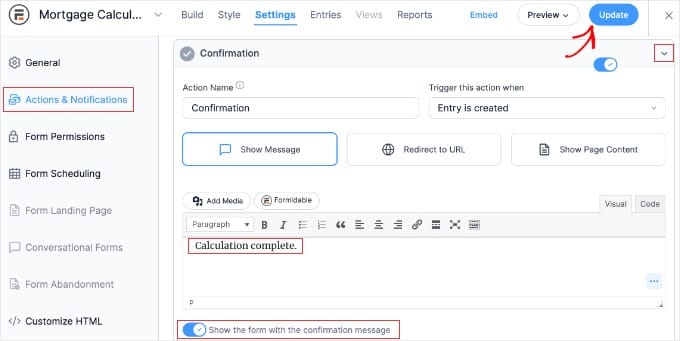
This is where you control what happens after someone submits your calculator form.
By default, Formidable Forms shows a “Confirmation” message. You can customize this to say “Calculation complete” or whatever makes sense for your calculator.
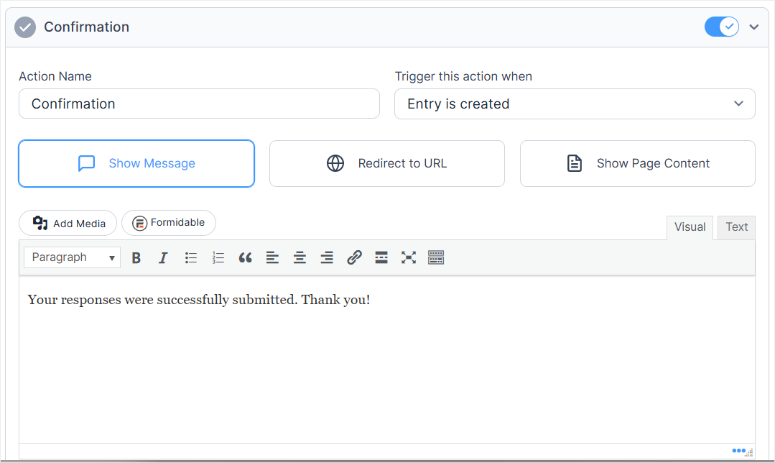
Here’s what I recommend:
- Keep the Show Message option selected
- Change the message to something relevant like “Here’s your mortgage calculation:”
- Toggle on Show the form with the confirmation message if you want the form to stay visible above the results
This setup works well because visitors see their inputs alongside the AI’s calculated response and recommendations.
You can also set up email notifications here if you want to receive an alert every time someone uses your calculator. Helpful for lead follow-up.
For event registration calculators with payment collection, you’d add additional actions here like payment processing or email confirmations.
Step 6: Publish Your AI Calculator
Your Formidable Forms calculator is ready. Click the Update button at the top right to save everything. Then the “Embed” button next to it.
This opens a popup that allows you to add the AI form to an existing page, a new page or with a shortcode.
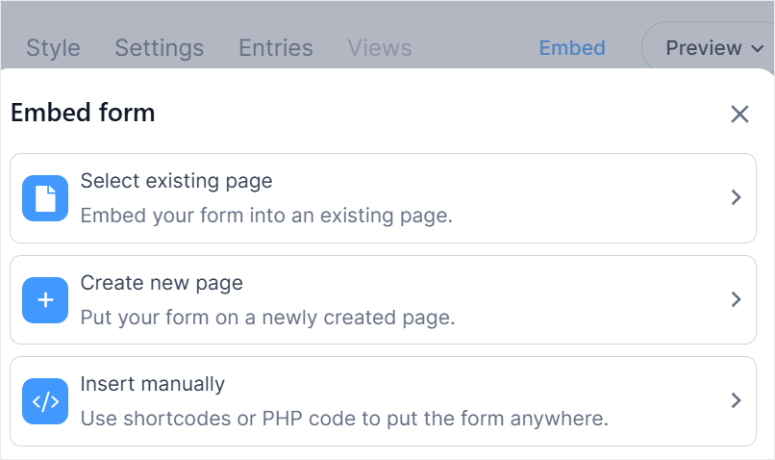
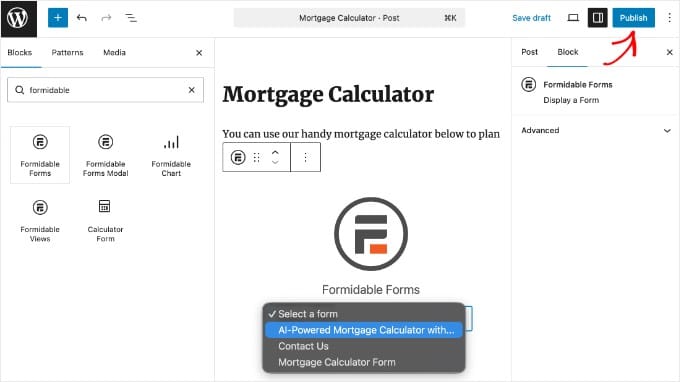
You can choose the most convenient method for you. I added it to an existing page. To do this, open any WordPress post or page editor, add a new block, and search for “Formidable.”
Select the Formidable Forms block, then choose your calculator form from the dropdown menu.
You’ll see a dropdown that shows “AI-Powered Mortgage Calculator with…” (or whatever you named your form). Click it.
Publish your page.
That’s it. Your AI calculator is live.
Users enter their loan amount, interest rate, and loan term. Click submit. The AI calculates their monthly payment, shows the math, and provides personalized recommendations. All without leaving the page.
The entire process from creating the form to publishing? About 15 minutes.
If you’re building other advanced forms like custom booking systems with availability checking, Formidable Forms gives you the same flexibility with AI assistance.
Now that you understand how to build AI-powered calculators with both WPForms and Formidable Forms, let me help you pick one that works for you.
WPForms vs Formidable Forms: Which AI Calculator Builder Should You Use?
I tested both tools side by side with three different calculators: wedding cost estimator, mortgage calculator, and a service quote generator.
Here’s what that looks practically:
With WPForms, the AI generates calculator fields with pre-set formulas. The calculator runs purely on math (Guest Count × Catering Cost + Venue).
With Formidable Forms, you add an “AI field” that thinks about the user’s inputs and responds with text.
After this, it offers recommendations like “Based on your loan amount and interest rate, here’s your monthly payment AND here’s why you should consider a shorter loan term.”
For simple calculators or beginner-friendly approaches? WPForms wins on speed.
For advanced calculators that need to explain the math AND give personalized advice? Formidable Forms is unbeatable.
Here’s a comparison table to look at both side by side:
| Feature | WPForms AI | Formidable Forms AI |
|---|---|---|
| Ease of Use | Easier - AI builds everything | Requires AI field setup |
| Setup Time | 5-10 minutes | 10-15 minutes |
| Formula Generation | Automatic from prompt | Manual with Field IDs |
| AI Responses | Numbers only | Full text with recommendations |
| Best For | Simple calculators (cost, quotes) | Complex calculators (mortgages, scoring) |
| Customization | Limited to drag-and-drop fields | Full prompt control over AI behavior |
| Learning Curve | 5 minutes | 15 minutes |
| Lead Capture | Built-in with form fields | Built-in with form fields |
| Price | $299.50/ year (Elite Plan) | $199.50/year (Business plan) |
In a nutshell use:
WPForms if:
- You need a calculator built in under 10 minutes
- You want pure math calculations (A × B + C = Result)
- You’re comfortable with drag-and-drop builders
- You need multiple form types beyond just calculators
Formidable Forms if:
- You need AI to explain the math and give recommendations
- You want full control over how AI formats responses
- You’re building calculators that need conditional logic
- You need advanced form features for complex workflows
Both tools are excellent. Your choice depends on whether you need speed (WPForms) or sophistication (Formidable Forms).
That’s it for this tutorial. If anything is unclear, check out the commonly asked questions below.
FAQs: AI-Powered Calculators in WordPress
Do I need coding skills to build AI calculators in WordPress?
No coding required. Both WPForms and Formidable Forms let you build calculators using plain English prompts. You type what you want calculated, and the AI generates the form. The only “technical” part is reviewing the formula (WPForms) or inserting Field IDs (Formidable Forms), which takes about 30 seconds once you know where to look.
Which WordPress plan do I need for AI calculator forms?
You need the premium version of your chosen plugin. WPForms requires the Elite plan for calculator features. Formidable Forms requires the Business plan for AI functionality. Neither works with free versions or lower-tier paid plans.
Can I customize the AI-generated formulas after they’re created?
Yes, completely. WPForms lets you edit formulas directly in the Advanced settings of any calculated field. Formidable Forms lets you modify the AI prompts to change how calculations are performed and displayed. Both plugins also offer drag-and-drop editing for adding or removing form fields after AI generation.
How accurate are AI-generated calculator formulas?
About 90% accurate in my testing. The AI understands basic math operations (addition, multiplication, percentages) reliably. Where it occasionally fails: complex conditional formulas and unusual calculation sequences. Always review the generated formula before publishing.
Can I create mortgage calculators, quote calculators, and cost estimators all with AI?
Absolutely. Both WPForms and Formidable Forms handle any calculator type that involves math on user inputs. I’ve built wedding cost estimators, mortgage payment calculators, service quote generators, project pricing tools, and ROI calculators. The AI adapts to whatever calculation logic you describe in your prompt.
What’s the main difference between WPForms AI and Formidable Forms AI?
WPForms AI generates complete calculators with automatic formulas. You get pure math results. Formidable Forms AI adds an intelligent field that processes inputs and returns text explanations alongside calculations. Choose WPForms for speed and simplicity. Choose Formidable Forms when you need the calculator to explain its work and provide recommendations.
Final Verdict: Should You Use AI to Build WordPress Calculators?
Yes, if you value speed over spending hours debugging formulas in spreadsheets.
I used to spend 45 minutes building calculators manually. Now I spend 5-10 minutes with AI doing the heavy lifting.
Apart from saving you time, they can help you create complex lead magnets that would have otherwise needed help building. As an engagement tool, calculators work just as well as interactive quizzes.
Both beat manual coding by 90%. Your visitors get instant calculations while you capture leads automatically. No developer required.
If you’re serious about lead generation and growing your email list, either calculator tool will serve you well. Pick the one that matches your complexity needs and start building.
Resource Hub: More Form Building Tutorials
Want to expand beyond calculators? These tutorials show you how to build other types of forms that convert visitors into leads:
- How to Create a Multi-Page Form in WordPress – Break long forms into multiple steps to reduce abandonment and increase completion rates.
- How To Create an Online Order Form in WordPress – Turn your calculator into an ordering system that accepts payments and processes purchases.
- Create a Typeform Style Form in WordPress – Build modern one-question-at-a-time forms that feel more like conversations than traditional web forms.
- How to Easily Create a Survey in WordPress – Collect feedback and data from visitors using survey forms with conditional logic and rating scales.
- How to Create a File Upload Form in WordPress – Let visitors upload documents, images, or files alongside their form submissions for job applications or project requests.
- Contact Form 7 vs. WPForms Lite: What I Discovered After Testing – Compare free form plugin options if you’re not ready to invest in premium calculator features yet.
These articles will help you learn not only to communicate with your users better but also to capture better quality leads.
Start by creating calculators. Then evolve and create conversational forms and surveys to understand your users better.
Is there a tool that can create AI-powered forms better than Formidable Forms and WPForms? Let me know below in the comments.

Comments Leave a Reply