
Ricordo ancora di aver fissato il mio pannello di Google Analytics, frustrato.
La mia landing page aveva un traffico solido. Ma quasi nessuno cliccava sul pulsante della call-to-action. Sapevo che qualcosa non andava, ma analytics mostrava solo numeri. Non mi mostrava dove le persone stavano effettivamente cliccando.
Fu allora che scoprii le heatmap. Entro pochi minuti dall'installazione di una, vidi il problema. I visitatori cliccavano su un'immagine che sembrava un pulsante ma non era cliccabile.
Una semplice modifica e le conversioni della landing page sono migliorate.
Se ti sei mai chiesto dove i visitatori cliccano, scorrono o si bloccano sul tuo sito WordPress, i plugin per heatmap ti danno risposte che le normali analytics non possono fornire.
In questo articolo, analizzerò i 6 migliori plugin per heatmap che ti aiuteranno a capire meglio i tuoi utenti e a generare più conversioni.
Punti chiave:
- Testo e classifico 6 plugin per heatmap per siti WordPress
- Vedrai la mia esperienza diretta con le funzionalità di ogni strumento
- Condivido pro e contro onesti da test reali
- Scoprirai quali opzioni gratuite offrono davvero buoni risultati
- Ti mostro quale plugin si adatta alle tue esigenze specifiche
Tabella riassuntiva rapida
Ora, capisco che potresti non avere il tempo di leggere l'intero elenco. Quindi, ecco la tabella di confronto che mostra tutti e 6 i plugin per heatmap a colpo d'occhio:
| Plugin | Versione Gratuita | Migliore per | Valutazione | Facilità d'uso | Prezzo di partenza |
|---|---|---|---|---|---|
| 🥇 UserFeedback | ❌ | Proprietà dei dati nativa di WordPress | Molto Facile | 149,50 $/anno (Piano Elite) | |
| 🥈 Microsoft Clarity | ✅ | Principianti attenti al budget | Molto Facile | Gratuito per sempre | |
| 🥉 Crazy Egg | ❌ | Analisi delle fonti di traffico | Facile | 29 €/mese | |
| 4. Mouseflow | ✅ | Siti web con molti moduli | Facile | 25 $/mese | |
| 5. Hotjar | ✅ | Piattaforma di ricerca all-in-one | Facile | 40 $/mese | |
| 6. Lucky Orange | ✅ | Monitoraggio dei visitatori in tempo reale | Molto Facile | 32 $/mese |
Inoltre, ecco un indice se si desidera passare a qualsiasi plugin heatmap nel mio elenco.
Detto questo, iniziamo!
Come testo gli strumenti Heatmap per WordPress
La scelta di un plugin heatmap non dovrebbe essere un azzardo. Testo ogni strumento su siti WordPress reali per vedere come si comportano in condizioni reali.
Ecco esattamente cosa valuto:👇
- Facilità di configurazione: Cronometro quanto tempo richiede l'installazione. Verifico se è richiesta la codifica e testo se il plugin funziona senza problemi con WordPress.
- Chiarezza dell'interfaccia: Revisiono la dashboard per vedere se è adatta ai principianti. Verifico se le visualizzazioni heatmap hanno senso senza un tutorial.
- Funzionalità incluse: Testo tutti i tipi di heatmap disponibili. Verifico la presenza di registrazioni di sessioni e strumenti aggiuntivi e annoto cosa è gratuito rispetto a cosa è a pagamento.
- Impatto sulle prestazioni: Eseguo test GTmetrix prima e dopo l'installazione. Monitoro i tempi di caricamento delle pagine e verifico se il plugin rallenta il mio sito.
- Rapporto qualità-prezzo: Confronto i piani gratuiti e i loro limiti e revisiono i prezzi rispetto alle funzionalità offerte. Poi cerco costi nascosti o addebiti a sorpresa.
- Qualità del supporto: Leggo la documentazione. Poi, testo i tempi di risposta quando sorgono problemi e valuto quanto sia utile il supporto per i principianti.
L'aspetto chiave nei miei test è la mia esperienza personale. Ho installato ogni plugin sul sito di prova e ho lasciato che raccogliessero dati da visitatori reali. Questo ti offre una visione onesta di ciò che funziona davvero.
Perché fidarsi di IsItWP?
Su IsItWP, il mio team e io siamo la risorsa di riferimento per la community di WordPress dal 2009, aiutando oltre 2 milioni di utenti a scegliere strumenti migliori.
A differenza dei siti di recensioni che non utilizzano mai i prodotti WordPress, installiamo questi plugin su siti reali, li testiamo con traffico effettivo e forniamo consulenza continua su WordPress.
Ho testato personalmente ogni plugin heatmap in questa guida, ho osservato i dati che raccolgono, ho esaminato i report e ho affrontato le stranezze.
Stai ricevendo un feedback onesto da qualcuno che usa effettivamente questi strumenti, non solo che ne legge.
I migliori plugin Heatmap per WordPress che ho testato
Ora che comprendi il mio processo di test e cosa stavo cercando quando ho compilato questo elenco dei migliori plugin heatmap per WordPress, passiamo all'elenco.
1. UserFeedback ⭐⭐⭐⭐⭐
Oltre 300.000 installazioni attive | Ideale per: Puristi di WordPress che desiderano un'integrazione nativa

Raccomando UserFeedback a qualsiasi cliente che non voglia inviare dati a piattaforme esterne. Questa è la mia scelta migliore per le heatmap perché è facile da usare e mantiene i dati facilmente disponibili all'interno di WordPress.
La realtà è che UserFeedback è l'unico plugin heatmap che funziona interamente all'interno della tua dashboard di WordPress.
Di conseguenza, non c'è bisogno di creare account su piattaforme esterne o passare da uno strumento all'altro.
Tutto, dall'impostazione alla visualizzazione dei report, avviene nello stesso posto in cui gestisci i tuoi contenuti. Per i principianti che trovano persino i migliori strumenti di analisi opprimenti, questa semplicità fa una reale differenza.
La mia esperienza
L'impostazione ha richiesto circa 5 minuti dall'inizio alla fine. Ho installato il plugin, inserito la chiave di licenza e attivato l'addon Heatmaps senza lasciare WordPress.
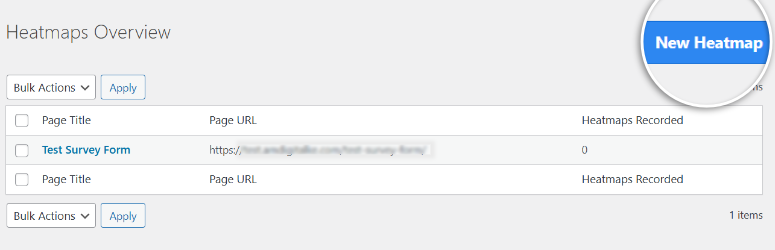
La mappa dei clic mi ha mostrato dove i visitatori interagivano di più sulla homepage e ho utilizzato il filtro per dispositivo per confrontare come gli utenti mobili si comportavano diversamente dai visitatori desktop.
Oltre a ciò, la mappa di scorrimento ha rivelato che la maggior parte dei visitatori smetteva di leggere a metà pagina, il che ci ha aiutato a ristrutturare i contenuti.
Tutti i dati vengono visualizzati come sovrapposizioni colorate direttamente sugli screenshot delle pagine, rendendo i pattern facili da individuare senza bisogno di formazione sull'analisi.

Cosa spicca
Come accennato, il più grande vantaggio delle heatmap di UserFeedback è la proprietà dei dati.
Tutto rimane sul tuo server invece di essere inviato a piattaforme di terze parti, il che soddisfa rigorosi requisiti di privacy.
Ho anche testato la funzionalità di sondaggio insieme ai dati delle heatmap per ottenere un quadro completo del comportamento e del feedback dei visitatori in un unico posto.
►Pro
- Unica soluzione nativa per WordPress; tutto rimane nella tua dashboard
- Piena proprietà dei dati con conformità GDPR integrata
- Nessuna codifica richiesta con un semplice processo di configurazione
- Script leggero che non rallenterà il tuo sito
►Contro
- Heatmap bloccate dietro il piano Elite più costoso
- Limitazione solo per WordPress per aziende multi-piattaforma
Il mio verdetto: UserFeedback è l'ideale per i proprietari di siti WordPress che desiderano un'integrazione nativa e un controllo completo dei dati. Scegli questo quando la privacy e gli strumenti nativi per WordPress contano di più.
Dai un'occhiata alla mia recensione di UserFeedback.
Prezzi: Heatmap disponibili nel piano Elite a partire da $149,50/anno
[Inizia con UserFeedback Elite Qui →]
2. Microsoft Clarity ⭐⭐⭐⭐⭐
Oltre 100 milioni di utenti mensili | Ideale per: Principianti attenti al budget e siti ad alto traffico
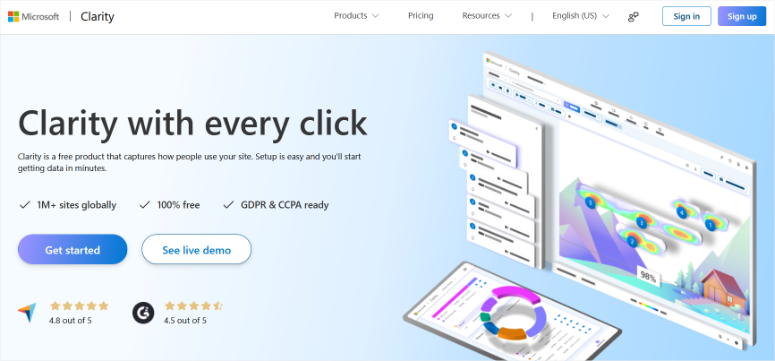
Ho testato Microsoft Clarity, aspettandomi di trovare limiti nascosti o aggiornamenti forzati a un certo punto. Dopo averlo utilizzato su più siti di clienti per diversi mesi, non ho ancora trovato l'inghippo.
Microsoft ha lanciato Clarity nel 2020 come strumento di analisi comportamentale completamente gratuito, e lo è rimasto.
Non ci sono piani a pagamento, limiti di sessione o restrizioni sul numero di siti web che puoi monitorare.
Il fatto che provenga da Microsoft significa che è ben mantenuto e regolarmente aggiornato. Questo mi dà la sicurezza che non scomparirà improvvisamente come fanno alcuni strumenti gratuiti.
La mia esperienza
L'installazione del plugin WordPress ha richiesto circa 3 minuti. Ci sono diversi metodi che puoi utilizzare per iniziare, tra cui un plugin WordPress, Google Tag Manager, manualmente tramite un codice di tracciamento e così via.
Preferisco usare Google Tag Manager perché è una soluzione con un clic. Con questo metodo, tutto ciò che devi fare è registrarti sulla home page di Clarity e selezionare "Inizia" nella scheda Google Tag Manager.
Una volta connessi, i dati hanno iniziato ad apparire entro poche ore, il che è stato più veloce di quanto mi aspettassi.
La dashboard mostra quattro tipi di heatmap: mappe di clic, mappe di scorrimento, mappe di aree e mappe di conversioni.
Ho usato prima la mappa di clic per vedere dove i visitatori interagivano in una pagina di destinazione, poi ho controllato la mappa di scorrimento per scoprire dove le persone smettevano di leggere.
Oltre a ciò, il rilevamento dei rage click ha segnalato punti in cui i visitatori cliccavano ripetutamente, il che mi ha indicato un pulsante del modulo di contatto non funzionante.
Cosa spicca
Le registrazioni delle sessioni abbinate alle heatmap ti raccontano l'intera storia. Ho potuto osservare come i visitatori navigavano effettivamente attraverso le pagine, non solo vedere dove cliccavano.
La mia funzionalità preferita è come l'IA di Clarity Copilot spiega i pattern in linguaggio semplice, il che aiuta quando non sei sicuro di cosa significhino i dati.
Per un approccio ancora più adatto ai principianti, l'estensione Chrome ti consente di visualizzare le sovrapposizioni delle heatmap direttamente sul tuo sito live. Questo rende più facile individuare i problemi senza passare da una scheda all'altra.
Inoltre, l'integrazione con Google Analytics 4 collega le riproduzioni delle sessioni direttamente alla tua analisi esistente. Così puoi vedere il comportamento dietro i tuoi dati GA.
►Pro
- Completamente gratuito per sempre con tutto illimitato
- Facile configurazione di WordPress con plugin dedicato
- L'IA spiega i pattern in linguaggio semplice per i principianti
- Nessun impatto sulle prestazioni sulla velocità del tuo sito
►Contro
- Solo 30 giorni di conservazione dei dati per le registrazioni
- Nessun sondaggio o widget di feedback disponibile
- Supporto solo via email senza opzione di chat dal vivo
- Non può essere utilizzato su siti che si rivolgono a utenti di età inferiore ai 18 anni
Il mio verdetto: Il miglior valore negli strumenti heatmap. Se hai bisogno solo di heatmap e registrazioni di sessioni senza sondaggi, Clarity offre tutto gratuitamente. Perfetto per principianti o siti ad alto traffico che vogliono evitare prezzi per sessione.
Prezzi: Completamente gratuito per sempre.
[Inizia qui con Microsoft Clarity →]
3. Crazy Egg ⭐⭐⭐⭐
Oltre 436.000 siti web | Ideale per: Analisi delle fonti di traffico e test A/B

Ho usato Crazy Egg fin dall'inizio della mia carriera su WordPress, e mi ha insegnato qualcosa di importante sul traffico. Non tutti i visitatori si comportano allo stesso modo.
Crazy Egg esiste dal 2005, il che lo rende uno degli strumenti heatmap originali.
I fondatori, Neil Patel e Hiten Shah, lo hanno creato specificamente per l'ottimizzazione delle conversioni. Ciò che lo differenzia dagli strumenti più recenti è la funzionalità del report Confetti.
La mia esperienza
Come con Microsoft Clarity, Crazy Egg offre anche diversi metodi di configurazione. Per me, usare il plugin WordPress è la soluzione più semplice.
Dopo di che, ho incollato lo script di tracciamento dalla mia dashboard di Crazy Egg nel plugin WordPress. Per assicurarmi che tutto funzionasse correttamente e si caricasse bene, ho svuotato la cache.
Sebbene Crazy Egg offra heatmap automatiche facili da configurare, sono limitate. Non vedrai Scrollmap, Report Confetti e altre analisi avanzate. Di conseguenza, preferisco l'approccio manuale.
Apprezzo particolarmente i Report Confetti. Segmenta i dati dei tuoi clic in base a diverse fonti di traffico. Ciò significa che puoi vedere come i visitatori provenienti da Google si comportano in modo diverso dai visitatori provenienti da social media o campagne email.
Quindi, per visualizzare questi risultati, imposto manualmente Snapshot per ogni pagina che voglio monitorare, il che richiede qualche minuto in più.
Ho creato Snapshot per le mie principali landing page e ho atteso che i dati fossero sufficienti per generare heatmap utili.
La mappa dei clic mi ha mostrato le aree di coinvolgimento, ma il report Confetti ha rivelato qualcosa di più interessante.
I visitatori da Pinterest hanno cliccato sulle gallerie di immagini molto più dei visitatori da Google, che si sono concentrati invece sui pulsanti di invito all'azione.
Cosa spicca
La segmentazione delle fonti di traffico aiuta davvero nell'ottimizzazione delle conversioni. Ho utilizzato il report Overlay per vedere i conteggi esatti dei clic su ogni elemento, filtrati per referrer.
Questo mi ha mostrato che il traffico organico ha convertito meglio del traffico a pagamento su determinate pagine, il che ha aiutato a modificare la strategia pubblicitaria.
La funzionalità di A/B testing con l'editor visivo ti consente di creare varianti di pagina senza codice. Oltre a ciò, l'analisi AI interpreta automaticamente i tuoi pattern di heatmap e le registrazioni delle sessioni.
Ciò consente di risparmiare tempo quando si esaminano i dati di più pagine.
►Pro
- I report Confetti forniscono una segmentazione unica del traffico per fonte
- Il plugin WordPress rende l'installazione semplice e veloce
- Prova gratuita di 30 giorni con accesso completo alle funzionalità
- Analisi AI inclusa per interpretare i dati delle heatmap
►Contro
- È richiesta la creazione manuale di snapshot per il tracciamento avanzato delle heatmap
- L'A/B testing richiede il piano Plus, più costoso
- Solo fatturazione annuale, senza opzione di pagamento mensile
Il mio verdetto: Scegli Crazy Egg quando hai bisogno di capire come si comportano le diverse fonti di traffico sul tuo sito. I report Confetti sono veramente unici. Tuttavia, l'impostazione manuale degli snapshot e la fatturazione solo annuale potrebbero non essere adatte a tutti.
Prezzi: A partire da $29/mese. Prova gratuita di 30 giorni
4. Mouseflow ⭐⭐⭐⭐
7 tipi di heatmap | Ideale per: Siti con molti moduli e contenuti dinamici

Uso Mouseflow quando i moduli sono fondamentali per l'attività. L' analisi dei moduli mostra esattamente dove le persone smettono di compilare i tuoi moduli.
Mouseflow offre sette diversi tipi di heatmap, che è più di qualsiasi altro concorrente in questa lista.
Ciò che lo distingue davvero è il modo in cui le heatmap interattive funzionano su contenuti dinamici come menu a discesa, modali e popup. La maggior parte degli altri strumenti ha difficoltà con questi elementi o li perde del tutto.
La piattaforma genera automaticamente heatmap per tutte le tue pagine invece di richiedere un'impostazione manuale per ciascuna.
La mia esperienza
Puoi aggiungere direttamente il codice di tracciamento all'intestazione o al piè di pagina del tuo sito WordPress. Ma ciò richiede esperienza tecnica.
Se vuoi percorrere questa strada, ti consiglio di usare WPCode. Ti aiuta ad aggiungere il codice di tracciamento come semplice snippet.
Per i principianti, usa il plugin nativo di Mouseflow. L'installazione del plugin WordPress ha richiesto solo pochi minuti. Dopodiché, ho incollato il mio codice di tracciamento da Mouseflow e ha iniziato subito a raccogliere dati.
La generazione automatica ha significato che non ho avuto bisogno di configurare pagine individuali, il che ha fatto risparmiare molto tempo rispetto a strumenti che richiedono snapshot manuali.
Ho testato le mappe di clic prima sulle pagine standard, poi sono passato alle heatmap interattive sui menu a discesa per vedere se tracciavano effettivamente i clic all'interno di quegli elementi.
Lo hanno fatto, il che è stato impressionante dato che alcuni concorrenti mancano completamente di questa funzionalità.
Le mappe di scorrimento mi hanno mostrato dove i visitatori smettevano di leggere. E le heatmap di attenzione hanno combinato la profondità di scorrimento con il tempo trascorso per mostrare le aree che hanno mantenuto l'interesse più a lungo.
Cosa spicca
La funzionalità di analisi dei moduli scompone il comportamento campo per campo in un modo incredibilmente utile.
Ho potuto vedere esattamente quali campi del modulo causavano l'abbandono delle persone, quanto tempo trascorrevano su ciascun campo e quali compilavano e poi cancellavano.
Questo livello di dettaglio ha aiutato a identificare etichette confuse e campi non necessari che stavano uccidendo le conversioni.
Il rilevamento dell'attrito utilizza l'apprendimento automatico per assegnare automaticamente un punteggio alle sessioni in base a rage click, dead click e movimenti erratici.
Invece di guardare centinaia di registrazioni di sessioni, ho potuto filtrare solo i visitatori più frustrati e risolvere prima i loro problemi.
►Pro
- Sette tipi di heatmap; più varietà rispetto ai concorrenti di plugin per heatmap
- Generazione automatica di heatmap senza necessità di configurazione manuale
- Le heatmap interattive funzionano su contenuti dinamici e SPA
- Piano gratuito con 500 sessioni mensili disponibili
►Contro
- Piano entry limitato a 1 solo sito web
- Conservazione dei dati solo 1-3 mesi sui livelli inferiori
- Le heatmap di movimento funzionano solo su desktop
- Può diventare costoso per siti ad alto traffico
Il mio verdetto: La scelta migliore per siti con moduli importanti o contenuti dinamici che altri strumenti non rilevano. I sette tipi di heatmap e la generazione automatica funzionano bene senza aggiungere complessità. Scegli questo quando hai bisogno di analisi dei moduli oltre al tracciamento del comportamento.
Prezzi: Piano gratuito con 500 sessioni/mese; a pagamento a partire da $25/mese
5. Hotjar ⭐⭐⭐⭐
Oltre 1,1 milioni di siti web | Ideale per: Analisi del feedback e del comportamento tutto in uno

La maggior parte dei team di conversione con cui lavoro ha utilizzato Hotjar a un certo punto. Questo perché è uno dei migliori strumenti per collegare *ciò che* gli utenti fanno con *il perché* lo fanno.
Hotjar combina più strumenti di ricerca in un'unica piattaforma invece di concentrarsi solo sulle heatmap.
Ottieni heatmap, registrazioni di sessioni, sondaggi, widget di feedback e persino reclutamento per interviste utente, tutto sotto lo stesso tetto.
Ciò rende più facile comprendere il quadro completo del comportamento dell'utente piuttosto che mettere insieme dati da strumenti diversi.
Il piano gratuito è veramente generoso, offrendo heatmap illimitate e fino a 10.000 acquisizioni di registrazioni di sessioni al mese.
La mia esperienza
L'installazione del plugin per WordPress ha richiesto circa 5 minuti. Ho inserito il mio ID sito dalla dashboard di Hotjar e la raccolta dati è iniziata entro un'ora.
I quattro tipi di heatmap coprono bene le basi: mappe di clic, mappe di scorrimento, mappe di movimento e rilevamento dei clic frustrati.
Ho usato prima le mappe di clic per vedere le zone di coinvolgimento su una landing page, poi ho controllato le mappe di scorrimento per trovare dove i visitatori abbandonavano.
Il rilevamento dei clic frustrati ha evidenziato le aree in cui gli utenti cliccavano ripetutamente per frustrazione, il che mi ha indicato elementi non funzionanti.
Inoltre, le registrazioni delle sessioni mi hanno permesso di guardare i percorsi di navigazione effettivi. Mentre il Punteggio Frustrazione mi ha aiutato a dare priorità alle registrazioni da rivedere in base alle difficoltà degli utenti.
Cosa spicca
La funzione sondaggio con il generatore AI rende la raccolta di feedback molto più semplice. Ho creato un semplice sondaggio chiedendo perché i visitatori non completavano il checkout. Dopo questo, il riassunto AI ha compilato centinaia di risposte in temi chiave.
Mi piace come i widget di feedback ti permettono di raccogliere valutazioni su specifici elementi della pagina in tempo reale. Questo aiuta a convalidare rapidamente le modifiche.
Oltre a ciò, l'integrazione con Google Analytics 4 collega le riproduzioni delle sessioni direttamente alla tua dashboard di analisi esistente. In questo modo, puoi vedere il comportamento dietro i tuoi dati di conversione.
Puoi usarlo con la funzione di analisi del percorso per tracciare come i visitatori si muovono dall'ingresso all'uscita, mostrandoti i percorsi che portano alle conversioni rispetto a quelli che non lo fanno.
►Pro
- Generoso piano gratuito con heatmap illimitate incluse
- Piattaforma all-in-one con molteplici strumenti di ricerca
- Il plugin WordPress non richiede conoscenze di codifica
- Ampie integrazioni, tra cui Google Analytics e HubSpot
►Contro
- I limiti di sessione creano lacune sui siti ad alto traffico
- I costi aumentano rapidamente con maggiori esigenze di utilizzo
- Nessuna chat dal vivo; solo supporto tramite chatbot ed email
Il mio verdetto: La scelta equilibrata per i principianti che desiderano heatmap, registrazioni, sondaggi e feedback insieme. Il generoso piano gratuito ti permette di testare a fondo. Ideale quando hai bisogno di più metodi di ricerca che lavorano insieme, non solo di heatmap.
Prezzi: Piano gratuito con 10.000 registrazioni/mese; Growth a partire da $40/mese
6. Lucky Orange ⭐⭐⭐
Oltre 500.000 siti web | Ideale per: Monitoraggio in tempo reale e chat dal vivo combinati
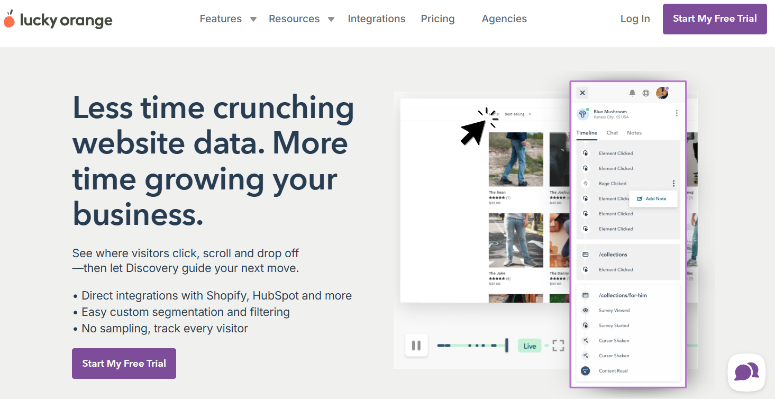
Lucky Orange trasforma la raccolta passiva di dati in una risoluzione attiva dei problemi. Lo fa attraverso la sua funzione Live View, che ti permette di osservare i visitatori navigare sul tuo sito in tempo reale.
Puoi vedere dove cliccano, dove si bloccano e persino avviare una conversazione in chat se noti qualcuno in difficoltà.
Questa capacità in tempo reale, combinata con il supporto della chat dal vivo, lo rende unico tra gli strumenti di heatmap.
La mia esperienza
Una volta registrato sul sito di Lucky Orange, mi è stato chiesto di aggiungere il mio sito web per ottenere il mio ID sito.
Dopo questo, ho installato il plugin di WordPress, l'ho attivato, ho incollato il mio Site ID dalla dashboard di Lucky Orange e il tracciamento è iniziato immediatamente.
La Live View mi ha mostrato visitatori attivi sul mio sito subito, il che è sembrato diverso da altri strumenti che mostrano solo dati storici.
Ho testato le heatmap dinamiche sui menu a discesa e sulle finestre modali per vedere se tracciavano le interazioni all'interno di quegli elementi.
Lo hanno fatto, il che mi ha aiutato a individuare problemi di navigazione che le heatmap standard non rilevano.
Le registrazioni delle sessioni mi hanno mostrato come le persone si muovevano attraverso moduli multi-step e l'analisi dei moduli ha suddiviso i tassi di completamento campo per campo.
Cosa spicca
L'integrazione della live chat con i dati comportamentali crea opportunità che altri strumenti di heatmap non offrono.
Ad esempio, ho osservato qualcuno avere difficoltà con il calcolatore di spedizione in Live View e ho avviato una chat per aiutarlo subito.
La parte migliore? La funzione di co-browsing ti permette persino di vedere il loro schermo durante la chat, il che accelera notevolmente la risoluzione dei problemi.
I funnel di conversione visualizzano dove le persone abbandonano i processi multi-step. Mentre la Discovery AI risponde alle domande sui tuoi dati in modo semplice che i principianti possono capire.
Gli annunci ti consentono di creare popup mirati in base al comportamento dei visitatori. Questo è utile per individuare la frustrazione, come quando qualcuno fa clic in modo aggressivo o trascorre troppo tempo su una pagina.
Questa piattaforma di heatmap include anche tutte le funzionalità su ogni piano, inclusa la versione gratuita, quindi non sei escluso da funzionalità importanti.
►Pro
- Tutte le funzionalità disponibili su ogni piano, inclusa la versione gratuita
- Live View per la capacità di monitoraggio dei visitatori in tempo reale
- Processo di configurazione semplice
- Le heatmap dinamiche funzionano su elementi interattivi
►Contro
- La versione gratuita offre solo 100 sessioni mensili
- Il piano entry è limitato a un solo sito web
- Nessuna capacità di A/B testing integrata
- Grande divario tra i limiti della versione gratuita e del piano Build
Il mio verdetto: Questo è l'unico strumento che ti permette di osservare e rispondere ai visitatori in tempo reale. Ottimo per siti eCommerce che desiderano analisi comportamentali con supporto live. Scegli questo quando gli insight in tempo reale contano tanto quanto i dati storici.
Prezzi: Gratuito con 100 sessioni/mese; il piano Build parte da $32/mese
[Inizia qui con Lucky Orange →]
Questo è tutto per la mia lista dei migliori plugin per heatmap di WordPress. Ma conoscere le migliori opzioni è solo metà della battaglia. Devi capire l'opzione di heatmap migliore che si adatta alle tue esigenze.
Come scegliere il plugin Heatmap giusto
Scegliere il plugin per heatmap giusto dipende dal tuo budget e da ciò di cui hai effettivamente bisogno dallo strumento.
Se hai un budget limitato:
- Microsoft Clarity ti offre tutto illimitato gratuitamente.
- Ottieni heatmap, registrazioni di sessioni e rilevamento dell'attrito senza spendere un centesimo.
- È perfetto per i principianti che vogliono imparare come funzionano le heatmap prima di impegnarsi in strumenti a pagamento.
Se hai bisogno di integrazione nativa solo per WordPress:
- UserFeedback mantiene tutti i tuoi dati sul tuo server invece di inviarli a piattaforme esterne.
- Ci si applica quando hai requisiti di privacy stringenti.
- O preferisci semplicemente conservare tutto all'interno del tuo cruscotto WordPress.
Se i moduli sono critici per la tua attivit commerciale:
- Mouseflow
analizza
i
moduli
e
mostra
esattamente
dove
gli
utenti
abbandonano
la
compilazione.
- La distribuzione campo per campo rivela quali domande confondono le persone o quali campi abbandonano pi spesso.
Se desideri strumenti di ricerca tutto-in-uno:
- Hotjar
combina
heatmap,
registrazioni,
sondaggi
e
widget
di
feedback
in
un'unica
piattaforma.
- Puoi vedere cosa fanno gli utenti e chiedere loro perch lo fanno, tutto senza passare da uno strumento all'altro.
Se hai bisogno di monitoraggio in tempo reale:
- Lucky Orange
ticon
permette
di
guardare
i
visitatori
nanigare
il
tuo
sito
in
diretta
e
avviare
conversazioni
di
chat
quando
individui
qualcuno
in
difficolt
.
- Ci si applica particolarmente bene ai siti eCommerce, dove un supporto rapido pu salvare una vendita.
Se analizzi le fonti di traffico in modo diverso:
- I
report
Confetti
di
Crazy Egg
segmentano
i
dati
dei
clic
per
22
diverse
fonti
di
traffico.
- Ci si mostra come i visitatori di Google si comportano in modo diverso rispetto a quelli provenienti dai social media o dalle campagne e-mail.
Ricorda, inizia considerando prima il tuo budget. La maggior parte dei principianti dovrebbe provare il livello gratuito di Microsoft Clarity per capire come funzionano le heatmap.
Una volta che sai quali pattern cercare, puoi aggiungere uno strumento a pagamento come UserFeedback, in base al tuo obiettivo primario, che sia l'ottimizzazione dei moduli, la segmentazione del traffico o il supporto in tempo reale.
FAQ: I migliori plugin Heatmap per WordPress
Cos' una plugin heatmap e perch ne ho bisogno?
Un plugin heatmap ti mostra dove i visitatori cliccano, scorrono e concentrano la loro attenzione sul tuo sito WordPress utilizzando sovrapposizioni codificate a colori. I colori caldi come il rosso e l'arancione indicano aree di forte coinvolgimento, mentre i colori freddi come il blu mostrano aree trascurate. Ne hai bisogno perch gli strumenti di analisi regolari come Google Analytics tidicono quante persone hanno visitato una pagina. Ma le heatmap tidicono cosa hanno fatto effettivamente su quella pagina. Ci si aiuta a individuare pulsanti rotti, layout confusi e contenuti che i visitatori ignorano.
Qual plugin heatmap completamente gratuito?
Microsoft Clarity il miglior plugin heatmap gratuito senza limiti di traffico, siti web o funzionalit .Include heatmap infinite, registrazioni di sessione e detenzione dell'attrito per sempre. Anche Mouseflow, Hotjar e Lucky Orange offrono piani gratuiti, ma ti limitano a 100-500 sessioni al mese. UserFeedback e Crazy Egg non hanno versioni gratuite. Ma offrono pi funzionalit e flessibilit .
I plugin heatmap rallentano il mio sito WordPress?
La maggior parte dei plugin heatmap moderni carica script indipendentemente, il che significa che non bloccano il caricamento della tua pagina. Hotestato ogni plugin con GTmetrix prima e dopo l'installazione, e l'impatto stato minimo nella maggior parte dei casi. UserFeedback e Microsoft Clarity hanno avuto un effetto praticamente inesistente sui tempi di caricamento. Alcuni utenti segnalano che Hotjar pu occasionalmente rallentare leggermente i siti, ma dipende dal tuo hosting e dai plugin esistenti.
Posso usare le heatmap con WooCommerce?
Sì, tutti e sei i plugin funzionano con i negozi WooCommerce. Lucky Orange e Mouseflow sono particolarmente adatti per l'eCommerce perché includono funnel di conversione e analisi dei moduli per i flussi di checkout. Microsoft Clarity offre heatmap di conversione specificamente per il monitoraggio del comportamento di acquisto. Puoi vedere dove i clienti cliccano sulle pagine dei prodotti, dove abbandonano i carrelli e quali elementi guidano le vendite.
Qual è la differenza tra mappe di clic e mappe di scorrimento?
Le mappe di clic mostrano dove i visitatori cliccano sulla tua pagina utilizzando punti colorati o sovrapposizioni. Rivelano quali pulsanti, link e immagini ricevono maggiore attenzione. Le mappe di scorrimento mostrano quanto in basso nella pagina scorrono i visitatori prima di abbandonarla. Utilizzano fasce colorate per indicare quale percentuale di visitatori vede ogni sezione, aiutandoti a identificare dove l'interesse diminuisce. Hai bisogno di entrambe per avere un quadro completo del comportamento degli utenti.
Verdetto finale: Inizia oggi stesso a monitorare il comportamento dei visitatori
Scegliere un plugin per heatmap non deve essere complicato. Lo strumento giusto dipende dal tuo budget e da ciò di cui hai più bisogno dai dati.
Inizia con un'opzione gratuita per imparare come funzionano le heatmap senza spendere soldi. Installalo, lascia che raccolga dati per una settimana e rivedi i pattern. Vedrai rapidamente dove cliccano i visitatori, dove si bloccano e quali pagine catturano la loro attenzione.
Una volta compreso cosa cercare nei dati delle heatmap, puoi decidere se hai bisogno di funzionalità aggiuntive da uno strumento a pagamento in base ai tuoi obiettivi specifici.
Risorse Correlate:
Ora, le heatmap sono solo il primo passo per comprendere appieno il comportamento degli utenti. Dai un'occhiata ai seguenti post per ulteriori modi per comprendere le analisi del tuo sito.
Monitora le tue Campagne di Marketing:
- Come Monitorare le Annunci Pinterest in WordPress – Monitora le prestazioni degli annunci Pinterest direttamente in WordPress
- Come Monitorare le Annunci TikTok su WordPress – Vedi quali annunci TikTok generano conversioni
Comprendi il Comportamento dei Visitatori:
- Come Impostare il Monitoraggio Utenti in WordPress – Monitora le azioni individuali degli utenti e i pattern di comportamento
- Recensione OnePageGA – Semplice reportistica di Google Analytics nella tua dashboard WordPress
Strumenti di Analisi e Alternative:
- I Migliori Plugin di Statistiche per WordPress – I migliori plugin di analisi per monitorare le prestazioni del sito
- Recensione MonsterInsights – Il plugin Google Analytics più popolare per WordPress
- Le Migliori Alternative a Google Analytics – Opzioni di analisi rispettose della privacy oltre Google
Queste guide ti aiuteranno a costruire un sistema di analisi completo che va oltre le heatmap.
Vedrai non solo dove cliccano i visitatori, ma da dove provengono, quali campagne funzionano meglio e quali metriche sono più importanti per la tua attività.
Grazie per aver letto! Ci piacerebbe conoscere la tua opinione, quindi sentiti libero di lasciare un commento con eventuali domande e feedback.

Commenti Lascia una risposta