
I spent three hours trying to add a simple hover effect to my website’s buttons. I didn’t want to use a heavy plugin since my site already had about twenty running.
My assumption was that every animation plugin was bloated and slow.
So I copy-pasted CSS from five different tutorials. CSS is fragile, and every snippet broke something. One removed my images. Another blew up my homepage text.
The last attempt wiped out my entire homepage. I gave up and restored the site from a backup.
That’s when it hit me. Even with years of experience as a WordPress expert, I was making this harder than it needed to be.
I switched to lightweight animation plugins that added clean, professional effects, without touching code. Drag, drop, done.
Here’s what I learned: the right animation tool isn’t about fancy features. It’s about getting results without needing a computer science degree.
Let me show you the 8 animation plugins that actually work for beginners.
Key Takeaways
- I’ll show you a drag-and-drop page builder that creates animations AS you design (not added afterward)
- I mention slider tools that animate entire content sections without coding
- Reveal which free plugin gives you 50+ CSS3 effects in one click
- I tested 8 animation tools to find what actually works for beginners
- I’ll show you the honest trade-offs – some are simple but limited, others powerful but complex
Plus, you can use the table of contents below to see the entire list at one glance. You can also skip to any section of the list with the links below.
- Best Animation Plugins Compared
- Other Animation Tools Worth Knowing About
- How to Choose the Right Animation Plugin for Your Needs
- FAQs: Best WordPress Animation Plugins
- Final Verdict: Should You Use Animation Plugins on My WordPress Site?
- Resource Hub: Related WordPress Tools
How I Test Animation Plugins
I am Alvin, the IsItWP writer. And I will be taking you through this list of the best animation plugins for WordPress. But first, let us look at how I tested each tool.
🔍 Click to see my testing methodology:
Here’s exactly how I evaluate each plugin:
- Ease of Use: Can beginners add animations in under 5 minutes?
- Animation Variety: Hover effects, scroll triggers, sliders, transitions
- Performance Impact: Free IsItWP Speed test tool and GTmetrix load time tests before and after
- Visual Appeal: Do animations look modern or dated?
- Mobile Responsiveness: Touch gestures and mobile optimization
- Pricing: Free vs premium features, value for money
Tools I Use:
- Real client sites for practical testing
- GTmetrix and the IsItWP performance tool for speed testing
- Chrome DevTools for mobile testing
Why Trust IsItWP?
At IsItWP, we’ve been the WordPress community’s go-to resource since 2009, helping over 2 million users choose better animation plugins.
Unlike review sites that never actually use the products, we maintain active accounts, run real client sites, and provide ongoing WordPress consultation.
Best Animation Plugins Compared
Animation tools range from simple CSS effects to full-page builders with integrated animations. Some focus on sliders and carousels, others on scroll effects and hover animations. Here’s how they stack up.
| Plugin | Free Version | Best For | Ease of Use | Rating | Starting Price |
|---|---|---|---|---|---|
🥇 SeedProd | ✅ | Page builders with integrated animations | Easy | ⭐⭐⭐⭐⭐ | $39.50/year |
🥈 Soliloquy | ✅ | Animated sliders and carousels | Easy | ⭐⭐⭐⭐⭐ | $19.50/year |
🥉 Smart Slider 3 | ✅ | Layered animation effects | Moderate | ⭐⭐⭐⭐ | $49 one-time |
| 4. Animate It! | ✅ | Simple CSS3 animations | Easy | ⭐⭐⭐⭐ | Free |
| 5. Slider Revolution | ❌ | Advanced slider animations | Complex | ⭐⭐⭐⭐ | $39/year |
| 6. Master Slider | ✅ | Smooth transitions | Moderate | ⭐⭐⭐⭐ | $39 one-time |
| 7. Smart Product Viewer | ❌ | 360° product animations | Moderate | ⭐⭐⭐ | $25 one-time |
| Bonus: OptinMonster | ❌ | Popup animations | Easy | ⭐⭐⭐⭐⭐ | $7/month |
1. SeedProd ⭐⭐⭐⭐⭐
1M+ Active Installs | Best for: Building Pages with Integrated Animations

SeedProd isn’t just an animation plugin. It’s the best WordPress page builder that creates animations AS you design your pages. You can also build the pages with AI, making it even easier.
The animations integrate seamlessly because you’re not adding them to an existing page. You’re building both together.
Why Is SeedProd One of the Best Animation Plugins?
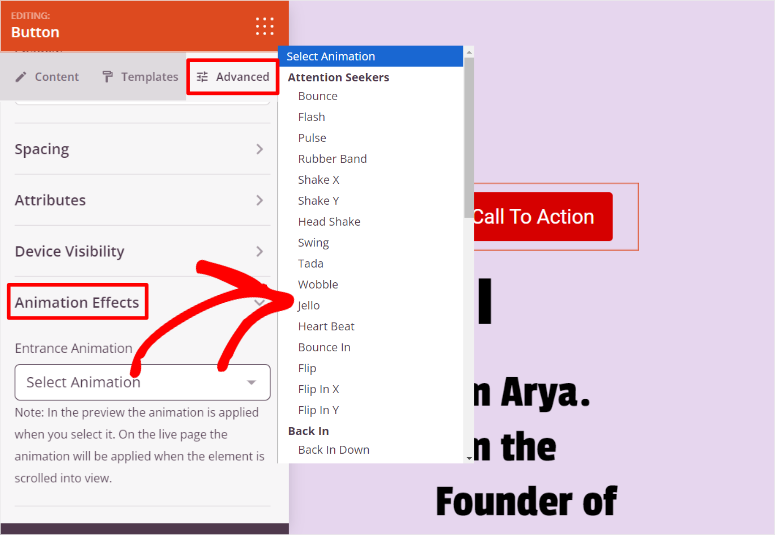
Every block in SeedProd has animation settings built into the Advanced tab.
You pick from 18+ effects like Bounce, Fade In, Slide Up, or Zoom. The animation previews instantly, so you see exactly how it looks before publishing.
Plus, SeedProd includes pre-built animation blocks. For example, you get animated headlines that type themselves out, image carousels that transition smoothly, and number counters that scroll up.
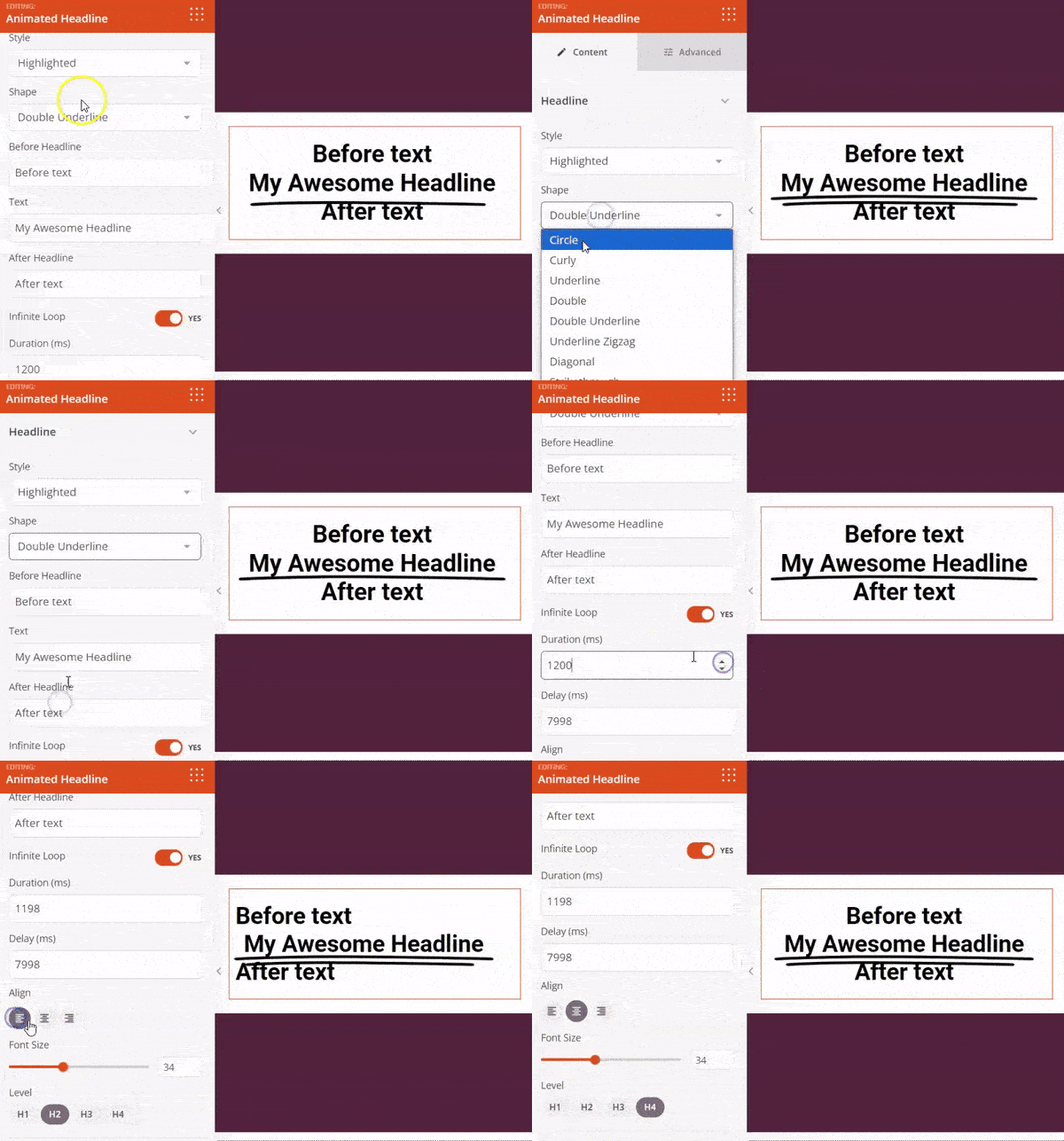
All you have to do is drag them onto your page, and they work immediately.
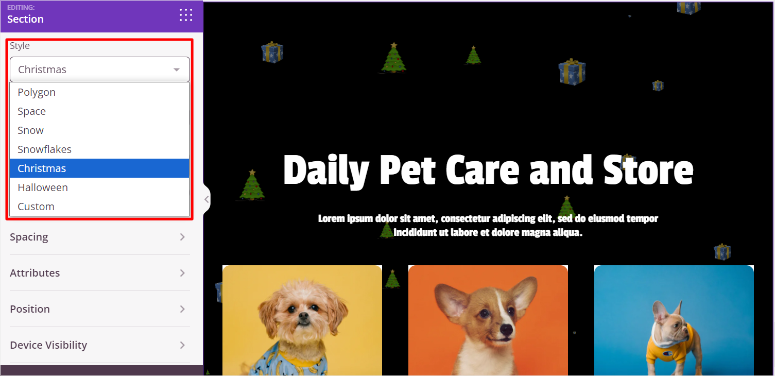
The Particle Background feature impressed me most. It adds interactive floating elements without code. The particles respond to mouse movement, creating engagement without being distracting.
For WooCommerce stores, the Product Gallery block includes zoom and lightbox animations. This works well when you don’t have enough product photos.
It adds subtle motion and transitions that make the few product images feel more engaging
My Experience with SeedProd
I built a landing page for a pet store using the animated headline block. I wanted a headline that grabs attention with a fade-in subtitle below.
The CTA button used a ‘Jello’ animation triggered on page load. That simple effect increased button clicks, leading to more signups.
Testing the particle background took five minutes.
I selected the “Christmas” preset with floating Christmas trees and presents. I then adjusted density and speed in the settings and finally published the page.
The background added visual interest without slowing down the page.
On top of that, the WooCommerce gallery surprised me most. I set up Zoom-on-hover so that the clients can engage with the pet products better. This resulted in more product clicks.
Load time stayed at 1.4 seconds despite having three animated sections. SeedProd optimizes the code automatically, so animations don’t bloat your site.
Customers could see product details clearly and engage more. This resulted in people staying on the page longer. More time viewing means more sales.
► Pros
- Animations integrate as you build pages (not added separately)
- 18+ effects work on ANY block (buttons, images, text, sections)
- Particle backgrounds add interactive flair without coding
- WooCommerce galleries with zoom and lightbox included
- Speed-optimized despite all the features (load times stay fast)
► Cons
- Free version limits you to basic features
- Learning curve if you want custom particle effects (preset options work fine though)
- So many options can feel overwhelming at first glance
My Verdict: SeedProd wins because it solves the real problem. Most tools make you build a page THEN figure out animations. SeedProd creates both together, so effects feel natural instead of tacked on. That’s why it’s #1.
Check out my SeedProd review for more details.
Pricing: Free plugin available; Pro starts at $39.50/year
Get started with SeedProd here
If this is the right tool for you, check out our SeedProd coupon page for more deals.
2. Soliloquy ⭐⭐⭐⭐⭐
100K+ Active Installs | Best for: Creating Animated Sliders Without Coding
Soliloquy builds animated sliders faster than any plugin I’ve tested. The drag-and-drop interface takes under 5 minutes from install to live slider.
Most slider plugins kill your site speed. I’ve seen load times jump from 2 seconds to 6 seconds after adding “feature-rich” sliders.
Soliloquy uses dynamic Ajax preloading, so sliders load fast without bloating your pages.
Why Is Soliloquy One of the Best Animation Plugins?
Soliloquy handles more than just images. It can also build video sliders for hero sections. But what impressed me most is that it can create PDF sliders showcasing downloadable resources.
I have watched WordPress struggle with PDFs for years. Because at its base, WordPress is a content management system, not a document management system.
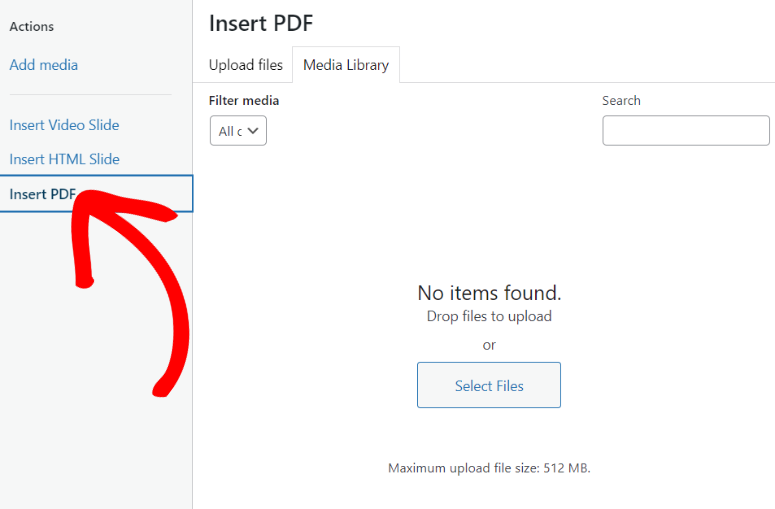
On top of that, you can also create blog post sliders that pull your latest content and testimonial sliders to build social proof automatically.
Once you create your sliders, you can add Lightbox sliders that cover the entire screen when clicked. Or add thumbnail navigation that lets visitors preview slides before clicking.
Both features improve user experience without adding complexity.
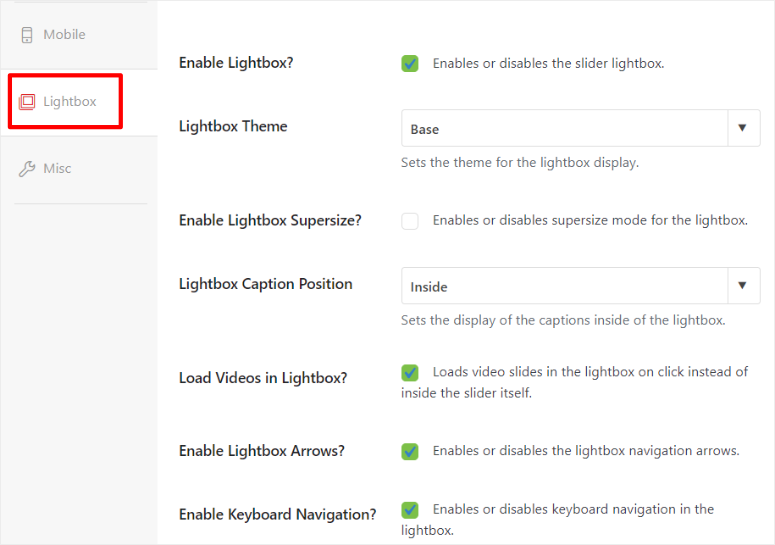
Plus, 100+ configurable hooks give developers customization options. For beginners, the pre-made templates work perfectly as-is.
My Experience with Soliloquy
I created a portfolio slider for a photographer using thumbnail navigation. Visitors could see all 12 photos in thumbnails, then click to view full-size with smooth transitions.
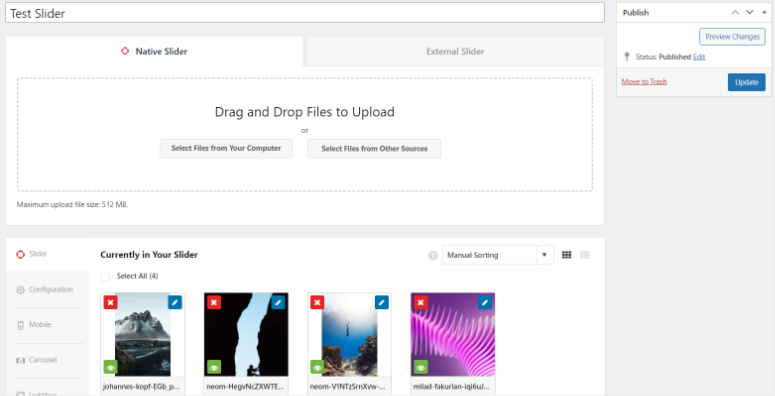
Speed test revealed the difference. Previous slider plugin loaded in 3.8 seconds. Soliloquy loaded the same content in 1.2 seconds.
That 2.6-second improvement kept visitors on the page instead of bouncing.
Video slider on a landing page hero section auto-played on mute with smooth fade transitions. The video grabbed attention without being annoying. This helped improve conversion rates.
► Pros
- Actually fast (many slider plugins slow down sites significantly)
- Drag-and-drop setup takes under 5 minutes from start to finish
- Video and PDF support (not just images like most slider plugins)
- Thumbnail navigation improves user experience on photo-heavy sliders
- Responsive automatically (looks good on all screen sizes)
► Cons
- Best features require premium addons (lightbox and thumbnails not in free version)
- Free version pretty basic (works but limited functionality)
- No fancy layer animations like Slider Revolution (keeps it simple)
My Verdict: If you want sliders that load fast and look professional without slowing down your site, Soliloquy delivers. I’ve tested “feature-rich” sliders that killed page speed. This one doesn’t. Speed matters more than flashy features.
Check out my Soliloquy review for more details.
Pricing: Free plugin available; Pro starts at $19.50/year
Get started with Soliloquy here
3. Smart Slider 3 ⭐⭐⭐⭐
300K+ Active Installs | Best for: Layered Animations and Custom Transitions
Smart Slider 3 gives you precise control over where each animated element sits on your slides.
The layer system organizes animations into rows and columns, so you position text, images, and buttons exactly where you want them.
Why Is Smart Slider 3 One of the Best Animation Plugins?
Animated backgrounds set Smart Slider apart from simpler tools. Particle effects, Ken Burns zoom on photos, and video backgrounds all work without custom code.
Each layer animates independently with custom timing and effects.
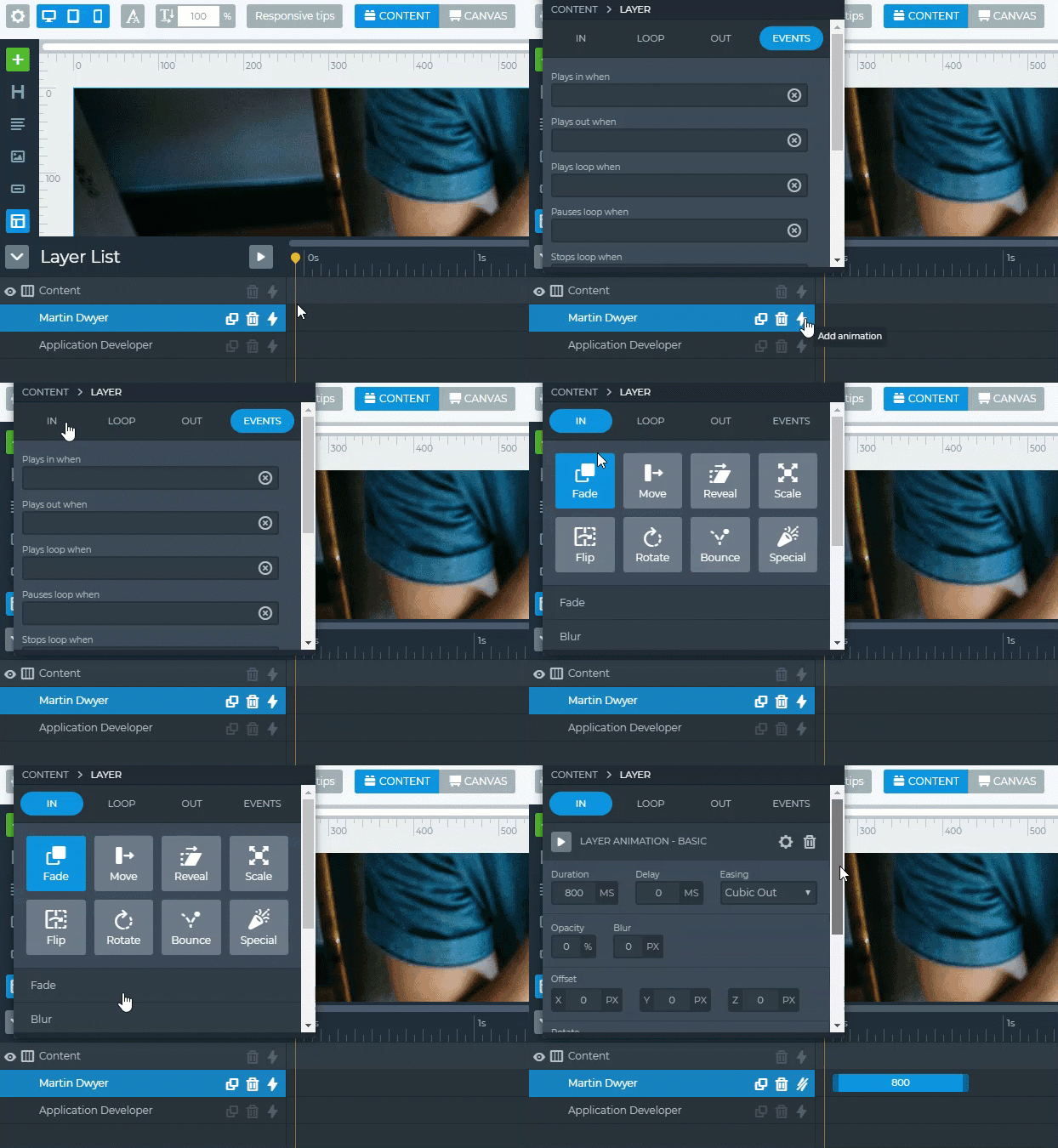
Plus, the starter slider templates saved me hours of design work. Instead of building from scratch, I picked a template close to my vision and customized it.
After this, I modified colors, swapped images, and adjusted timing. I did this in 15 minutes instead of 2 hours.
The best part? Smart Slider 3 supports both images and videos and is SEO-optimized, so your animated content doesn’t hurt search rankings.
My Experience with Smart Slider 3
The first thing I noticed with Smart Slide 3 is how easy it is to use. It comes with a drag and drop builder that resembles professional photo editing tools like Affinity and Photo Shop.
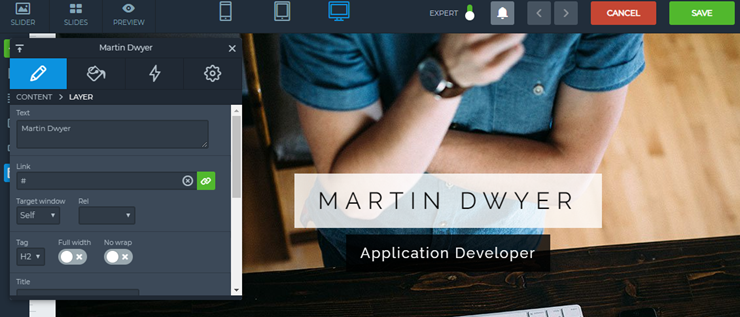
I created a hero slider for a restaurant with four animated layers.
I set up a background image with Ken Burns zoom, headline sliding in from the left, subtitle fading in below, and CTA button bouncing at the end.
The row and column system kept everything organized. Instead of randomly placing elements and hoping they align, I structured them in a grid. Layers snapped into place cleanly.
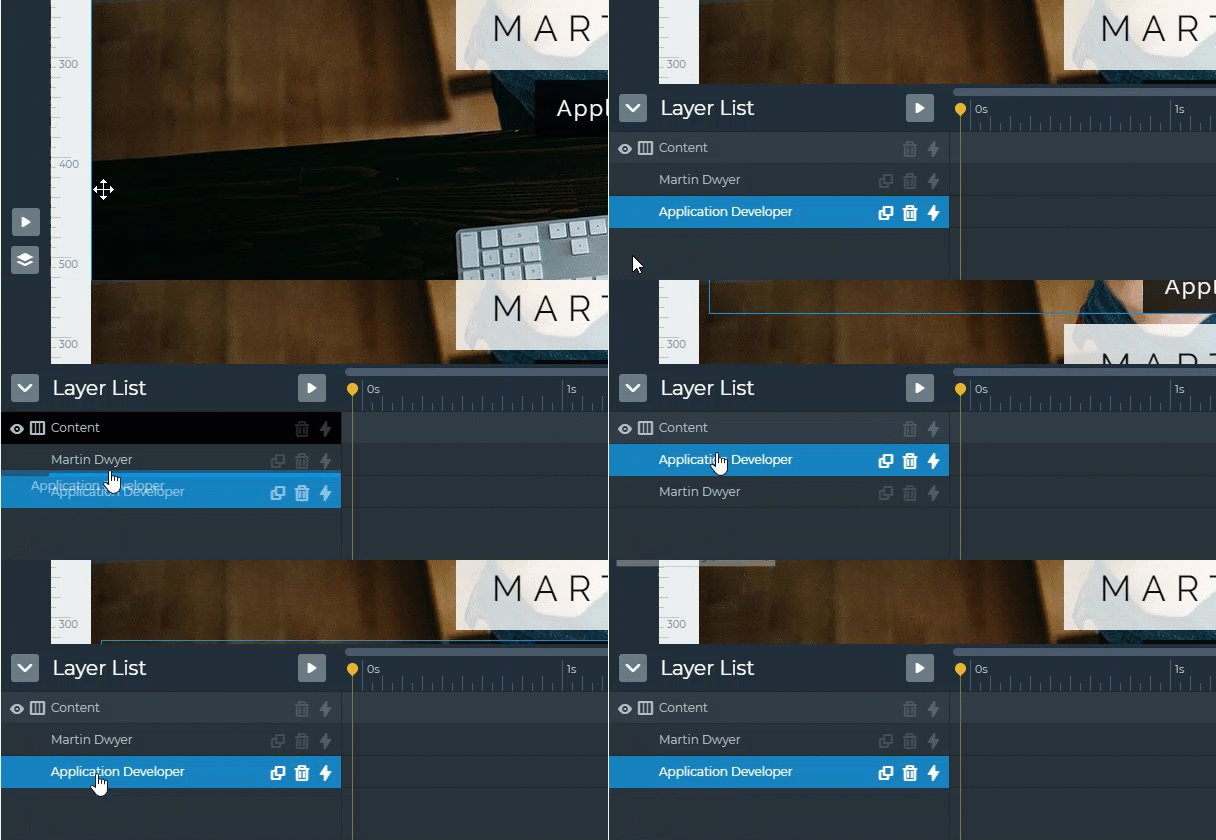
I also experimented with floating geometric shapes that moved across the screen without distracting from the content. The effect added visual interest while maintaining professionalism.
Starter templates proved valuable on a tight deadline. You can create a product showcase slider in 30 minutes.
All you have to do is select an eCommerce template, drop in your product photos, and adjust the colors to match your brand.
► Pros
- Layer system gives precise control over animation placement and timing
- Animated backgrounds add visual depth (particles, video, Ken Burns effect)
- Starter templates speed up the design process significantly
- SEO-friendly (animations don’t hurt search rankings)
- Video support included (not an addon like some plugins)
► Cons
- Free version only allows 6 layers (limiting for complex designs)
- Interface feels overwhelming at first (lots of options and settings)
- Learning curve steeper than simpler tools like Animate It!
My Verdict: Smart Slider 3 is for people who want creative control. If you want to layer multiple animated elements and organize them precisely, this tool delivers. Just expect to spend time learning it. The flexibility is worth the effort.
Check out my Smart Slider 3 review for more details.
Pricing: Free plugin available; Pro starts at $49 (one-time payment)
Get started with Smart Slider 3 here
4. Animate It! ⭐⭐⭐⭐
30K+ Active Installs | Best for: Simple CSS3 Animations
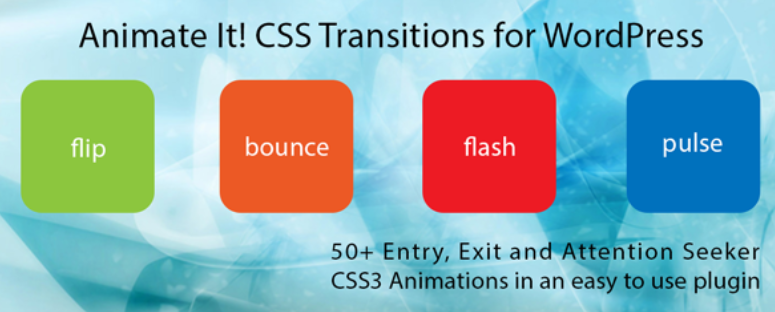
Animate It! gives you 50+ CSS3 animation effects completely free. You can apply these animations to text, images, buttons, or any content on your page.
The plugin works with Gutenberg blocks through a custom Animate It! block wrapper. This reduces the chances of the CSS breaking something. Just wrap any block, pick an animation, and set the timing. Done.
Why Is Animate It! One of the Best Animation Plugins?
Hover and click triggers let you control when animations fire.
This ensures you can easily add elements like a button that bounces when visitors hover over it, draws attention, or delayed animations reveal content as users scroll down the page.
Custom CSS support means developers can add unique effects. For beginners, the 50 pre-built animations cover most needs without touching code.
The plugin supports multiple languages (German and Spanish included), expanding your reach to international audiences.
My Experience with Animate It!
I added fade-in animations to blog post images across 20 articles. Each image fades in as visitors scroll to it, making the content feel more dynamic.
I liked how the button hover added a subtle shake animation to a CTA button. The movement caught attention without being annoying. This increased the click-through rate.
I also tested delayed animations on a testimonial section to see if it would improve engagement. Testimonials fade in one by one as visitors scroll, creating a reveal effect.
I used a heatmap tool and found out that visitors spent more time on this page section.
But for the real test, I focused on custom CSS.
I created a unique bounce effect combining three CSS properties. The built-in animations didn’t quite match my vision.
So I wrote 12 lines of custom CSS. It worked perfectly through Animate It!’s custom CSS field.
► Pros
- Totally free (no premium version upsell or feature limitations)
- 50+ effects cover most basic animation needs for beginners
- Works with any Gutenberg block using block wrapper
- Control timing precisely (duration, delay, triggers)
- Supports multiple languages (German, Spanish, English)
► Cons
- Can’t create advanced animations without CSS knowledge
- No built-in sliders or carousels (single element animations only)
- Limited compared to premium competitors like SeedProd
My Verdict: Animate It! is perfect for bloggers and small business owners who want basic animations without spending money. You won’t build complex layered sliders, but you’ll add professional polish to text and images easily. Free is unbeatable for simple needs.
Pricing: Free
Get started with Animate It! here
5. Slider Revolution ⭐⭐⭐⭐
9M+ Customers | Best for: Advanced Slider Animations and Effects
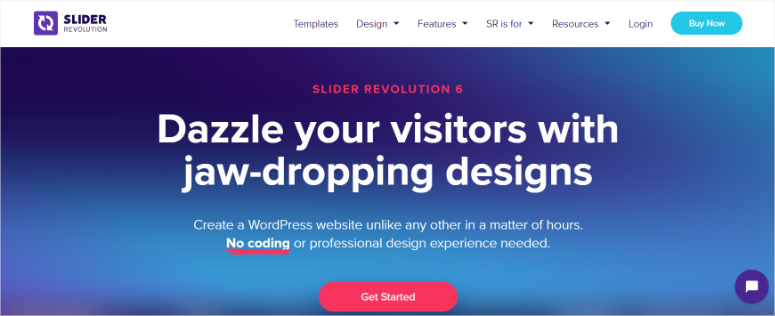
Slider Revolution offers maximum control over every animation detail. The 250+ pre-designed templates give you professional starting points, then the advanced controls let you customize everything.
The visual timeline editor sets Slider Revolution apart.
Instead of guessing when animations trigger, you see a timeline showing exactly when each layer animates in and out. So if you sync five animated elements, they will appear at the precise moments.
Why Is Slider Revolution One of the Best Animation Plugins?
Hero headers, content modules, and carousels all work through the same editor. You can layer animations with different timing, easing curves, and effects.
For example, one slider can have text sliding in, images fading, buttons bouncing, all choreographed perfectly.
Slider Revolution supports images, videos, icons, and text. Each element can have multiple animations. An image might fade in, then scale up, then shake.
My Experience with Slider Revolution
I created a hero header with five animated layers for a marketing agency.
This included a background video that auto-played, the company logo faded in first, the headline slid in from the left, the subtitle appeared with a typewriter effect, and the CTA button bounced at the end.
The timeline editor made syncing everything easy. Previously, I’d adjust delay numbers blindly and see how it worked on the live site before readjusting.
With Slider Revolution, I saw exactly when each animation happened and adjusted until the timing felt right.
Performance testing revealed a challenge.
The slider initially loaded in 4.2 seconds because I used high-resolution images. So I optimized the images and enabled lazy loading. This got it down to 1.9 seconds.
Template usage saved hours on a product showcase project. I selected an eCommerce template, replaced the placeholder products with the client’s items, and adjusted colors.
The result looked custom but took 30 minutes instead of 3 hours.
► Pros
- 250+ templates save design time and provide professional starting points
- Complete control over every animation detail (timing, easing, layers)
- Timeline editor for syncing complex animations visually
- Professional results possible with enough effort
- Video and icon support included (not just images)
► Cons
- Steep learning curve (not beginner-friendly at all)
- Too many sliders can hurt site speed significantly
- Overkill if you just need simple animations
- Higher price point than simpler alternatives
My Verdict: Slider Revolution is for designers and developers who need maximum control. If you’re building client sites or complex marketing pages, the investment pays off. Beginners? Start simpler. This tool requires time to master, but the results justify the effort for professionals.
Pricing: Starts at $39/year
Get started with Slider Revolution here
6. Master Slider ⭐⭐⭐⭐
200K+ Active Installs | Best for: Smooth Transitions and Touch Navigation
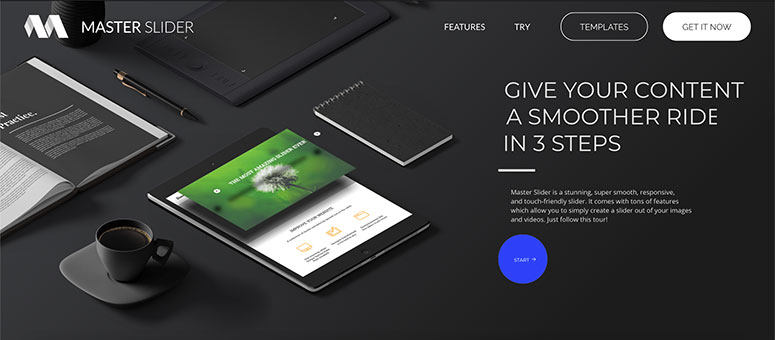
Master Slider delivers the smoothest transitions I’ve tested. The hardware-accelerated animations feel native instead of janky.
Touch navigation with swipe gestures makes the mobile experience great. Visitors swipe left and right on phones and tablets naturally, with no awkward tapping on tiny arrow buttons.
Why Is Master Slider One of the Best Animation Plugins?
Master Slider comes with six interactive slider transitions, giving you variety without overwhelming you with choices.
You get slide, fade, flow, mask, wave, and parallax effects, all of which transition smoothly at 60 frames per second.
My favorite is parallax scrolling effects, which add depth to sliders. This effect makes the background layers move more slowly than foreground layers, creating a 3D feel.
Plus, each layer can be animated independently with custom timing.
The plugin includes dozens of ready-to-use sample sliders. Gallery display mode shows multiple slides at once. Both features are SEO-friendly and fully responsive across all devices.
My Experience with Master Slider
Mobile testing on an iPhone revealed why touch navigation matters. I swiped through 8 product images naturally. The previous slider required tapping tiny arrows that missed half the time.
Master Slider felt like using a native app.
I added the parallax effect, my favorite, on a hero slider, which added visual interest without distraction.
I went a step further and tested independent layer animation; three layers on one slide. I made the product image fade in first. Then, the headline slid in from the left second.
Finally, the price and “Buy Now” button appeared last. I timed each animation and found out it took 0.3 seconds apart for a cascading effect.
► Pros
- Touch navigation improves mobile UX significantly (swipe gestures feel natural)
- Sample sliders provide quick starting points for common designs
- Parallax effects add visual depth without looking gimmicky
- Each layer animates independently with custom timing
- SEO-friendly (doesn’t hurt search rankings despite animations)
► Cons
- Builder interface not beginner-friendly (learning curve exists)
- Free version is too limited for real use (need premium for useful features)
- Fewer features than competitors like Slider Revolution
My Verdict: Master Slider shines in mobile experience. If your site gets heavy mobile traffic and you want sliders that feel native with swipe gestures, this wins. Desktop-only site? Consider alternatives with more features.
Pricing: Free plugin available; Pro starts at $39 (one-time payment)
Get started with Master Slider here
7. Smart Product Viewer ⭐⭐⭐
3K+ Sales | Best for: 360° Product Animations
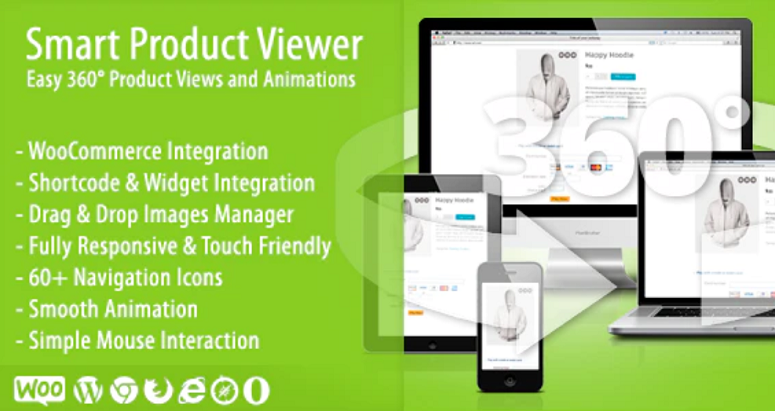
Smart Product Viewer solves one specific problem: showing products from every angle. The 360° spin view lets customers rotate products with their mouse or finger.
This plugin is VERY niche. It only works for eCommerce sites selling physical products.
Why Is Smart Product Viewer One of the Best Animation Plugins?
The animation triggers work across devices. Mouse click and drag on desktop and finger swipe on iPhone, iPad, and Android.
This automatically creates a scroll animation that spins the product as visitors scroll down the page.
Plus, the shortcode generator gives full control over layouts, colors, and styles. While widget support lets you add 360° views to sidebars.
You can also set up multiple navigation styles and color combinations that match your store’s design.
My Experience with Smart Product Viewer
I tested Smart Product Viewer on one of my eCommerce test sites. I added 360° views to 10 products.
Apart from my phone, I also tested it out on my iPad tablet to see how the touch-to-spin feature worked. Both responded instantly to swipe gestures with no lag.
The ability to inspect products from all angles can increase purchase confidence. Most importantly, it can reduce questions about how the product actually looks from customers.
► Pros
- 360° view provides complete product detail from every angle
- Mouse and touch controls feel intuitive and responsive
- Easy shortcode placement anywhere on product pages
- Sidebar widget option for additional placement
- Mobile-responsive (works on phones and tablets)
► Cons
- Only useful for product-based eCommerce sites
- Can’t use on content/blog sites (no applicable use case)
- Limited animation variety (just 360° spin, nothing else)
- Requires product photography from all angles (24-36 images typically)
My Verdict: If you sell physical products online, Smart Product Viewer solves the “I can’t see the product fully” problem. Conversion rates improve when customers inspect products completely. But it’s a one-trick pony – this animation ONLY works for eCommerce. Service business or blog? Skip this entirely.
Pricing: Starts at $25 (one-time payment)
Get started with Smart Product Viewer here
Bonus: OptinMonster ⭐⭐⭐⭐⭐
1M+ Websites | Best for: Animated Popup Campaigns

OptinMonster isn’t a traditional animation plugin. It’s a conversion optimization tool that uses animated popups, slide-ins, scroll boxes, and coupon wheels to grow your email list and boost sales.
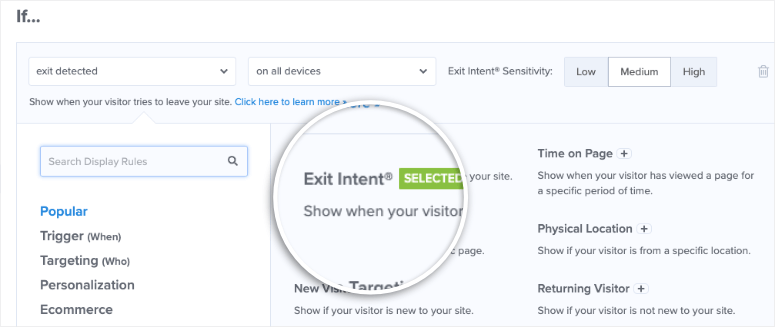
The animated campaigns grab attention at the right moment through exit-intent popups that appear when visitors move to close the tab.
You also get other campaign types, like scroll-triggered slide-ins that appear after visitors read a set percentage of your content and time-delayed popups that wait until engagement signals show interest.
Why Is OptinMonster One of the Best Animation Plugins?
As you have seen above, smart targeting makes the animations relevant.
Most importantly, you can show different campaigns to mobile vs desktop visitors. This allows you to display location-specific offers to visitors from specific states or countries.
Apart from that, you can trigger campaigns based on referral source, number of page views, or cart value.
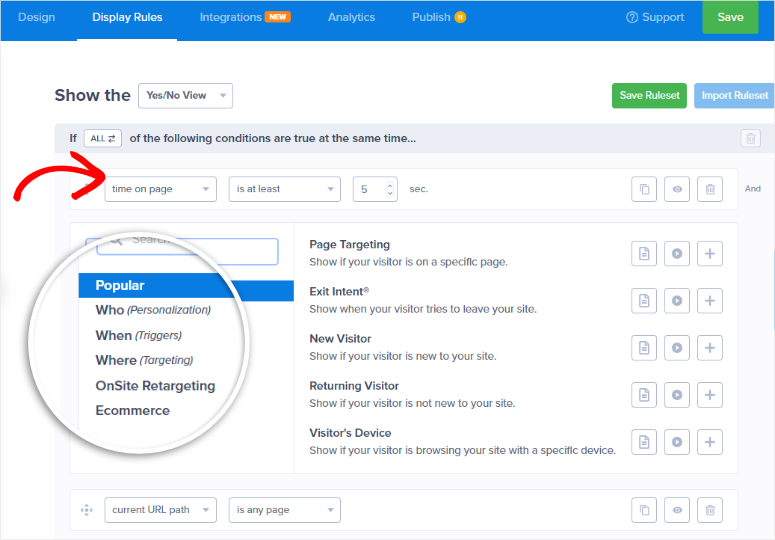
While OptinMonster is packed with features, the drag-and-drop campaign builder works like building a landing page.
In fact, you even get pre-made templates to speed up creation. Then, A/B testing built in helps test out different templates and optimize conversion rates.
Finally, connect OptinMonster to your favorite email marketing and nurture your leads.
My Experience with OptinMonster
I set up an exit-intent popup to test if it would help with abandoned carts on an eCommerce site. The popup offered a 10% discount code, triggered as visitors moved their mouse to close the tab.
31% entered their email for the discount instead of leaving.
After this, I went a step further and made the exit-intent campaign device-specific.
Desktop visitors saw a full-screen lightbox popup, while mobile visitors saw a smaller slide-in that didn’t block content.
► Pros
- Smart targeting converts better than basic popups (exit-intent, scroll depth, location)
- Drag-and-drop builder creates campaigns without coding
- Templates speed up campaign creation significantly
- Exit-intent technology saves abandoning visitors effectively
- Email tool integrations work seamlessly with major platforms
► Cons
- Higher price than simple popup plugins (but features justify cost)
- Advanced targeting takes time to learn properly
My Verdict: OptinMonster isn’t about adding animations to pages – it’s about animated campaigns that convert visitors into subscribers and customers. If you want to grow your email list or reduce cart abandonment, the ROI justifies the cost.
Check out my OptinMonster review for more details.
Pricing: Starts at $7/month
Get started with OptinMonster here
Other Animation Tools Worth Knowing About
LottieFiles ⭐⭐⭐
LottieFiles brings JSON-based animations to WordPress. Designers create animations in Adobe After Effects, export as JSON files, then embed them using the LottieFiles plugin.
The animations scale perfectly at any size without pixelation.
This works best for developers and design-focused teams. If you’re comfortable with After Effects or hiring animators, LottieFiles delivers unique custom animations. Beginners? The learning curve is steep.
Greenshift ⭐⭐⭐
Greenshift adds animation capabilities directly to Gutenberg blocks. The plugin focuses on speed and flexibility within the WordPress editor.
Scroll-triggered animations, hover effects, and entrance animations all work through block settings.
If you prefer staying within Gutenberg instead of using page builders, Greenshift provides animation options without leaving the editor.
But it is limited compared to SeedProd’s page builder approach, but solid for Gutenberg fans.
How to Choose the Right Animation Plugin for Your Needs
Picking the right animation tool depends on what you’re building and your skill level.
If you’re building landing pages or full sites:
Go with SeedProd.
- The animations integrate as you build, so effects feel natural instead of tacked on.
- You’re creating pages AND animations together, which saves time and looks better.
If you need fast, simple sliders:
Choose Soliloquy.
- Speed matters more than flashy features. Your site loads in 1.2 seconds instead of 4 seconds.
- Visitors don’t wait, and conversions don’t drop.
If you want layered animation control:
Use Smart Slider 3.
- Organize animations in rows and columns and position elements precisely.
- Control timing down to the millisecond.
- The flexibility requires learning time, but the results justify the effort.
If you just need basic CSS effects:
Stick with Animate It!
- Free, 50+ effects, and no premium upsells.
- Perfect for adding professional polish to text and images without spending money.
If you’re a designer or developer: Pick Slider Revolution.
- The timeline editor and 250+ templates give you maximum control.
- Steep learning curve, but unmatched for complex client work.
If you have heavy mobile traffic:
Go with Master Slider.
- Swipe gestures feel native on phones and tablets.
- Touch navigation improves mobile UX significantly compared to tap-based sliders.
If you sell physical products:
Use Smart Product Viewer.
- The 360° view reduces “I can’t see the product fully” concerns.
- Conversion rates improve when customers inspect products from all angles.
If you want to grow your email list:
Choose OptinMonster.
- Exit-intent popups save abandoning visitors.
- Smart targeting shows relevant campaigns at the right moment.
- ROI justifies the monthly cost.
The honest truth? Start with free versions and test animations on your site. See which tool fits your workflow.
Then upgrade to premium when free features limit what you need. Most beginners overestimate the complexity needed. Simple animations often outperform flashy effects.
That’s it for my list of the best WordPress animation plugins. If anything is unclear check out the commonly asked questions below.
FAQs: Best WordPress Animation Plugins
Do animation plugins slow down my site?
Yes, animations can affect site speed because they involve images, videos, and scripts. Use optimized plugins like SeedProd and Soliloquy that only load necessary resources. Avoid heavy sliders on every page. Test with GTmetrix after adding animations to measure the actual impact.
Can I use animations on mobile devices?
Absolutely. Plugins like Master Slider and Smart Slider 3 are mobile-responsive with touch controls. SeedProd animations work on all screen sizes automatically. Always preview on mobile before publishing to ensure animations don’t break layout or slow loading.
What’s the difference between animation plugins and page builders?
Animation plugins add effects to existing content. Page builders like SeedProd create pages AND animations together in one tool. If you’re building from scratch, page builders with animation features save time by integrating both processes instead of adding effects after.
Do I need coding skills to use these plugins?
No. SeedProd, Soliloquy, and Smart Slider 3 offer drag-and-drop interfaces that work without code. Animate It! requires CSS knowledge for custom effects beyond the 50 presets. Slider Revolution has a learning curve, but no coding is required once you understand the interface.
Which animation plugin is best for eCommerce?
Smart Product Viewer for 360° product views that let customers inspect products completely. SeedProd for animated product galleries with zoom features. Both work with WooCommerce seamlessly. OptinMonster for cart abandonment popups that recover lost sales with exit-intent technology.
Are there free animation plugins that actually work?
Yes. Animate It! is completely free with 50+ effects and no premium upsell. SeedProd and Soliloquy offer free versions with limited features that work for basic needs. Smart Slider 3 has a free Lite version with 6 layers. Paid plugins offer more features, but free options deliver results for simple animation needs.
Final Verdict: Should You Use Animation Plugins on My WordPress Site?
Yes, if you use them strategically.
Animations improve engagement when they add value. Some simple animation examples include:
- A hover effect that shows visitors content is clickable helps.
- A slider that displays multiple products in limited space works.
- A popup that saves abandoning visitors converts.
Animations hurt when overused. For example, five sliders on one page kills load time, bouncing elements everywhere distracts, and flashy effects without purpose annoy.
Start with SeedProd if you’re building pages. The integrated approach creates animations that feel natural. The free version works for testing, and you can always upgrade when you need advanced features.
Already have a site? Add Animate It! first. Free. Simple. See if basic animations improve engagement before investing in premium tools.
Test with GTmetrix after every animation you add. Performance matters more than visual flair because visitors leave slow sites regardless of how pretty the animations look.
Remember, the best site animation is one that improves user experience without slowing down your site.
Resource Hub: Related WordPress Tools
Looking to expand your WordPress toolkit? These resources complement your animation setup:
- Best WordPress Page Builders Compared – Compare page builders with built-in animation features beyond standalone plugins.
- Best WordPress Slider Plugins for – Explore additional slider options with different animation styles and features.
- Top WordPress Gallery Plugins Compared – Discover gallery tools that add visual interest with hover effects and transitions.
- Best Lead Generation Plugins Compared – Learn about popup and form tools that convert visitors using animated campaigns.
- How to Create a Landing Page in WordPress – Build high-converting landing pages where animations make the biggest impact.
- Best WordPress Speed Optimization Plugins – Keep your site fast even with animations through caching and optimization tools.
These tools work alongside animation plugins to create engaging, high-performing WordPress sites.

Thank you for sharing information about Master Slider plugin, I wanted more information about it and I didn’t understood earlier exactly how it works, My doubts are clear now and thanks you for the help
Hey Sean,
Glad we could help. 🙂
Thanks alot Alvin
Perfect post! I plan to use an animation plugin to increase the performance of my WordPress site. For that, I have been looking for the best WordPress animation plugin to add some interesting animations to my website. Your article helped me a lot. Thank you.
Hey Jennifer, we are glad it helped. 🙂
You’ve updated this post to 2022, but I note Animate It hasnt been updated in over a year and hasn’t been tested with the latest 3 major releases of WordPress.
Hey Brett, thanks for the heads up. The article is in our list of major updates and we will add/remove plugins soon.
Hi,
Just wanted to confirm is there any plug-in or can we use ‘Animate it!’ plugin for moving arrow pointing some specific services.
Thanks