I stared at my screen at 11 PM, writing WooCommerce product description number 47.
“This stylish blue hoodie features premium fabric…” My brain felt like mush. Every description sounded exactly the same. Plus, I still had 23 more products to finish before the client’s store launch tomorrow.
That’s when I realized something had to change. Writing product descriptions manually was killing my productivity and burning me out fast.
That is when I decided to turn to AI automation, which fixed everything. Now I generate consistent, SEO-friendly product descriptions in 10 seconds instead of 30 minutes.
As a result, my WooCommerce store management process became 40 times faster.
In this tutorial, I’ll show you exactly how I set up two different AI systems to autogenerate WooCommerce product descriptions.
One uses Uncanny Automator with OpenAI for complete control. The other uses StoreAgent for beginner-friendly simplicity.
Both methods work and save massive amounts of time. I’ll walk you through everything step by step.
Key Takeaways
- I’ll show you how to connect OpenAI directly to WooCommerce so descriptions generate automatically when you publish products
- Reveal a plugin that asks you 6 simple questions, then writes SEO-friendly descriptions in 5 seconds
- I explain exactly when to use automated descriptions versus manual writing for different product types
- Tested both methods, generating descriptions to compare quality, speed, and cost
- I break down the real costs: one method costs $10-20 monthly, and the other offers a completely free option
If you want to skip to either method, use the links below.
- Method 1: Use Uncanny Automator + OpenAI to Autogenerate WooCommerce Product Descriptions
- What You'll Need
- Method 2: Use StoreAgent to Autogenerate WooCommerce Product Descriptions
- Compare Uncanny Automator vs StoreAgent: Which Method Should You Use?
- Best Practices for WooCommerce AI Product Descriptions
- FAQs: How to Automatically Generate WooCommerce Product Descriptions with AI
- Final Verdict: Should I Automate Product Descriptions?
- Resource Hub: Growing Your WooCommerce Store
Why Automate WooCommerce Product Descriptions?
Manual product description writing creates three massive problems for store owners.
First, the time drain kills productivity.
- Each description takes 15-30 minutes when you factor in research, writing, editing, and SEO keyword placement.
- Multiply that by 50 products, and you’ve burned an entire work week on descriptions alone.
Second, maintaining a consistent brand voice.
- It is difficult to maintain the same tone across hundreds of products in your store.
- Your first 10 descriptions may sound professional and polished.
- By product 40, you’re phoning it in with generic phrases like “high-quality materials” and “excellent value.”
Third, SEO optimization gets complicated.
- SEO optimization for product pages is either ignored completely or turns into awkward keyword stuffing.
- You know you need those search terms, but naturally, incorporating them into 200 descriptions exhausts even experienced copywriters.
AI Automation Solves All Three Problems
Consistency
- Consistent brand voice happens automatically when you configure your AI prompts once.
- So, every product description matches your tone guidelines perfectly.
- Whether it’s the first product or the five hundredth.
SEO optimization
- SEO-friendly content generation becomes effortless.
- The AI naturally weaves keywords into compelling copy without the robotic feel of manual keyword insertion.
Time savings are dramatic
- What took 30 minutes now takes 10 seconds.
- That frees you up for actual business growth activities like marketing your online store and improving customer experience.
Plus, A/B testing different description styles becomes practical. You can generate three variations, test which converts better, and scale the winner. Try doing that manually with 100+ products!
Two Methods I Tested for WooCommerce AI Product Descriptions
I spent 30 days testing two completely different approaches to AI product descriptions. Both work perfectly, but target different user types.
Method 1 uses Uncanny Automator plus OpenAI to create fully automated workflows.
You publish a product, the automation triggers, OpenAI generates the description, and it populates your product page automatically.
This gives you complete control over prompts and WordPress automation workflows.
Method 2 uses StoreAgent, a WordPress AI plugin built for WooCommerce descriptions.
You click a button, answer 6 simple questions, and AI generates your description in 5 seconds. No technical setup required.
Both methods offer free versions you can test before committing. The free Uncanny Automator version limits you to basic automations, but you can still test the workflow.
On the other hand, StoreAgent’s free version lets you generate descriptions for up to 10 products monthly.
The pro versions unlock the real power. Uncanny Automator Pro removes all automation limits.
StoreAgent Pro offers unlimited descriptions with advanced features like bulk generation and custom tone profiles.
Now, let me walk you through how to create AI product descriptions using each method.
Method 1: Use Uncanny Automator + OpenAI to Autogenerate WooCommerce Product Descriptions
Total Setup Time: 45-60 minutes, one time
Uncanny Automator gives you complete control over how AI generates your product descriptions.
You create an automation recipe that triggers whenever you publish a WooCommerce product. It then sends the product details to OpenAI and automatically fills in the description field.
The setup takes about 45-60 minutes one time. After that, every product description is generated in 10 seconds without any manual work.
Check out my Uncanny Automator review to see everything it can do.
What You’ll Need
Before starting, make sure you have these four things ready.
- 1. Uncanny Automator plugin installed on your WordPress site.
- 2. An OpenAI API account with billing set up.
- 3. WooCommerce needs to be installed and active on your site.
- 4. You need a basic understanding of how WordPress plugins and settings work.
Now that you have all this ready, let’s begin.
Step 1: Install and Activate Uncanny Automator
Setup time: 5 minutes
First, you need to purchase and install Uncanny Automator.
While Uncanny Automator has a free version, for OpenAI integration, you need the Pro version. So head to the official Uncanny Automator page and purchase a pro version.
Select one of the three packages that suits your needs.
After purchase, log in to your Uncanny Automator account and navigate to Downloads. Here, download the plugin file.
While on this page, also copy the License Key; you will need it later to activate the pro version. Then go to your WordPress site and install the plugin like any other.
If you face issues, check out my tutorial on how to install plugins.
Next, navigate to Automator » Settings » General in your WordPress dashboard. Then, paste your license key into the field and select “Activate License.”
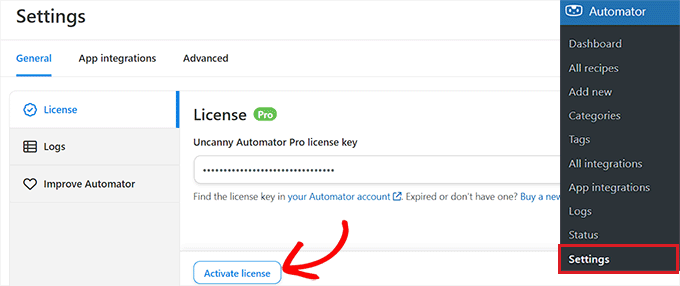
The plugin verifies your key and unlocks all Pro features, including the OpenAI integration we need for product descriptions.
Once activated, you’ll see “Automator” appear in your WordPress sidebar menu. Click it to access the main dashboard where you’ll build your automation recipe in the next steps.
Step 2: Connect OpenAI to Uncanny Automator
Setup time: 10 minutes
Connecting OpenAI requires an API key from your OpenAI account. This key lets Uncanny Automator send requests to OpenAI’s servers and receive generated text back.
With this in mind, head to OpenAI and log in to your account.
After this, navigate to API keys in the left sidebar menu and click “Create new secret key” to generate a fresh API key specifically for this integration.
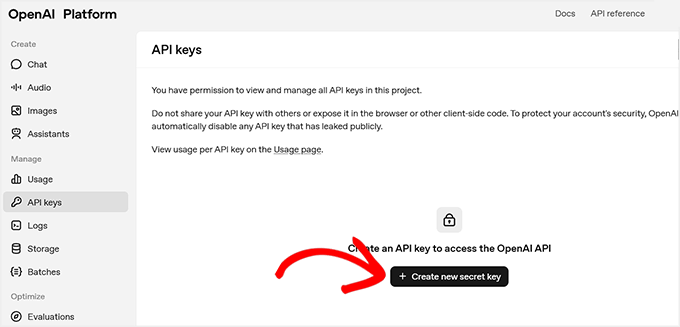
OpenAI prompts you to name your key. Use something descriptive like “Uncanny Automator WooCommerce” so you remember what it’s for if you need to manage keys later.
Then, select your permissions (‘All’ works fine), then click Create secret key.
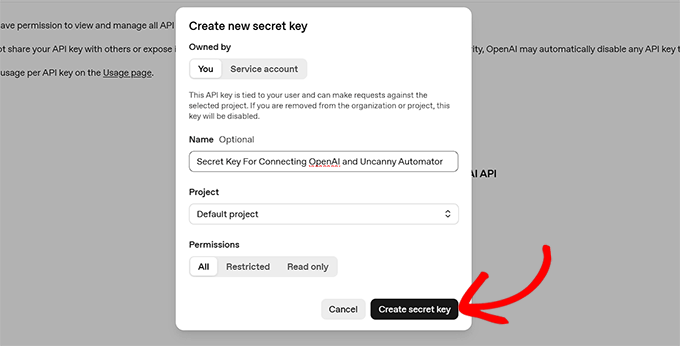
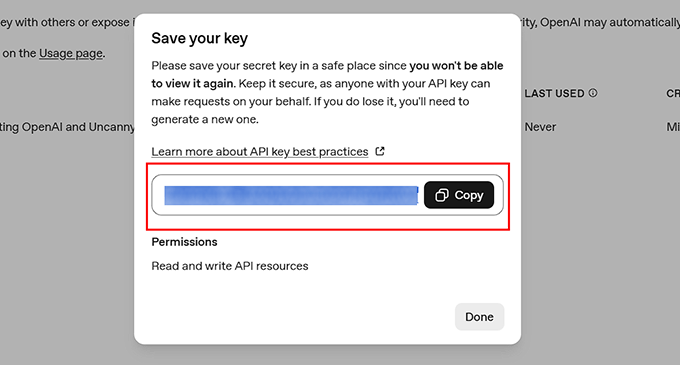
Next, OpenAI displays your secret key once. So make sure you take note.
Click the copy button to save it to your clipboard. You won’t be able to view this key again, so paste it somewhere safe temporarily while you complete the connection.
Now head back to your WordPress dashboard and go to Automator » Settings » App Integrations. Here, scroll down and find OpenAI in the list of available integrations.
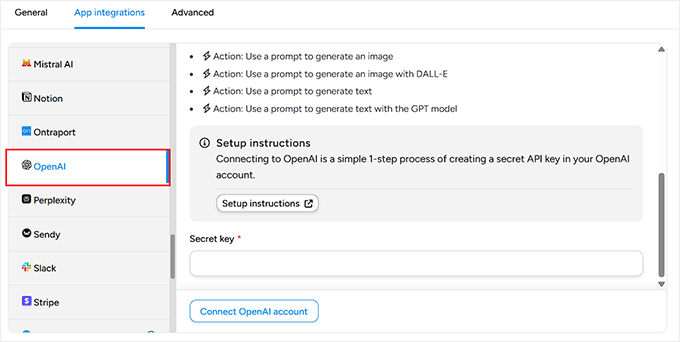
Paste your OpenAI secret key into the provided field and click “Connect OpenAI account.” After this, Uncanny Automator tests the connection and confirms it’s working.
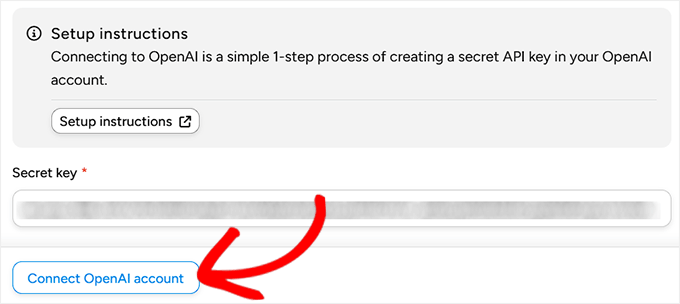
At this point, the connection is complete.
OpenAI now appears as an available action in your automation recipes.
⚠️ Important: The OpenAI API bills you per prompt. But the costs are minimal for product descriptions. You’ll typically spend $0.002-0.005 per description. This means 1,000 descriptions cost about $3-5 total. That’s cheaper than hiring a copywriter for even a single product.
Step 3: Create Your Automation Recipe
Setup time: 15-20 minutes
Automation recipes in Uncanny Automator follow a simple trigger-action structure. The trigger is “when this happens,” and the action is “do this automatically.”
For product descriptions, the trigger is “publishing a WooCommerce product,” and the action is “generating AI descriptions.”
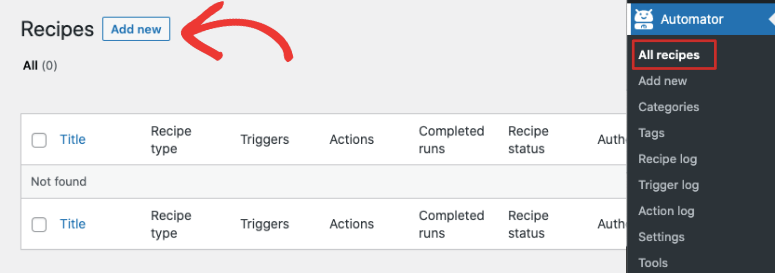
To set this up, go to Automator » All Recipes » Add New in your WordPress dashboard.
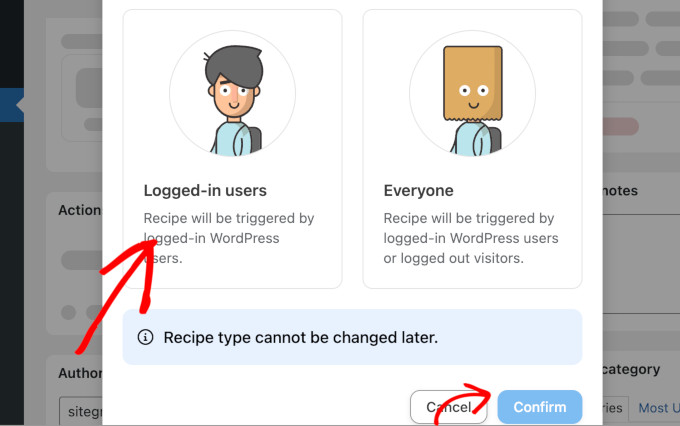
In the popup that appears next, choose “Logged-in users” as your recipe type and click Confirm.
This means the automation runs when you or your team members publish products, not when visitors take action on your site.
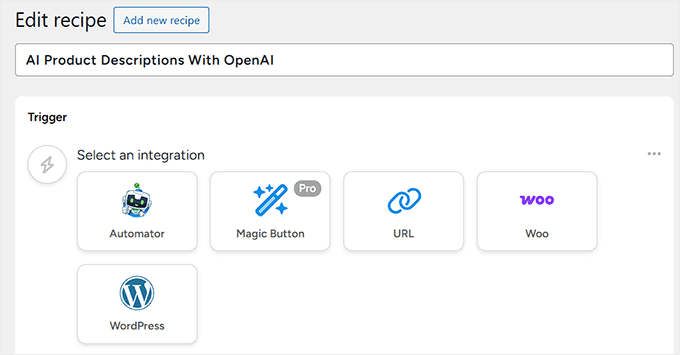
After this, the recipe builder loads with a blank canvas ready for your trigger and actions.
Give your recipe a descriptive title like “AI Product Descriptions With OpenAI,” so you recognize it later when managing your WooCommerce store.
Now let me show you how to set up the trigger.
Click “Select an integration” under the Trigger section and choose “WordPress” from the list of available integrations. This tells the automation to watch for WordPress events.
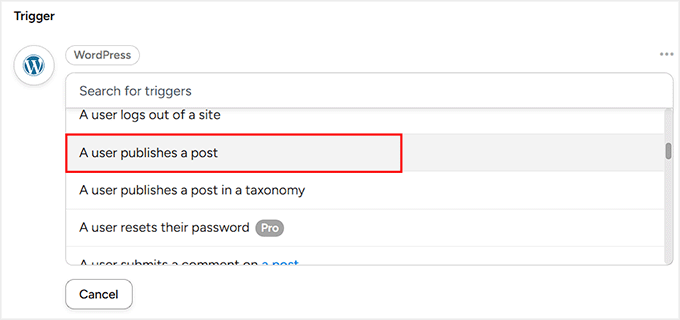
From the trigger options, select “A user publishes a post.” This trigger fires whenever you or your team publishes content on your site.
Once you select this, the trigger settings expand.
Set the “Post Type” dropdown to “Product.” This ensures the automation only runs for WooCommerce products, not blog posts or pages.
Finally, click Save, and your trigger is now configured. Whenever you publish a WooCommerce product, this automation will activate and execute whatever actions you add next.
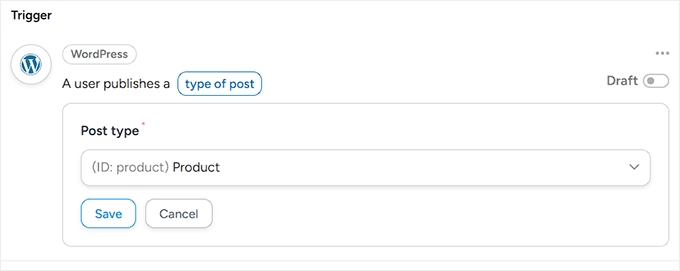
This trigger approach gives you complete control. The AI only generates descriptions when you deliberately publish products, not when you save drafts or preview changes.
Step 4: Configure the OpenAI Action
Setup time: 15 minutes
Now you’ll add the action that generates AI descriptions. This is where AI content creation happens through OpenAI’s language models.
Next, click “Add action” below your trigger to open dozens of options. Find and select OpenAI from the integration list.
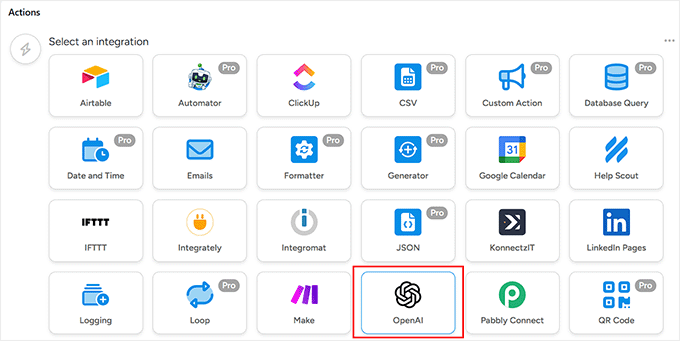
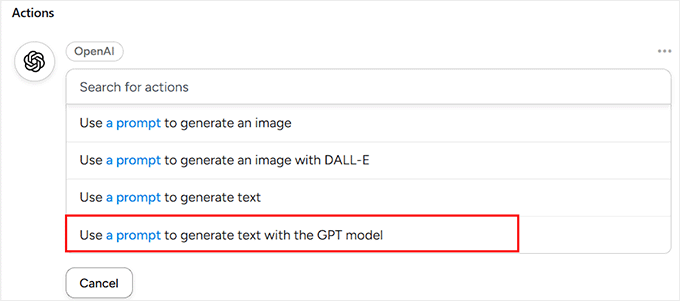
After this, the OpenAI action types appear. Choose “Use a prompt to generate text with the GPT model” since we’re creating written descriptions, not images.
On the next screen, you will see the OpenAI configuration settings.
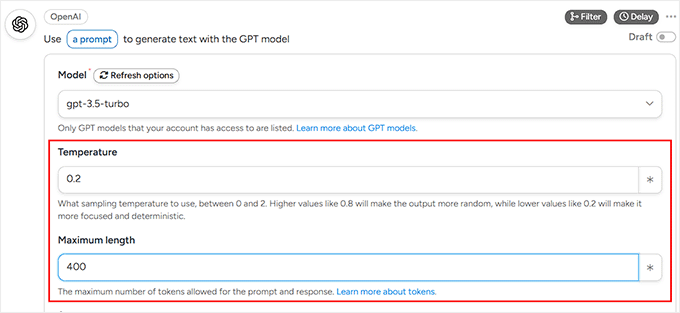
First, select your GPT model. I recommend GPT-3.5-turbo for product descriptions. It’s faster and cheaper than GPT-4 while delivering excellent quality for this use case.
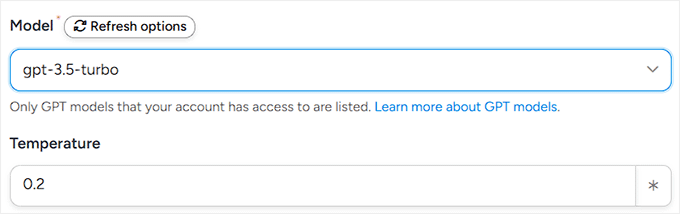
Next, set the temperature to 0.2.
Temperature controls creativity versus consistency. Lower values (0.1-0.3) produce focused, predictable descriptions. Higher values (0.7-0.9) create more varied, creative text.
For product descriptions, you want consistency across your catalog, so stick with 0.2.
Once done, set the maximum length to 400 tokens. Tokens roughly equal 75% of the word count, so 400 tokens generate approximately 300 words.
This gives you substantial product descriptions without unnecessary fluff.
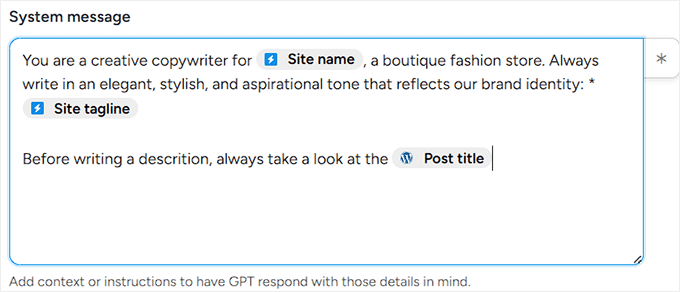
Now craft your System Message. This tells OpenAI its role and what style to use. Here’s the template I use:
You are a creative copywriter for [Your Store Name]. Write product descriptions in a friendly and conversational tone. Always focus on customer benefits and include relevant keywords naturally. Before writing, reference the product title.
You can use the same prompt by replacing [Your Store Name] with your actual business name. This context helps OpenAI match your brand voice.
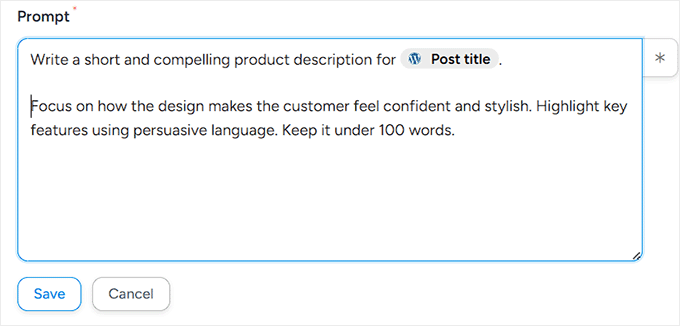
Below this, you will find the “Prompt” field so you can give specific instructions for each product. Click in the Prompt field and craft your template:
Write a compelling product description for: {{Post title}}

Focus on:
- How it solves customer problems
- Key features and benefits
- Why customers should buy from us

Keep it under 100 words with persuasive language.
Notice the {{Post title}} token. Uncanny Automator automatically replaces this with your actual product name when the automation runs.
This dynamic token system lets one prompt work for all products.
On top of that, you can include SEO keywords for better AI optimization by adding a line like “Include these keywords naturally: [your keywords]” in the prompt.
Just replace [your keywords] with actual search terms relevant to each product category.
Finally, click “Save” to store your OpenAI action configuration. The real magic happens next when you connect this AI-generated text to your actual product description field.
Step 5: Connect AI Output to Product Description
Setup time: 5 minutes
The OpenAI action now generates descriptions, but they’re just floating around in your workflow.
You need a second action that takes that AI-generated text and inserts it into your WooCommerce product description field.
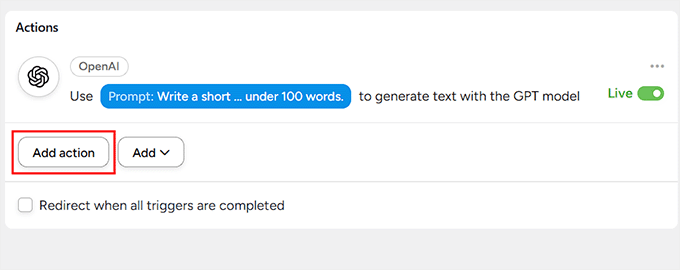
To do this, click “Add action” again below your OpenAI action. This adds another step to your automation flow.
Now, select WordPress as the integration this time.
Then, from the WordPress actions, choose “Update the content of a post.” This action lets you modify any field on any post type, including WooCommerce products.
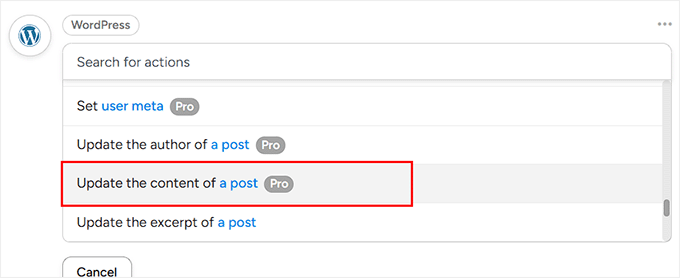
Next, the configuration screen appears with several fields to fill.
Set Post type to “Product” so it targets WooCommerce products specifically. For the Post field, click the token selector and choose {{Post ID}} from your trigger tokens.
This dynamic token ensures the automation updates the exact product that triggered it, not some random product on your site.
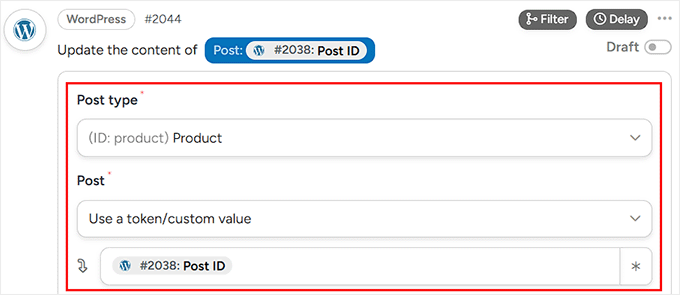
Now comes the critical connection.
In the Content field, click the token selector again and select {{Response}} from your OpenAI action tokens. This token contains the AI-generated description text.
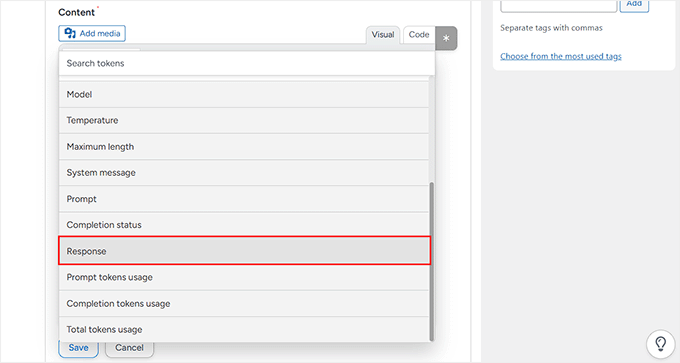
Click Save on this action. Your automation recipe is now complete.
The workflow goes like this:
You publish a product → Uncanny Automator sends the product title to OpenAI → OpenAI generates a description → the description automatically populates your product’s description field.
Once you are happy with your AI product description process, toggle the recipe to “Live” and click Save recipe to activate everything.
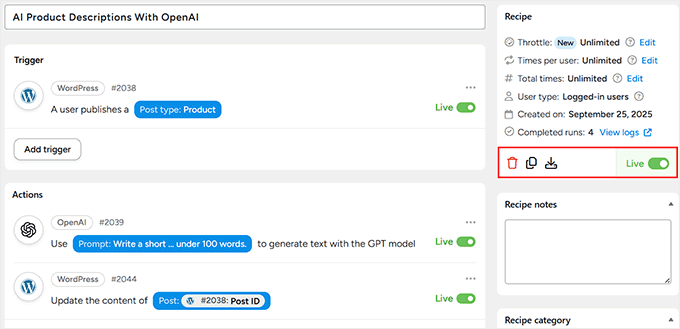
That’s it!
The entire automation now runs automatically whenever you publish WooCommerce products without manual work.
Testing the Uncanny Automator Method
Time to see your automation in action. To do this, create a new WooCommerce product to test the workflow before using it on your real catalog.
Navigate to Products » Add New in your WordPress dashboard. Then, add a product title like “Blue Hoodie” but leave the description field completely empty.
You can add a price and product image if you want, but make sure the description field stays blank.
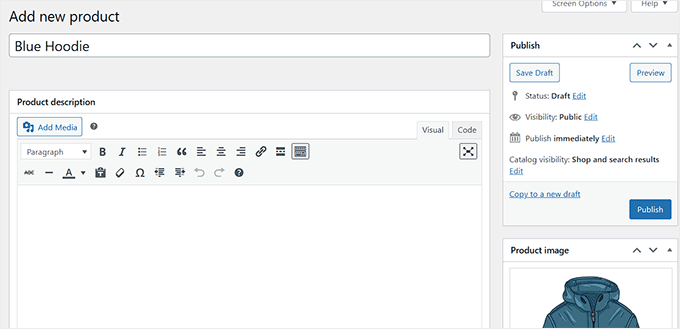
The moment you hit that button”Publish,” Uncanny Automator should spring into action behind the scenes.
The trigger fires, sending your product title to OpenAI. OpenAI then generates the content and populates the description field.
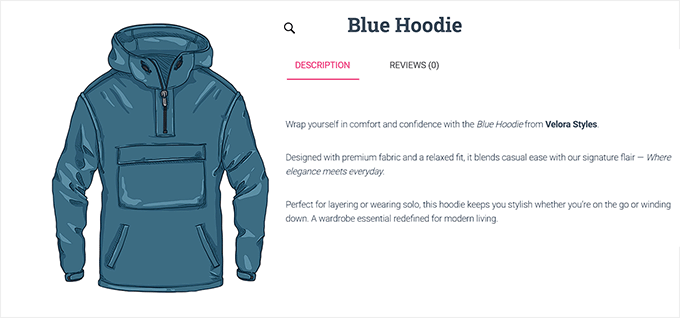
Remember to wait about 5-10 seconds for the API calls to complete. Then refresh the product page you just published.
The description field now contains AI-generated copy tailored to your product title. The text follows your system message guidelines and prompt template exactly.
Using Uncanny Automator works best for high-volume stores with 100+ products, where the setup time investment pays off quickly.
This is for users who want complete prompt customization and appreciate the control.
If you’re comfortable with WordPress automation workflows, this approach gives you maximum flexibility to fine-tune everything.
Method 2: Use StoreAgent to Autogenerate WooCommerce Product Descriptions
Total Setup time: 10 minutes total
StoreAgent takes a completely different approach to AI product descriptions.
Instead of building automation workflows, you get a guided form that asks specific eCommerce questions, then generates descriptions based on your answers.
The entire process feels more like filling out a questionnaire than building product descriptions.
StoreAgent is built specifically for WooCommerce product descriptions.
The AI doesn’t just generate generic text. It asks about your target audience, writing tone, product category, and SEO keywords upfront. Then craft descriptions that match those specific parameters.
This makes StoreAgent perfect for beginners who want AI product descriptions without diving into multiple setup screens.
Step 1: Install StoreAgent and Connect Your Store
Setup time: 3 minutes
Head to your WordPress dashboard and go to Plugins » Add New. Here, search for “StoreAgent” in the plugin directory. After this, install and activate the free version.
After activation, a “Connect to StoreAgent” notice appears in your WordPress admin. Click the “Connect to StoreAgent” button.
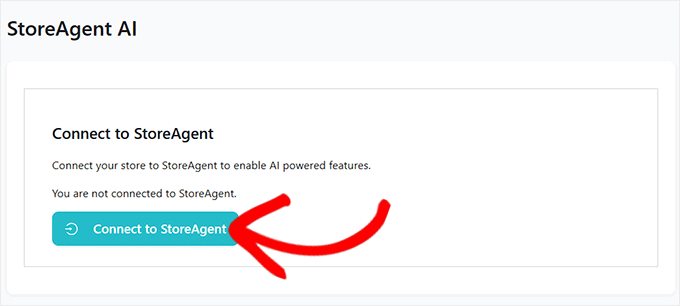
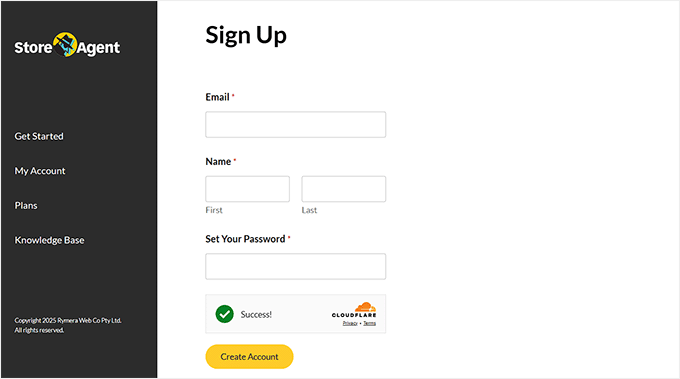
You’ll be prompted to create a free StoreAgent account if you don’t have one already. All you have to do is fill in your email, name, and password on the signup screen.
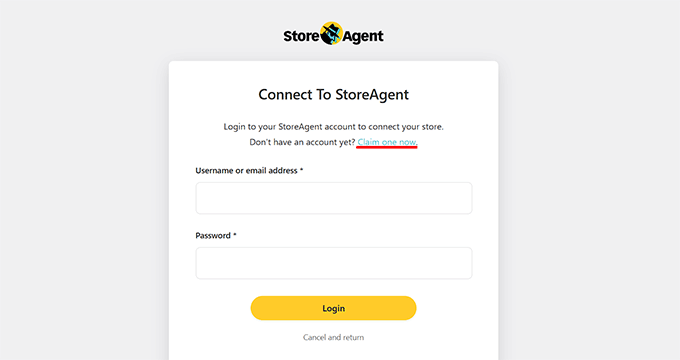
Once you have a StoreAgent account, log in with your credentials to link your WordPress site to StoreAgent’s service.
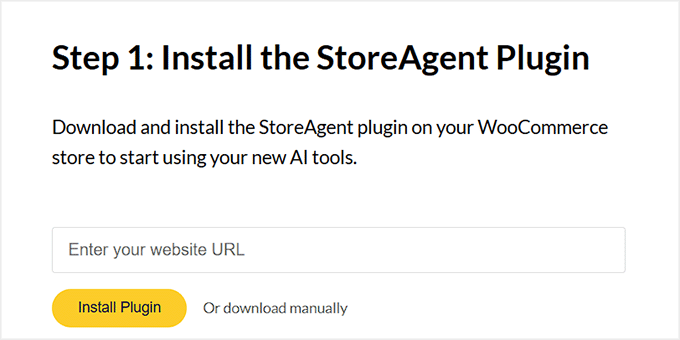
Next, enter your website URL in the connection field. This allows StoreAgent to verify your site and establish the link between your WordPress installation and their AI service.
The connection completes in seconds. Your WordPress site can now communicate with StoreAgent’s AI servers to generate product descriptions.
Step 2: Configure Your Brand Voice Settings
Setup time: 4 minutes
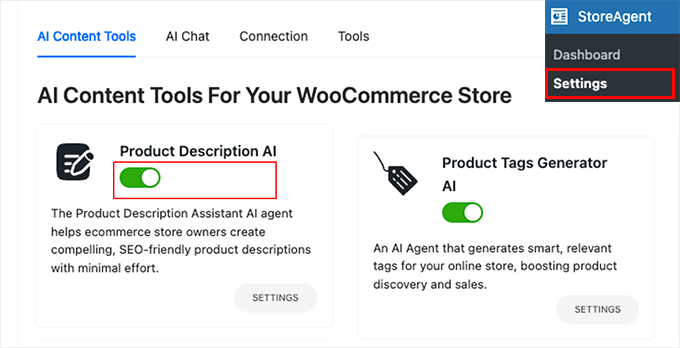
StoreAgent’s power comes from a one-time brand voice configuration that applies to all your products automatically. To set this up, navigate to StoreAgent » Settings in your WordPress dashboard.
Here, click on the “AI Content Tools” tab to access the product description settings. Toggle the “Product Description AI” agent to active status.
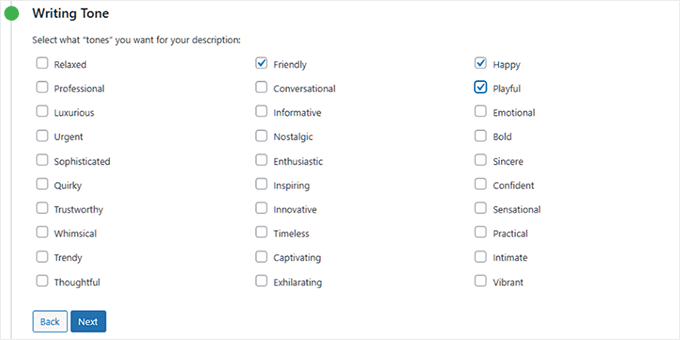
Then, in the section below, select your writing tone.
StoreAgent offers multiple tone options, including Friendly, Professional, Playful, Happy, Conversational, Informative, and more.
I recommend starting with Friendly or Happy for most consumer products since these tones convert well for online store products.
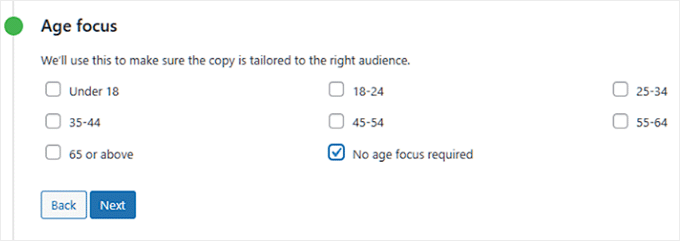
The age focus setting lets you tailor descriptions for specific demographics.
If your products target a particular age group, like 18-24 or 35-44, select that range. Otherwise, choose “No age focus required” to keep descriptions broadly appealing.
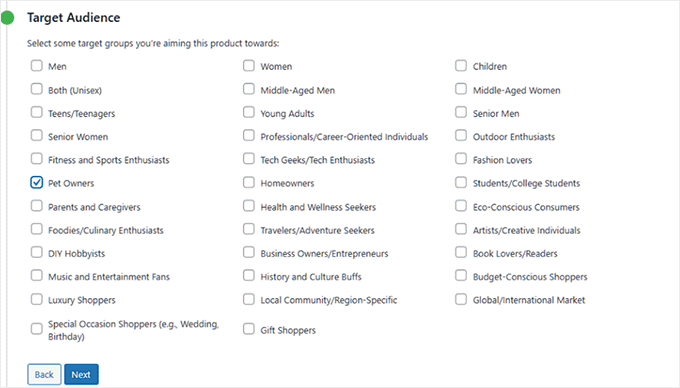
Next, scroll to the “Target Audience” section to narrow your descriptions even further.
StoreAgent provides dozens of pre-defined audiences: Pet Owners, Fashion Lovers, Tech Geeks, Fitness Enthusiasts, Parents, Students, and many more. Pick the audience that matches your customer base.
These settings create consistency across your entire product catalog. Every description StoreAgent generates will match your chosen tone, age focus, and target audience automatically.
You configure this once, and every future product inherits these brand voice guidelines without additional setup.
Step 3: Generate Descriptions with the Guided Form
Setup time: 3 minutes per product (after initial configuration)
Now for the easy part.
Open any WooCommerce product edit screen, and hit StoreAgent’s bright yellow “Generate description with AI” button right above your product description field.
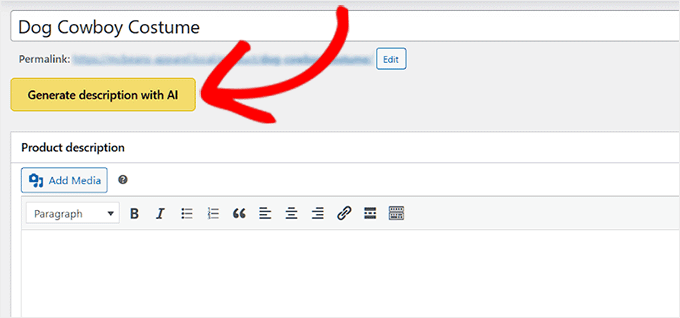
After this, a guided form appears with six simple questions that help the AI understand your specific product.
The product name field auto-fills from your product title. If you haven’t added a title yet, StoreAgent will prompt you to enter one since the AI needs to know what it’s describing.
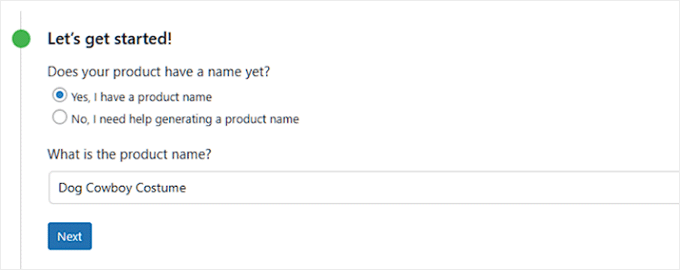
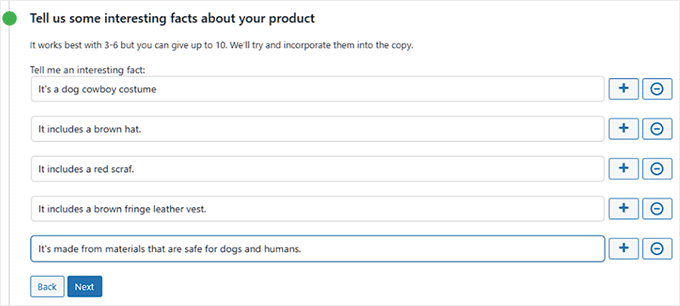
The interesting facts section is where you add 3-6 unique details about your product.
These could be materials, features, benefits, or anything that makes your product special.
For example, a dog costume might include “includes brown hat,” “includes red scarf,” and “made from pet-safe materials.”
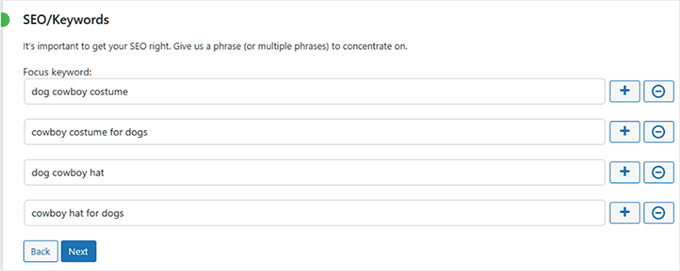
After this, set up the SEO keywords.
Add 3-5 relevant search terms customers might use to find this product. This ensures StoreAgent weaves these keywords naturally into the description for better eCommerce search engine optimization.
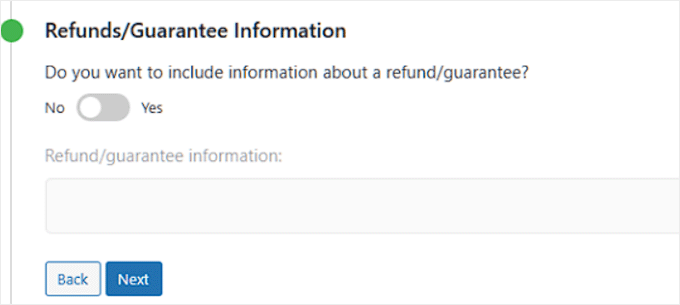
The refund or guarantee information field is optional but powerful for building trust. So, add your return policy or warranty details here if you want them mentioned in product descriptions.
After this, select your desired description length: Short (50-75 words), Medium (75-125 words), or Long (125-200 words).
I recommend Medium for most products since it provides enough detail without overwhelming readers.
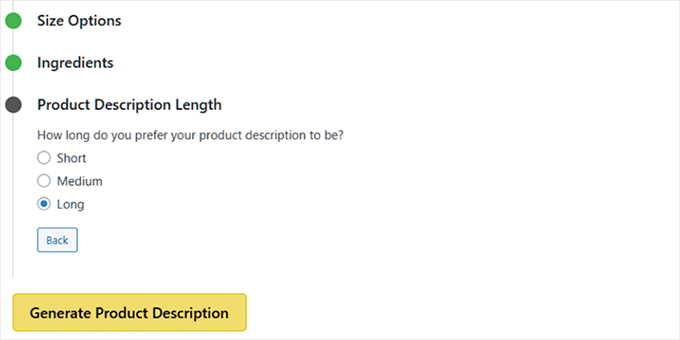
Once done, click “Generate Product Description” at the bottom of the form. StoreAgent processes your answers and generates a complete product description in about 5 seconds.
Apart from that, the preview screen appears, showing your AI-generated description.
Read through it carefully to see if it is what you are looking for. See if the AI combines your interesting facts, keywords, refund information, and brand voice settings into good content.
If you love it, click “Apply AI Generated Description,” and the text populates your product description field instantly.
If you want to try again with different answers or a different length, click “Go back” and adjust your inputs.
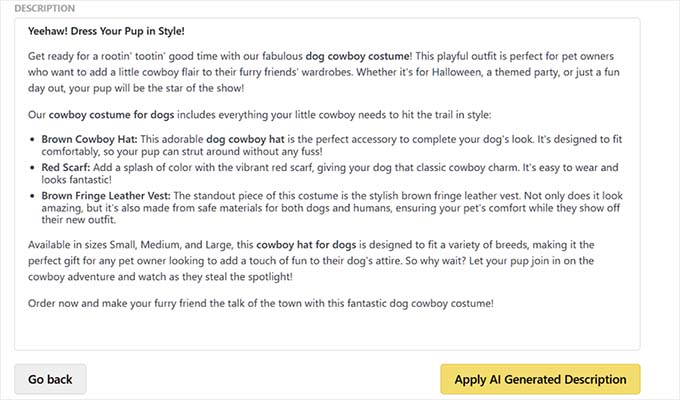
This guided approach makes prompt engineering super easy.
You answer straightforward questions, and StoreAgent handles the AI prompting behind the scenes with no technical knowledge required.
Review and Edit AI-Generated Descriptions
The AI generates solid descriptions, but you should always review before going live with products. AI occasionally makes assumptions or adds details that don’t perfectly match your product.
Read through the generated description carefully. Check that all facts are accurate. Verify that the features mentioned actually exist on your product. Make sure the tone matches your brand expectations.
If you spot errors or awkward phrasing, you have two options.
Edit the description directly in the preview window before applying it to your product. Or click “Go back” and adjust your form answers to generate a fresh version.
I recommend generating 2-3 variations by tweaking your interesting facts or changing the description length. Then pick whichever version sounds most natural and compelling.
Once you’re happy with the description, click “Apply AI Generated Description.” The text populates your WooCommerce product description field instantly, ready for publishing.
Compare Uncanny Automator vs StoreAgent: Which Method Should You Use?
Both methods deliver quality AI-generated product descriptions. Your choice comes down to technical comfort, catalog size, and how much control you need.
Choose Uncanny Automator if:
- You manage 100+ products: The one-hour setup investment pays off quickly through complete automation. Every product description is generated automatically when you publish, saving massive time at scale.
- Need flexibility: You want to customize every aspect of how AI generates descriptions. You can tweak prompts, adjust temperature settings, modify system messages, and fine-tune output length precisely.
- Understand WordPress basics: You’re comfortable with technical WordPress setup, including API keys, automation workflows, and prompt engineering. The learning curve is slight, but the control is absolute.
- Your budget: You can spend on monthly OpenAI API costs plus the yearly Uncanny Automator Pro license. The per-description cost is cheaper at scale compared to subscription pricing.
Choose StoreAgent if:
- Have a small store: You have 10-50 products, where spending 3-5 minutes per product answering a guided form is still faster than writing manually. The form-based approach works perfectly for smaller catalogs.
- WordPress beginner: You prefer beginner-friendly interfaces over technical configuration. StoreAgent removes all complexity with simple questions instead of requiring WordPress automation plugin expertise.
- Need quick AI generation: You want results in 10 minutes, not one hour. StoreAgent gets you generating descriptions immediately without lengthy setup procedures or learning curves.
- Small Budget: Your budget prefers predictable monthly costs. The free version covers 10 products monthly for testing, which is limiting. Pro offers unlimited descriptions with no usage-based surprises.
I tested both methods extensively. Uncanny Automator gave me more power and cheaper per-description costs. StoreAgent is the smarter option for stores with under 50 products, where the guided approach saves setup time.
Check out this comparison table to help you make the right choice for your business.
| Feature | Uncanny Automator + OpenAI | StoreAgent Plugin |
|---|---|---|
| Best For | Large catalogs (50+ products) | Beginners and small stores |
| Setup Complexity | Moderate (requires OpenAI API key) | Simple (guided 3-step process) |
| Bulk Processing | ✅ Generate multiple products automatically | ❌ One product at a time |
| Brand Voice Control | Full control via custom prompts | Preset options (Professional, Casual, Technical) |
| Cost per Description | $0.002-0.005 (OpenAI usage) | Free (built into plugin) |
| Integration Options | ✅ Connects with 150+ plugins | ❌ WooCommerce only |
| Automation Triggers | ✅ Generate on product publish | ❌ Manual button click |
| Preview Before Saving | ❌ Descriptions save automatically | ✅ Review and edit before publishing |
| Technical Knowledge | Some API familiarity helpful | None required |
| Pricing | Free; Pro starts at $149/year + OpenAI costs | Free; Pro starts at $19/month |
For me, Uncanny Automator is the winner when it comes to creating AI product descriptions for WooCommerce. The flexibility and the price point to automate many pages at once sold it for me.
But for you, pick based on your catalog size and technical confidence. Both deliver professional descriptions that beat manual writing for speed and consistency.
Best Practices for WooCommerce AI Product Descriptions
I generated over 100 AI descriptions during my 30-day testing period. Here’s what actually works in practice versus what sounds good in theory.
Always review before publishing. AI gets facts wrong about 10% of the time. It might claim your hoodie has pockets when it doesn’t, or invent features that sound plausible but don’t exist. Catch these errors before customers do.
Feed the AI specific details. Vague inputs produce vague descriptions. Instead of “comfortable fabric,” specify “soft cotton blend with 4-way stretch.” The more concrete information you provide, the better your descriptions turn out.
Use brand voice guidelines consistently. Create 3-5 example descriptions you absolutely love for different product types. Reference these examples in your AI prompts or StoreAgent settings. This trains the AI to match your actual brand voice instead of generic marketing speak.
Balance SEO with readability. AI tends toward keyword stuffing when you emphasize SEO too heavily in prompts. Aim for 1-2 natural keyword mentions maximum. Search engine optimization tools can verify your keyword density stays in the sweet spot.
Test different approaches for product categories. Electronics descriptions need technical specs and compatibility info. Fashion descriptions focus on style and materials. Generate templates for each category rather than using one prompt for everything.
A/B test variations when possible. Generate three different descriptions for your top sellers. Run them for two weeks each and track which converts better. Scale the winner across similar products. This scientific approach beats guessing what customers want to read.
Add human touches to flagship products. Use AI for bulk catalog items where efficiency matters most. Your hero products and bestsellers deserve custom descriptions that showcase what makes them special. The 80/20 rule applies here – AI handles 80% of products, you personally craft the critical 20%.
Review and refine prompts quarterly. Your first AI descriptions won’t be perfect. After generating 20-30 products, identify patterns in what works and what falls flat. Adjust your prompts or StoreAgent settings based on real results, not assumptions.
Congratulations! You can now reduce the time taken to create your product descriptions and spend that time actually marketing them and growing your business.
If anything is unclear, check out the commonly asked questions below.
FAQs: How to Automatically Generate WooCommerce Product Descriptions with AI
Do AI product descriptions hurt SEO rankings?
No, AI descriptions don’t hurt SEO when done correctly. Search engines care about content quality and relevance, not whether a human or AI wrote it. Focus on including relevant keywords naturally and providing genuine value to customers. Poor AI descriptions with keyword stuffing will hurt SEO just like bad human-written content would.
How much does OpenAI cost for product descriptions?
OpenAI charges approximately $0.002-0.005 per product description using GPT-3.5-turbo. That means 1,000 descriptions cost about $3-5 total. Costs scale based on description length and model choice. GPT-4 costs more but isn’t necessary for product descriptions, where GPT-3.5-turbo delivers excellent results.
Can I use AI descriptions for dropshipping products?
Yes, AI descriptions work perfectly for dropshipping since you often lack detailed product knowledge. The AI helps you create unique descriptions instead of copying manufacturer text that appears on dozens of other sites. Just verify any facts the AI generates against actual product specifications to avoid accuracy issues.
Will customers know my descriptions are AI-written?
Not if you review and edit them properly. AI-generated text sounds natural when you use good prompts and brand voice settings. The occasional awkward phrasing or overly enthusiastic tone gives it away, which is why review matters. Most customers can’t distinguish quality AI content from human writing.
What if AI generates incorrect product information?
Always review AI descriptions before publishing. The AI sometimes invents plausible-sounding features that don’t exist. Treat AI output as a first draft that needs fact-checking against your actual product specifications. Catching errors in review prevents customer complaints and returns from misleading descriptions.
Should I use AI for all products or just some?
Use AI for bulk catalog items where speed and consistency matter most. Write custom descriptions manually for flagship products, bestsellers, or complex items needing detailed explanations. The 80/20 approach works well – AI handles the majority of straightforward products while you personally craft the critical 20% that drive most revenue. This balances efficiency with quality where it matters most for growing your online store.
Final Verdict: Should I Automate Product Descriptions?
Yes, if you’re spending more than 2 hours weekly writing product descriptions.
AI automation isn’t about replacing good writing. It’s about scaling your store without burning out on repetitive tasks that don’t require your unique expertise.
I saved 40 hours during my first month using these tools. That time went toward customer service, marketing strategy, and actually growing the business instead of staring at blank description boxes.
The quality concern is real but manageable. AI descriptions score 8/10 when properly reviewed. That’s professional enough for most products.
Your bestsellers and hero products still deserve the 10/10 custom treatment only you can provide.
Whatever tool you choose between Uncanny Automator and StoreFront, you’ll generate better descriptions faster than manual writing.
The time you save grows as your catalog expands. That’s the real win – consistent quality at scale without the burnout.
Resource Hub: Growing Your WooCommerce Store
AI product descriptions solve the content creation bottleneck. But building a successful WooCommerce store requires more pieces working together.
- Best WordPress payment plugins – Accept credit cards, PayPal, and digital wallets with secure checkout options that increase conversion rates.
- How to accept credit card payments on your site – Step-by-step guide to setting up payment processing without getting overwhelmed by merchant accounts and gateway options.
- Best WordPress page builders compared – Design professional product pages and landing pages without coding using drag-and-drop builders.
- Best email capture tools for WordPress – Build your customer list with popups and forms that turn visitors into subscribers and repeat buyers.
- WordPress speed optimization plugins – Speed up your store to reduce bounce rates and improve Google rankings with caching and performance tools.
- Best WooCommerce alternatives – Compare other eCommerce platforms if you’re considering options beyond WooCommerce for your specific needs.
These resources tackle common challenges every store owner faces, including payment processing, page design, email marketing, site speed, and platform selection.
They all impact your bottom line as much as product descriptions do.

Comments Leave a Reply