Last year, I helped a local animal shelter launch their first peer-to-peer fundraising campaign in WordPress. The donation form was live, PayPal was connected. Donations came in within the first hour.
Then the emails started.
“How close are you to your $5,000 goal?” Donor after donor wanted to know if their contribution was making a difference. The shelter staff spent the next three days answering the same question fifty times.
The fix took fifteen minutes.
A fundraising thermometer shows every visitor exactly how close you are to your goal right on the page. No emails needed. Just a live progress bar that tells the story for you.
Here’s how to add one to your WordPress site.
Key Takeaways
- I’ll show you how to add a fundraising thermometer that automatically tracks donations without manual updates needed
- The best free method if you’re just starting out and don’t need payment tracking
- I cover three methods: Charitable (recommended), the free Donation Thermometer plugin, and Formidable Forms
- How to set up a donation goal, connect a payment processor, and collect donor emails all in one campaign
- I reveal the most important difference between methods, automatic vs. manual tracking, so you can choose the right one before you start
- I walk through every step from install to launch, so you can go live in under 20 minutes
- How to test your thermometer before your campaign goes live
What We’ll Accomplish in This Tutorial
By the end of this guide, your WordPress site will have a live fundraising thermometer. A progress bar that shows donors exactly how close you are to your goal.
For a full breakdown of every plugin that can do this, see my guide to the best fundraising thermometer plugins for WordPress.
For the recommended method in this tutorial, the thermometer updates on its own every time a donation comes in.
Here’s what you’ll have:
- A fundraising thermometer on your site, fully styled to your campaign
- A connected payment processor so donations are tracked in real time
- Automated donor email receipts ready to go
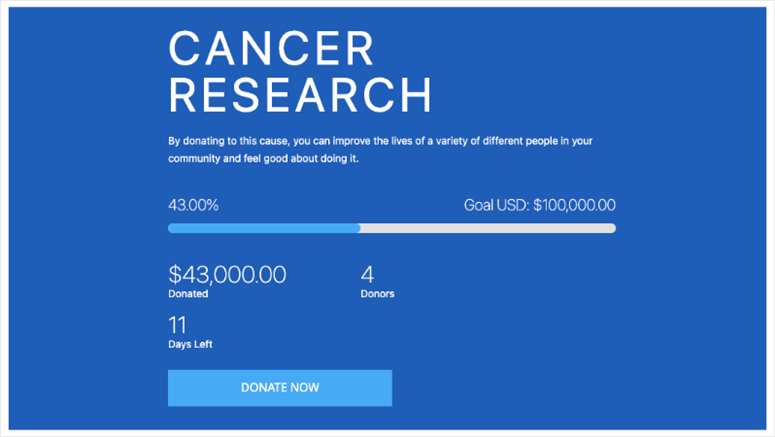
A live fundraising thermometer on a WordPress site, showing real progress toward a donation goal.
What You’ll Need Before We Start
Skill level: Beginner
Time to complete: ~20 minutes
Before we begin, make sure you have:
- A WordPress site with admin access
- A Charitable Pro account (for Method 1) or just a WordPress.org login to install free plugins for Methods 2 and 3
- A Stripe or PayPal account (for Method 1, you’ll connect this during setup)
To help you quickly navigate to the method that suits you best or skip to a step you want to read, use the table of contents below.
- Method 1: Charitable, The Best Way to Add a Fundraising Thermometer
- Method 2: Donation Thermometer Plugin. The Best Free Option
- Method 3: Formidable Forms. Best for Form Builder Users
- Charitable vs. Donation Thermometer Plugin vs. Formidable Forms: Which Should You Use?
- How to Test Your Work
- Common Issues and Quick Fixes
- FAQs: How to Add a WordPress Donation Goal Thermometer
- Final Thoughts: Should I Set up a WordPress Goal Thermometer for Donation
- Resource Hub: WordPress Fundraising and Donations
With that out of the way, let’s dive in.
Method 1: Charitable, The Best Way to Add a Fundraising Thermometer
Charitable is a donation plugin built specifically for WordPress fundraising campaigns.
It’s my top pick because it does the one thing that matters most: when someone donates, the thermometer updates automatically. You don’t have to log in and change the number by hand.
That’s made possible by Charitable’s campaign builder, a drag-and-drop editor that includes a live progress bar connected directly to your payment processor.
Every verified donation moves the needle in real time.
The free version of Charitable handles basic donation forms well. To access it, simply go to your WordPress plugin repository and search for it, install and activate it.
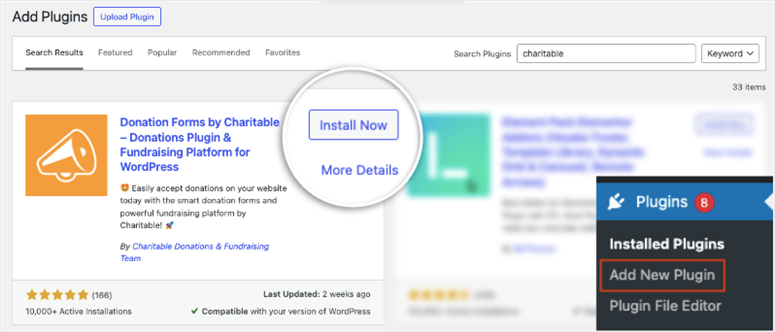
Charitable installed and active in your WordPress plugin list.
But the progress bar is a Pro feature.
That said, for this tutorial, I’m using the Pro version. This way, I can show you how automatic tracking, donor management, and everything else Charitable can do when it’s fully set up with the donation goal thermometer.
On top of that, you get built-in support for Stripe, PayPal, Square, and Authorize.net. Plus, there are email marketing integrations that let your donor list grow alongside your campaign.
For a full breakdown, check out my updated Charitable review here.
Step 1: Install and Activate Charitable
As mentioned, we will be using Charitable Pro for this tutorial. To get yours, head to the Charitable website and purchase a Pro plan. Then, log in to your charitable account and navigate to the Download tab.
On this page, download the plugin file from your account dashboard and copy your license key.
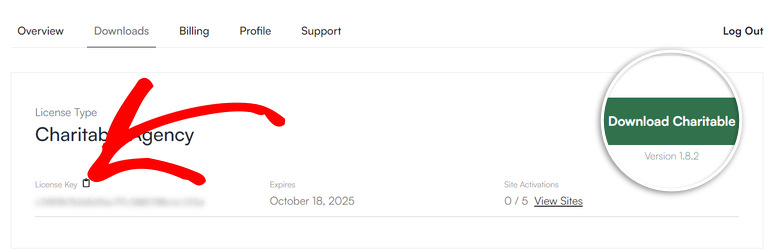
Then, in WordPress, go to Plugins » Add New » Upload Plugin. Upload the file, click Install Now, then Activate.
If this is your first time installing a plugin, here’s a step-by-step guide on how to install a WordPress plugin.
Once the plugin is active, you need to enter your license key to unlock the Pro features, including the thermometer. Go to Charitable » Settings, paste your key in the License section, and click Save Changes.
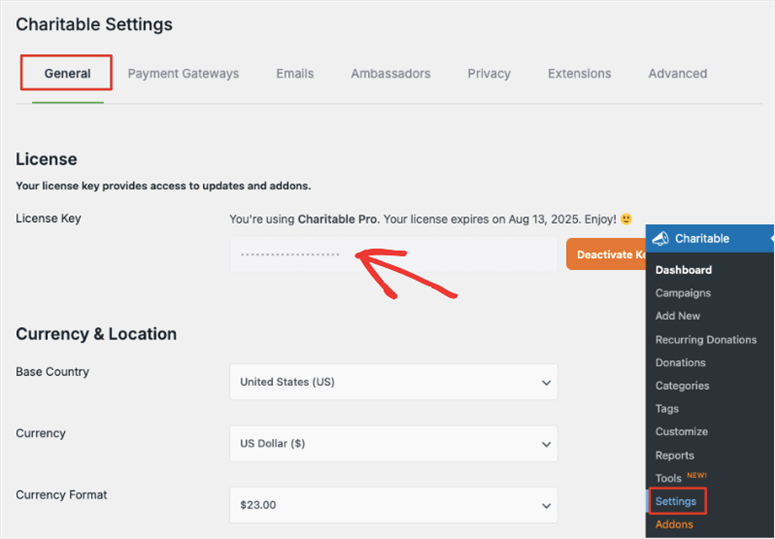
Enter your license key to unlock the fundraising thermometer and all Pro features.
After this, use the setup wizard to configure things like who the fundraiser is for, fee relief, donor payment and management, and Stripe integration.
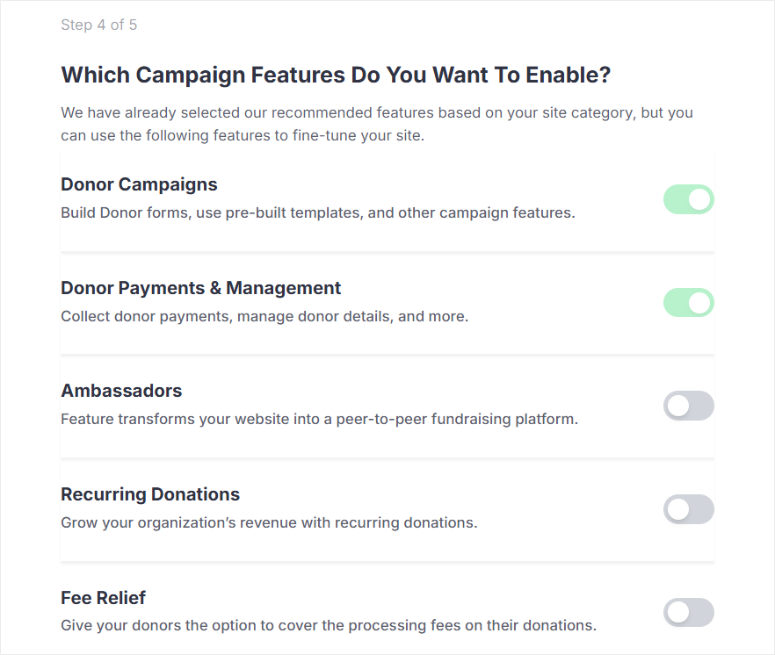
Check out this post for a full breakdown on how to set up Charitable.
⚠️ Quick Check: While on the Setting page, make sure you set up the currency and currency format for the country you are targeting.
Step 2: Add a New Campaign
With Charitable installed and activated, it’s time to create your campaign. This is where you’ll name it, pick a design template, and open the drag-and-drop editor.
The trick I’ve learned after setting up dozens of fundraising campaigns is to pick your template first and customize after, not the other way around.
The templates give you a working layout to start from, which significantly cuts your setup time.
To do this, go to Charitable » Add New in your WordPress dashboard to open the campaign builder.
You’ll see a library of templates organized by category: fundraisers, events, community projects, and more.
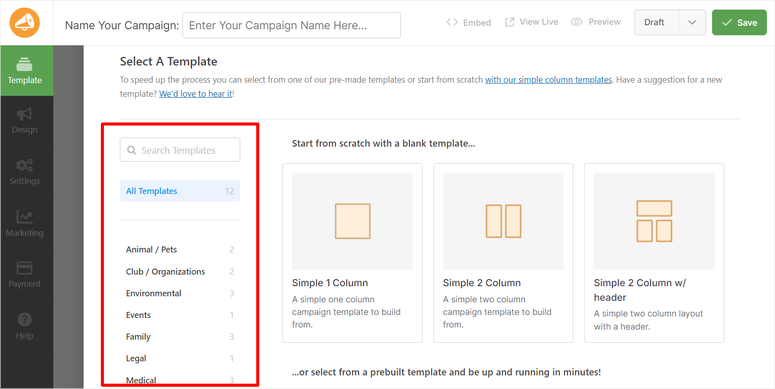
Pick the one closest to your cause and click “Create Campaign” to open it. If you are not sure of the template to pick, select Preview on the template to open a demo.
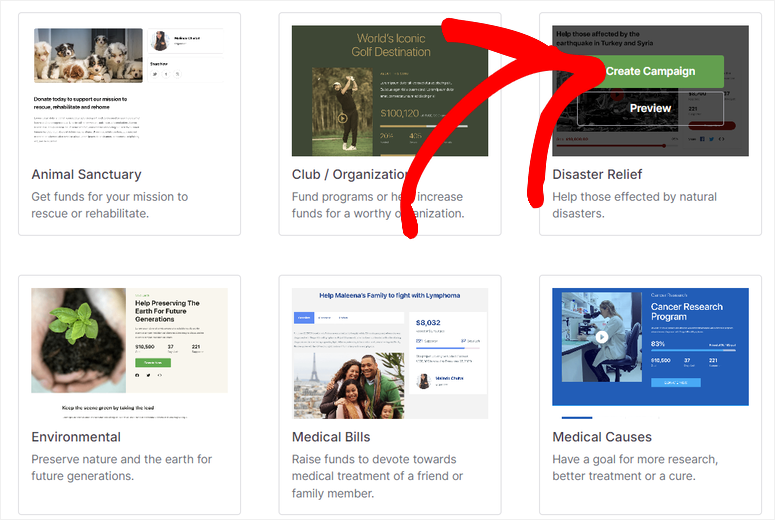
Choose a template that matches your campaign type. You’ll customize everything in the next step.
⚠️ Quick Check: You should land inside the full drag-and-drop campaign editor. If you see a mostly empty canvas, that’s normal. Some templates open with minimal default content.
Step 3: Customize Your Campaign and Add the Thermometer
This is the step where the thermometer actually appears.
The drag-and-drop editor lets you pull a progress bar directly into your campaign design. And once it’s tied to your goal amount, it shows donors exactly how far along you are.
In the campaign editor, click the Add Layout tab on the left side. You’ll see a list of elements you can drag into the design. Look for the Progress Bar element.
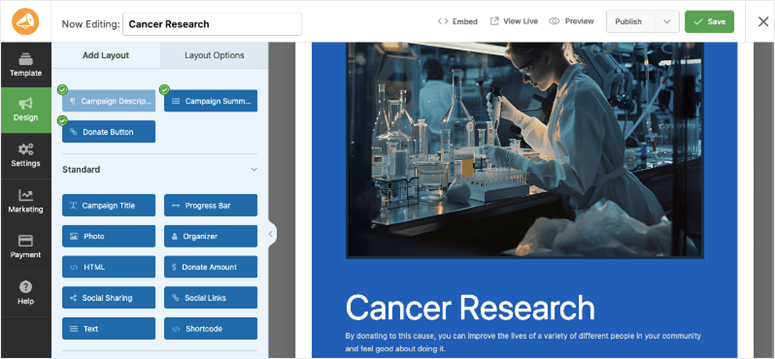
The campaign editor; your thermometer element goes in here.
Drag it into position. I always place mine below the campaign image and above the donate button. That’s where donors’ eyes land first.
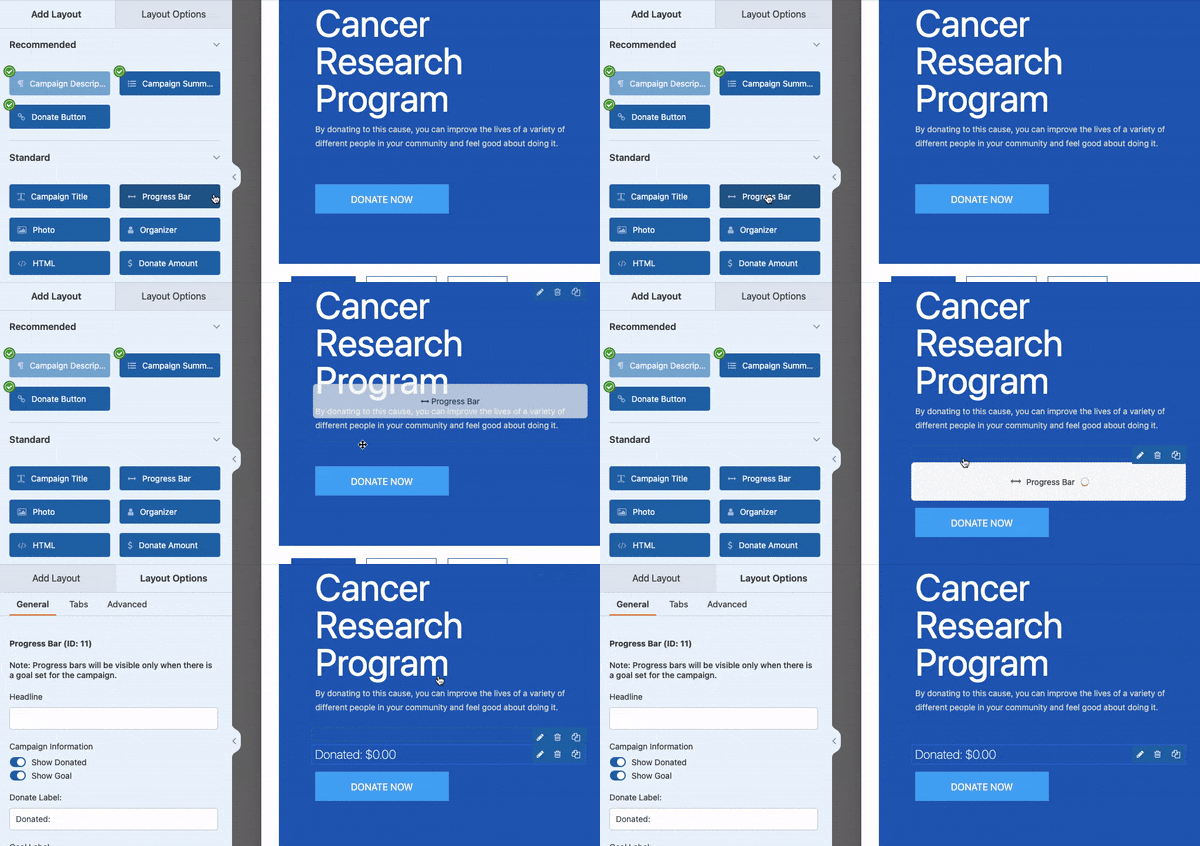
Drag the progress bar element straight into your campaign design.
Once the progress bar is in your layout, click on it to open the customization panel.
You can edit the headline above the thermometer, adjust the donation amount labels, and choose the display style from vertical thermometer, horizontal progress bar, or circular goal indicator.
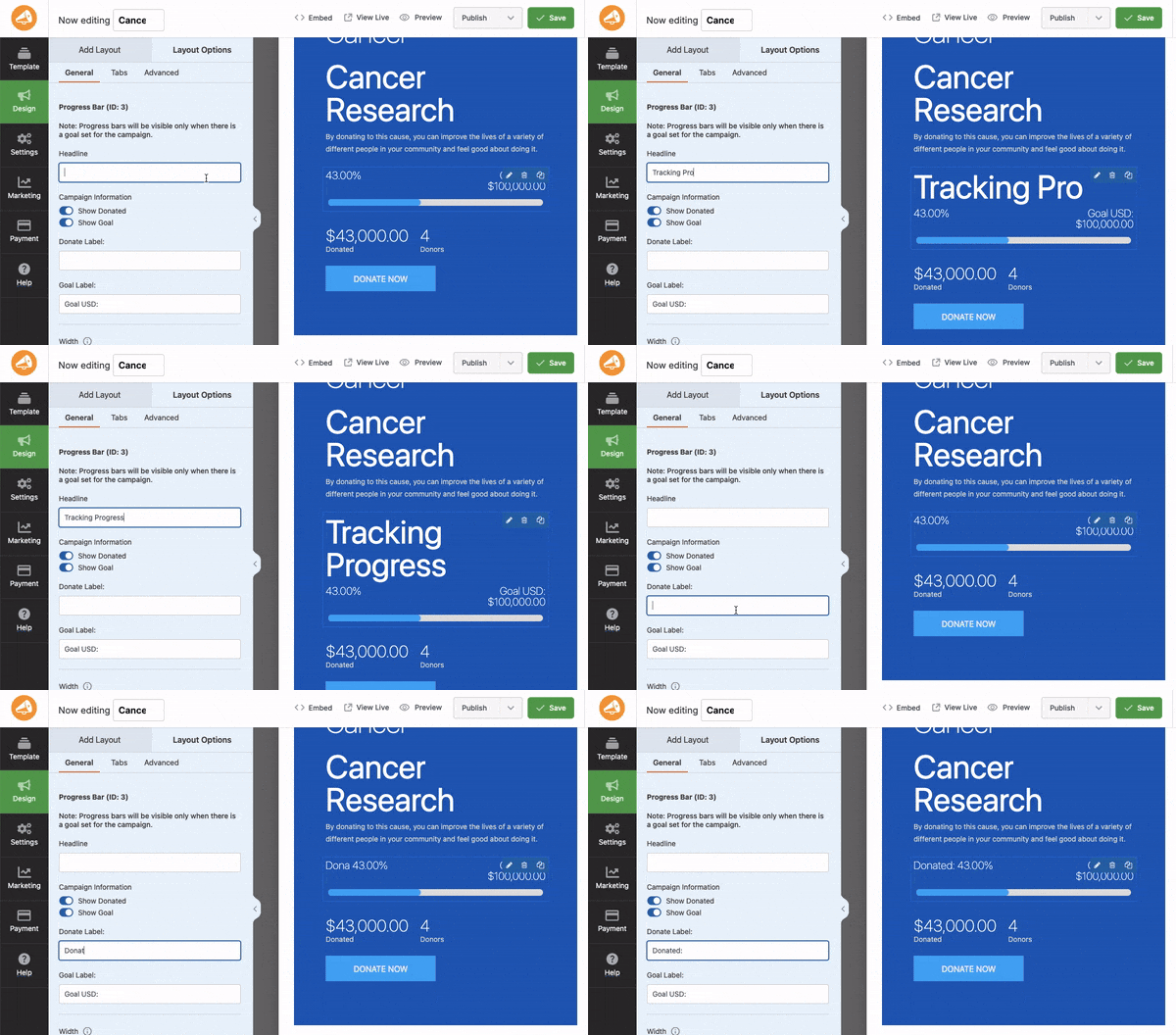
Click the progress bar element to open the full customization panel.
After placing it, the editing panel lets you fine-tune the style. I noticed that the classic thermometer style tends to perform well for traditional nonprofit campaigns because donors recognize it instantly.
But it is not enough just to customize; you need to make the donation thermometer look like it is part of your brand.
So, for brand colors, click the Advanced tab. This is where you control the thermometer’s fill color, background, and text styling so it matches your campaign’s look.
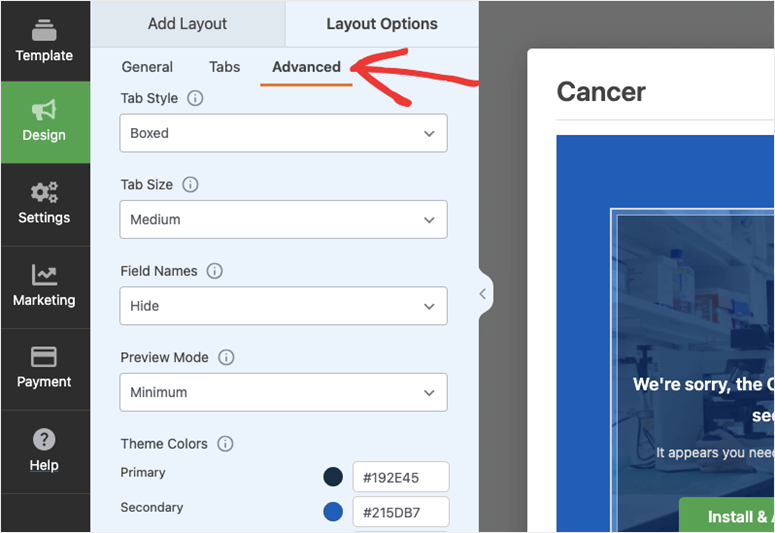
Match your thermometer colors to your brand using the Advanced tab.
When everything looks right, click Save in the top-right corner.
⚠️ Quick Check: The preview shows how the thermometer and your entire donation form will look live. Use it to help design better.
Step 4: Configure Your Campaign Settings
This is where you set the actual fundraising goal. The number your thermometer measures is progress toward. You’ll also connect your payment processor so donations can actually come in.
Go to the Settings tab in the top navigation of the campaign editor.
The first thing I always fill in is the Goal field. Here, enter your total fundraising target. For example, $5,000. After this, you can also set an End Date if your campaign has a deadline.
Both details appear on the campaign page and give donors a sense of urgency that moves people to act.
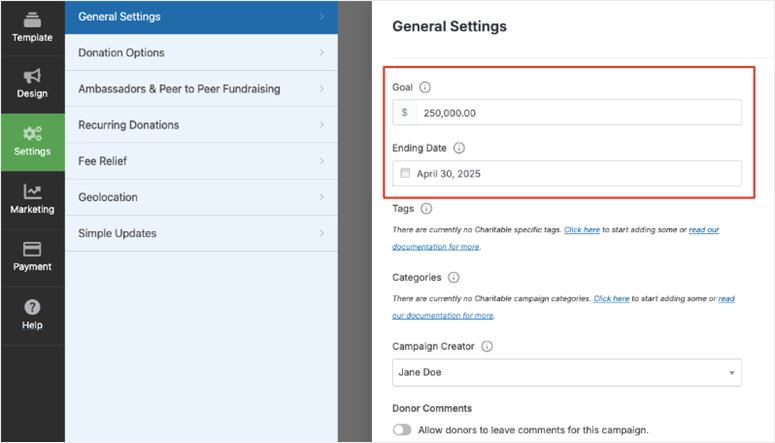
Set your fundraising goal and campaign end date in the Settings tab.
Now, click the Payments tab.
This is where you connect your payment processor. You’ll see options for Stripe, PayPal, Square, and Authorize.net. Click the one you use and follow the connection steps.
If you did not connect a payment option with the set up wizard, Charitable will allow you to do it at this step.
For Stripe, this means clicking Connect with Stripe and logging into your account in the pop-up that opens.
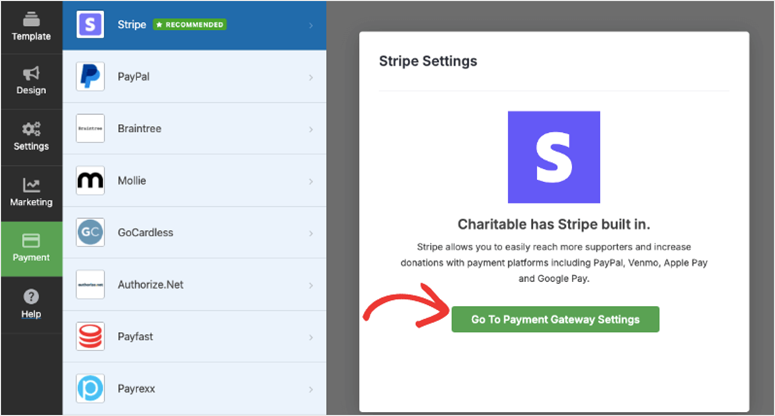
Select your payment processor in the Payments tab.
Once connected, you’ll see your account details confirmed on screen. This is the link between your payment processor and your thermometer; every donation that clears here moves the bar.
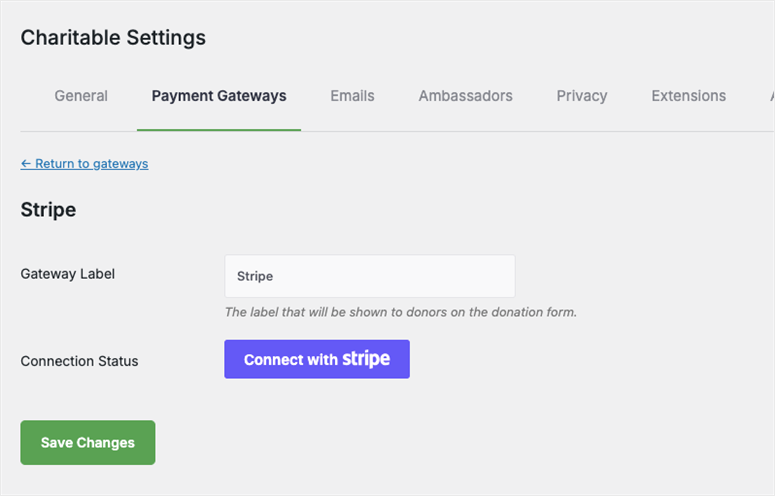
Stripe connected — donations now flow directly into your Stripe account.
The last thing to set up here is automated emails.
Look for the email notification options in the campaign settings.
Turn on two things: a Donor Receipt (an automatic thank-you to anyone who gives) and an Admin Notification (an alert to you when a donation comes in).
These run automatically after that with no manual follow-up needed.
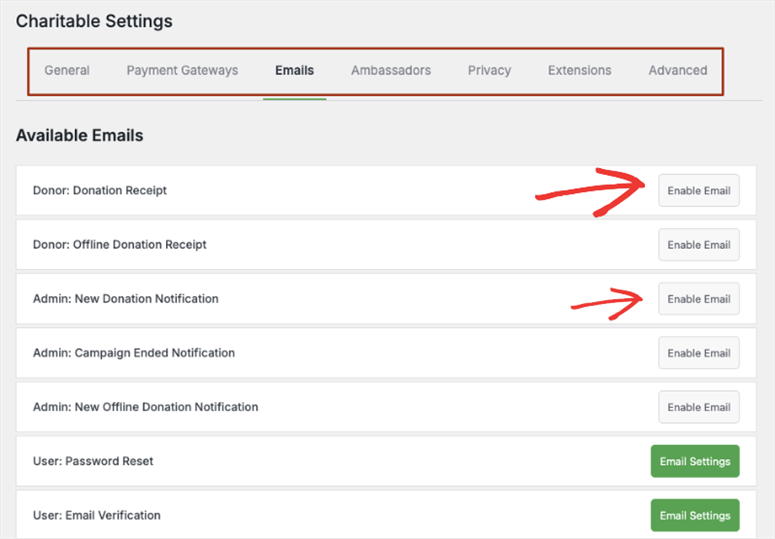
Turn on donor receipts and admin notifications. They run automatically from here on.
⚠️ Quick Check: Go back to the design tab. Your goal amount should now appear tied to the thermometer in the preview.
Step 5: Launch Your Campaign
With the thermometer designed and settings saved, it’s time to go live. Take a moment to preview the campaign before you publish. Remember, it’s easier to fix something now than after the link is out in the world.
In the top-right corner of the campaign editor, find the status dropdown. It should still say Draft. Click it and switch it to Published, then click Save.
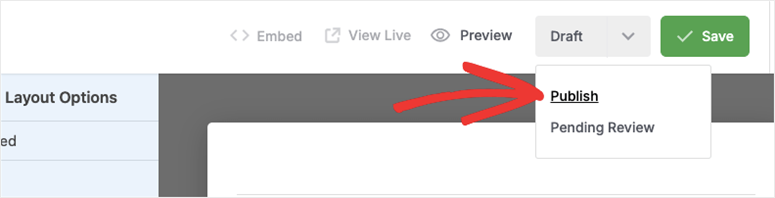
Switch the campaign status from Draft to Published to make it live.
Now add the campaign to a page on your site. Click the Embed button next to the status dropdown. It gives you two options: a shortcode and a block.
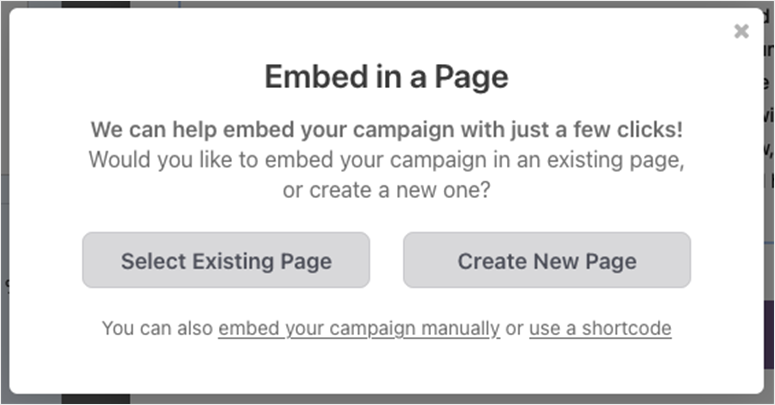
Click Embed to get the options for displaying your campaign on a WordPress page.
I prefer the block. Open or create the page where you want the thermometer to appear.
Then, in the WordPress block editor, click the “+ icon” to add a new block, search for Charitable Campaign, and select it. After this, drag and drop it where you want it to appear.
Finally, choose your campaign from the dropdown.
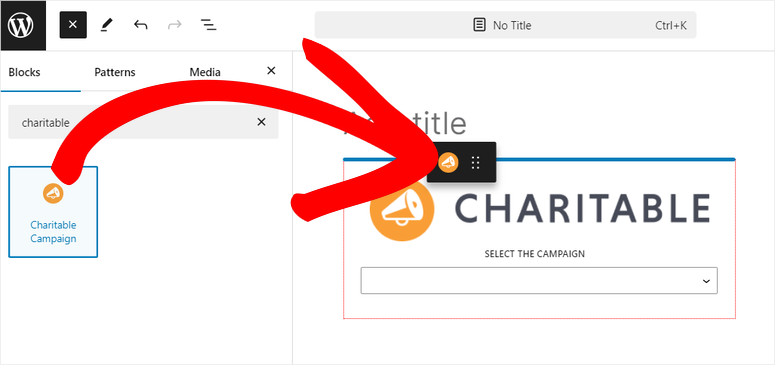
Search for the Charitable Campaign block and select your campaign from the dropdown.
⚠️ Quick Check: Preview the page. You should see the full campaign design with the thermometer and donate button. The progress bar shows $0 toward your goal. It moves when real donations come in.
Step 6: Track Your Donations
After your campaign goes live, you can monitor progress directly from WordPress. This is one of my favorite parts of the setup. You never have to open Stripe or PayPal to know what’s happening.
Go to Charitable » Campaigns in your WordPress dashboard.
You’ll see each campaign listed with its current total, goal amount, and donor count. The number here is the same one driving your live thermometer.
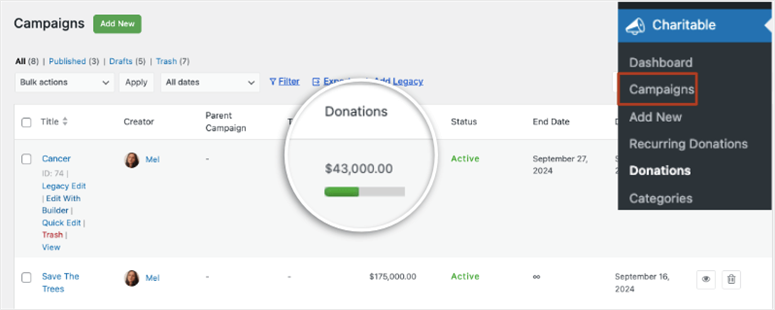
The Campaigns tab shows your live progress, like total raised, donors, and goal, all in one place.
To see individual donors, click the Donations tab in the Charitable menu.
Every donation lives here: name, amount, date, and email address. You can export this list as a CSV anytime, useful for personal thank-you notes or reporting results to your board.
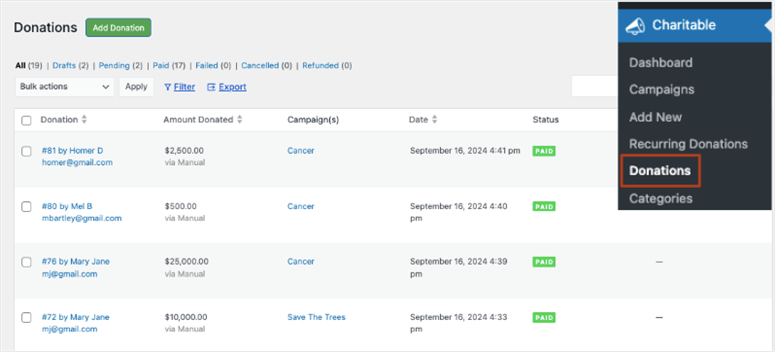
The Donations tab gives you a full record of every donation and every donor.
Between these two views, you have everything you need to manage an active fundraising campaign without leaving WordPress.
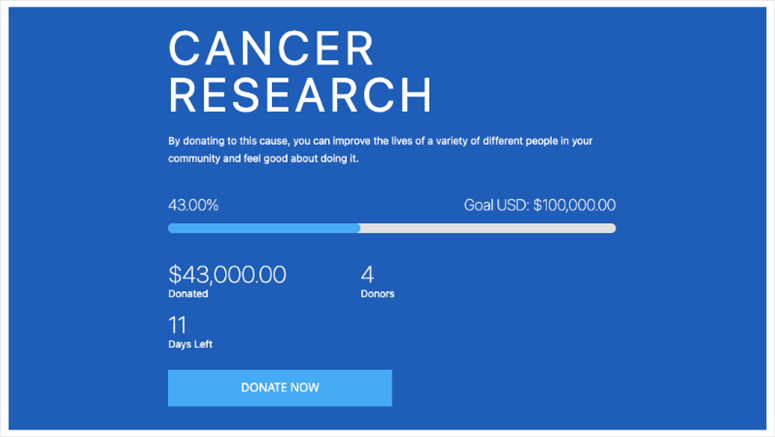
Your live campaign with a working fundraising thermometer is exactly what your donors will see.
👉 Get started with Charitable here
That’s it for setting up a donation thermometer with Charitable. This is my recommended way because of how easy it is to use. But the next option, though not as flexible and feature-packed as Charitable, is free.
So definitely worth giving it a consideration if your budget is tight.
Method 2: Donation Thermometer Plugin. The Best Free Option
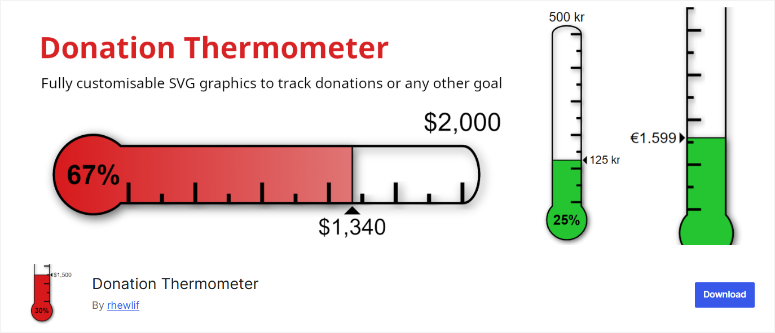
The Donation Thermometer plugin does one thing: it adds a visual thermometer to your WordPress site. It’s completely free. Setup takes under five minutes.
The trade-off is real, though and it’s worth knowing upfront. You update the raised amount manually.
There’s no connection to a payment processor, so when someone donates online, the thermometer doesn’t move on its own. You have to log in and change the number yourself.
For small campaigns where donations come in via bank transfer, cheque, or cash, that’s totally fine. But if you’re running a high-volume online campaign, that limitation matters.
Step 1: Install and Configure the Plugin
Go to Plugins » Add New in your WordPress dashboard and search for Donation Thermometer. Install and activate the free plugin.
Once it’s active, go to Settings » Thermometer.
Set your target goal amount, enter the current amount raised (start at zero, or whatever you’ve already collected), give your thermometer a title, and pick a display style.
Most beginners are done with this in two minutes.
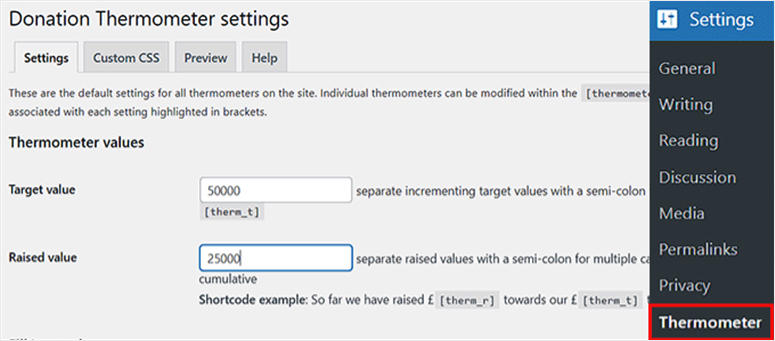
Set your goal and current raised amount in the Thermometer settings.
Step 2: Add the Thermometer to Your Page
From the Settings page, copy the shortcode the plugin generates. Then, open the WordPress page where you want the thermometer to appear.
In the block editor, click + to add a new block, search for Shortcode, and add it. Paste the shortcode into the block and click Update to save the page.
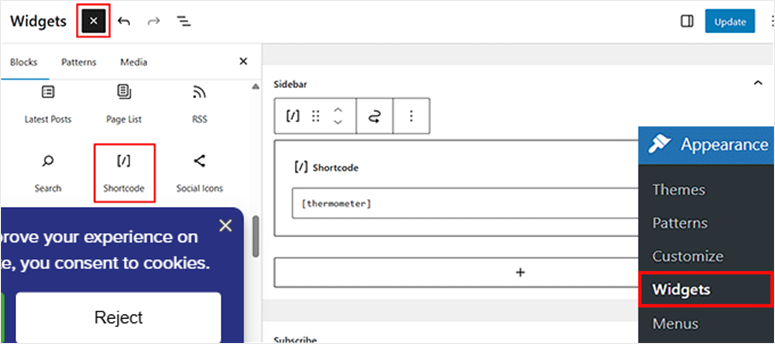
Paste the thermometer shortcode into a Shortcode block on your page.
⚠️ Quick Check: Preview the page. You should see the thermometer with your goal amount and current total displayed.
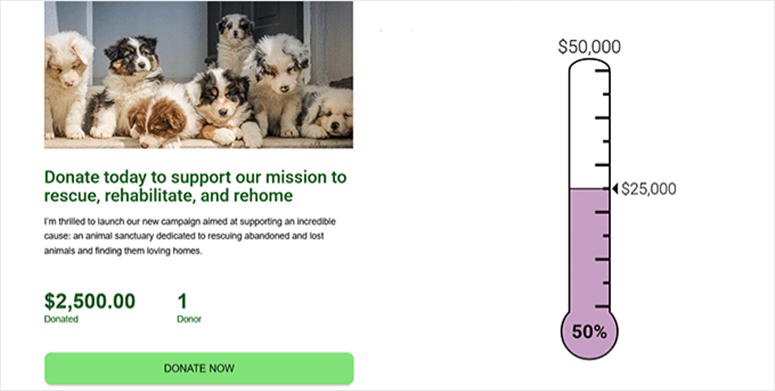
The Donation Thermometer plugin in action. Simple, free, and up and running in minutes.
When you’re ready to move to automatic tracking, Charitable (Method 1 above) is the natural next step.
But if you want to use a drag and drop form builder, Formidable Forms gives you the best solution.
Method 3: Formidable Forms. Best for Form Builder Users
Formidable Forms is a powerful form builder for WordPress. It’s the right choice here if you’re already using forms for multiple functions on your site.
You can add a donation thermometer without installing another plugin. The setup uses a pre-built Charity Tracker template that handles most of the heavy lifting.
One thing to know before you start: this feature requires the Business plan. The free Lite version doesn’t include it.
You’ll also need to activate the Visual Views add-on, which comes with your Business subscription.
Read my full Formidable Forms review for more details.
Step 1: Activate the Visual Views Add-On
After installing Formidable Forms Pro, go to Formidable » Add-Ons in your WordPress dashboard.
Find Visual Views in the list and click Install.
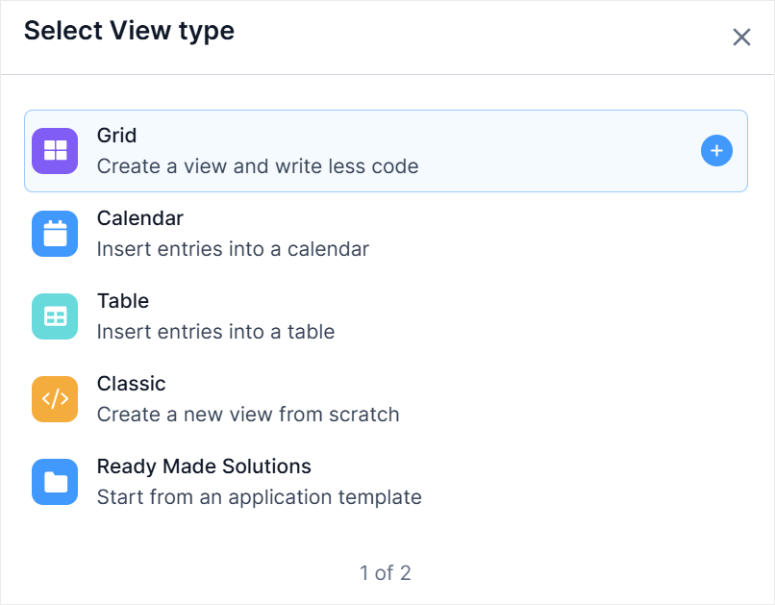
Once it’s active, you’re ready to bring in the Charity Tracker template.
Step 2: Install the Charity Tracker Template
Go to Formidable » Applications. In the applications library, find the Charity Tracker template and click Install.
This brings in the complete setup: donation form, views, and thermometer configuration in one step.
Once installed, open the application to see how it’s set up and adjust the goal amount to match your campaign.
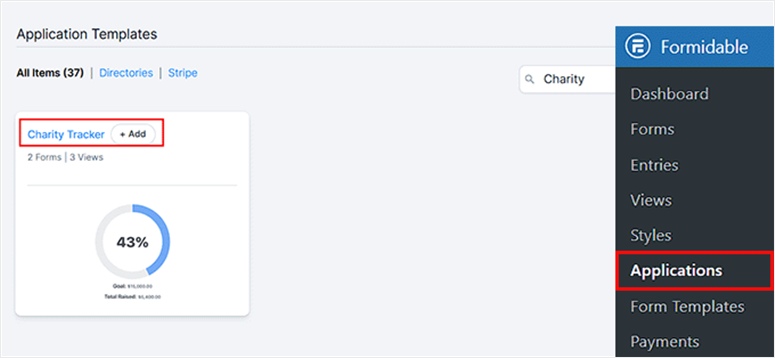
The Charity Tracker template brings in the full donation form and thermometer in one install.
Step 3: Set Your Goal and Display the Form
Inside the Charity Tracker application, find the goal setting in the view configuration.
Set your target amount and save. Then grab the shortcode for the view, add a Shortcode block to any WordPress page, paste it in, and update the page.
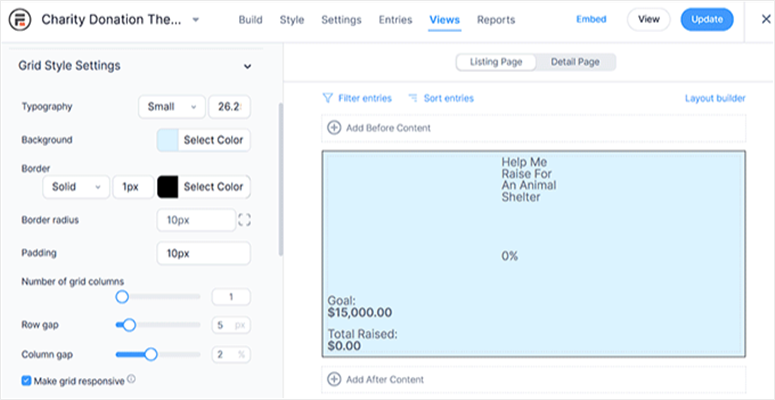
The Formidable thermometer on the page is connected to real donation form submissions.
⚠️ Quick Check: Visit the page. You should see the donation form with the thermometer positioned according to the template layout.
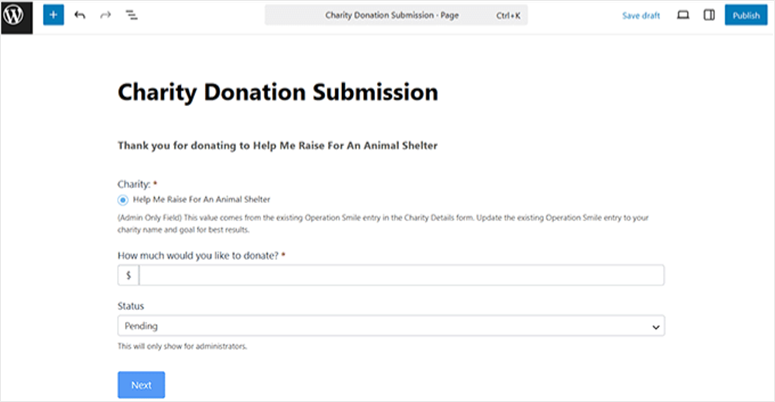
Method 3 complete. A donation form with a live thermometer, powered by Formidable Forms.
👉 Get started with Formidable Forms here
Charitable vs. Donation Thermometer Plugin vs. Formidable Forms: Which Should You Use?
All three methods work. The right one depends on your situation — specifically, whether you need automatic tracking and whether you’re already using any of these tools.
| Feature | Top Pick ⭐Charitable | Donation Thermometer | Formidable Forms |
|---|---|---|---|
| Thermometer Updates | Automatic ✅ | Manual only ❌ | Automatic ✅ |
| Free Version Available | ✅ (thermometer needs Pro) | ✅ Fully free | ✅ (thermometer needs Business) |
| Cost for Thermometer | From $69/year | Free | From $199.50/year |
| Payment Integration | Built-in (Stripe, PayPal, more) | None | Add-on required |
| Best For | Campaigns needing automatic donation tracking | Simple campaigns with offline or manual giving | Sites already using Formidable Forms |
How to Test Your Work
Testing before you share your campaign link is worth the extra five minutes. Here’s how I do it.
For Charitable:
Open an incognito window and visit your campaign page. The thermometer should show $0 toward your goal.
To test a real payment, switch Stripe to test mode and use a card number 4242 4242 4242 4242 with any future expiry date and any three-digit CVV. Submit a test donation.
Then go to Charitable » Campaigns in your dashboard. The total should have been updated.
For Donation Thermometer:
Open your page in a normal browser window. In a separate tab, log in to WordPress and go to Settings » Thermometer.
Update the current amount to any number above zero. Save and refresh the public page. The bar should move.
For Formidable Forms:
Submit a test entry through the donation form. Refresh the page with the thermometer and verify the progress update.
If the thermometer isn’t showing at all, clear your site’s cache first. Most WordPress caching plugins hold onto an older version of the page, and a cache flush forces a fresh load.
Common Issues and Quick Fixes
Problem: “The thermometer isn’t showing on my page.”
- ❌ What’s happening: The campaign or shortcode isn’t embedded correctly, or a caching plugin is displaying an outdated version of the page.
- ✅ Quick fix: Confirm the Charitable Campaign block (or shortcode) is on the right page, and the campaign status is Published, not Draft. Then clear your site cache.
✨ My experience: The first time I set this up, the thermometer didn’t appear because I forgot to switch the campaign from Draft before adding it to the page. One-minute fix once I spotted it.
Problem: “My progress bar isn’t updating after a donation came in.”
- ❌What’s happening: Almost always a payment gateway issue. If Stripe or PayPal didn’t confirm the transaction as complete, Charitable doesn’t count it.
- ✅ Quick fix: Log into Stripe or PayPal and check whether the payment shows as “succeeded,” not “pending.” Pending payments haven’t cleared yet. Check for any failed webhook deliveries in your Stripe dashboard.
✨ My experience: Test donations in sandbox mode sometimes stay “pending” indefinitely. Run a real $1 test in live mode to confirm the full payment flow works.
Problem: “The Stripe connection isn’t saving in Charitable.”
- ❌ What’s happening: Charitable connects to Stripe via OAuth. If the popup closes before the handshake completes, the connection won’t save.
- ✅ Quick fix: Go back to Payments in your campaign settings and click Connect with Stripe again. Disable any popup blockers for this step. Complete the full flow without closing any windows.
✨ My experience: I always disable my ad blocker when connecting payment gateways. A popup blocker is the most common reason this step fails on the first attempt.
That’s it. You can now add a WordPress donation goal thermometer with your preferred option from the three I have discussed. You can also troubleshoot if any method gives you an error.
If anything is unclear, check out the commonly asked questions below.
FAQs: How to Add a WordPress Donation Goal Thermometer
Can I add a fundraising thermometer to WordPress for free?
Yes. The Donation Thermometer plugin is completely free and available at WordPress.org. It lets you display a customizable thermometer on any page or post. The trade-off: you update the raised amount manually, with no automatic connection to a payment processor.
Does the thermometer update automatically when someone donates?
It depends on which method you use. With Charitable, yes, the progress bar updates automatically every time a confirmed donation comes in through your connected payment processor. With the Donation Thermometer plugin, no, you update the raised amount manually in the plugin settings.
Can I add the thermometer to a specific page or post rather than a dedicated campaign page?
Yes. Both the Charitable and the Donation Thermometer plugin give you a shortcode (or block) you can add to any page, post, or widget area. With Charitable, you can also use the Charitable Campaign block directly in the WordPress block editor, which gives you a visual preview without copying any code.
What’s the difference between a donation thermometer and a donation form?
A donation form is where donors enter their payment details and complete a gift. A thermometer is a display element. It shows progress toward a goal. You need both for a complete campaign setup. With Charitable, the form and thermometer are part of the same campaign. With the Donation Thermometer plugin, they’re separate; I’d recommend my guide on how to create a WordPress donation form to handle the payment side.
Can I customize the colors of the thermometer?
Yes. With Charitable, you control the fill color, background color, and text styling in the Advanced tab of the campaign editor. The Donation Thermometer plugin also has color settings under Settings » Thermometer.
Do I need WooCommerce to add a donation thermometer in WordPress?
No. None of the methods in this guide requires WooCommerce. Charitable, the Donation Thermometer plugin, and Formidable Forms all work independently of WooCommerce.
Final Thoughts: Should I Set up a WordPress Goal Thermometer for Donation
Yes, and I will tell you why.
The shelter team I mentioned earlier never had to answer the question “how close are you to your goal?” again after the thermometer went up.
The page told every donor the answer before they even had a chance to ask.
You can now do the same.
Whether you went with Charitable for automatic tracking, the free Donation Thermometer plugin for a simple setup, or Formidable Forms because you were already using it, your campaign now shows donors the progress that keeps them coming back.
My honest recommendation?
Charitable is where I’d start if you want the full picture, including payments, donor management, and a thermometer that moves on its own.
Plus, you can start with the free Charitable version to test it out before committing.
That combination turns a good campaign into one people feel compelled to share. The setup takes about twenty minutes. Your next campaign can be live before lunch.
Resource Hub: WordPress Fundraising and Donations
Whether you’re just getting started or looking to scale your nonprofit’s online presence, these guides cover the full picture.
- 11+ Best WordPress Donation and Fundraising Plugins for Nonprofits – A full comparison of donation plugins for nonprofits of every size and budget.
- 11 Best WordPress Crowdfunding Plugins for Simple Fundraising – Explore crowdfunding tools if you need peer-to-peer fundraising or backer rewards.
- 13+ Best Crowdfunding WordPress Themes – Themes designed for fundraising and campaign pages that convert.
- 7 Best Progress Bar Plugins for WordPress – Progress bars for goals beyond donations, reading progress, skill tracking, and more.
- 7 Powerful Recurring Donation Plugins for WordPress Sites – Turn one-time donors into long-term supporters with recurring giving options.
- How to Build Donor Trust with Charitable in Your Nonprofit – Strategies for keeping donors engaged and coming back beyond the first gift.

Comments Leave a Reply