
Here’s something most WordPress site owners don’t realize: every time you upload an image, WordPress doesn’t just save that one file.
It creates up to 10 different size variations automatically. Thumbnails, medium, large, and a handful more, depending on your best WordPress themes and plugins registered.
Do this a few hundred times, and you end up with thousands of files taking up space, most of which your site never actually displays.
I ran a scan on IsItWP recently and found 1,847 unused media files sitting in our library.
Files from old posts, replaced images, leftover thumbnails. None of it was being used. All of it was slowing down our backups and eating into our storage.
In this guide, I’ll show you how to remove unused files from your WordPress media library in about 10 minutes and without breaking a single page on your site.
Key Takeaways
- I’ll show you how to scan your entire WordPress database. Not just posts and pages, so you don’t miss files used in widgets, custom fields, or page builders
- I cover the backup step that most tutorials skip, so you have a restore point before you delete anything
- Reveal the one column in the scan results you should always check before hitting delete
- I walk you through the full cleanup in 3 steps so you can clear your media library in under 10 minutes
- I share the common mistakes that cause broken images after cleanup and how to avoid each one
What We’ll Accomplish in This Tutorial
By the end of this guide, your WordPress media library will only contain files that are actively in use on your site.
You won’t have any leftover thumbnails, replaced images collecting dust. Plus, no orphaned files from deleted posts.
The result: faster backups, cleaner library management, and a leaner site overall.
What You’ll Need Before We Start
Skill level: Intermediate Time to complete: ~10 minutes
- Search & Replace Everything Pro – Head to WPCode and purchase the Pro plan.
- WordPress admin access – You’ll need administrator-level access to install plugins and run the scan.
- A full site backup – This is non-negotiable before deleting any files. Run a full site backup before you start.
Apart from that, you can use the table of contents below to skip to any section of the article or to look at all the steps at a glance.
- Introducing the Remove Unused Media Feature in WPCode
- Step-by-Step Guide: How to Remove Unused Media Files
- How to Test Your Work
- Additional Features of Search & Replace Everything
- How Search & Replace Everything Compares to Other WordPress Cleanup Tools
- Common Issues and Quick Fixes
- Why Removing Unused Media Files Is Important
- FAQs: How to Remove Unused Files from Your WordPress Media Library
- Final Thoughts: Should I Clean Up my Media Library?
- Resource Hub: WordPress Site Maintenance
Now that you are set, let’s begin.
Introducing the Remove Unused Media Feature in WPCode
WPCode started as a code snippet manager.
If you’ve ever needed to add custom PHP to WordPress without touching your theme files, WPCode is the tool most WordPress developers reach for first.
To learn more about this amazing plugin, check out the latest WPCode review here.
But the problem with WPCode is that it cannot help streamline data consistency.
So, over time, it grew into a broader site management toolkit, and that’s where Search & Replace Everything fits in.
Search & Replace Everything is WPCode’s database management tool.
It lets you find and replace text, URLs, or media across your entire WordPress database with a live preview before anything changes.
This means you don’t need to access any SQL queries or your phpMyAdmin.
If you’ve ever used a WordPress database tool to clean and optimize your site, you’ll recognize the approach. Just with a far cleaner interface that shows you exactly what will happen before you commit.
The feature we’re using today is called Remove Unused Media. It was added specifically to solve the cleanup problem.
This is a database-level scanner that checks every file in your uploads folder against every reference in your database. If a file isn’t referenced anywhere, it flags it as unused and lets you delete it safely.
As I mentioned, I tested this on IsItWP, and it found 1,847 files in just over a minute. Of those, I deleted 1,600+ with zero broken images on the site afterward.
Step-by-Step Guide: How to Remove Unused Media Files
Let me now walk you through step by step.
Step 1: Install and Activate Search & Replace Everything
~3 minutes | You’ll have the plugin active and verified before the scan.
The first step is to install WPCode’s Search & Replace Everything plugin. If you already have WPCode installed, Search & Replace Everything is built right into it, making the setup process quick and easy.
To unlock Search & Replace Everything with WPCode installed, head to Code Snippets » Search & Replace.
Then, on this page, select ‘Install Search & Replace Everything” at the bottom of the screen.
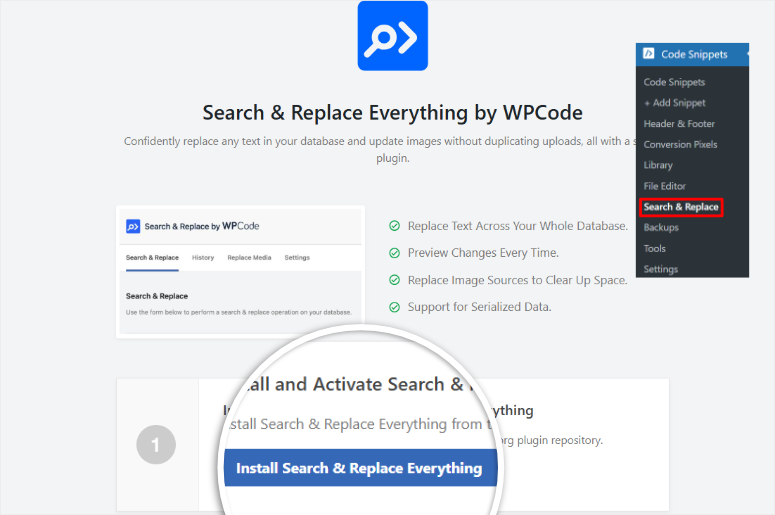
This will install and activate the plugin automatically in your WordPress dashboard. After this, you can access it by going to Tools » WP Search & Replace.
But you may specifically want to use the Search & Replace Everything plugin without WPCode.
The good news is that WPCode offers a free version of Search & Replace Everything.
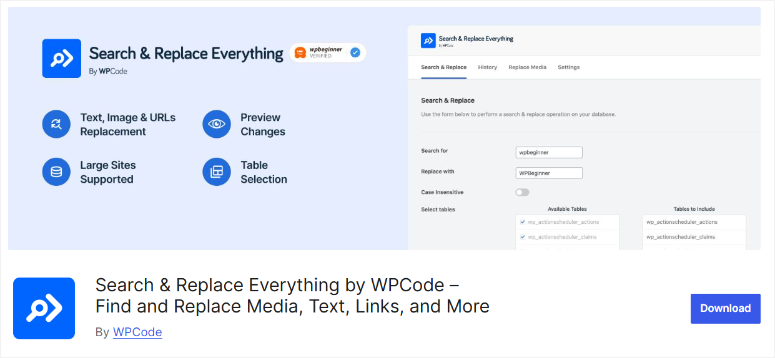
So, if you want to try Search & Replace Everything Lite, you can install it directly from your WordPress dashboard.
To do this, head to Plugins » Add New Plugin.
Here, look for “Search & Replace Everything by WPCode,” then click Install Now and Activate.

If you face any issues, check out this guide on how to install WordPress plugins.
Once installed, you’ll find it under Tools » WP Search & Replace, ready to use.
This free tool can help you manage website content right from your WordPress admin.
Plus, it can also let you quickly find and replace text, images, or media across your entire database. It has options like table selection, case sensitivity, and previewing changes.
It is ideal for site migrations or content updates, making it a smooth and efficient option even for large websites.
But, to ensure we show you everything this WordPress plugin can do when removing unused media files, we will use the pro version for this tutorial.
How to Get the Pro Version
You’ll need the Pro version to unlock the full potential of WPCode’s Search & Replace Everything plugin.
This gives you access to advanced features, including unlimited image replacements, a database table picker, and more.
To get started, visit the official WPCode website and head over to the Search & Replace Everything page. After this, hit the “Get Search & Replace Everything” button, and you’ll be redirected to the pricing page.
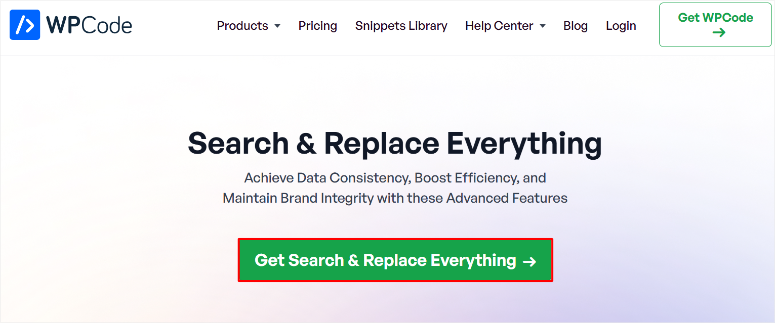
Next, choose a plan that works best for your needs. Luckily, Search & Replace Everything offers multiple pricing options, so you can find one that fits your budget and needs.
Once you’ve completed your purchase, log in to your WPCode account and navigate to the “Downloads” section. Here, you’ll find the Search & Replace Everything zip file.
Next, download the file to your computer, and while you’re there, copy your License Key—you’ll need it to activate the pro version of the plugin.
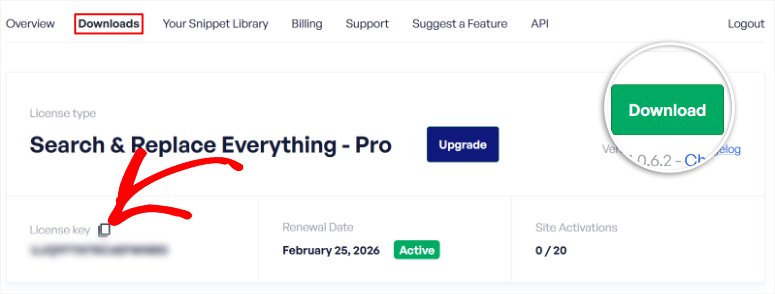
Now, open your WordPress dashboard and go to Plugins » Add New Plugin. On this page, select “Upload Plugin” and choose the zip file you just downloaded.
Once done, hit “Install Now.”
After the installation, select Activate to enable the plugin on your site.
After this, go to Tools » WP Search & Replace and open the “Settings” tab. On this screen, paste the License Key you copied earlier into the text bar.
Finally, select “Verify Key” to activate the Pro version.
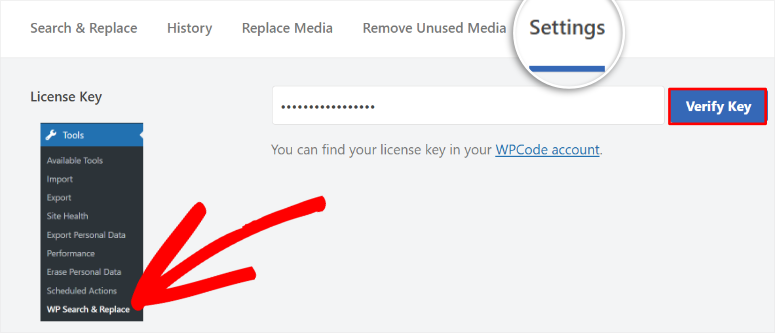
That’s it! You can now fully install Search & Replace Everything Pro. You’re ready to clean up your media library and keep your site running smoothly.
Step 2: Scan for Unused Media Files
~2 minutes | The scan identifies every file in your uploads folder that isn’t referenced anywhere in your database.
Next, go to Tools » WP Search & Replace and click the Remove Unused Media tab at the top of the page.
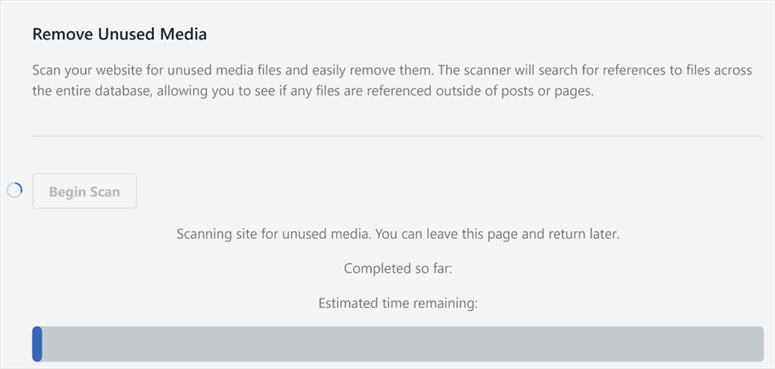
You’ll see a simple panel with one button: Begin Scan. Click it.
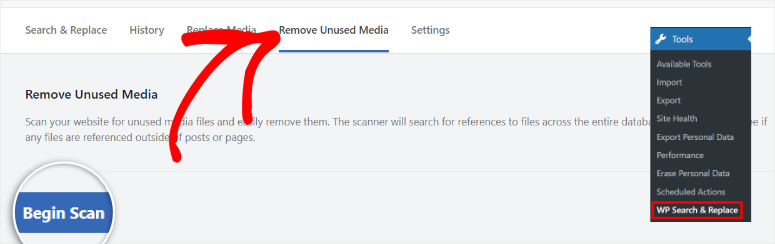
As explained, the scan works by comparing every file in your /wp-content/uploads/ folder against your entire WordPress database.
If a file doesn’t appear in any reference anywhere in that database, it gets flagged as unused.
In my experience, the scan takes under 2 minutes for sites with fewer than 10,000 media files. Larger sites might take 3–5 minutes.
Don’t close the tab while it’s running since this will break the process, and you will need to start over.
You’ll see a progress bar as it works through your files. Once it’s done, it moves you directly to the results screen.
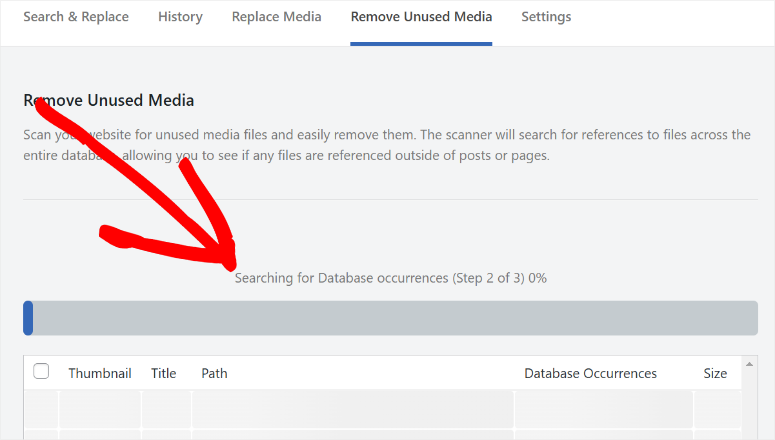
⚠️ Quick Check: If the scan completes and shows 0 unused files, don’t panic. This can happen on smaller sites or recently cleaned libraries.
It can also happen if your page builder stores image references in a serialized format that the scanner doesn’t recognize. I’ll cover that in the Common Issues section below.
Step 3: Review and Delete Unused Files
~5 minutes | You’ll see exactly what’s unused before you delete anything.
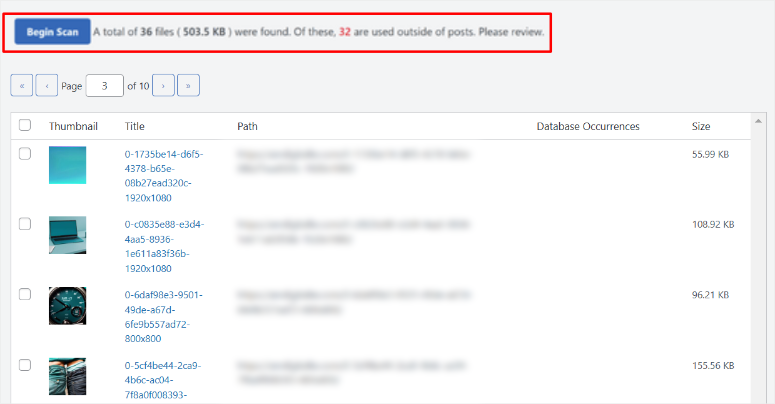
The results screen shows every flagged file in a table.
Each row shows a thumbnail preview, the file title, its path in your uploads folder, the number of database occurrences the scanner found, and the file size. This will be 0 for everything on the list.
Before you hit delete, look at the file size column. Large files, anything over 500KB, are worth a second glance.
Ask yourself: Does this look like something I deliberately uploaded, or is it clearly a leftover thumbnail? The thumbnail preview makes this easy to judge.
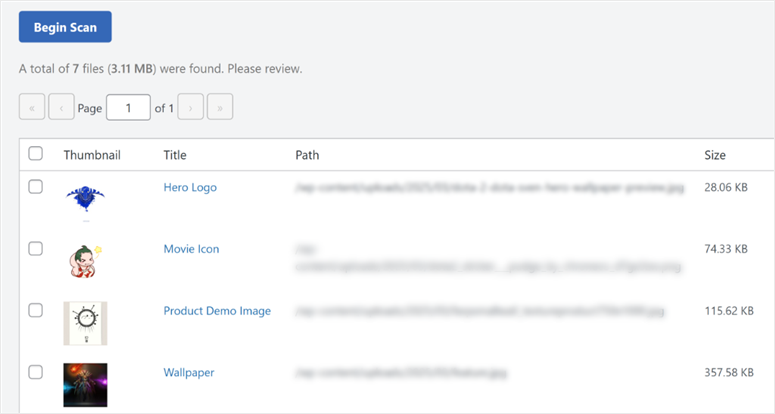
The trick I’ve learned is to scan the list quickly first. If you see a filename that looks familiar, for example, a product shot, a headshot, or something you remember using, uncheck it before deleting.
The checkbox on the left of each row lets you exclude individual files from the deletion. That said, with a full backup in place, you have a complete safety net either way.
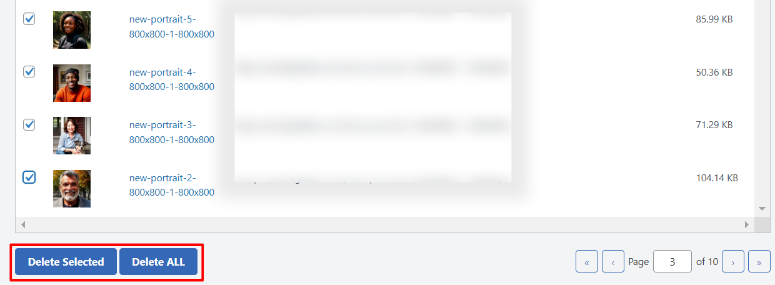
Once you’ve reviewed the list, you have two buttons at the bottom of the results table.
- Delete Selected removes only the files that are checked; by default, everything is checked, so unchecking a file excludes it from deletion.
- Delete All removes everything on the list at once without individual review.
Click Delete Selected or Delete All, depending on what you want to do, and confirm. The plugin removes the files from your server and clears their database entries at the same time.

As you can see, this process is fast and automatic, so you don’t have to worry about manually deleting each file.
Congratulations! You can now delete unwanted media files from your WordPress website.
Optional: Replace a Media File Without Changing Its URL
Sometimes the goal isn’t to delete a file, but rather to swap it out. Maybe a product image is outdated, or you want to replace a low-resolution photo with a higher-quality version.
Normally, you’d delete the old file, upload the new one, then go back through every post it appears in and update the reference manually.
Search & Replace Everything handles this differently. Its Replace Media feature swaps the file while keeping the original URL path intact.
So every post, page, and custom field that references the old image automatically shows the new one with no manual updates needed.
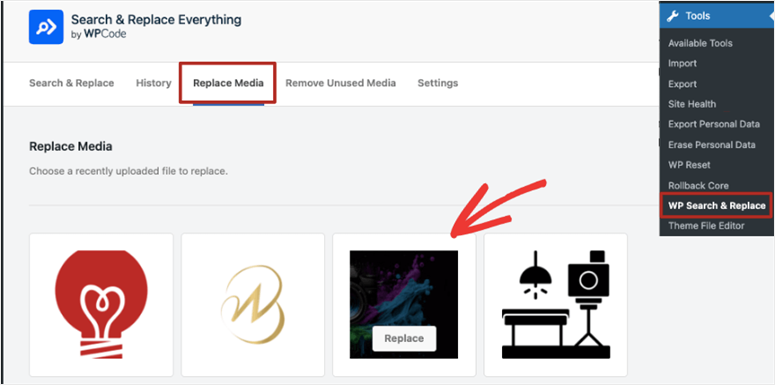
You’ll find this feature under Tools » WP Search & Replace.
Select the Replace Media tab, and you’ll see a grid of all the images in your media library. Hover over the image you want to swap out, and a Replace button appears on the thumbnail. Click it.
On the next screen, choose your new file from your local computer. Once you’ve selected it, click Replace Source File to confirm.
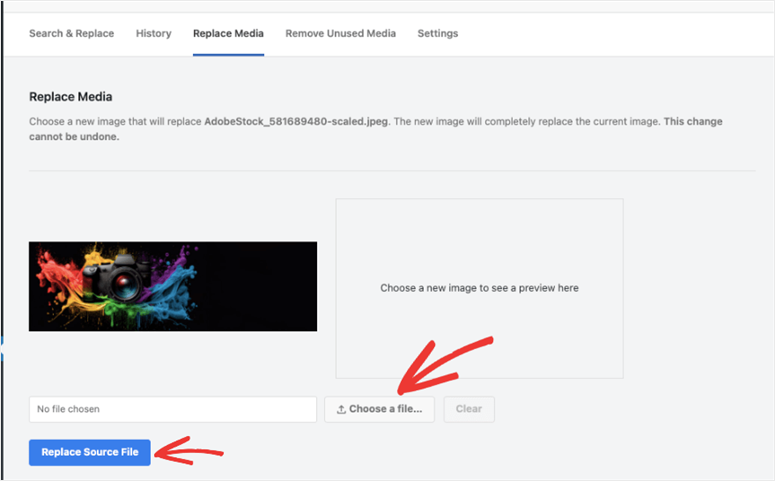
The plugin swaps the file on your server while keeping the original URL unchanged in your database. Every page that referenced the old image now shows the new one automatically.
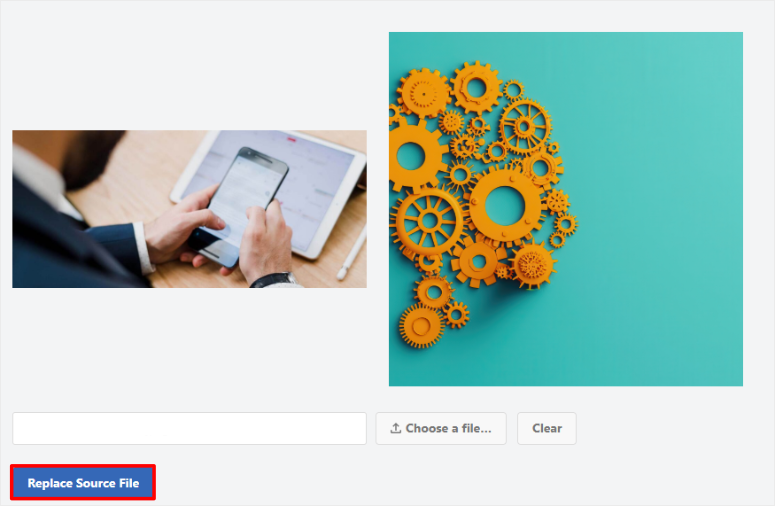
After this, visitors see the update. You didn’t touch a single post.
That’s it. You can now replace media files in your WordPress Library using Search & Replace Everything. Next, let me show you how to test to see if the search and replace worked.
How to Test Your Work
Once the deletion is complete, here’s how to confirm everything went smoothly.
Go to Media » Library and switch to List View using the icon at the top right. Your total media count should be significantly lower than before you ran the scan. That’s the first confirmation it worked.
Next, spot-check a few pages on your live site, particularly any that have a lot of images. Open them in an incognito window and scroll through.
Here, you’re looking for broken image icons, empty spaces where images should be, or alt text showing in place of a photo.
If everything looks correct on those pages, you’re done. The cleanup worked.
So, how often should you do this? An active site that publishes content regularly every quarter is ideal.
I run a cleanup every 3 to 4 months for IsItWP. For smaller sites that don’t update as frequently, once or twice a year is usually enough.
Additional Features of Search & Replace Everything
The Remove Unused Media feature is what brings most people to this plugin.
But Search & Replace Everything does a lot more, and it’s worth knowing what else is available, especially if you’re managing a mature WordPress site.
Find and Replace Database Values.
This is the core feature. You can find any text string across your entire database and replace it.
I have used it to find old domain URLs after a migration, brand name changes, and outdated phone numbers in post meta.
It works across posts, pages, custom post types, widget settings, and serialized data. I’ve used this on client sites to move a site from one web host to another.
It automatically swaps old URLs for new ones across the entire database in one run.
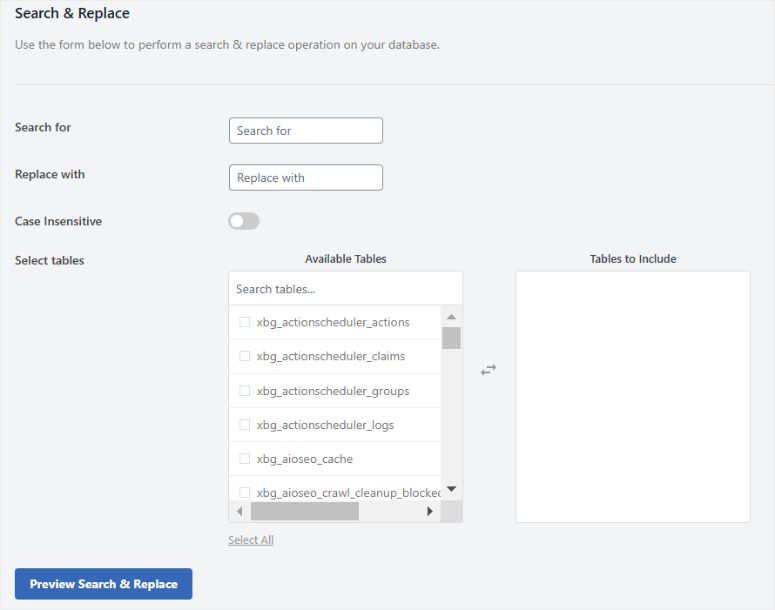
Real-Time Preview System.
Before any change is committed, the plugin shows you a side-by-side comparison of what will change and where. You can see every affected row before you touch anything.
Secure Change Management.
The plugin logs every database change it makes. If something goes wrong, you can see exactly what was modified and when. This is a feature most search-replace tools skip entirely.
Native Gutenberg Integration.
You can run find-and-replace operations directly within the WordPress block editor — useful for updating content without jumping between tools.
How Search & Replace Everything Compares to Other WordPress Cleanup Tools
If you’re deciding between media cleanup plugins, here’s how the three most popular options stack up.
Search & Replace Everything is our recommendation, but these two alternatives are worth knowing — especially WP Media Cleanup, which comes from the same team behind Duplicator.
| Feature | Search & Replace Everything (WPCode) | WP Media Cleanup (Duplicator) | Media Cleaner (Meow Apps) |
|---|---|---|---|
| Free version | ✅ | ❌ | ✅ |
| Scan depth | Full database (posts, meta, widgets, custom fields) | Full site scan (posts, widgets, custom fields, theme settings) | Posts and pages (limited custom field support) |
| Restore / undo | ❌ No soft-delete (backup required) | ✅ 30-day restore window | ❌ Permanent deletion |
| Replace media feature | ✅ Yes, keeps original URL | ❌ No | ❌ No |
| Database find & replace | ✅ Full database search-replace | ❌ No | ❌ No |
| Best for | Sites needing deep database cleanup + other DB tools | Beginners who want a safety net (soft-delete) | Simple sites with basic media cleanup needs |
Both Search & Replace Everything and WP Media Cleanup do a full site scan. The difference is what happens next.
Search & Replace Everything lets you find and replace database references and swap a media file while keeping the original URL intact.
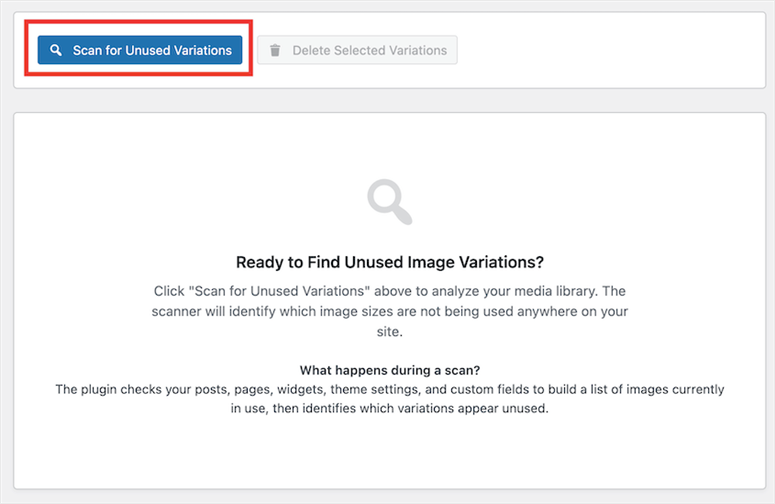
While WP Media Cleanup focuses on image variation cleanup and gives you a 30-day recovery window if you delete something by mistake.
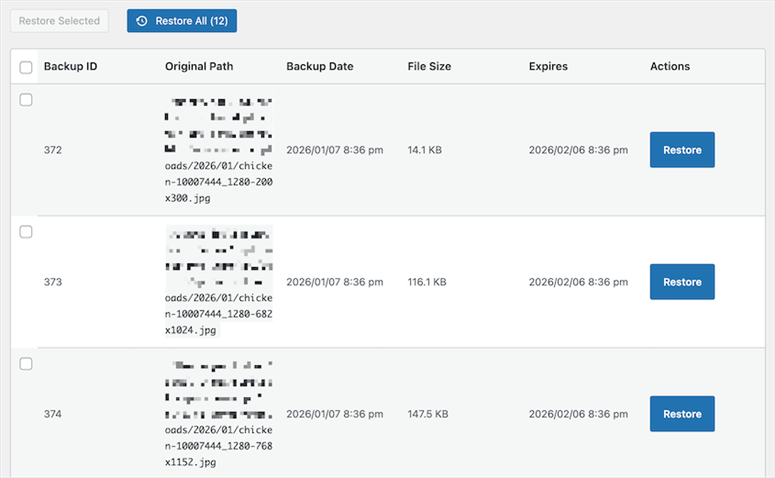
If you already use Duplicator for backups, WP Media Cleanup fits naturally into that workflow. But if you need the find & replace or URL-preserving media swap, Search & Replace Everything is the stronger pick.
Common Issues and Quick Fixes
Problem: “The scan says 0 unused files — but I know I have leftover images”
What’s happening: Some page builders like Elementor, Beaver Builder, and Divi store image references as serialized data or in their own custom database tables.
The scanner may not detect these references, which means it correctly excludes those files from the “unused” list. Nothing is wrong — the scanner is being cautious.
Quick fix: This is actually the plugin working correctly. If you’re confident a file is unused, you can delete it manually via Media » Library.
Search & Replace Everything won’t delete files if it can’t confirm they are safe.
My experience: I ran into this on a client site running Elementor. About 40 images that looked clearly unused came back as “referenced” in the scan.
After investigating, they were all still in Elementor templates. The scanner caught them.
Problem: “The scan seems stuck and the progress bar isn’t moving”
What’s happening: On sites with very large media libraries (10,000+ files) or on slower shared hosting without dedicated resources, the scan can take several minutes.
As a result, the progress bar can appear frozen.
Quick fix: Wait at least 5 full minutes before assuming it’s stuck. If nothing has changed after that, check your browser console for errors. A PHP timeout on your host is the most common cause.
In this case, contact your host about increasing the max execution time, or try running the scan during off-peak hours.
My experience: I’ve run this on sites with 15,000+ files, and the scan took just over 4 minutes on good hosting. On cheaper shared hosting, it can push 8–10 minutes.
If you are unsure of what plan is best for you, compare Shared vs. VPS vs. Dedicated hosting before you make your decision.
Problem: “I deleted files, and now some images are broken on my site”
What’s happening: A file that the scanner flagged as unused was actually referenced somewhere the scanner couldn’t see.
This is most common with a hardcoded URL in a CSS file, an image set via a theme option, or a file used in an external system that links to your WordPress uploads folder.
Quick fix: Restore your site using a dedicated backup plugin like Duplicator immediately.

This is exactly why the backup step is non-negotiable. Once restored, identify the broken reference and exclude that file before running the scan again.
Plus, Duplicator can also help you back up and restore a multisite, making it super convenient.
My experience: This happened once to me. I had an image referenced in a custom CSS file (not in the database). The scanner didn’t catch it. Five-minute restore from Duplicator and everything was back.
That experience convinced me to always preview my pages immediately after any bulk deletion.
Check out my Duplicator review. If you are still browsing options, compare Duplicator Vs. UpdraftPlus Vs. Solid Backups, the three top backup plugins, to see which meets your needs.
Why Removing Unused Media Files Is Important
Most people clean their media library to free up disk space. That’s a good reason. But it’s not the main one.
Remember, every image you upload to WordPress doesn’t stay as one file.
WordPress automatically generates multiple cropped versions of it. This includes the thumbnail, medium, medium-large, large, and whatever custom sizes your theme or plugins register.
On a site with active content, that’s easily 5 to 10 files per image you upload.
Upload 500 images over a few years, and you could have 3,000 to 5,000 files sitting in your /wp-content/uploads/ folder, with most of them orphaned.
If you’re not sure how much this is affecting your site’s performance, run a check with the free website speed test tool for WordPress before and after your cleanup.
The difference in backup speed alone is noticeable.
The storage problems most people miss
Inode Count:
Even the best WordPress hosting plans may limit how much space you use. But the real issue is that many plans also limit your inode count. This is the total number of files your account can store.
This is slightly technical but worth understanding. An inode is a file system entry. Every file counts as one inode, including every image variation WordPress creates.
So, when you hit that limit, your site stops accepting new uploads. I’ve seen this happen on sites with plenty of disk space left, but the inode count was maxed out.
Backup Process:
On top of that, every backup plugin has to zip and transfer every one of those files.
Fewer files mean faster backups because they have smaller backup archives. This means less time to restore if something goes wrong.
That’s why making media cleanup part of your regular WordPress speed performance optimization checklist is worth it.
Media Search:
And then there’s the search problem. A media library with 4,000+ files is nearly impossible to navigate.
Finding the right image to reuse means scrolling through pages of thumbnails, many of which look identical. A clean library saves you time every single week.
Common Challenges of Manually Deleting Unused Media
The obvious fix is to go into your media library and delete files you don’t recognize. But this is harder than it sounds, and riskier.
WordPress doesn’t tell you which files are in use. There’s no built-in “used here” column. An image might look unfamiliar, but it could be set as a featured image on a page you haven’t opened in months.
Delete it, and that page shows a broken image to every visitor.
On top of that, manually checking thousands of files one by one would take hours.
And even then, you’d miss files used in widget areas like Advanced Custom Fields (ACF) custom fields, WordPress page builders blocks, and page builder templates.
WordPress’s media library only shows you files, not where they’re referenced across your entire database.
That’s what makes a database-level scan so valuable. It cross-references every file against your entire database, like posts, pages, widgets, and custom fields, the works, before flagging anything as unused.
That’s it. You now have everything at your fingertips to remove unused files like images from your WordPress media library. If anything is unclear, check out the commonly asked questions below.
FAQs: How to Remove Unused Files from Your WordPress Media Library
What types of media does Search & Replace Everything scan for?
It scans all file types stored in your WordPress uploads folder: images (JPG, PNG, WebP, GIF), PDFs, video files, audio files, and any other file type WordPress stores. The scan checks every file against all database references, regardless of file type.
Will it find images used in Elementor, ACF, or custom fields?
Yes, with an important caveat. Search & Replace Everything performs a full database scan that includes custom field tables and serialized data. It handles most page builders well. That said, some page builder configurations store references in a non-standard way. If you’re uncertain about a file, uncheck it and leave it in place. Only delete what you’re confident about.
Is there a free version I can use?
Yes. The Search & Replace Everything Lite version is available for free on WordPress.org. The free version includes basic database search and replace. The Remove Unused Media scan feature requires the Pro version.
How often should I clean up my WordPress media library?
For active sites publishing content regularly, every 3-6 months is a good cadence. For smaller sites with infrequent updates, once a year is usually enough. The more you post, the faster unused files accumulate, especially if you frequently update featured images or swap product photos.
Does removing unused media files actually speed up my site?
Not directly. Images in your uploads folder don’t affect your page load speed unless they’re being loaded on a page. But the indirect benefits are real: faster backups, smaller backup archives, faster restores, and lower inode usage on your hosting account. If your host charges for storage overages or has inode limits, this cleanup can save you money.
Will the scan delete files used in my RSS feed or XML sitemap?
No. If a file is referenced anywhere in your database, including meta fields that feed into RSS or sitemaps, the scanner will mark it as in-use and exclude it from the results. The only files flagged are those with zero database references.
Final Thoughts: Should I Clean Up my Media Library?
Absolutely. Cleaning up your WordPress media library isn’t glamorous work. But it’s one of those maintenance tasks that makes everything else run more smoothly.
It ensures faster backups, leaner hosting, and a library you can actually navigate.
Search & Replace Everything makes the process straightforward. A database-level scan, a results table you can review before deleting anything, and a replace feature that keeps your URLs intact.
I’ve used it on IsItWP and on client sites. It works exactly as advertised.
Just remember: run your backup first. Then scan, review, and delete.
👉 Get started with Search & Replace Everything here
Resource Hub: WordPress Site Maintenance
These guides cover the tools and techniques that keep a WordPress site running cleanly over time.
- How to Optimize Your WordPress Database for Better Performance – Remove bloat from your database tables the same way you just cleaned your media library
- Best Image Optimization Plugins for WordPress Compared – Compress images before they’re uploaded so there’s less to clean up later
- 10 Best Speed Optimization Plugins for WordPress – The full list of tools that make WordPress load faster
- 12 Best WordPress Backup Plugins Compared – Compare Duplicator against other backup solutions to find the right fit
- How to Upload Additional File Types to WordPress Media Library – Manage what file types WordPress accepts in your library
- How to Boost WordPress Performance & Speed – The full performance guide covering speed, database, and media optimization together

Comments Leave a Reply