TL;DR: I rank the best WordPress two-factor authentication plugins. After almost falling for a scam, it became more important to protect my WordPress sites. Wordfence Security came in first because of its all-in-one security approach, plus a free 2FA feature. WP 2FA comes second because it enforces 2FA across all site users.
My business email is basically public. My name, what I do, and how to reach me are all out there.
Then, in January 2026, Google announced that Gmail on the web will no longer support fetching emails from third-party accounts via the POP3 protocol.
So when emails started arriving saying my outgoing messages weren’t being delivered and I needed to click a link to fix it, I paid attention.
I knew this was not how Gmail works, but still, those emails grabbed my attention. What made it worse? I’d been waiting for an email that never arrived. It felt possible.
So I clicked.
The moment the page loaded, I knew it. This was a phishing email.
I changed my password immediately. Then I added two-factor authentication. Not because I’d been hacked, but because I realized I was one distracted afternoon away from it.
And this can happen to anyone, no matter how experienced you are. Scammers and hackers pay attention to the news just as much as you. They have learned what triggers a reaction from you.
To help you avoid such situations, I have researched, tested, and ranked the best two-factor authentication plugins for WordPress.
These are the 2FA plugins I use now.
Key Takeaways
- I’ll show you which 2FA plugins protect your WordPress login even if someone steals your password
- I mention a plugin that lets you require 2FA from every single user on your site, not just admins
- Reveal which password managers double as authenticator apps so you don’t need to juggle separate tools
- I tested 4 dedicated plugins and 2 bonus tools, including completely free options
How I Test WordPress 2FA Plugins
🔍 Click to see my testing methodology
Here’s exactly how I evaluate WordPress 2FA plugins:
- Setup time: I install and configure each plugin from scratch on a clean WordPress site. If a beginner struggles to get 2FA working in under 10 minutes, I flag it.
- 2FA method variety: I check which authenticator apps and methods each tool supports. TOTP apps, email codes, SMS, and passkeys. The more flexibility, the better.
- Free tier limits: I test what’s actually free and what requires paying. A plugin that caps the free plan at 3 users isn’t really free for most sites.
- User enforcement: Can you require your members or contributors to set up 2FA? I test how easy it is to apply policies across different user roles.
- Lockout recovery: I deliberately lock myself out to see what recovery options exist. This is the scenario most people never test until it’s an emergency.
- Performance impact: I run a GTmetrix check and also use the free IsItWP performance tool before and after installation to catch any meaningful load added by the plugin.
Tools I use:
- Free IsItWP performance and GTmetrix for page load comparison before and after installation
- Multiple clean WordPress test sites. One per plugin to avoid cross-contamination
Why Trust IsItWP?
At IsItWP, we’ve been the WordPress community’s go-to resource since 2009, helping over 2 million users choose better plugins, tools, and security solutions.
Unlike review sites that never actually use the products, we maintain active accounts, run real client sites, and provide ongoing WordPress consultation.
For this article, I installed each 2FA plugin on a dedicated test WordPress site, configured the settings, and worked through every authentication method I could access.
I then deliberately triggered lockout scenarios to see what recovery looked like. What you’re reading is based on that.
Best WordPress Two-Factor Authentication Plugins Compared
Not every two-factor authentication plugin does the same job.
Some bolt 2FA onto a full security suite. Others focus purely on the login experience. A few are free for unlimited users, but some only give you three.
Before you read the full reviews, this table shows the key differences at a glance.
| Product | Best For | Free Version | Authentication Methods | Starting Price |
|---|---|---|---|---|
| 🥇 Wordfence Security | All-in-one security + free 2FA | ✅ Unlimited users | TOTP apps (Google Auth, Authy, 1Password) | $149/yr |
| 🥈 WP 2FA MelaPress | Enforcing 2FA across all site users | ✅ Unlimited users | TOTP apps, Email, Passkeys, YubiKey (premium) | $89/yr |
| 3. MalCare | 2FA + cloud-based malware removal | ✅ Unlimited users | TOTP apps (Google Auth, Authy) | $59/yr |
| 4. miniOrange 2FA | Maximum authentication method variety | ⚠️ 3 users only | TOTP, SMS, Email, WhatsApp, Telegram | $69/year |
You can use the table of contents below to skip to any section of this list you want to read.
- 1. Wordfence Security ⭐⭐⭐⭐⭐
- 2. WP 2FA MelaPress⭐⭐⭐⭐⭐
- 3. MalCare WordPress Security Plugin ⭐⭐⭐⭐
- 4. miniOrange 2FA – Two-Factor Authentication for WordPress ⭐⭐⭐⭐
- Also Consider: 1Password ⭐⭐⭐⭐⭐
- Also Consider: LastPass ⭐⭐⭐⭐
- How to Choose the Right WordPress 2FA Plugin
- FAQs: Best WordPress Two-Factor Authentication Plugins
- Final Verdict: Should I Use Two-Factor Authentication on My WordPress Site?
- Resource Hub: WordPress Security
You can also check out our list of the best WordPress security plugins to see how 2FA fits into a broader security strategy.
With that out of the way, let’s dive in.
1. Wordfence Security ⭐⭐⭐⭐⭐
Best for: Site owners who want free 2FA bundled with a complete security plugin

Think back to that phishing email I received. Say the attacker had actually captured my credentials. Without 2FA, they’d be inside my WordPress dashboard in seconds.
With Wordfence active, they’d hit a second wall. A six-digit code from my authenticator app that resets every 30 seconds. They would have captured my password, but would be blocked from logging in.
Why Is Wordfence Security One of the Best WordPress 2FA Plugins?
That’s the core of what Wordfence does here. The 2FA is free and unlimited, supporting any Time-based One-Time Password (TOTP) based app you already have.
You can use Google Authenticator, Authy, 1Password, or FreeOTP. You scan a QR code during setup, and from that point forward, no one gets in without the code from your phone.
But 2FA is just one layer. Wordfence sits on top of a firewall that blocks malicious traffic before it reaches your login page. It also offers a malware scanner backed by a dedicated threat intelligence team.
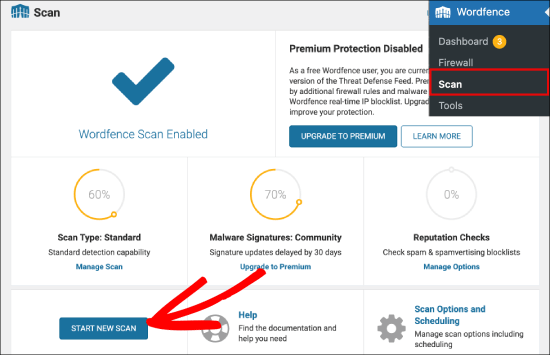
Most importantly, you get a rate limit that stops brute-force bots before they reach the 2FA prompt. You’re not just getting a 2-factor authentication switch; you’re getting a complete login defense stack.
One important update: the old standalone “Wordfence Login Security” plugin is being discontinued on July 1, 2026.
If you’ve been using that lightweight plugin for 2FA only, you’ll need to switch to the main Wordfence Security plugin instead. All the same features are included; it’s just a larger install.
The thing I noticed during testing: Wordfence is the only plugin here where 2FA, lockout alerts, and brute-force blocking all work together out of the box.
When I triggered three bad login attempts on a test site, Wordfence blocked my IP, sent an email notification, and logged the event all within seconds. No extra configuration.
My Experience with Wordfence Security
Setup took me just under three minutes. QR code scan, authenticator app linked, done. The fastest of all the plugins I tested.
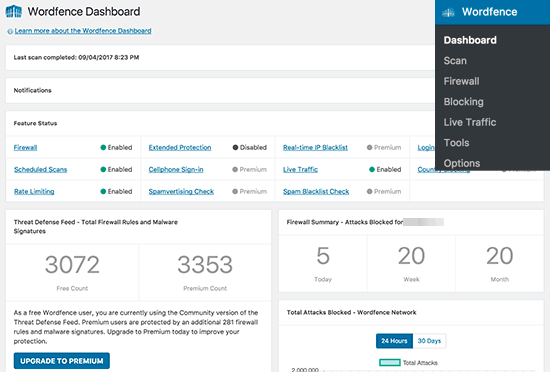
I followed it up with a quick WordPress security audit to confirm the full Wordfence stack was configured correctly.
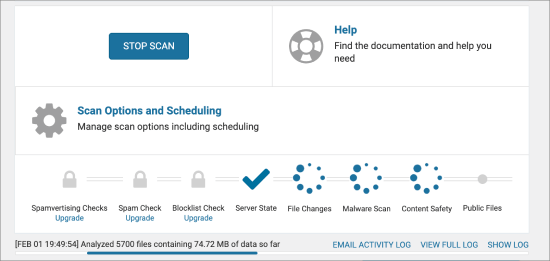
The one friction point I hit was on a shared hosting test install with limited PHP memory. During the first full malware scan, the admin area slowed noticeably.
It resolved after that initial pass, but hosts with under 128MB of memory allocation will feel it. Budget hosting users should know this going in.
🟢► Pros
- Completely free 2FA: I set up two-factor authentication on a live site without creating an account or paying anything.
- Any TOTP app works: Google Authenticator, Authy, 1Password, whichever app you already use is supported.
- Firewall + malware scanner included: 2FA, blocking, and scanning from one dashboard instead of three.
- WooCommerce integration, no charge: I enabled 2FA for customer accounts without touching any paid features.
- Role-based enforcement: Set admins to require 2-factor authentication immediately while giving editors a grace period.
- Brute-force blocking stacks with 2FA: Bots get blocked before they even reach the 2FA prompt.
🔴► Cons
- Heavy on shared hosting during first scan: The malware scanner uses real server resources. On tight hosting plans, the first run creates a noticeable slowdown.
- Standalone Login Security plugin is retiring: If you’re currently using it, you’ll need to migrate to the main plugin by July 2026.
My Verdict: Wordfence is the right choice if you want free, full-coverage protection without installing multiple plugins. The combination of two-factor authentication plus an active threat research team behind the firewall rules makes this the most complete free security option available.
Check out my Wordfence review for more details.
Pricing: Free plugin available (All-in-one security) | Premium from $149/year per site.
👉 Get started with Wordfence Security here
2. WP 2FA MelaPress⭐⭐⭐⭐⭐
Best for: Multi-user sites that require 2FA from every single user
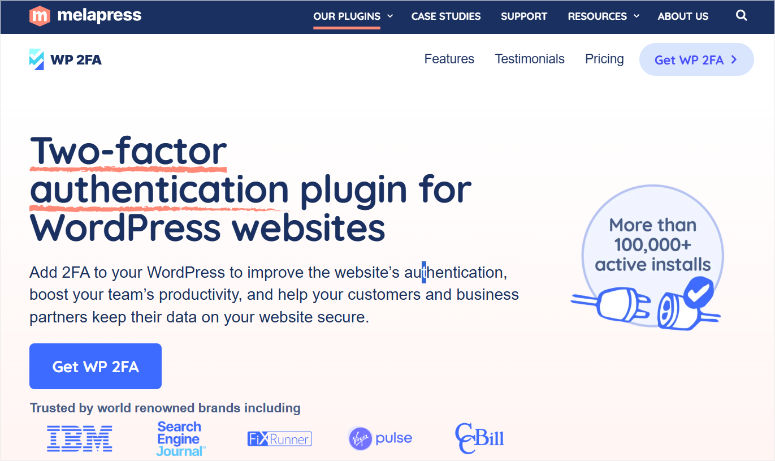
Most 2FA plugins protect your admin account. WP 2FA MelaPress goes further. It lets you require that every person who logs into your site set up 2FA before they can access anything.
So, if you run a WordPress membership site, a WooCommerce store, or any site where customers or contributors have accounts, your admin 2FA protects you.
Why Is WP 2FA MelaPress One of the Best WordPress 2FA Plugins?
WP 2FA gives you enforcement policies: pick a user role, set a grace period, and after that window closes, anyone without 2FA configured gets blocked until they set it up.
That’s a level of control I didn’t find with the other two-factor authentication tools I have tried.
On top of that, WP 2FA MelaPress supports passkeys. This is a relatively new technology that lets users log in with their device’s fingerprint or face recognition instead of a code.
This means they don’t need an authenticator app. For sites where your users aren’t particularly technical, this is a real upgrade. Nobody has to install a separate app just to log in.
This 2FA plugin is free for unlimited users, which puts it ahead of miniOrange on that front. The premium version adds SMS 2FA, YubiKey hardware key support, email link 2FA, trusted devices, and white labeling.
For most single-site owners, the free version covers everything they need.
One limitation I ran into: if you run WooCommerce with custom payment endpoints or deposit links, WP 2FA MelaPress can intercept those flows and break them when 2FA is enforced for the Customer role.
I had to disable 2FA for customers entirely to resolve it. If you have non-standard WooCommerce checkout flows, test this carefully before rolling it out to all users.
My Experience with WP 2FA MelaPress
The setup wizard walked me through everything, including user roles, grace period, and authentication methods, without me needing to visit a documentation page once.
That kind of guided setup matters when you’re rolling 2FA out to users who’ve never heard of an authenticator app.
I specifically tested the lockout recovery scenario. I disabled my authenticator app mid-test. WP 2FA offered backup codes I’d set up during configuration, and recovery took about 45 seconds.
🟢► Pros
- Enforcement policies: I set up a 7-day grace period for all Editor accounts, after which 2FA became mandatory to log in.
- Passkeys support: Users can skip the authenticator app entirely and use their device’s biometrics instead.
- Free for unlimited users: The free version covers all core 2FA features with no user cap.
- Guided wizard setup: Even non-technical users can configure their own 2FA without admin help.
- Backup codes built in: I set up recovery codes during installation. No FTP required to get back in if I lose my authenticator.
- WooCommerce 1-click integration: Available in premium. This adds 2FA for store customers without custom code.
🔴► Cons
- Custom WooCommerce flows can break: Enforcing 2FA on the Customer role interferes with non-standard payment endpoints. Test on staging before going live.
- SMS and YubiKey require premium: The free version covers TOTP and email only. Hardware key and SMS support cost extra.
My Verdict: WP 2FA MelaPress is the strongest choice for any site with multiple user accounts. The enforcement policies and passkey support put it in a class by itself for multi-user security. For a single-admin personal site, Wordfence’s free all-in-one approach may be simpler.
Pricing: Free plugin available(unlimited users) | Pro starts at $89/year.
👉 Get started with WP 2FA MelaPress here
3. MalCare WordPress Security Plugin ⭐⭐⭐⭐
Best for: Site owners who want 2FA paired with cloud-based malware scanning and cleanup

MalCare does something none of the other plugins here do: all the heavy security scanning happens on MalCare’s own servers, not yours. That’s not a small thing.
Wordfence runs its malware scan from your hosting environment. As mentioned, on a shared WordPress hosting plan with limited resources, that scan can slow your site or trip memory limits.
MalCare offloads that entirely. 100+ intelligent checks run remotely, your site stays fast.
Why Is MalCare One of the Best WordPress 2FA Plugins?
For the 2FA side, MalCare’s login protection is part of a five-layer free security stack.
This includes a firewall, deep malware scanner, vulnerability alerts, and Atomic Security, which allows you to create custom rules for your specific site’s weak points.
You enable 2FA from the MalCare dashboard and connect it to any Time-based One-Time Password (TOTP) app. This means that the setup is minimal, three steps, and you’re protected.
Where MalCare stands apart is the deep cleanup. If your site gets infected, one-click malware removal is available with a money-back guarantee on failed cleanups.
That’s a real safety net if you’ve ever dealt with a hacked WordPress site.
The thing to keep in mind: MalCare’s 2FA feature was added in version 5.72, which is relatively recent compared to Wordfence or WP 2FA.
It works, but the feature is less developed; no passkeys, enforcement policies, or role-based grace periods.
My Experience with MalCare
The dashboard is clean and visual. You get green check marks across five security layers once everything is configured.
This allows you to confirm if 2FA is active, the firewall is running, and the malware scan is complete without me digging through settings pages.
What I noticed: the MalCare dashboard is external, hosted on malcare.com rather than inside WP admin. That’s a deliberate security decision. But it means one extra place to log in when you want to check on something.
🟢► Pros
- Cloud-based scanning: Security checks run on MalCare’s servers. No performance hit on your WordPress site during scans.
- 5 security layers free: 2FA, firewall, malware scanner, vulnerability scanner, and Atomic Security at no cost.
- Easy 3-step setup: Install, add email, done. No manual configuration of rules or settings required.
- Malware cleanup guarantee: Premium includes one-click removal with a money-back guarantee if it fails.
🔴► Cons
- Newer 2FA feature: Added in v5.72, meaning less mature than other 2FA tools on my list. No enforcement policies or passkeys.
My Verdict: MalCare makes sense if you want 2FA as part of a comprehensive security suite and are concerned about performance on shared hosting. As a standalone 2FA solution, it’s harder to justify when free alternatives work just as well.
Pricing: Free plugin available (basic 2FA + scanning) | Pro starts at $59/year.
👉 Get started with MalCare here
4. miniOrange 2FA – Two-Factor Authentication for WordPress ⭐⭐⭐⭐
Best for: Sites that need SMS, WhatsApp, or Telegram-based 2FA alongside standard authenticator apps
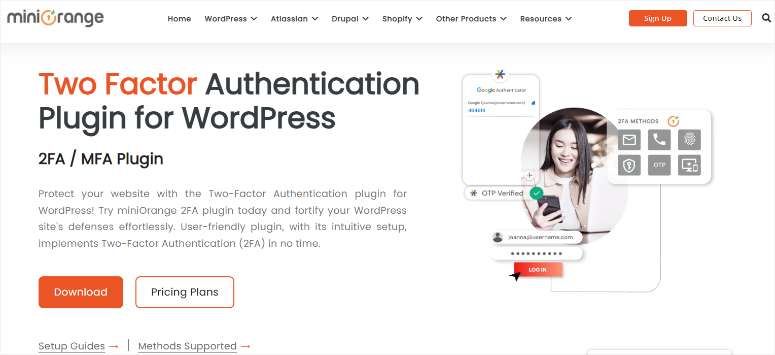
No other plugin on this list supports as many authentication methods as miniOrange 2FA.
TOTP apps (Google Authenticator, Authy, Microsoft Authenticator, LastPass Authenticator), OTP via email, OTP via SMS, WhatsApp 2FA, Telegram, security questions, and email verification links. It’s all here.
Why is miniOrange 2FA One of the Best WordPress 2FA Plugins?
That breadth matters in specific contexts. If your site serves users in regions where WhatsApp is the primary communication channel, asking them to install a separate authenticator app creates friction.
miniOrange can deliver the 2FA code directly to their WhatsApp number. No new app needed, or setup confusion.
The 2F authentication plugin also integrates with more third-party login systems than any other option I tested. It works with WooCommerce, Ultimate Member, BuddyPress, Elementor, and more.
If you’ve built a custom WordPress login page beyond the default wp-login.php, this level of compatibility matters.
Here’s the thing about the free version, though. It’s limited to three users. And this is the reason it is low on my list.
For a personal site where you’re the only admin, that’s fine. But as soon as a second editor or contributor logs in, you’re over the cap. Most site owners only discover this after installation.
There’s also a security note worth flagging. In November 2025, a reviewer documented a vulnerability where authentication tokens could be triggered without going through the login screen properly.
The miniOrange team acknowledged it and addressed it. The changelog shows multiple subsequent patches, including session hijacking fixes (v6.1.1) and broken access control fixes (v6.1.2).
They responded and fixed things. For a security plugin that is very important.
My Experience with miniOrange 2FA
Setup via the wizard was straightforward. I had Google Authenticator working in about five minutes.
What confused me was the SMS credits system. Sending OTPs via SMS or email in the free version requires purchasing miniOrange transaction credits. It’s not obviously communicated upfront.
Make sure you read the pricing page before you commit to an SMS-based 2FA strategy.
🟢► Pros
- Most 2FA methods available: Google Auth, Authy, SMS, email, WhatsApp, Telegram. No other plugin comes close.
- Supports custom login forms: Works with WooCommerce, Ultimate Member, Elementor, and more out of the box.
- Wizard-driven setup: Step-by-step configuration even for non-technical users.
- Login reports and IP alerts: See every login attempt and get notified when a new device is used.
🔴► Cons
- Free tier has only 3 users: A hard cap. Most sites will need to pay almost immediately after installation.
- SMS/email OTP requires purchased credits: Not included in the free plan. You’ll need to buy miniOrange transaction credits to use those methods.
My Verdict: miniOrange is the right pick if your site operates where WhatsApp or Telegram 2FA is a practical necessity, or if you have a complex login setup with multiple third-party forms. For most standard WordPress sites, WP 2FA’s free plan offers more depth with fewer surprises.
Pricing: Free (up to 3 users). Paid plans from $69/year for unlimited users.
👉 Get started with miniOrange 2FA here
That’s it for my list of the best two-factor authentication plugins. But there are two other tools I would like to mention. They work well to verify a user but they are not WordPress plugins.
They are password managers. These are great if you are looking for solutions beyond your WordPress site.
Also Consider: 1Password ⭐⭐⭐⭐⭐
1Password isn’t a WordPress plugin. It’s a password manager with a built-in TOTP authenticator.
The reason it’s here: when you log into WordPress, 1Password fills your password AND your 2FA code from the same app.
This means no separate authenticator app or juggling between tools. Watchtower alerts you when accounts in your vault support 2FA but don’t have it enabled yet.
Also Consider: LastPass ⭐⭐⭐⭐
LastPass combines a password manager with 2FA code storage and a free standalone LastPass Authenticator app.
The free plan is genuinely usable for personal sites.
The catch: LastPass suffered a serious data breach in 2022, where encrypted vaults were stolen.
The company says master passwords weren’t compromised, but the incident is worth knowing before you trust it with your credentials.
How to Choose the Right WordPress 2FA Plugin
The right pick depends on what you’re actually protecting, and who else is logging into your site.
If you’re the only person who logs into your WordPress site:
Go with Wordfence Security.
- It’s free, unlimited, and you get a firewall and malware scanner on top of 2FA.
- There’s no reason to install a separate plugin just for 2FA when Wordfence handles it as part of a complete package.
- If you don’t want the full security suite and just want a dedicated 2FA plugin, WP 2FA’s free plan is just as capable.
If you have a team, members, or customers with accounts:
WP 2FA MelaPress is your best option.
- The enforcement policies let you require 2FA for any user role, set a grace period, and block access until users comply.
- Wordfence doesn’t offer that level of control over other users’ 2FA behavior.
- For membership sites, LMS platforms, and WooCommerce stores where customer accounts matter, WP 2FA handles it properly.
If you’re worried about malware, not just login security:
MalCare pairs 2FA with cloud-based malware scanning and one-click cleanup at the premium level.
- The key advantage is performance. MalCare’s scans don’t use your server’s resources.
- If you’re on shared hosting and Wordfence’s scans slow you down, MalCare is the better trade-off.
- Upgrading to managed WordPress hosting is another way to eliminate that concern entirely.
If you operate in markets where WhatsApp or Telegram is more common than email:
miniOrange is the only plugin that delivers 2FA codes via WhatsApp and Telegram natively.
- For sites whose users aren’t going to download a separate authenticator app, messaging-based 2FA removes that friction entirely.
- The three-user cap on the free plan means most sites will need to budget for the paid version.
If you want to simplify your tools:
1Password and LastPass each store TOTP codes alongside passwords.
- Instead of maintaining a password manager and a separate authenticator app, you carry one app that does both.
- 1Password autofills both the password and the 2FA code on login. That’s a real quality-of-life difference when you’re managing multiple WordPress sites.
The one question that simplifies everything:
Do you need to protect just your own login, or do you need to protect everyone on your site?
- If it’s just you, Wordfence. If it’s everyone, WP 2FA MelaPress.
- Whatever you choose, pair it with regular WordPress backups. 2FA protects your login, but backups protect everything else.
FAQs: Best WordPress Two-Factor Authentication Plugins
What is two-factor authentication for WordPress?
Two-factor authentication (2FA) adds a second step to your WordPress login. After entering your password, you enter a time-sensitive code from an authenticator app or your email. Even if someone steals your password, they still can’t log in without that second code.
Is there a free WordPress 2FA plugin that works for unlimited users?
Yes, both Wordfence Security and WP 2FA offer free 2FA for unlimited users with no restrictions. miniOrange is technically free but caps the free plan at three users, which rules it out for most sites.
What happens if I lose my phone and can’t access my authenticator app?
Most 2FA plugins include backup codes you generate during setup. Make sure you store these somewhere safe. WP 2FA lets you send backup codes via email. Wordfence logs backup codes per user. Worst case: you can deactivate the plugin via FTP or your hosting file manager to bypass 2FA entirely and regain access, then re-enable 2FA once you’re in.
Can I force all my WordPress users to use two-factor authentication?
Yes, but only with WP 2FA. It’s the only plugin here with enforcement policies that let you require 2FA for specific user roles and lock out anyone who doesn’t set it up within your grace period. Wordfence lets you enable 2FA per role, but doesn’t block login for users who skip it. If 2FA enforcement isn’t enough for your setup, explore other WordPress security authentication plugins, too.
Does WordPress have two-factor authentication built in?
WordPress core doesn’t include 2FA by default. You need a plugin. That said, all four plugins in this article are free to install, and both Wordfence and WP 2FA offer full 2FA functionality in their free tiers.
Does two-factor authentication slow down my WordPress site?
The 2FA check itself adds no noticeable load. It’s a quick code verification that happens only at login. What can slow a site is the broader security plugin that 2FA is bundled into. Wordfence’s malware scanner uses server resources during its scans. MalCare avoids this by scanning from its own servers. For most sites, the performance impact of adding 2FA is effectively zero.
Final Verdict: Should I Use Two-Factor Authentication on My WordPress Site?
Yes, and sooner than you think.
I clicked that phishing link I talked about at the beginning of this article because the email was timely, specific, and plausible. That’s how phishing works. It doesn’t need to be perfect, just good enough for one distracted moment.
Two-factor authentication doesn’t prevent you from being fooled. But it closes the door even when you are. A stolen password becomes useless without the second code.
The good news is that protecting your login doesn’t require a technical background or a paid subscription.
Both top options here are free. Setup takes under five minutes. And you can protect not just your own account but everyone on your site.
Pick one, install it today, and run through the backup codes setup. That part takes another two minutes and could save your site.
Resource Hub: WordPress Security
Protecting your login is one layer. Here are more IsItWP resources that cover the rest of your site’s security picture.
- Best Brute Force Protection Plugins for WordPress – Stop automated login attacks at the front door
- I Tested 8 WordPress Firewall Plugins: Here’s What Works – The next layer after 2FA
- WordPress Security Checklist: Steps I Take to Bulletproof My Sites – Pre-launch security checklist every site owner should run
- How to Harden Your WordPress Site to Keep Hackers Out – Practical hardening steps beyond plugin installation
- How to Repair a Hacked WordPress Site and Prevent Future Attacks – Recovery guide if you’ve already been compromised
- The Complete WordPress Security Guide for Beginners – The full security picture in one place

Comments Leave a Reply