I had a client who’d been running the same HTML website for seven years.
She couldn’t update her homepage without editing raw code. Even simple things like adding blog posts were an issue. And every time something needed to change, she had to call a developer.
Converting that site to WordPress changed everything.
WordPress is the most popular CMS on the planet for good reason. It gives you full control over your content without touching a single line of code.
In fact, you can build your own WordPress site from scratch without developer assistance. The best part is that converting from HTML to WordPress is far more straightforward than most people expect.
In this guide, I’ll walk you through two scenarios.
If you just want to bring a single HTML page into WordPress, start with Scenario 1. If you’re moving your whole HTML site to WordPress from scratch, go straight to Scenario 2.
Key Takeaways
- I’ll show you how to add one HTML page to WordPress. Either upload it directly or rebuild it with SeedProd
- I cover the complete 7-step migration for moving an entire HTML website to WordPress
- Reveal how to set up 301 redirects so your search engine rankings don’t drop during the switch
- I walk through both the WordPress block editor and SeedProd so you can handle any type of HTML layout
- I show you which plugins to install first so your WordPress site is functional and protected from day one
What We’ll Accomplish in This Tutorial
By the end of this guide, you’ll have a fully working WordPress site in place of your HTML pages. Your content will be live, your old URLs will redirect correctly, and your domain will point to WordPress.
Here’s the outcome we’re working toward:
- A WordPress site that matches, or improves, your original HTML design
- Pages you can update directly from the WordPress dashboard, no code required
- Active 301 redirects, keeping your SEO intact during and after the transition
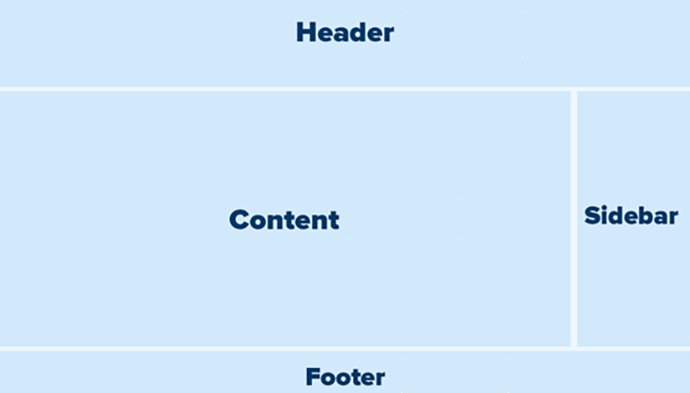
The screenshot below shows you a general structure of how your website will look like. Simple, clean, and easy to navigate.
What You’ll Need Before We Start
Skill level: Intermediate Time to complete: ~15 minutes (single page addition) or ~60–90 minutes (full migration)
Here’s what to have ready before you begin:
- WordPress hosting, like Bluehost or Hostinger. Hitting snags with a WordPress install? Here’s how to start a WordPress site step by step.
- SeedProd – While you can use most top visual page builders, I recommend SeedProd for beginners. Its drag-and-drop page builder quickly recreates HTML layouts in WordPress.
- Your HTML files – keep your
.htmlpages, CSS files, and image folder accessible as reference during the process. - WordPress admin access – make sure you can log in
yourdomain.com/wp-adminbefore starting.
If you have all that in place, let’s dive into both scenarios. That is converting a single HTML page to WordPress or turning your whole HTML site into a WordPress website.
You can use the table of contents below to skip to any step or scenario you want to read about. Plus, it gives you a quick overview of the steps to follow.
- Scenario 1: Adding a Single HTML Page to WordPress
- Scenario 2: Converting Your Full HTML Site to WordPress
- Step 1: Set Up WordPress on a Host
- Step 2: Choose a WordPress Theme That Matches Your Old Design
- Step 3: Configure WordPress Permalinks
- Step 4: Recreate Your Content in WordPress
- Step 5: Set Up 301 Redirects to Preserve Your SEO
- Step 6: Point Your Domain to Your New WordPress Site
- Step 7: Install Essential WordPress Plugins
- What About Converting HTML to a Custom WordPress Theme?
- How to Test Your Work
- Common Issues and Quick Fixes
- FAQs: How to Convert a HTML Site to WordPress
- Final Thoughts
- Resource Hub: WordPress Setup and Migration
To make sure you easily understand, we will start with the simple one, adding a single HTML page to WordPress.
Scenario 1: Adding a Single HTML Page to WordPress
Already have WordPress installed? This scenario is for you.
Maybe you have a performing landing page, an old project page, or a single HTML file you want to live under your WordPress domain.
There are two ways to handle this. One is faster, but more rigid. The other gives you a page you can actually manage from WordPress going forward. Pick one that best fits your needs.
Method 1: Upload the HTML File Directly
Even though more rigid, this method is the right call for static reference pages you’ll never need to edit.
Think old press releases, archived project pages, or legacy content you’re keeping purely for SEO or external links.
After doing this dozens of times, I’d say it’s the right choice only when you truly don’t need to touch the page again.
To do this, log in to your hosting account and open the File Manager.
Then, navigate to your site’s root directory, usually called public_html, and upload your HTML file along with any associated assets like images and CSS into that folder.
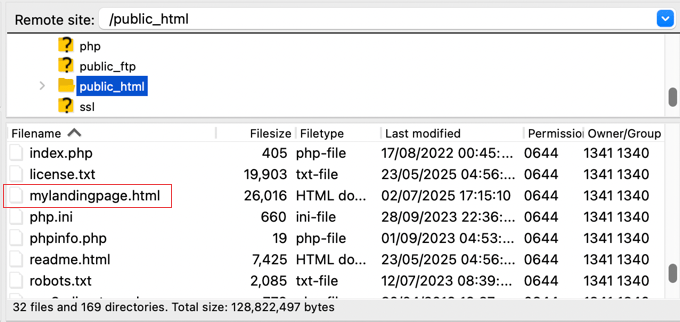
Once the upload completes, visit yourdomain.com/yourfile.html in your browser. If you see your page loading correctly, you’re done.
⚠️ Quick Check: Open the URL in a fresh browser tab. If your HTML page loads as expected, the upload was successful.
Method 2: Recreate the Page with SeedProd – Recommended

This is the better option for most people, and it’s the tool I always reach for when rebuilding HTML pages inside WordPress.
As mentioned, SeedProd is a drag-and-drop page and website builder. It is the best landing page WordPress builder available.
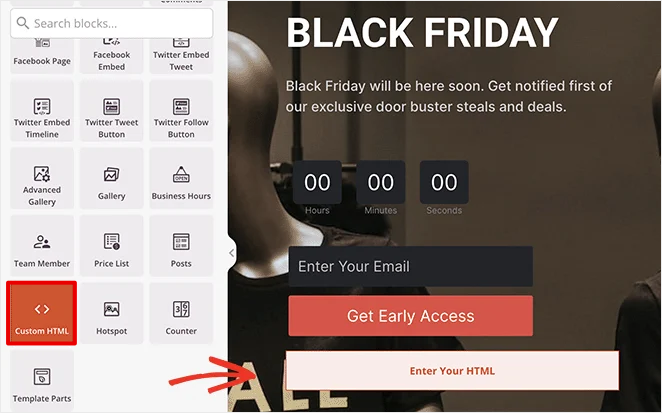
But, apart from that, it lets you create any kind of WordPress page without touching code. What makes it particularly useful for this job is the Custom HTML block.
You can drop your existing HTML code directly into a SeedProd block, and it renders the content on the page as-is. So if your HTML page has a structure you’d rather not rebuild from scratch, you don’t have to.
SeedProd has a free version in the WordPress plugin directory that covers basic landing pages and coming soon pages. But the HTML feature is only available in the pro plans.
With that said, for this tutorial, I’m using SeedProd Pro. On top of rebuilding your HTML pages, SeedProd Pro lets you add conversion features like countdown timers and opt-in forms directly to the page.
So if your HTML page was a landing page, you can now give it real urgency and better lead capture without installing anything extra.
It’s also one of the lightest page builders available, and that matters when you care about how fast your pages load.
If you want a full breakdown, here’s my full SeedProd review with a detailed walkthrough of the setup process.
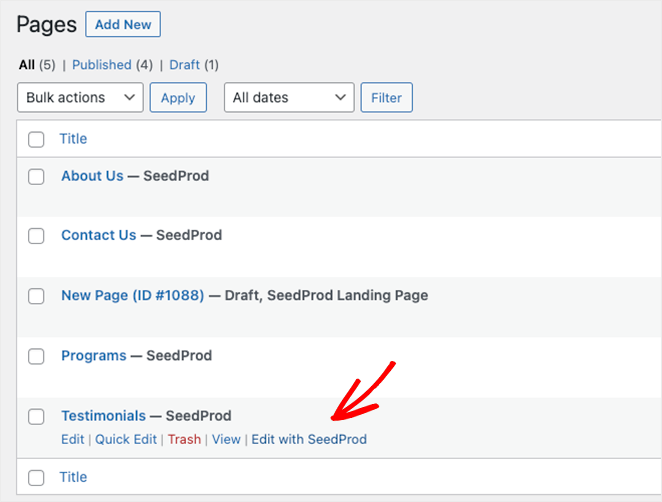
Now, to get your HTML page rebuilt inside SeedProd after purchase and installation, head to Pages » Add New in your WordPress dashboard. Then click Edit with SeedProd at the top of the screen.
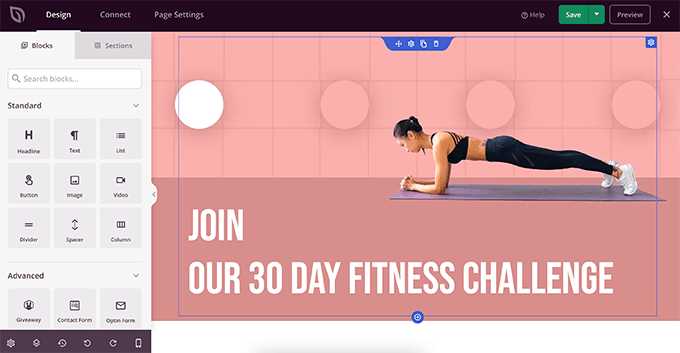
Inside the editor, the block panel on the left shows you everything you can drag onto the page.
If you want to use the Custom HTML block, find it under the Advanced section. All you have to do is drag it onto your layout and paste your HTML code directly inside it.
For most pages, though, you’ll get a cleaner result by rebuilding the layout with SeedProd’s native blocks.
Drag in your headings, text sections, images, and buttons, then paste your content from the original HTML file into each section.
🤓☝️My advice: Keep the original HTML page open on one side of your screen while you work. Once the page looks right, hit Save and then Publish.
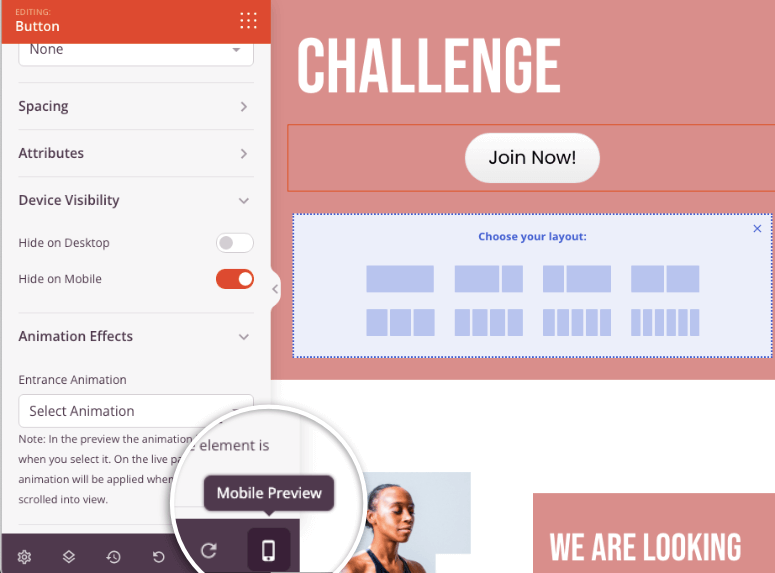
⚠️ Quick Check: Click Preview and open the page on a mobile device or by resizing your browser window. SeedProd is responsive by default, but a quick check on mobile confirms everything stays together.
Method 1 vs. Method 2: Which Should You Use?
If you ever need to update the page, use Method 2. If it’s a static archive you’ll never touch again, Method 1 is the faster choice.
| Feature | Method 1: Upload HTML File | Method 2: Rebuild with SeedProd |
|---|---|---|
| Setup time | 2–3 minutes | 15–30 minutes |
| Editable from WordPress dashboard | ❌ No | ✅ Yes |
| Mobile responsive | Depends on original HTML | ✅ Built-in |
| Requires SeedProd | ❌ No | ✅ Yes |
| Best for | Static archive pages, legacy content | Any page you’ll update or reuse |
That’s it. You can now recreate your HTML pages with a page builder or without. But what if you want to turn your entire HTML site into WordPress? That’s where scenario 2 comes in.
Scenario 2: Converting Your Full HTML Site to WordPress
This is the big one. You’re not just adding a page, you’re moving your entire HTML site to WordPress.
I’ve done this WordPress website migration for different clients and my own sites. The difference is knowing the sequence before you start.
But you do not need to be technical to do this. You can also use the best WordPress migration plugins to handle the technical parts.
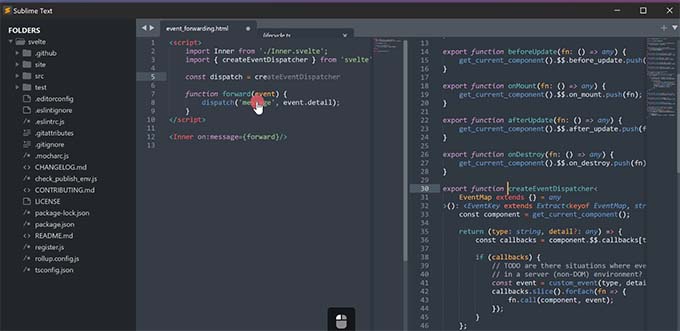
The screenshot below shows you what managing a static HTML site looks like behind the scenes. If you compare this to the backend of WordPress, you quickly notice why so many people switch.
I will show you how below, step by step.
Step 1: Set Up WordPress on a Host
~10 minutes | Get your WordPress install running
If you don’t have WordPress yet, Bluehost is where I’d send anyone starting this migration.

Bluehost is one of the most popular WordPress hosting providers in the world. One of only a handful of hosts officially recommended by WordPress.org itself.
They handle the WordPress installation automatically, so you don’t have to touch a single config file.
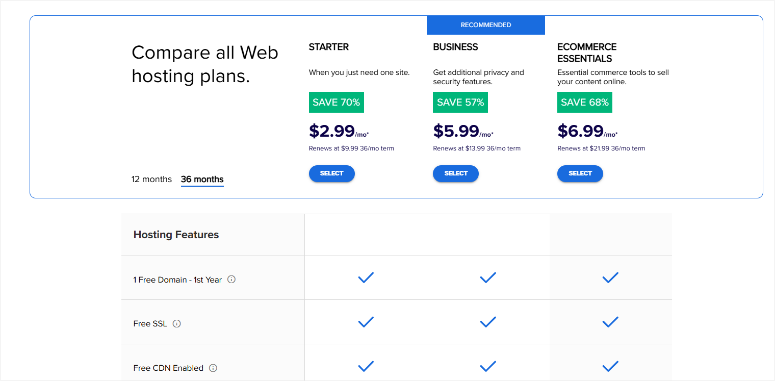
Their entry-level shared hosting plan starts at just $2.99 per month when you use our Bluehost coupon. It includes a free domain name for your first year, a free SSL certificate, and space for up to 10 websites.
That’s more than enough to get your WordPress migration running. For a full breakdown of everything the plan covers, here’s our Bluehost review.
As your WordPress site grows and starts getting consistent traffic, that’s the point to look at upgrading.
Bluehost’s managed WordPress hosting gives you servers optimized specifically for WordPress. Or you can compare the best hosting providers here to make your decision.
Faster load times, automatic WordPress updates, and built-in staging environments so you can test changes before they go live. It’s the natural next step once you’ve outgrown shared hosting.
To get started, head to the Bluehost website and click Get Started Now.
On the next screen, choose your hosting plan. The entry-level shared hosting plan is the right starting point.
When you reach the domain step, select I’ll create my domain name later.
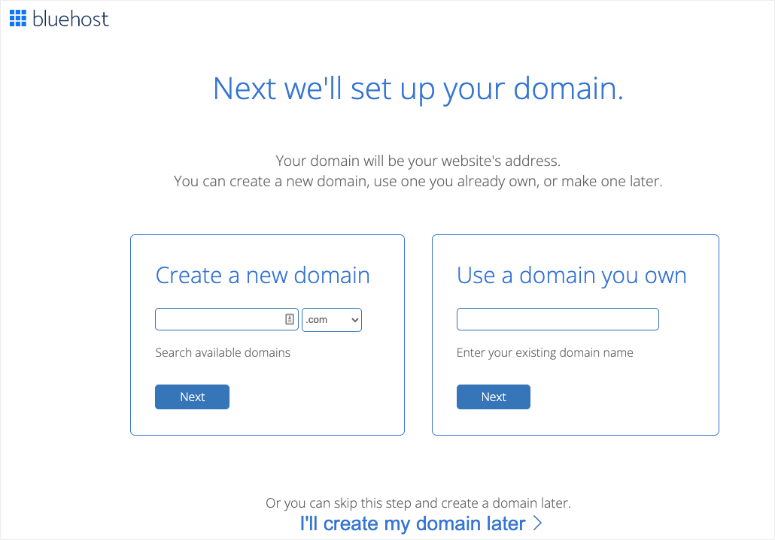
This is important since your existing domain still points to your old HTML site, and you’ll connect it in Step 6 once WordPress is fully set up.
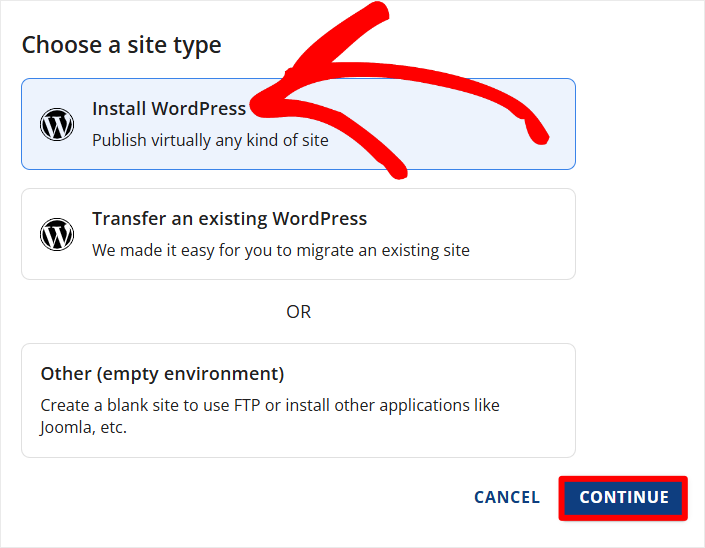
Complete your account details and payment, then log in to your Bluehost dashboard and click Install WordPress.
After the WordPress install, select “Log in to WordPress.” That button drops you directly into your WordPress admin dashboard.
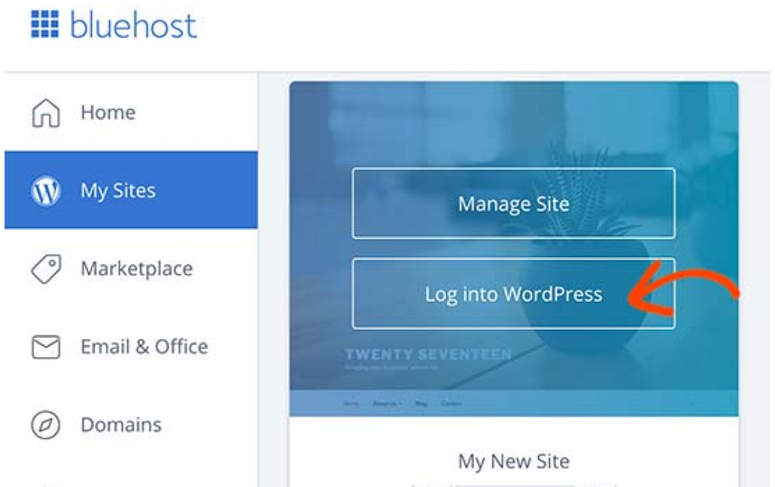
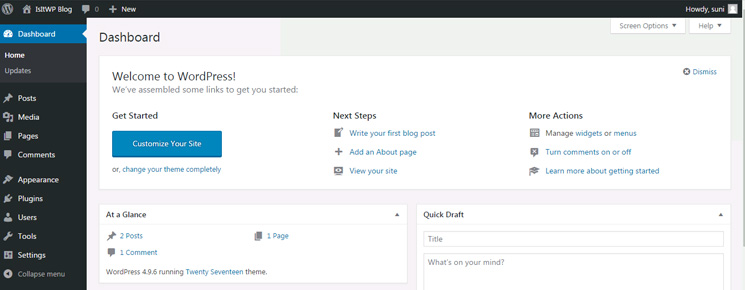
⚠️ Quick Check: Your WordPress dashboard should load at yourdomain.com/wp-admin. If you see the WordPress admin menu in the left sidebar and a “Welcome to WordPress” banner, you’re ready for Step 2.
Step 2: Choose a WordPress Theme That Matches Your Old Design
~15 minutes | Find a theme that fits your existing style
Your WordPress theme controls how your site looks and feels. There are plenty of top WordPress themes to choose from.
But the goal here isn’t to find something flashy. It’s to find something close to your original HTML site’s style so your visitors don’t feel like they’ve landed on a completely different website.
Here’s what I always do before browsing themes: take a screenshot of my HTML site’s homepage and keep it open on the side. It stops me from getting distracted by demo sites that look nothing like what I need.
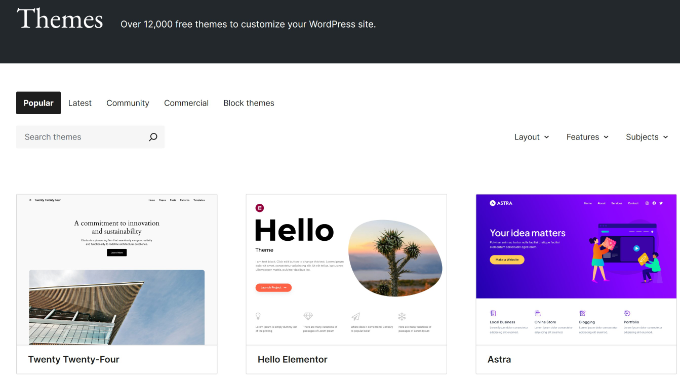
So, in your WordPress dashboard, go to Appearance » Themes and click Add New Theme at the top.
Use the filter options to search by layout type or feature set, then click Preview on anything that catches your eye. When you find a theme that matches your existing design, click Install and then Activate.
If you’re new to this process, here’s a beginner’s guide to installing a WordPress theme that walks you through it step by step.
⚠️ Quick Check: After theme setup, visit your domain in a browser. You should see the new theme applied across your WordPress front end.
Step 3: Configure WordPress Permalinks
~2 minutes | Set clean, SEO-friendly URLs
This is a 30-second step that most people forget. And it causes real problems if you skip it.
By default, WordPress creates URLs that look like ?p=123. That structure is bad for SEO and doesn’t match the clean paths your HTML site had. You want to use the best SEO practices from the start.
Switching to “Post name” gives you URLs like /about/ and /services/ is much closer to your original structure.
To achieve this, head to Settings » Permalinks in your dashboard. Under Common Settings, select Post name, then click Save Changes. That’s it.
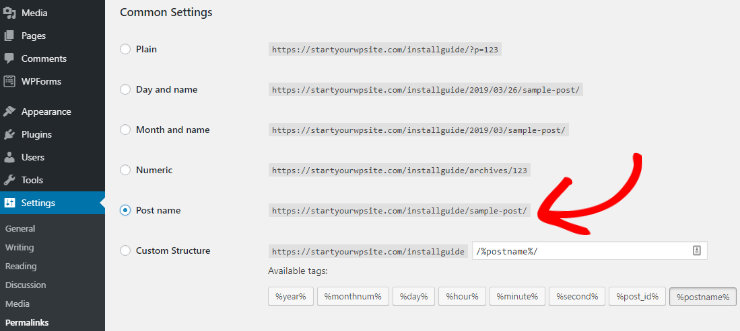
⚠️ Quick Check: Create a quick test page and check its URL. It should show /your-page-name/ — not ?page_id=XX.
Step 4: Recreate Your Content in WordPress
~30–60 minutes | Transfer your HTML content into WordPress pages
This is the step where your site actually takes shape. You’re transferring everything, including text, images, and page structure, from your HTML files into WordPress pages.
You have two paths here.
For text-heavy pages like an About page or a Services list, the WordPress block editor works well.
For pages where the layout itself matters, like hero sections, multi-column designs, and feature grids, SeedProd gives you much more control.
Using the WordPress Block Editor
For simple text-heavy pages, go to Pages » Add New. Then, click the + icon at the top left to open the block inserter library, which shows you every content type WordPress has built in.
Add a Heading block for your page title, a Paragraph block for body text, and an Image block wherever your original HTML page had images.
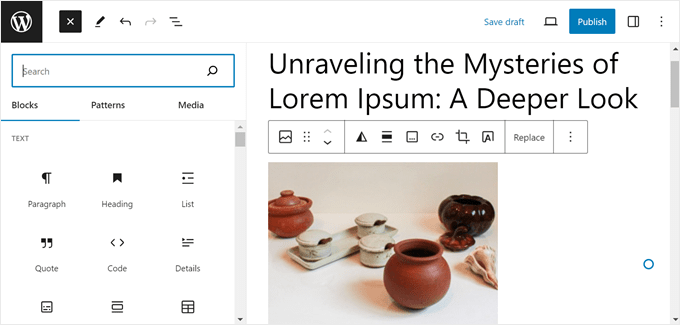
On top of that, you can select the block you want to edit, and options will pop up on the right. Here you can change the color of the text, size, background color, and more.
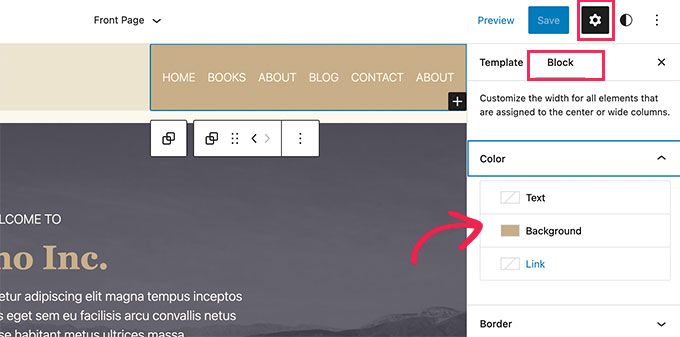
Basically, mirror the structure from your HTML file, pasting content into each block as you go. If you are new to this, don’t be afraid to experiment and play around with the options until you get it right.
If you need guidance, here is a tutorial I wrote on how to create a WordPress site.
Using SeedProd for Visual Layouts
First of all you need to make sure you have SeedProd set up. If you need help, here is a guide on everything SeedProd.
For pages with real visual structure, go to Pages » Add New and click Edit with SeedProd at the top.
Choose a blank template or pick a pre-built layout that’s close to your HTML design. Drag in your content sections, paste your text into each one, upload your images, and when the page looks right, hit Save and Publish.
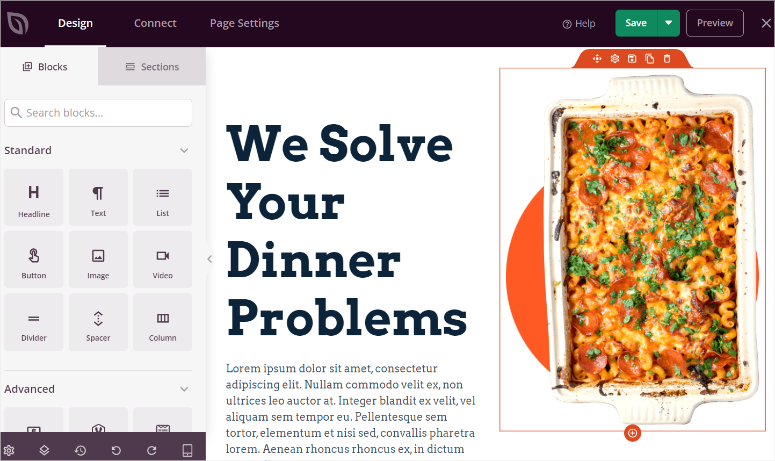
⚠️ Quick Check: Preview each page you’ve created. Confirm the text, images, and general structure match your original HTML pages.
Step 5: Set Up 301 Redirects to Preserve Your SEO
~20 minutes | Map every old HTML URL to its WordPress equivalent
This is the step most people skip, and it’s the one that costs them rankings.
When you move from HTML to WordPress, all your old URLs disappear. Anyone who bookmarked /contact.html, or any search engine that indexed it will hit a 404 error.
A 301 redirect tells Google and browsers that the page has moved permanently and passes your accumulated SEO value to the new URL. Skip this, and you’re essentially starting your SEO from zero.
For this, I use the Redirection plugin.
It’s free, handles complex redirect rules cleanly, and gives you one place to manage every old URL on your site.
It’s consistently rated one of the best WordPress redirect plugins available. To install it, go to Plugins » Add New and search for “Redirection.”
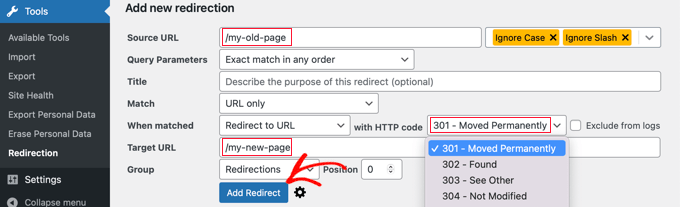
Once it’s active, head to Tools » Redirection. You’ll see a simple form with two fields.
In Source URL, type your old HTML path, something like /about.html. In Target URL, type the matching WordPress URL, like /about/.
Make sure the redirect type is set to 301 – Moved Permanently, then click Add Redirect. Work through every page on your old HTML site that now has a WordPress equivalent.
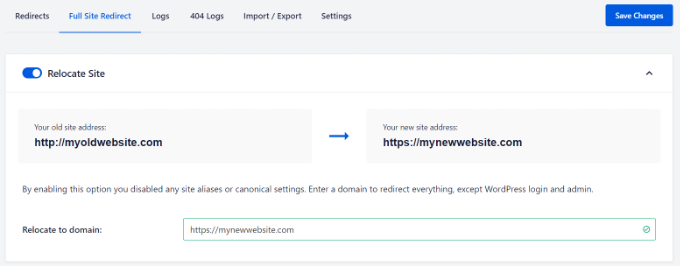
On top of that, if you’re already using All in One SEO, you can manage redirects from All in One SEO » Redirects without a separate plugin. Both options work equally well.
⚠️ Quick Check: Type one of your old HTML URLs directly into your browser. If it takes you to the correct WordPress page, the redirect is working.
Step 6: Point Your Domain to Your New WordPress Site
~5 minutes active + up to 48 hours propagation
Your domain still points to your old hosting from your HTML site. This step switches it over to your hosting provider, like Hostinger or Bluehost, where your WordPress site lives.
Don’t let the word “nameservers” put you off. You’re changing two lines of text in your domain registrar account, and the actual edit takes about 30 seconds.
Log in to the account where you registered your domain and find the DNS or Nameserver settings for your domain.
Replace the existing nameservers with the new nameservers, which you can find in your host’s dashboard under Domains.
The screenshot below shows you the lines to change in Bluehost nameservers as an example. Finally, save the changes and then wait.
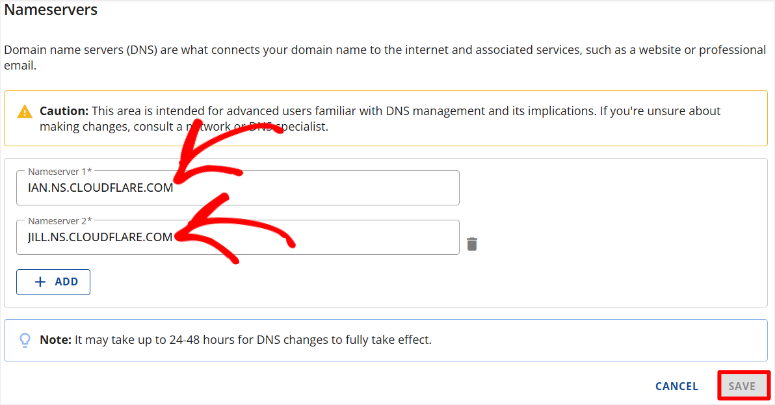
DNS propagation typically takes 24 to 48 hours.
During that window, some visitors will see your old HTML site, and others will see WordPress. That’s completely normal. It’s just DNS catching up across different networks around the world.
⚠️ Quick Check: Use a tool like whatsmydns.net to monitor propagation progress in real time. Once the majority of locations are showing your WordPress site, you’re good.
Step 7: Install Essential WordPress Plugins
~10 minutes | Get your site protected and functional from day one
Your WordPress site is live. Now it’s time to make it work harder than your old HTML site ever could. These are the plugins I install on every fresh WordPress site right after migration.
Head to Plugins » Add New in your dashboard and start with WPForms.
It’s one of the best WordPress contact form plugins. You build forms with a drag-and-drop editor, and every site needs at least one way for visitors to get in touch.
The free version of WPForms covers basic contact forms, and you can upgrade to Pro when you need payment forms, conditional logic, or surveys.
Next, install All in One SEO (AIOSEO).
This is the SEO plugin I trust to help your WordPress site recover and build on the authority you carried over with your 301 redirects.
It handles your meta titles, descriptions, XML sitemaps, and schema markup. It’s consistently featured among the best SEO tools for growing your site traffic.
The free version covers the essentials, and Pro is there when you’re ready for more advanced features.
Then add MonsterInsights.
This connects Google Analytics to your WordPress dashboard so you can see your traffic data without leaving WordPress.
No code, no manual setup. It’s a few clicks and your analytics are running. If you want to see how it stacks up against other options, here’s our full comparison of WordPress analytics solutions.
Finally, get SeedProd.
Even if you didn’t use it for the migration itself, it’s the best tool available for landing pages and campaigns going forward.
And don’t overlook a WordPress security plugin. Your new WordPress site is a living, dynamic system that needs security monitoring in a way a static HTML site never did.
Once each plugin is installed, activate it and run through its initial setup wizard. Most take under two minutes to configure.
What About Converting HTML to a Custom WordPress Theme?
There’s a developer method that converts HTML files directly into a WordPress theme by splitting them into header.php, footer.php, index.php, and style.css.
It gives you the most control over the final result, but it requires PHP knowledge, an understanding of the WordPress template hierarchy, and a fair amount of debugging time.
Unless you’re comfortable writing PHP, I’d skip it.
The SeedProd and block editor approach in this guide gets you 95% of the same result without writing a line of code.
How to Test Your Work
Before you announce your new WordPress site to anyone, take 10 minutes to run through this checklist.
Open an incognito browser window and visit your homepage.
Incognito clears any cached data, so you see exactly what a new visitor would see. Click through your main navigation every page should load cleanly without errors or missing content.
Next, test your 301 redirects.
Type each old HTML URL directly into the address bar /about.html, /services.html, /contact.html and confirm each one lands on the correct WordPress page.
If a redirect isn’t working, go back to Tools » Redirection and double-check the source URL for typos.
Check your forms.
Submit your contact form and confirm you receive the notification email. Then resize your browser to a mobile width and scan through your key pages.
Check that text stays readable, images scale correctly, and nothing overlaps or breaks.
Finally, run your homepage URL through Google PageSpeed Insights and note your score. It’s your baseline. Check out my WordPress performance checklist to see how you can improve your site speed.
Common Issues and Quick Fixes
Problem: “My old HTML URLs are still showing a 404 after I set up redirects”
- What’s happening: The redirect rule likely has a source URL typo; a trailing slash mismatch is the most common culprit.
- Quick fix: In Tools » Redirection, check your source URL. Try both
/about.htmland/about.html/and see which matches your original URL structure. It’s always one or the other. - My experience: I spent 20 minutes on this issue before I realized it was just the trailing slash. Always check that first.
Problem: “My WordPress site looks unstyled or broken after migrating”
- What’s happening: Your browser is serving cached CSS from your old HTML site.
- Quick fix: Do a hard refresh. Hit Ctrl+Shift+R on Windows or Cmd+Shift+R on Mac. Or clear your browser cache entirely and reload.
- My experience: This confused me the first time I did a migration. The WordPress install was actually fine. Chrome was just showing a stale cached version.
Problem: “My URLs are showing as ?p=123 instead of /page-name/”
What’s happening: Permalinks weren’t saved correctly, or the setting didn’t stick.
Quick fix: Head to Settings » Permalinks, select Post name, and click Save Changes again. Even if it looks already set, navigate away and come back, then save a second time if needed.
My experience: On some shared hosting setups, I’ve had to save permalink settings twice before they stick. It’s a known quirk.
Problem: “My images aren’t showing after recreating pages in WordPress”
- What’s happening: HTML image tags often reference absolute file paths that don’t exist in WordPress’s media library.
- Quick fix: Re-upload your images through Media » Add New. Then open each affected page and update the image blocks to point to the newly uploaded files.
- My experience: This adds time, but images hosted in the WordPress media library load faster and stay easier to manage long-term.
That’s it. You can now transfer your HTML site or page to WordPress. Plus, you can now troubleshoot any issues you face. If anything is unclear, check out the commonly asked questions below.
FAQs: How to Convert a HTML Site to WordPress
Can I keep my HTML site running while I build the new WordPress version?
Yes, and I’d recommend it. Set up WordPress on a temporary staging URL through your host — Bluehost provides a free staging environment with their plans. Build and test everything there first, then point your domain to WordPress only when you’re fully satisfied with the result.
Will converting to WordPress hurt my SEO?
Only if you skip Step 5. Set up your 301 redirects correctly, and Google will transfer the page authority from your old HTML URLs to the new WordPress equivalents. Expect rankings to fully stabilize within a few weeks of the switch; that’s normal. If you want to go deeper, here’s a breakdown of All in One SEO Free vs Pro and what the paid version adds for ongoing SEO management.
Do I need to know how to code to convert HTML to WordPress?
No, not with the methods in this guide. SeedProd handles the layout side, the WordPress block editor handles content, and the Redirection plugin handles URL mapping. The developer method requires PHP, but that’s entirely optional and not something most people need.
How long does it take to convert an HTML site to WordPress?
A single HTML page takes 15 to 30 minutes using Method 2. A full multi-page HTML site takes most people 2 to 4 hours if you follow the 7-step process in Scenario 2. DNS propagation in Step 6 adds up to 48 hours of wait time, but you’re not actively working during that window.
Can I use my existing domain name with my new WordPress site?
Yes. That’s exactly what Step 6 handles. You update the nameservers at your domain registrar to point to Bluehost. Your domain name stays the same; only the hosting it points to changes.
Is WordPress better than Wix for converting an HTML site?
For most people, making this switch, yes. WordPress gives you complete ownership of your site, unlimited customization, and a massive plugin ecosystem. If you’re weighing your options, here’s our full Wix vs. WordPress comparison with a side-by-side breakdown.
Is SeedProd free, or do I need a paid plan?
SeedProd has a free version (Lite) in the WordPress plugin directory that covers basic landing and coming soon pages. The full drag-and-drop page builder offers the Custom HTML block and all 90+ pro blocks. But requires a paid plan. The Basic plan starts at $39.50 per year and covers one site, which is all you need for a single migration.
Final Thoughts
Converting from HTML to WordPress is one of those projects that feels bigger than it is. Once you know the sequence, it moves fast.
You’ve just moved from a static site that required a developer for every small change to a full content management system you control completely.
That’s a real upgrade, not just technically, but in terms of what you can now do with your site.
SeedProd makes the layout work without any issues. Bluehost handles the hosting without the overhead. And the 301 redirects make sure your SEO comes along for the ride.
The natural next step is building out your content. Add a blog, set up your contact forms with WPForms, and connect Google Analytics through MonsterInsights. Your WordPress site is ready for all of it now.
Resource Hub: WordPress Setup and Migration
Whether you’re fine-tuning your new WordPress site or figuring out what to build next, these resources cover the essential next steps.
- Best Blogging Platforms for Beginners Compared – if you want to understand where WordPress fits among your long-term platform options
- 9 Best WordPress Import and Export Plugins – the tools that make moving content between WordPress sites fast and error-free
- 23 Best WordPress Multipurpose Themes – find a theme that fits your site after the migration is done
- 11 Best Wix Alternatives Compared – if you’re evaluating website platforms beyond just HTML and WordPress
- 24 Best SEO Optimized WordPress Themes – themes designed to support the SEO recovery you started with your 301 redirects
- How to Move From Blogger to WordPress Without Downtime – the same migration principles applied to another popular platform switch
Comments Leave a Reply