A few months ago, one of my top-ranking WordPress guides disappeared from Google’s AI Overviews. Its search position hadn’t moved at all.
Search Console showed traffic on that page quietly dropping for weeks. Meanwhile, a competitor’s FAQ started showing up in the AI Overview instead of mine.
My FAQ wasn’t wrong, just unreadable to AI. It was bolded questions buried in long paragraphs, with no clean answer to pull.
After I rebuilt it with real FAQ schema and short, direct Q&A pairs, that page reappeared in AI Overviews within weeks. In this guide, I’ll show you how to build a FAQ section AI Overviews can actually read and cite.
Key Takeaways
- Add real FAQ schema: Use All in One SEO’s FAQ block so Google and AI systems can read your questions and answers as structured data, not just formatted text.
- Write answers AI can lift: Keep each answer short, direct, and self-contained so it can be quoted without needing extra context.
- Build a dedicated FAQ hub: Use HeroThemes Heroic FAQs to organize a bigger FAQ section into a clean, searchable page instead of one long list.
- Keep growing your FAQ with real questions: Use WPForms to collect the exact questions your readers are asking, then answer the ones that matter most.
- Check your work before publishing: Test your schema and score your FAQ’s structure so you know it’s ready before AI Overviews ever see it.
What We’ll Accomplish in This Tutorial
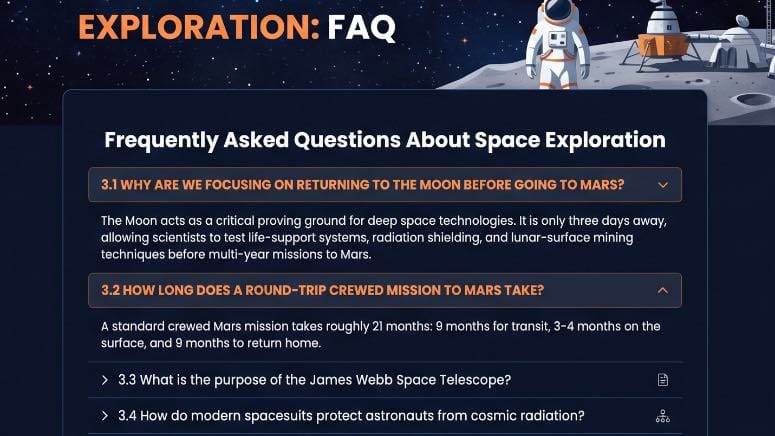
By the end of this tutorial, you’ll have a WordPress FAQ section that’s built the way AI Overviews and Google actually read content. It’ll be structured, schema-backed, and easy to cite.
You’ll know how to add real FAQ schema, build a dedicated FAQ page, and keep expanding your FAQ with the questions readers are actually searching for.
What You’ll Need Before We Start
Skill level: Beginner/Intermediate
Time to complete: ~20 minutes
- A self-hosted WordPress website
- Editing access to the post or page where you want your FAQ section to live
- The All in One SEO plugin (the free version works for this tutorial, though the FAQ schema output requires the Basic plan or above)
- Optional: HeroThemes Heroic FAQs if you want a dedicated FAQ page separate from your posts
- Optional: WPForms if you want to collect new FAQ questions from your readers
To help you navigate, use the table of contents below.
- Quick Comparison: All 3 Methods
- Method 1: Add Real FAQ Schema Using All in One SEO
- Method 2: Build a Dedicated FAQ Page Using HeroThemes Heroic FAQs
- Method 3: Collect New FAQ Questions Using WPForms
- Which Method Should You Use?
- How to Test Your Work
- Common Issues and Quick Fixes
- FAQs: WordPress FAQ Sections and AI Overviews
- Final Thoughts
- Resource Hub: WordPress FAQ Sections and SEO
Quick Comparison: All 3 Methods
Before you pick a method, it helps to know what AI Overviews are actually doing. They don’t just rank your page, they pull short answers out of it and quote them directly. That’s why structure and schema matter as much as the answer itself.
| Method | Best For | What It Adds |
| All in One SEO (FAQ Schema) | Getting FAQ schema live fast on any post or page | Structured data Google and AI systems can read directly |
| HeroThemes Heroic FAQs | Sites that need a large, dedicated FAQ or help section | A searchable, accordion-style FAQ page separate from your posts |
| WPForms | Growing your FAQ with real reader questions | A steady pipeline of new questions to answer and add |
Method 1: Add Real FAQ Schema Using All in One SEO
All in One SEO is the plugin I use on every site I manage. It’s the fastest way to add real FAQ schema right inside a post or page, which is where most FAQ sections actually live.
Adding the FAQ Block
First, install and activate All in One SEO if you haven’t already. Once that’s done, open the post or page where you want your FAQ section, and click the + icon to add a new block.
Next, type AIOSEO into the block search field, and select the AIOSEO – FAQ block from the results.
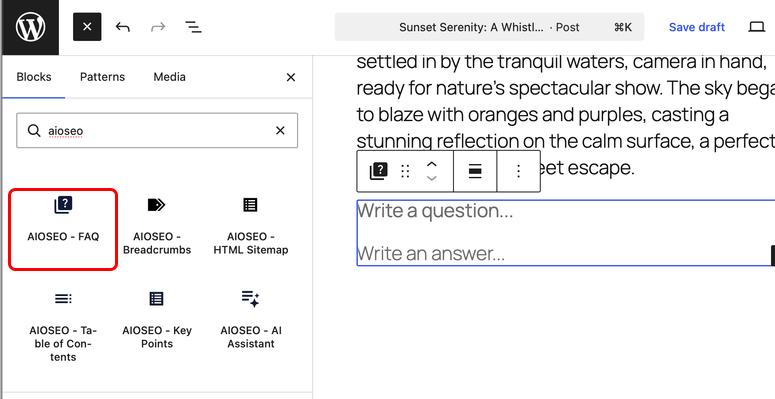
Once the block appears, you’ll see placeholder text that says “Write a question…” and “Write an answer…”. Simply click into each field and type your own question and answer.
To add another question, don’t try to keep typing inside the same block. Instead, click the + icon again and insert a new AIOSEO – FAQ block for each question.
Each block holds one question and one answer, and AIOSEO combines all of them into your page’s FAQ schema automatically. Repeat this for every question you want to include.
Writing Answers That AI Overviews Can Actually Cite
This is the part most people skip. It’s also the reason a lot of FAQ sections never get pulled into AI Overviews.
Google and AI systems need to lift your answer out of the page and reuse it on its own. That means it can’t depend on the rest of your article for context.
Answer the question directly in the first sentence, using the same words a reader would actually type into Google. Keep each answer to roughly 40 to 60 words, and add a second sentence of supporting detail if it helps, but don’t pad it out.
Also, make sure your questions and answers on the page match your schema exactly. Google requires this, and mismatched or hidden content is a common reason FAQ schema gets ignored.
Turning On FAQ Schema
The FAQ block itself outputs FAQ schema in your page’s source code automatically, but this specific output requires All in One SEO’s Basic plan or above.
⚠️ Note: If you’re on the free version, you can still build FAQ sections with the block, but you’ll need to upgrade to have the schema markup added automatically.
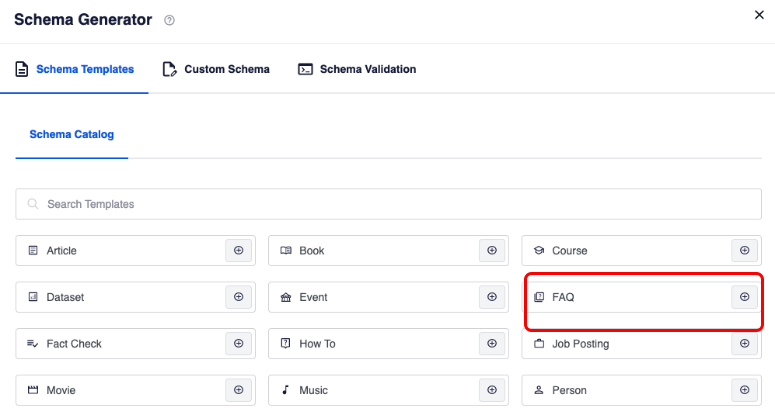
If you’d rather not add the block directly to your content, you can also generate FAQ schema from the settings panel.
To do this, scroll down to the AIOSEO Settings section while editing your post, and click the Schema tab. Click Generate Schema, then click the Add Schema icon next to FAQ to add it.
✅ Tip: The FAQ block only works in the WordPress block editor. It won’t work with the Classic Editor or with page builders, so make sure you’re editing in Gutenberg.
Method 2: Build a Dedicated FAQ Page Using HeroThemes Heroic FAQs
All in One SEO is great for a short FAQ section on a single post. But if you’re building a full FAQ page or help section with dozens of questions, you need something built specifically for that.
That’s when I switch to Heroic FAQs.
First, install Heroic FAQs and activate your license. Once it’s active, create a new post or page, and add a Heroic FAQs block from the block inserter.
Next, use the drag-and-drop builder to add your questions and answers. You can group related questions together, which makes a longer FAQ page much easier to scan.
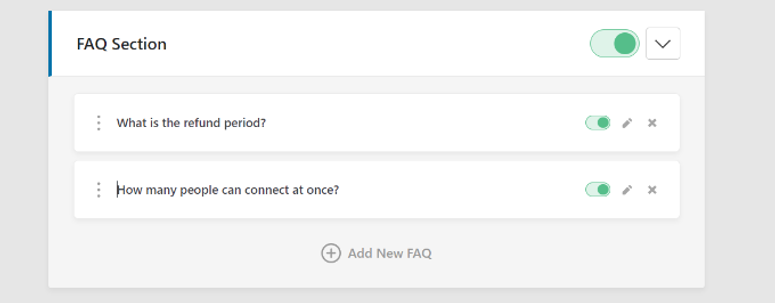
While you’re building it out, choose a display style.
Accordion keeps only one answer open at a time, while toggle lets readers open multiple answers at once.
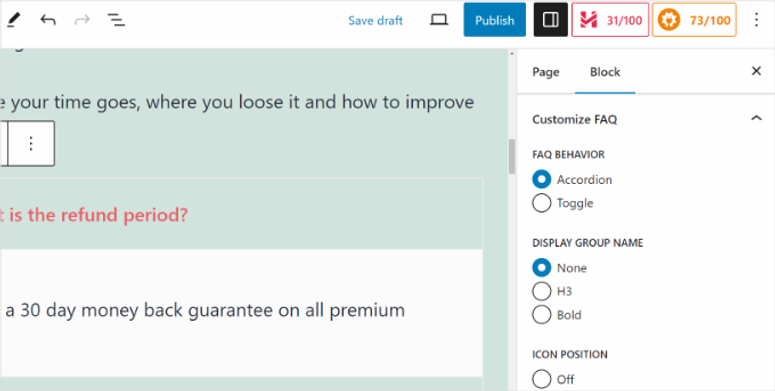
I use accordion style for longer FAQ pages since it keeps the page from feeling overwhelming.
Once you’ve added your questions, publish the page and preview it on the front end to make sure the styling matches your site.

⚠️ Note: Heroic FAQs is a premium plugin with no free version. It’s included with every Heroic Knowledge Base plan, so it makes the most sense if you’re already building out a help center or knowledge base alongside your FAQ page.
Method 3: Collect New FAQ Questions Using WPForms
Schema and formatting only help if you’re answering the right questions in the first place. This is where WPForms comes in. Instead of guessing what readers want to know, you can ask them directly and grow your FAQ from real questions.
First, install and activate WPForms. Once it’s active, go to WPForms » Add New to create a new form.
Next, choose a simple template like Simple Contact Form, and remove any fields you don’t need. Keep it down to a name field, an email field, and a single text area labeled something like “What question do you have?”
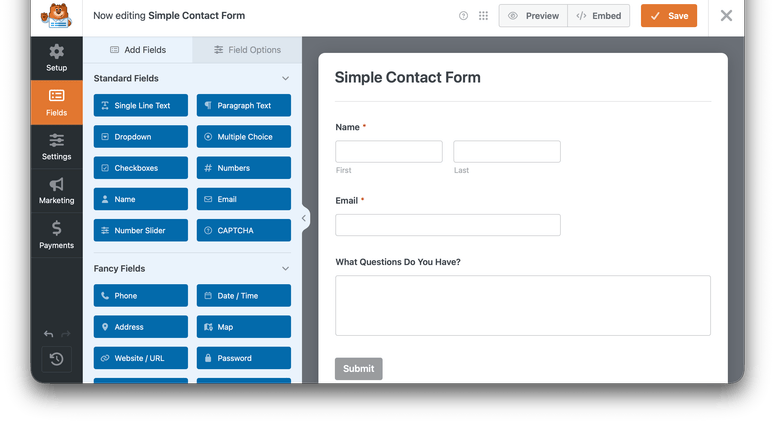
Once your form looks right, click Embed in the top toolbar, and add it to the bottom of your FAQ page or post. That way, if a reader doesn’t find their answer, they can submit their question right there instead of leaving the page.
Make sure to turn on email notifications under the form’s Settings » Notifications tab, so you know right away when a new question comes in.
Every couple of weeks, I go through the submissions and add the most common questions straight into my FAQ section using Method 1 or Method 2.
This keeps your FAQ matching what people actually search for, and that’s exactly what AI Overviews reward.
Which Method Should You Use?
If you’re adding a short FAQ section to an existing post, start with All in One SEO. It’s the fastest path to real FAQ schema, and it’s the method I’d recommend for most sites.
If you’re building a full FAQ or help page with dozens of questions, Heroic FAQs is worth it for the organization alone.
And if you want your FAQ section to keep improving, add WPForms on top of either method so you’re never guessing what to answer next.
How to Test Your Work
Once your FAQ section is live, don’t just assume the schema is working. Open the Schema.org Validator and paste in your page’s URL.
I use Schema.org’s own validator instead of Google’s Rich Results Test here, and there’s a reason for that. Google retired FAQ rich results from search in May 2026, and dropped FAQ validation from the Rich Results Test tool the following month.
Despite these tool changes, FAQPage is still a completely valid schema type that Google continues to parse for context, but its own testing tool won’t show it to you anymore.
The Schema.org Validator checks the raw code instead, so it’s now the more reliable way to confirm your schema is actually correct.
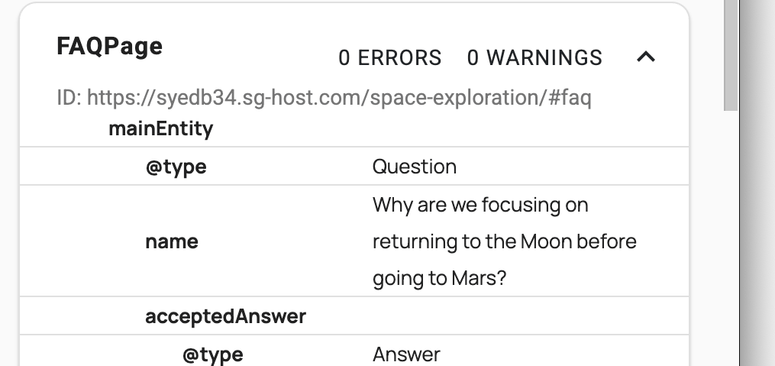
You should see a FAQPage entry with 0 errors and 0 warnings, and each of your questions listed as its own separate item under “mainEntity.”
If everything shows up as one giant merged answer instead, double-check that you inserted a new AIOSEO FAQ block for each question rather than typing extra headings inside a single block’s answer field. It’s an easy mistake to make, and one I made myself testing this.
Next, I run the page through SEOBoost to score the content’s structure. It flags dense paragraphs and missing headings, the kind of issues that make a page harder for AI to parse even when the schema is valid.
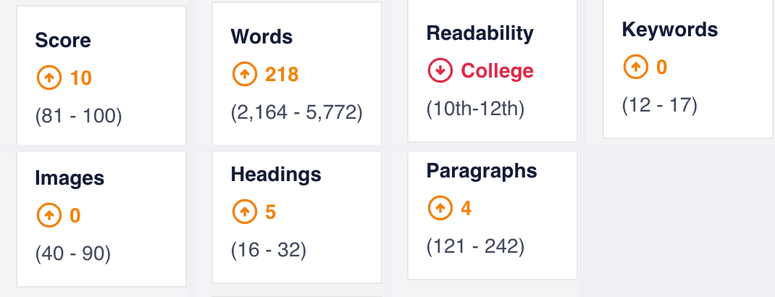
Between the two checks, you’ll know your FAQ section is both technically correct and actually structured in a way that’s easy to lift and cite.
Common Issues and Quick Fixes
Problem: “My FAQ schema isn’t showing up in the Schema.org Validator.”
This almost always means you’re on All in One SEO’s free version, which doesn’t output schema automatically. I ran into this myself the first time I tested a client site, before realizing the schema output requires the Basic plan or above.
Problem: “Google flagged my FAQ content as hidden or mismatched.”
This happens when your schema includes text that isn’t visible on the page, often from an old FAQ block you edited without updating the schema settings. Double-check that every question and answer in your schema matches what’s actually published on the page.
Problem: “My FAQ shows up on the page, but never in AI Overviews.”
In my experience, this usually comes down to answer length. If your answers run several paragraphs long, there’s nothing clean for an AI system to lift out and quote. Try tightening your answers down to 40 to 60 words and see if that changes anything.
Problem: “I have too many questions and my FAQ section feels cluttered.”
Once a FAQ section grows past 8 to 10 questions, it’s usually a sign you need a dedicated FAQ page instead of a section at the bottom of a post. That’s exactly the situation Heroic FAQs was built for.
FAQs: WordPress FAQ Sections and AI Overviews
How do I format WordPress FAQ content to appear in AI Overviews?
Add real FAQ schema using a plugin like All in One SEO, and write each answer as a short, direct response in the first sentence.
Also, keep your visible page content matching your schema exactly. Mismatched or hidden content is one of the main reasons FAQ sections get skipped by AI Overviews.
Does FAQ schema guarantee I’ll show up in AI Overviews?
No. FAQ schema is a technical signal that helps Google and AI systems understand your content, but it doesn’t override the need for accurate, well-written answers. Think of it as making your content easier to find and cite, not a guaranteed placement.
Can I add FAQ schema without a plugin?
Yes, you can add FAQ schema manually with JSON-LD code, but it needs to be updated by hand every time your questions change. Most WordPress site owners find it faster and less error-prone to use a plugin like All in One SEO instead.
How many questions should I include in a FAQ section?
For a FAQ section attached to a single post, I keep it to 4 to 7 focused questions. If you have more than that, it’s usually a sign you need a dedicated FAQ page instead, which is where a plugin like Heroic FAQs helps.
Where should I put my FAQ section on the page?
Placing your FAQ section near the end of your post works well for most content, right after your main instructions or explanation. Just make sure it’s still part of the visible page content, not hidden inside a tab or a separate load-more section.
Final Thoughts
Building a FAQ section that AI Overviews can use isn’t complicated, but it takes more than bolding a few questions and moving on. Add real schema, write answers that stand on their own, and set up a way to keep collecting new questions.
Do that, and your FAQ section keeps working for you instead of sitting there unused.
If you haven’t added schema markup anywhere else on your site yet, you might also want to see our guide on how to add schema markup to your WordPress website next.
Resource Hub: WordPress FAQ Sections and SEO
- Best WordPress FAQ Plugins
- Best Rich Snippets Plugins to Explode Organic Traffic
- Practical Tips to Optimize and Dominate Voice Search SEO
- AIOSEO vs Yoast SEO: Which SEO Plugin Is Better?
- All in One SEO Free vs Pro: Is Paying for Premium Worth It?
- Best SEO Plugin: All in One SEO vs. Rank Math (Compared)

Comments Leave a Reply