My WordPress site looked great on mobile. But “mobile-responsive” is not the same as “mobile app.”
I watched my course completion rates stay flat. Members would log in once, then drift away.
No app icon on their home screen or push notifications to pull them back, or a native experience to keep them engaged.
Then I tried BuddyBoss App. Within a few hours, my WordPress site was live as a native app on both the Apple App Store and Google Play.
The difference was immediate, and this guide shows exactly how I did it.
Key Takeaways
- I’ll show you how to connect BuddyBoss App to your WordPress site without coding
- I walk through both iOS and Android configuration so you can publish to both app stores
- Reveal the Firebase push notification setup that keeps members coming back automatically
- I cover the branding settings that make your app feel premium from day one
- I walk through common issues and exactly what to do when something goes wrong
What We’ll Accomplish in This Tutorial
By the end of this guide, your WordPress site will have a branded native app available on both the Apple App Store and Google Play.
Your members can add it to their home screen, receive push notifications, and access your content in a native mobile experience, not a browser window.
Here’s what changes for your site:
- A real home screen icon, not a browser shortcut
- Push notifications that re-engage members without email
- Faster, native-feeling navigation throughout your content
What You’ll Need Before We Start
Skill level: Intermediate
Time to complete: ~3–4 hours (Apple setup takes the most time)
Budget around $1,719 per year before you start. That covers BuddyBoss App ($79/month), an Apple Developer Account ($99/year), and a Google Play Developer Account ($25 one-time). Firebase is free.
- BuddyBoss App installed and activated – head to buddyboss.com/mobile-app/, purchase a plan, and download the plugin and license key from your account dashboard. Install it in WordPress like any other plugin (Plugins » Add New » Upload). Need a full setup walkthrough?
- BuddyBoss Platform already installed and active on your WordPress site? BuddyBoss App requires BuddyBoss Platform to function
- Apple Developer Account – enroll at developer.apple.com ($99/year; required for iOS publishing)
- Google Play Developer Account – sign up at play.google.com/console ($25 one-time; required for Android)
- Firebase account – create one at firebase.google.com (free; handles push notifications)
How to Turn Your WordPress Site Into a Mobile App
With all that ready, it is time to convert your WordPress site into a mobile app. Below is a table of contents, where you can click on any link to skip to that section.
Plus, it gives you a quick overview of all steps at a glance.
- Step 1: Download and Connect the BuddyBoss App Plugin
- Step 2: Configure iOS Settings
- Step 3: Set Up Android Configuration
- Step 4: Configure Firebase Push Notifications
- Step 5: Customize App Settings and Notifications
- Step 6: Design Your App's Branding
- How to Test Your App
- Common Issues and Quick Fixes
- FAQs: How to Turn Your Website into a Mobile App
- Final Thoughts
- Resource Hub: Mobile Apps, Memberships, and Community Sites
With that out of the way, let’s dive in.
Step 1: Download and Connect the BuddyBoss App Plugin
~15 minutes | Your WordPress site linked to BuddyBoss
This step creates the bridge between your WordPress content and the native mobile apps you’re about to build.
It’s the quickest step in the whole process, but I’ll show you exactly where to find the credentials that most people waste time hunting for.
To get started, log in to your BuddyBoss account and head to the Downloads tab.
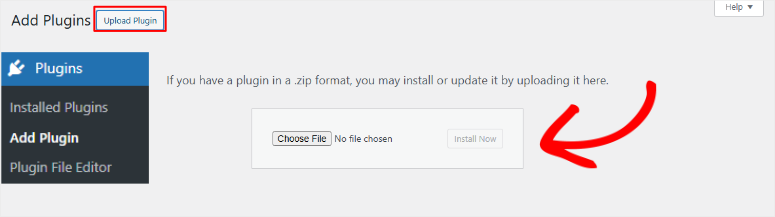
Then, download the BuddyBoss App plugin file. Back in WordPress, go to Plugins » Add New » Upload Plugin, upload the file, and activate it. Once activated, BuddyBoss App will appear in your left sidebar.
After this, navigate to BuddyBoss App » Connect.
You’ll see two empty fields waiting for an App ID and App Key. To get those, head back to your BuddyBoss account, click the Apps tab, find your site in the list, and click Manage next to it.
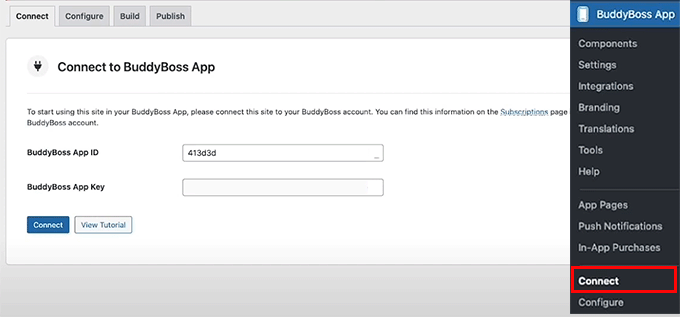
A panel appears showing your credentials. Copy both values carefully.
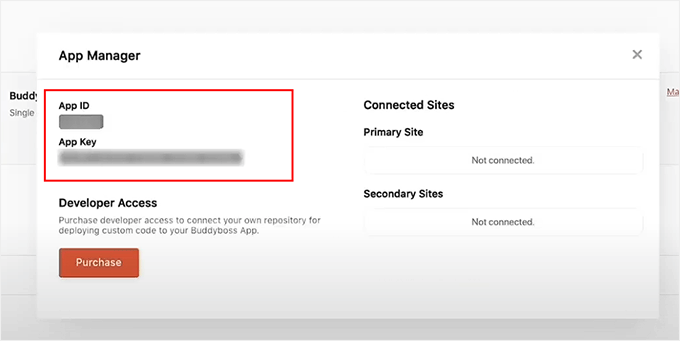
Then, paste both values into the “Connect” tab fields and save. Once done, switch to the Configure tab and enter your app name in the App Icon Name field.
This is the label that appears under your icon on the user’s home screen. Again, choose it carefully before saving.
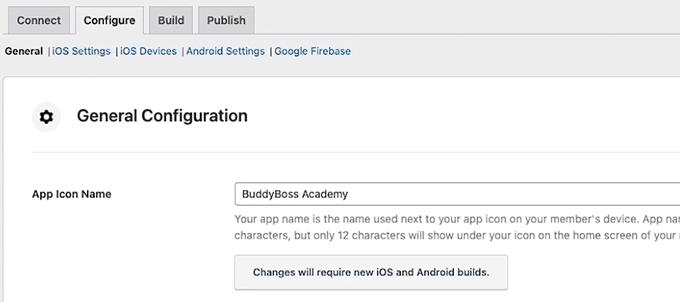
⚠️ Quick Check: After saving, you should see a confirmation status in the Connect tab. If you get an error, check that you copied both the App ID and App Key without any extra spaces at the start or end.
Step 2: Configure iOS Settings
~90 minutes | Your app connected to the Apple App Store
iOS setup is the most involved step in this tutorial. It requires three separate platforms.
That is, your BuddyBoss dashboard, the Apple Developer Portal, and App Store Connect. Plus, several files must be created in a specific order.
The good news is it’s mechanical, not technical. Follow the sequence below, and it moves faster than it looks.
I’ve done this setup multiple times, and the 90-minute estimate holds once you know where everything is.
Create Your Apple Developer Account
If you don’t have an Apple Developer Account yet, head to developer.apple.com and enroll. I should point out that it costs $99 per year. You’ll need a personal or business Apple ID to complete the enrollment.
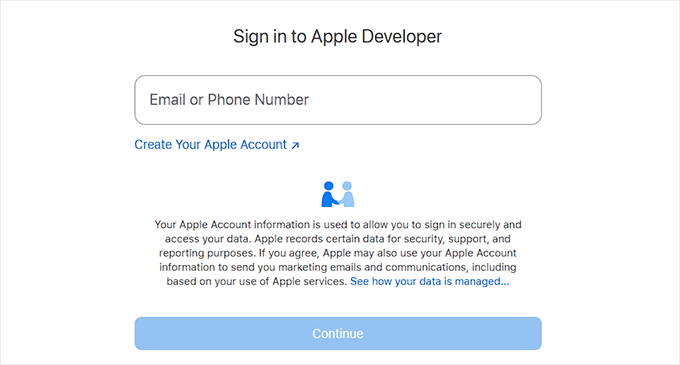
Apple typically approves new accounts within 24 to 48 hours.
So, don’t start the rest of Step 2 until your account is fully approved. Trying to create API keys on a pending account throws confusing errors.
Connect Your Apple Developer Account to BuddyBoss
Once approved, go to WordPress and navigate to BuddyBoss App » Configure and click the iOS tab. This becomes the central hub for everything Apple-related in your setup.
Every Apple credential you collect in this step gets entered here
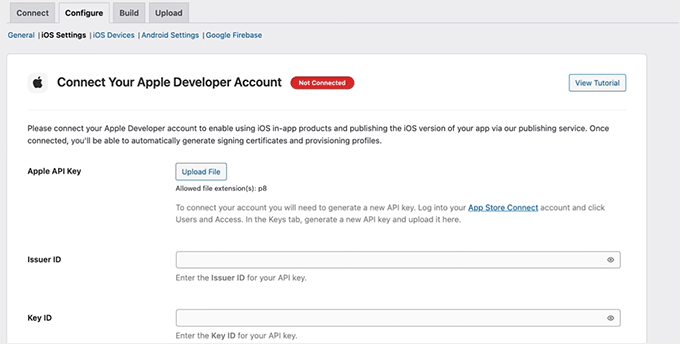
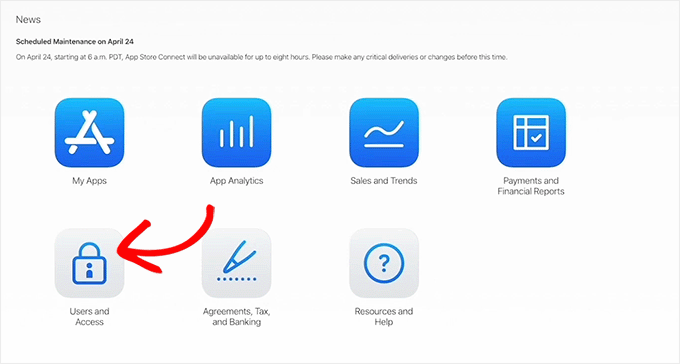
Now head to App Store Connect (appstoreconnect.apple.com) and navigate to Users and Access.
Click the Keys tab, then select the + icon to create a new API key. Here, give it a name, select App Manager from the Access dropdown, and click Generate.
After clicking “Generate,” you’ll see the new key in the list.
Download the API key file immediately because Apple only lets you download it once. On the same screen, copy your Key ID and Issuer ID. You need all three of these values together.
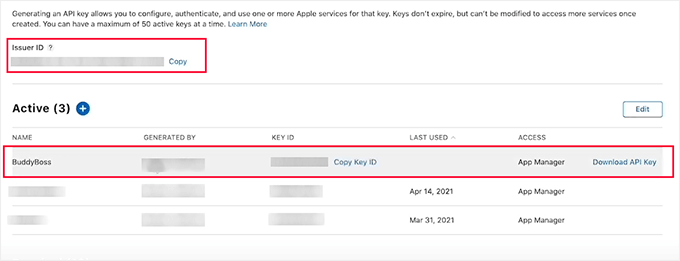
Download the .p8 file and copy the Key ID and Issuer ID. You’ll need all three items in BuddyBoss.
Back in BuddyBoss, paste your Issuer ID and Key ID into the iOS fields, upload the .p8 API key file, and click Connect Account. A success confirmation will appear when the connection works.
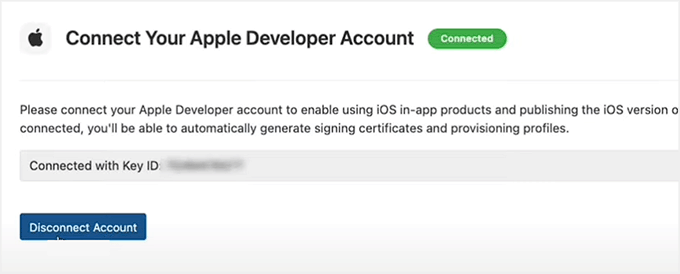
A connected status confirms BuddyBoss can now communicate with your Apple Developer Account.
Configure Bundle ID, Certificates, and Provisioning Profiles
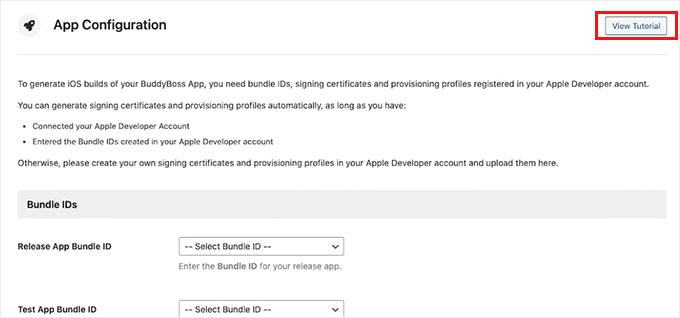
Once done, navigate to BuddyBoss App » Configure » iOS and find the Bundle ID section.
BuddyBoss provides a dedicated video walkthrough for the certificates and provisioning profiles step. All you have to do is follow it exactly, rather than piecing it together from Apple’s documentation.
The video is linked directly in this section. You can also click on this link to go directly to the BuddyBoss YouTube tutorial.
Create Your App in App Store Connect
Navigate to App Store Connect » My Apps and click the + icon. After this, enter your app name, select iOS as the platform, add your Bundle ID, and set access to Full Access. Save the new app.
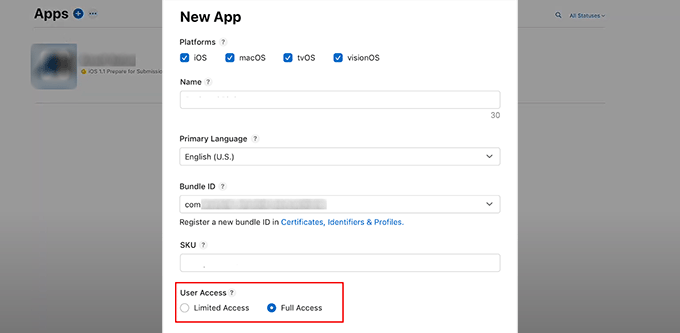
Your Bundle ID here must match exactly what you configured in BuddyBoss. A mismatch causes errors later.
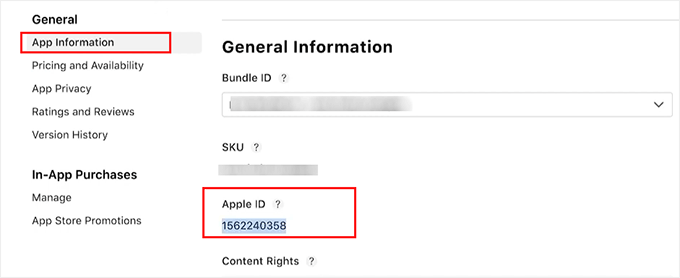
From the App Information tab, copy your App ID; it’s a numeric identifier, not your app name.
Now navigate to the Manager tab and click App-Specific Shared Secret to generate and copy that value. This is a separate credential from the App ID.
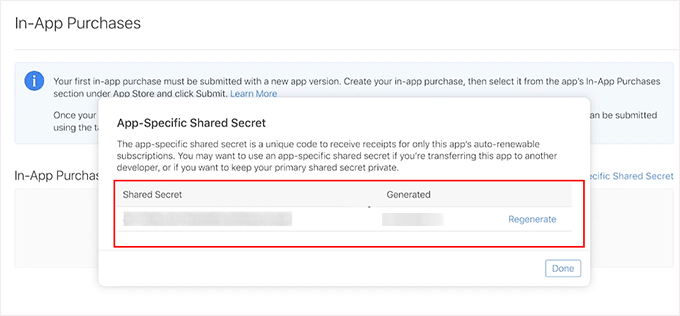
Click the Shared Secret button in the Manager tab to generate and copy this value.
Back in BuddyBoss, paste both the App ID and Shared Secret into the iOS settings fields and save.
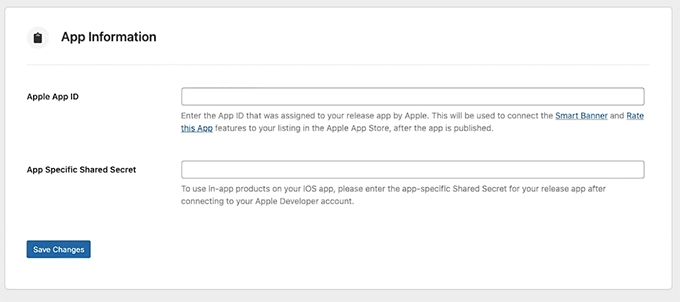
Enter both values in BuddyBoss to complete the App Store Connect credentials.
Register Your iOS Device for Testing
Before submitting to the App Store, test the app on a real device.
To do this, navigate to the iOS Devices tab in BuddyBoss and follow the on-screen instructions to register a physical iOS device for testing.
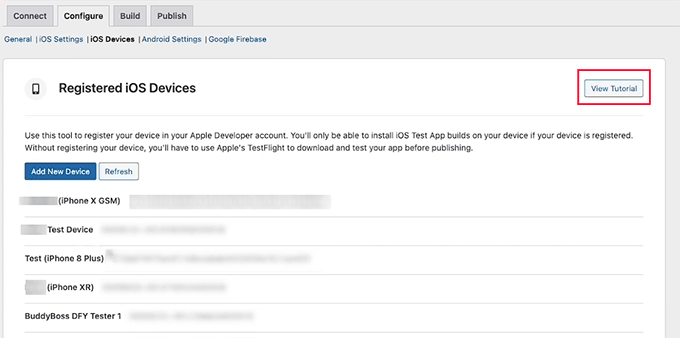
Register a physical iOS device here so you can run the app before submitting to the App Store.
⚠️ Quick Check: The iOS tab should show a connected status for your Apple Developer Account, with your Bundle ID, App ID, and Shared Secret all saved.
Step 3: Set Up Android Configuration
~45 minutes | Your app connected to Google Play
Android setup is simpler than iOS since it requires fewer certificates and files. The most time-consuming part is the service account setup in Google Cloud Platform, but you only do it once.
Create Your App in Google Play Console
Head to play.google.com/console and click Create app. Then, enter your app name, select your default language, and set it to Free. Check the required declaration boxes and click Create App.
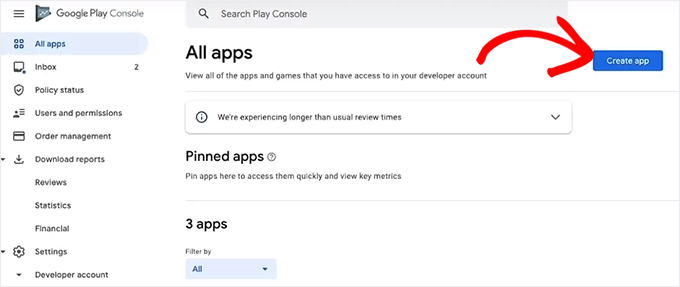
Click Create app in the Google Play Console to create your Android app listing.
After this, fill in the app details form that follows with your app name and language settings.
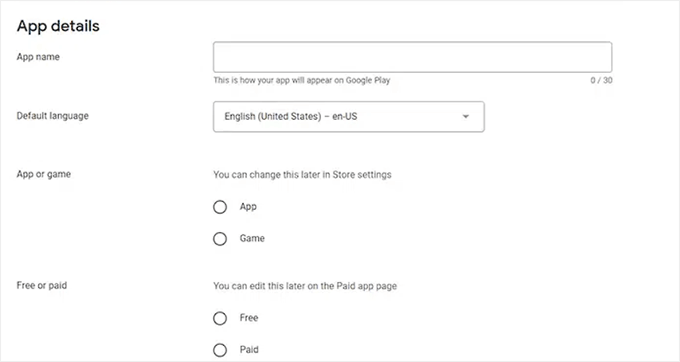
Complete the form: app name, default language, and whether it’s free or paid.
Create a Service Account
In Google Play Console, navigate to Settings » API Access. Click Create New Project, then Link Project. This takes you into Google Cloud Platform.
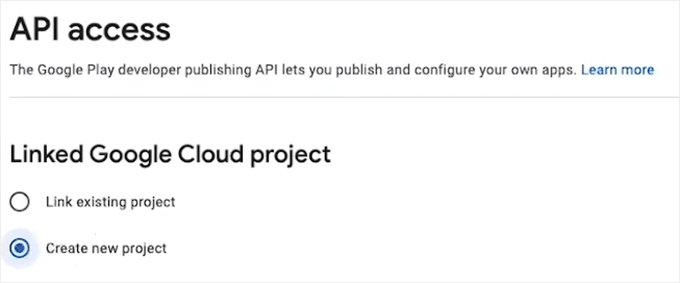
Settings » API Access is where you connect Google Cloud Platform to your Play Console.
In Google Cloud Platform, click the Service Accounts tab. Follow this by clicking “+ Create Service Account” to start building the account BuddyBoss needs to connect.
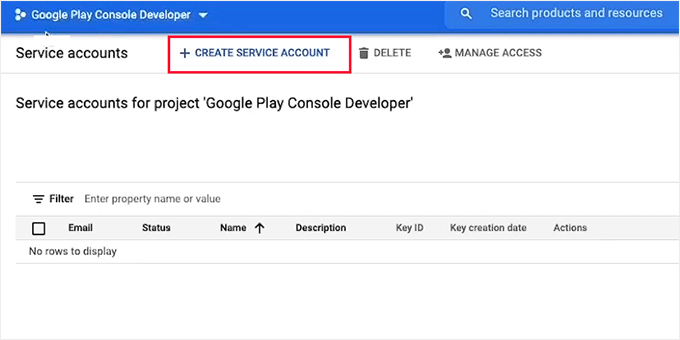
The Service Accounts tab in Google Cloud Platform. Click + Create Service Account.
Once on this screen, give your service account a recognizable name and description, then click Create.
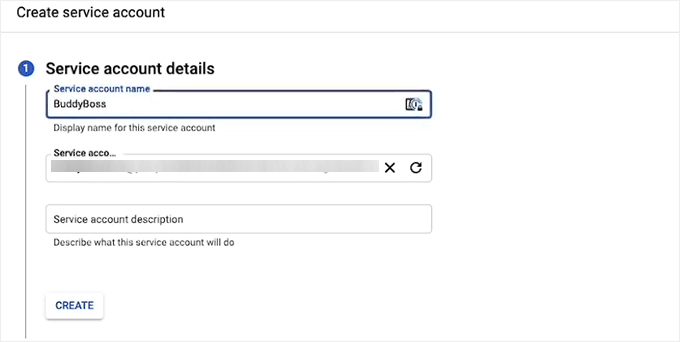
Name the account something clear like “BuddyBoss App” so you can identify it later.
On the next screen, select Owner from the role dropdown, click Continue, then Done.
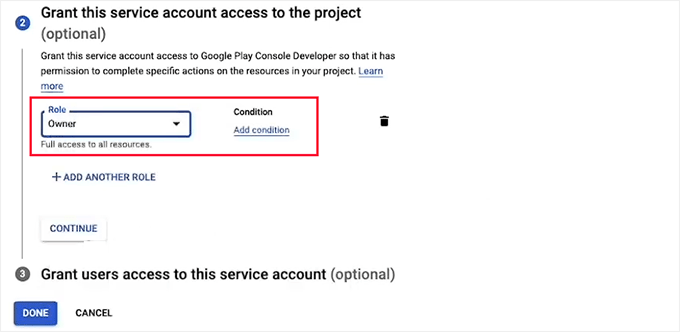
Select Owner access. BuddyBoss needs full permissions to manage your app builds.
Generate and Connect the JSON API Key
Back on the service accounts list, click the three-dot icon under Actions next to your new account and select Manage Keys.
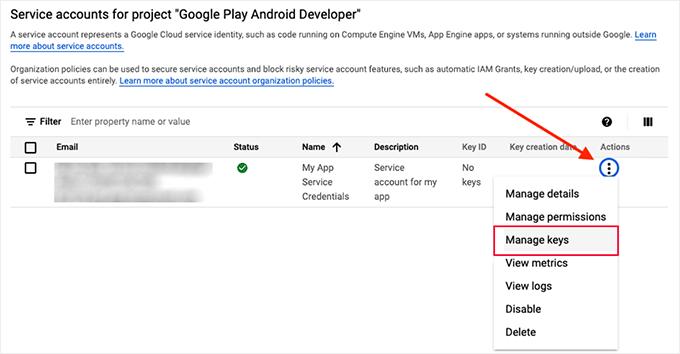
Open the three-dot menu on your service account and click Manage Keys.
After this, click Add Key, select JSON as the key type, and click Create. The JSON file downloads automatically to your computer.
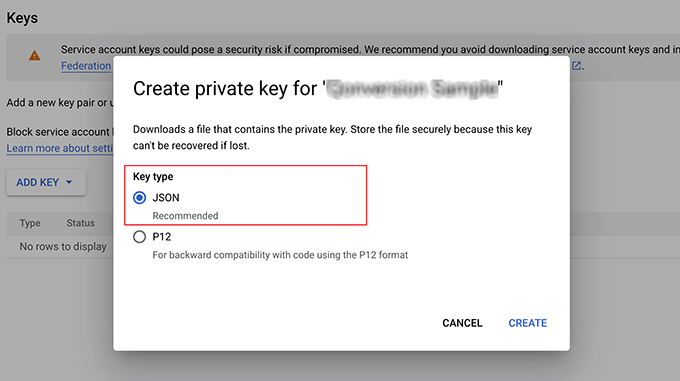
Select JSON. This creates a file you can upload directly into BuddyBoss.
Back in WordPress, navigate to BuddyBoss App » Configure » Android Settings. Upload the JSON file to the Service Account Key field. You should see a connected status once it processes.
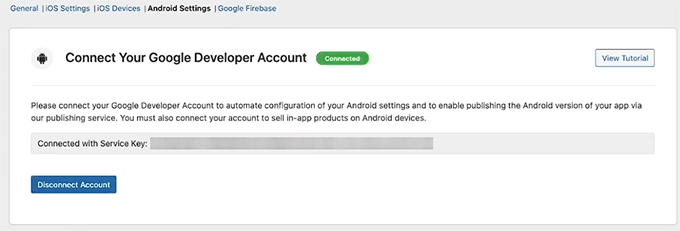
After uploading the JSON key, BuddyBoss confirms the Google account is connected.
Add Your Application ID and Generate the KeyStore
Scroll down in the Android settings and enter your Application ID using reverse domain format.
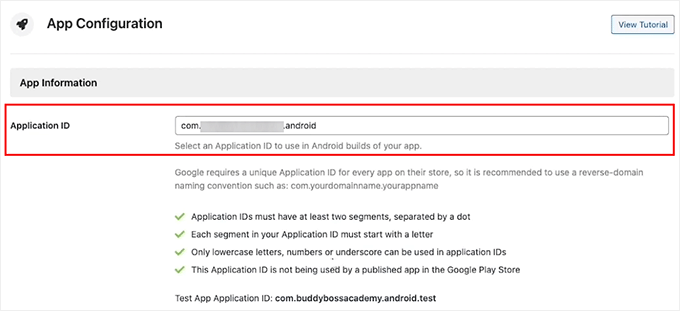
Enter your Application ID in reverse domain format: com.companyname.appname.
For example, com.mycompany.myapp. This is a unique identifier Google uses to distinguish your app from others.
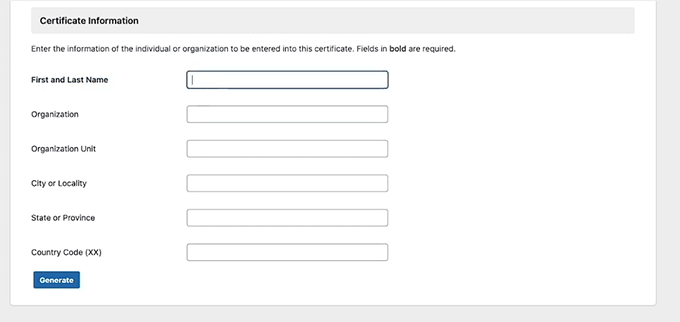
Now click Generate KeyStore. Fill out the Certificate Information form, including your name, organization, city, state, and country code. Once done, click Generate.
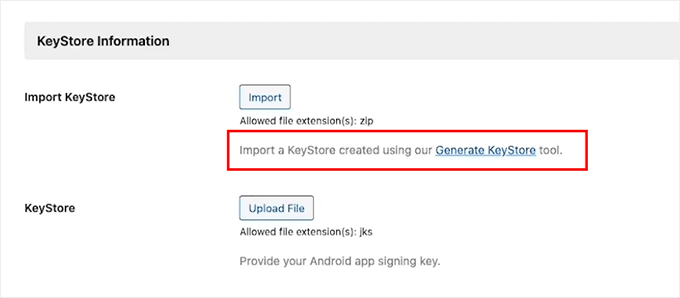
Click Generate KeyStore to create your Android app signing certificate.
After this, complete the Certificate Information form. This generates the signing certificate for your Android app.
BuddyBoss will generate a KeyStore file. Download it, then upload it back into the KeyStore section. After this, click Save Changes.
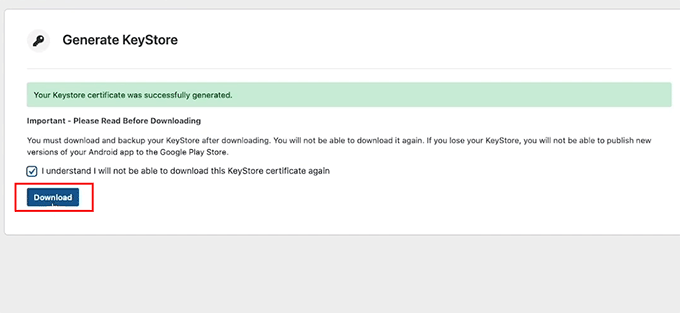
Download the KeyStore file BuddyBoss generates, then upload it back here.
⚠️ Quick Check: The Android Settings tab should show a connected Google account, with your Application ID and KeyStore file both in place.
Step 4: Configure Firebase Push Notifications
~30 minutes | Push notifications enabled for both platforms
Firebase is Google’s free cloud messaging service.
It’s what powers the push notifications your app will send. This includes new content alerts, replies to comments, mentions, and more.
Every file you create here gets uploaded to BuddyBoss, so keep your downloads organized.
Create Your Firebase Project
In WordPress, navigate to BuddyBoss App » Google Firebase to see the connection panel.
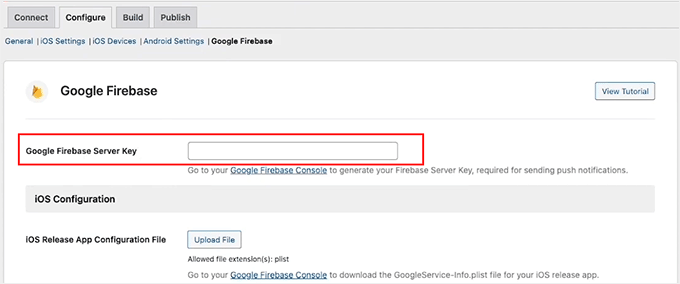
The Firebase tab in BuddyBoss. This is where you’ll paste credentials and upload all config files.
Head to the Firebase Console (console.firebase.google.com) and click Get started by setting up a Firebase project. Enter a project name and click Continue.
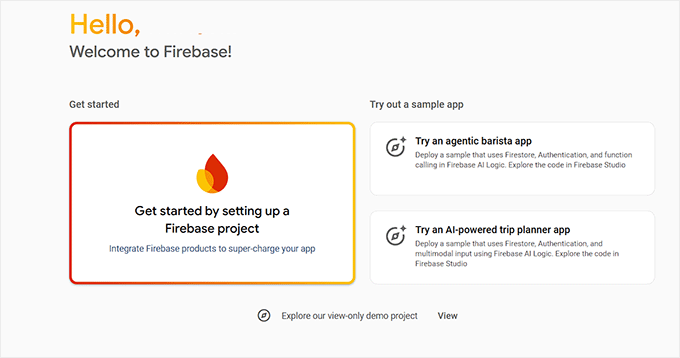
Start by creating a new project at the Firebase Console.
Using the same name as your app keeps everything organized across platforms.
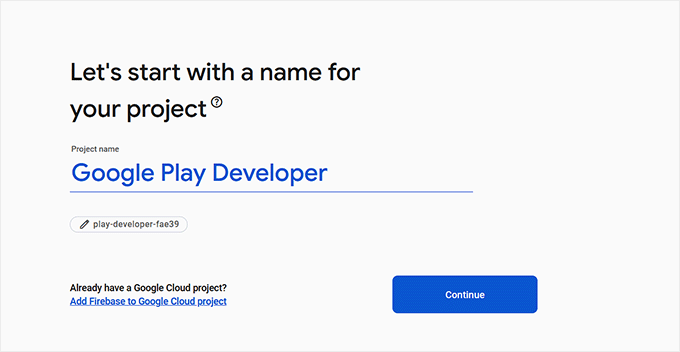
Name your Firebase project; matching your app name makes it easy to identify later.
Complete the remaining setup steps, and choose whether to enable Google Analytics.
Copy the Server Key
In your Firebase project, click the gear icon and switch to the Cloud Messaging tab.
Find the Server Key and copy it. The trick I’ve learned is to copy it from exactly this tab. It’s easy to accidentally grab a different key from the General tab.
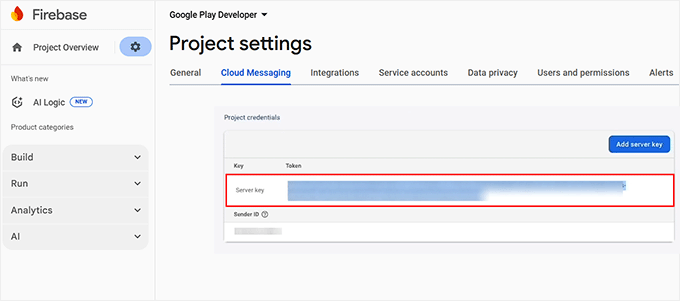
Copy the Server Key from the Cloud Messaging tab, specifically, not from the General or Project Settings tab.
Paste it into the Firebase Server Key field in BuddyBoss.
Register Your Apps in Firebase
Back in Firebase, navigate to Project Overview and click the General tab.
Scroll down to the Your Apps section and select the Android icon.
Here, enter your package name (the same Application ID from BuddyBoss), add an app nickname, and click Register App. Once done, download the config file.
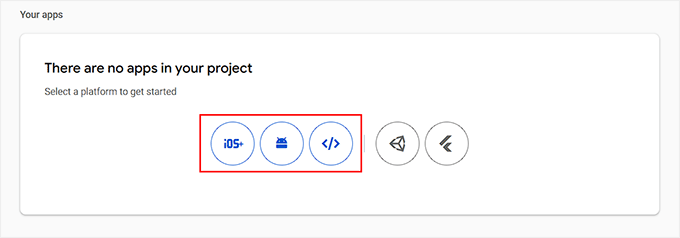
Click the Android or iOS icon to register each platform. You’ll register four apps total.
Repeat the process for iOS. So you will enter your Bundle ID, app nickname, and App Store ID. Also, create test versions of both apps by appending .test to their IDs. You’ll end up with four config files in total.
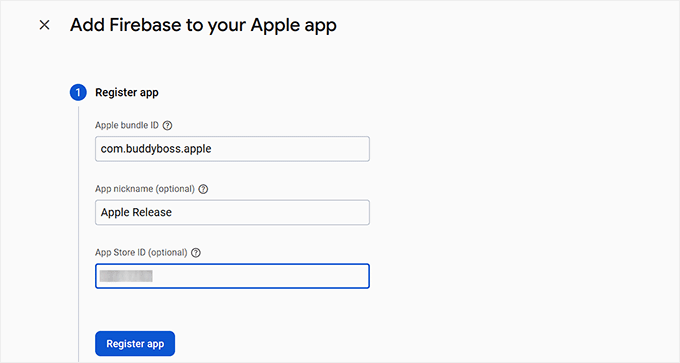
Register your iOS app using the same Bundle ID from your BuddyBoss iOS settings.
Keep all four config files together in one folder. You’ll upload them all to BuddyBoss next.
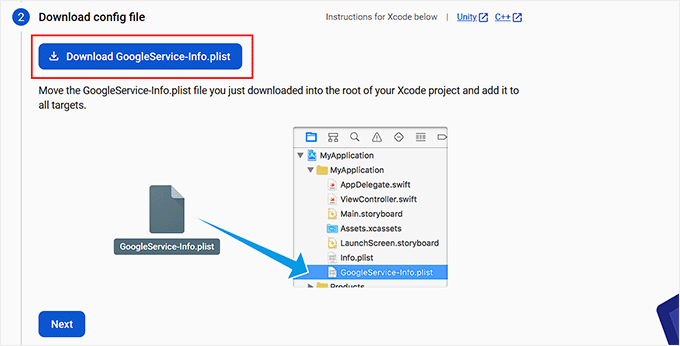
Download the config file for each app. You’ll have four files when done. Two live, two test.
Upload the APN Key and Config Files
In Firebase, return to the Cloud Messaging tab and upload your iOS APN authentication key.
Then head back to WordPress and upload all four iOS and Android config files into the corresponding fields in BuddyBoss. Once done, hit Save Changes.
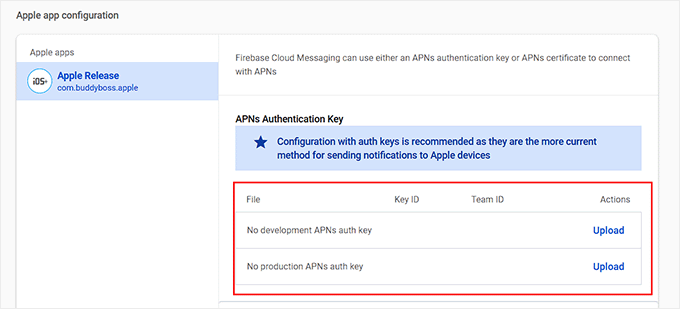
Upload your iOS APN authentication key in the Cloud Messaging tab in Firebase.
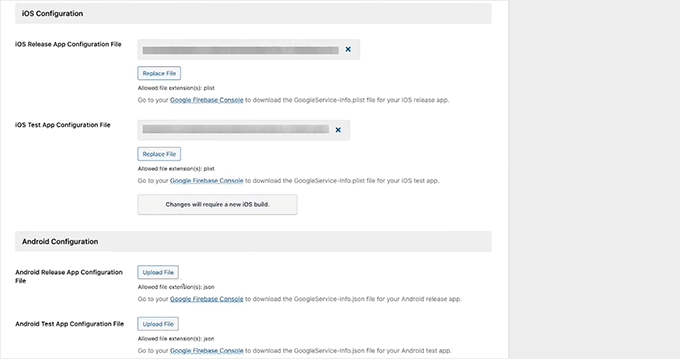
Upload all iOS and Android Firebase config files into BuddyBoss and save. Remember, no field should be empty.
⚠️ Quick Check: No error messages in the Firebase tab. All file upload fields should show files with no red warnings.
Step 5: Customize App Settings and Notifications
~15 minutes | Registration, privacy, and push notification triggers configured
The settings here control how users interact with your app. For example, who can register, what feedback options appear, and which actions send push notifications.
There are more options than they look like from the surface, so take a few minutes to read through each tab.
When ready, navigate to BuddyBoss App » Settings.
Check the Enable Registration box, select the registration page from the dropdown, and check the box for a confirmation email.
This ensures new members get a welcome message after signing up through the app.
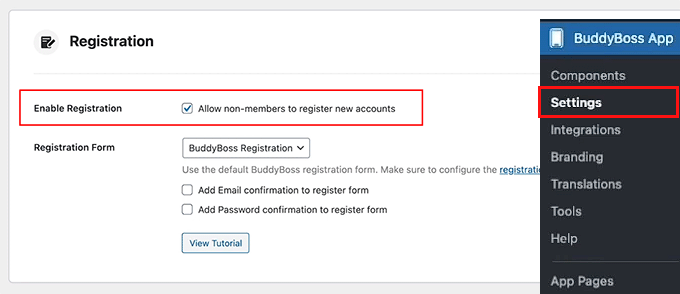
Enable Registration so users can create accounts directly through the mobile app.
Scroll down and check the Privacy option to restrict app access to logged-in members only. This is essential for paid memberships or private groups.
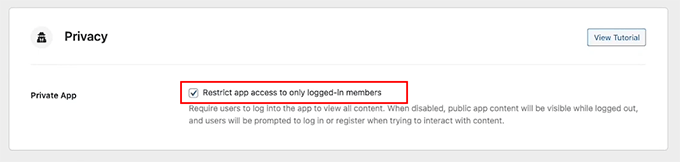
Enabling privacy makes your app members-only. Important for gated content or paid communities.
Then, switch to the Feedback tab.
Here, check Send Us Feedback, enter your support email address, and enable Report a Bug and Rate This App. These give your members a direct channel without requiring a separate helpdesk.
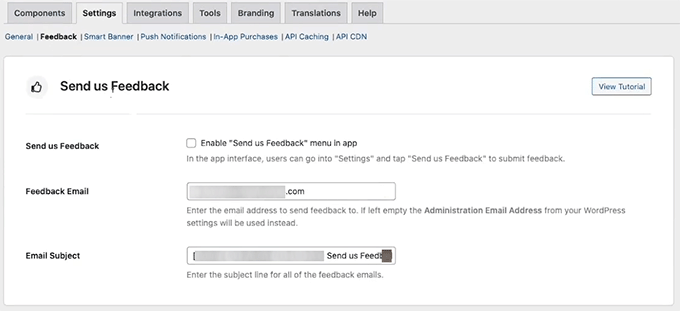
Enable all three feedback options. App store ratings improve discoverability over time.
Now switch to the Smart Banner tab and enable the Smart Banner for both iOS and Android.
This banner appears when someone visits your website in a mobile browser, nudging them to download the app instead.
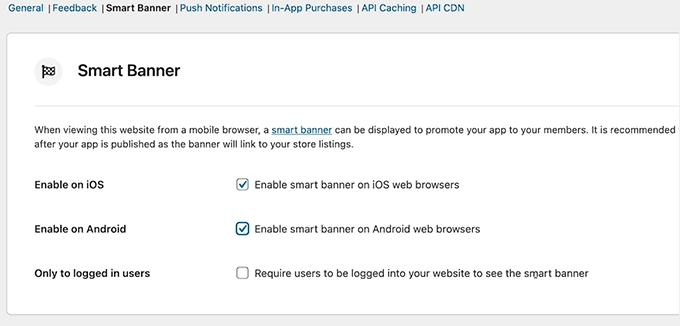
The Smart Banner appears in mobile browsers to encourage existing visitors to switch to the native app.
Finally, open the Push Notifications tab. Select the triggers you want to enable. I suggest you enable mentions, invitation notifications, and activity replies as solid starting points.
Click Save Changes when done.
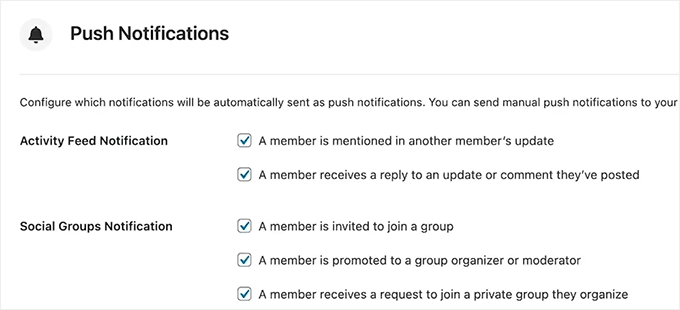
Enable the notification triggers that match your community. Mentions and replies drive the most re-engagement.
⚠️ Quick Check: All settings tabs show a saved confirmation. The Smart Banner activates immediately for mobile browsers once enabled.
Step 6: Design Your App’s Branding
~20 minutes | Your app looks and feels like your brand
This is the step where the app starts feeling like yours. The trick I’ve learned is to prepare all your logo files in the right dimensions before opening BuddyBoss.
This saves a lot of back-and-forth between the dashboard and your design tool.
Once ready, go to BuddyBoss App » Branding.
Here, upload your home screen logo, login screen logo, and launch screen image. BuddyBoss shows the recommended dimensions for each.
So follow them exactly, as off-size images get cropped unpredictably on different devices.
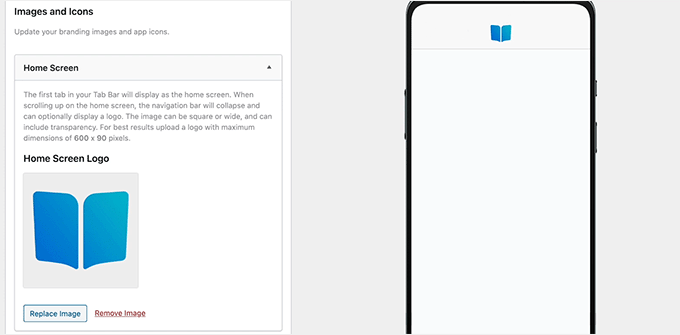
Upload your home screen logo. This appears next to your app name on the iOS and Android home screens.
The login screen is the first thing new members see when they open the app. Make sure your branding is clear and on-brand here before moving on.
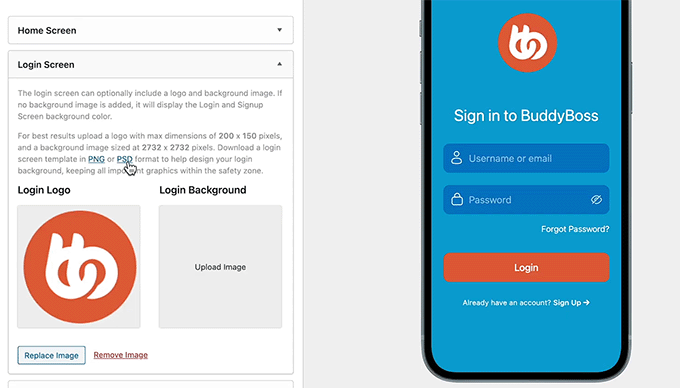
The login screen leaves the first impression. Upload a high-quality logo and a clean background image.
Then, switch to the Colors tab and set your brand colors for background, buttons, accent elements, navigation bar, and text. These apply globally, meaning every screen in the app inherits them.
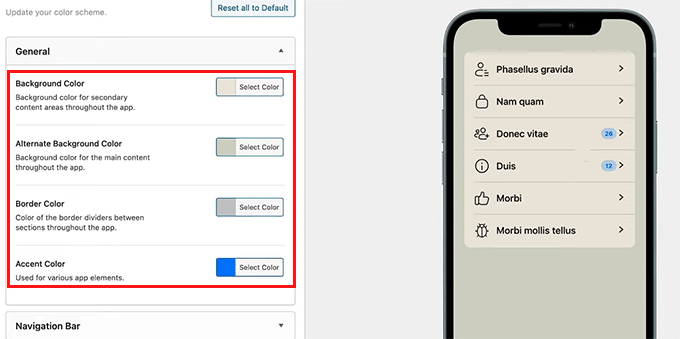
Set your global brand colors here. They apply to every screen in the app automatically.
Next, click the Typography tab. Select your preferred fonts for body text, headings, the top bar, and menus. Adjust font sizes to match your brand style.
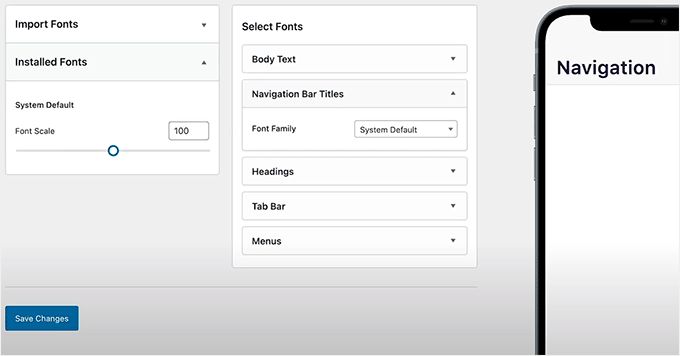
Choose fonts and sizes for each content type. Match your website typography for consistency.
When done, select Save Changes.
Then navigate to the Top Bar page and add your most important pages, like Home, Profile, and Account, which work well for most communities.
From the dropdown, switch to More Screen Structure and add your secondary pages: Blog, Notifications, Activity, and Forums.
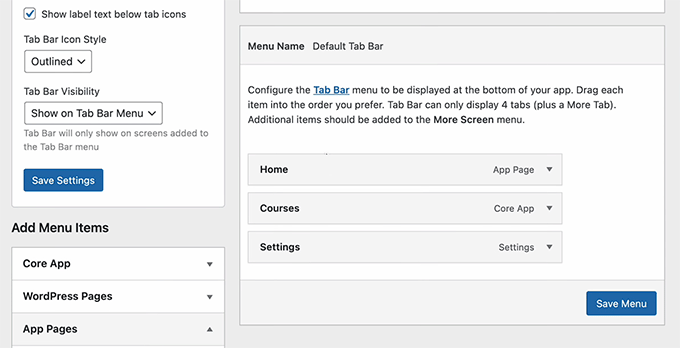
The Top Bar holds your primary navigation. Keep it to 3 to 4 items for clarity.
⚠️ Quick Check: Preview your branding in the BuddyBoss dashboard. The preview updates as you save. Use it to spot anything that looks off before you push to a test build.
How to Test Your App
Before submitting to the App Store or Google Play, test on a real device. BuddyBoss generates test builds you can install via QR code without third-party testing service needed.
To do this, navigate to BuddyBoss App » Configure and look for the test build option for your platform.
Scan the QR code with your registered iOS device or install the test APK on an Android device.
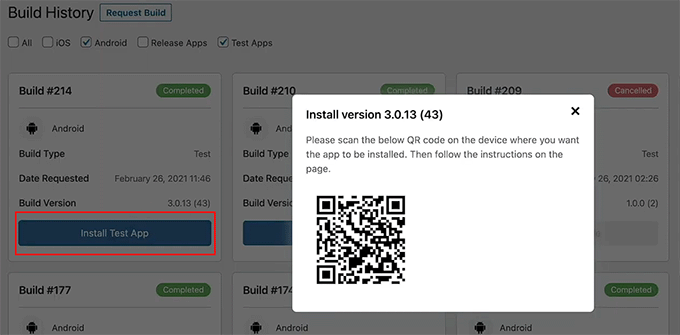
Once installed, work through these checks:
Log in with a test account and confirm registration and login work as expected.
- Navigate between pages using your Top Bar and More Screen menus. Make sure every page loads correctly.
- Trigger a push notification by sending yourself a test mention or reply, and confirm it arrives.
- Finally, check that your branding, colors, fonts, and logos appear correctly on the actual device, not just in the dashboard preview.
If your login page looks wrong, revisit the registration page settings in BuddyBoss App » Settings.
If push notifications don’t arrive, go back to your Firebase configuration and confirm the Server Key was saved in BuddyBoss without any trailing characters.
Common Issues and Quick Fixes
Problem: “Connect Account” button not working in the iOS tab
- What’s happening: The Issuer ID, Key ID, or .p8 API key file don’t match. Apple generates these as a set. They only work together from the same key generation session.
- Quick fix: Delete the API key in App Store Connect, generate a fresh one, and download the new .p8 file. Copy the Key ID and Issuer ID from that same screen in one session. Don’t copy them from different rows.
My experience: On my first attempt, I grabbed the Issuer ID from a different key row by mistake. Always confirm that all three values come from the same entry.
Problem: Your Bundle ID is already taken
- What’s happening: Someone else, or a previous attempt, already registered that identifier with Apple.
- Quick fix: Append a short version tag to make it unique. For example,
com.mycompany.myappbecomescom.mycompany.myappv2. Check availability in the Apple Developer Portal before registering.
My experience: Common company name abbreviations get taken quickly. Check availability early. Renaming a Bundle ID mid-setup causes cascading changes across multiple steps.
Problem: Firebase Server Key is rejected in BuddyBoss
- What’s happening: You likely copied the wrong key. Firebase shows similar-looking keys in multiple locations.
- Quick fix: Go back to the Firebase Console, click the gear icon, and switch specifically to the Cloud Messaging tab. The Server Key you need is there, not in the Project Settings General tab.
My experience: I copied the wrong key on my first pass. The Cloud Messaging tab is easy to skip if you’re moving fast.
Problem: Apple rejected your app after submission
- What’s happening: Most first-time rejections are metadata issues. This includes missing screenshots, an incomplete privacy policy, or a vague app description.
- Quick fix: Read the rejection email carefully. Apple gives specific rejection reasons with guideline references. Update your App Store Connect metadata (screenshots, description, privacy policy URL) and resubmit. Resubmissions usually process faster than initial submissions.
My experience: Apple expects screenshots in very specific dimensions. Prepare them before you submit, not after.
That’s it. You can now turn your WordPress site into a mobile app. Both on iOS and Android devices. If anything is unclear, check out the commonly asked questions below.
FAQs: How to Turn Your Website into a Mobile App
Do I need to know how to code to create a WordPress mobile app with BuddyBoss?
No. BuddyBoss App handles all the technical app-building in the background. You configure settings through a WordPress dashboard, upload files from Apple, Google, and Firebase, and BuddyBoss does the rest. No coding, no Xcode, no Android Studio required.
Can I publish my app without an Apple Developer Account?
No. Apple requires an active Developer Account ($99/year) to publish any app on the App Store. There’s no workaround. If you only want an Android app, you can skip the entire iOS setup and just need a Google Play Developer Account ($25 one-time).
How long does Apple App Store review take?
Apple typically reviews new apps within 24–72 hours. Apps with in-app purchases or complex functionality sometimes take longer. Track your status in App Store Connect. If rejected, you can fix the issues and resubmit. Resubmissions usually move faster than initial reviews.
Does BuddyBoss App work with any WordPress site, or only BuddyBoss Platform sites?
BuddyBoss App requires BuddyBoss Platform. It’s not a standalone app builder for any WordPress site. It’s specifically designed to convert BuddyBoss-powered communities and online learning platforms into native apps. If you’re running a different setup, look at PWA solutions instead.
What happens to my app if I cancel my BuddyBoss subscription?
The app stays in the app stores but stops functioning. Your members will see an error when they try to use it. The app can no longer connect to your WordPress site. Factor the $79/month into your ongoing budget as a commitment, not just an upfront cost.
Can I update the app after it’s published?
Yes. Day-to-day changes like new branding, updated navigation, and new settings push to the app automatically without a new App Store submission. Major feature changes or new screens may require a new build, but routine content and configuration updates happen instantly.
Final Thoughts
If your WordPress site serves a community or hosts courses, a native mobile app changes the engagement picture.
Members who have your app installed are significantly more active than those who access through a browser. The icon on their home screen keeps you visible.
BuddyBoss App makes the process possible without any development skills. The iOS setup is the steepest part of the curve, but it’s a one-time process.
Once it’s done, updates and changes happen without resubmitting to the stores.
Head to BuddyBoss to review your plan options. And once your app is live, dig into BuddyBoss’s community features.
Have a look at push notifications and native navigation, which are just the starting point for what a full BuddyBoss-powered community can do.
Resource Hub: Mobile Apps, Memberships, and Community Sites
These resources help you build out the rest of your BuddyBoss-powered WordPress site alongside your new mobile app.
- How to Create a WordPress Membership Site Step by Step – The complete guide to building the membership structure your BuddyBoss app sits on top of
- Best WordPress Membership Plugins Compared – Top membership plugins compared if you’re evaluating alternatives for your community setup
- Best WordPress LMS Plugins Compared – The leading course platforms compared for online learning communities
- How to Create an Online Course with WordPress – Step-by-step guide to building your first WordPress course from scratch
- How to Create a Video Membership Site in WordPress – Add video content and gated access to your BuddyBoss community
- Best WordPress Themes for Mobile Apps & Software – Theme options optimized for sites that also have a companion mobile app
Comments Leave a Reply