
Un cliente me llamó una vez en pánico. Había recibido una carta legal alegando que su sitio web violaba la Ley de Estadounidenses con Discapacidades. Su formulario de contacto no funcionaba con lectores de pantalla. Así de simple.
La cosa es que se presentaron más de 4,600 demandas relacionadas con la accesibilidad de sitios web bajo la ADA (Estándares de Diseño Accesible de la Ley de Estadounidenses con Discapacidades) solo en 2023.
Y la mayoría de los propietarios de sitios no tienen idea de que sus sitios excluyen a personas con discapacidades.
Pasé semanas probando plugins de accesibilidad para encontrar lo que realmente funciona. Algunos solo agregan barras de herramientas elegantes que no solucionan problemas reales. Mientras que otros resuelven silenciosamente problemas que no sabías que existían.
En esta guía, te mostraré los plugins que marcaron una diferencia real en la accesibilidad en sitios reales. Ya sea que necesites soluciones gratuitas o protección premium, hay una solución aquí que se adapta a ti.
Conclusiones Clave
- Aprende qué plugins solucionan problemas reales de accesibilidad
- Descubre herramientas que los principiantes pueden usar sin programar
- Encuentra soluciones que funcionen con tus formularios
- Comprende mejor las superposiciones frente a las correcciones a nivel de código
- Elige plugins que se ajusten a tu presupuesto y necesidades
Cómo pruebo los plugins de accesibilidad para WordPress
Pruebo los complementos de accesibilidad de la misma manera que los usarías. Instalo cada uno en un sitio nuevo de WordPress y veo qué sucede realmente.
Lo que hice para probar los plugins de accesibilidad de WordPress:
Primero, verifico si los principiantes pueden configurarlo sin llamar a un desarrollador. Si la página de configuración parece el panel de control de una nave espacial, eso es un problema.
A continuación, ejecuto el sitio a través de lectores de pantalla reales. NVDA y VoiceOver dicen la verdad. Un complemento podría afirmar el cumplimiento de WCAG (Pautas de Accesibilidad para el Contenido Web), pero los lectores de pantalla no mienten sobre si tu sitio realmente funciona.
También verifico la velocidad del sitio antes y después. Algunos complementos de accesibilidad agregan tanto código que ralentizan tu sitio hasta detenerlo. Eso va en contra del propósito.
Finalmente, comparo las versiones gratuitas con las premium. No deberías necesitar pagar $500 solo para agregar enlaces de omisión. Pero algunas funciones premium valen la pena si te tomas en serio el cumplimiento.
¿Por qué confiar en IsItWP?
En IsItWP, hemos sido el recurso de referencia de la comunidad de WordPress desde 2009, ayudando a más de 2 millones de usuarios a elegir mejores herramientas y complementos.
A diferencia de los sitios de reseñas que nunca usan los productos, nosotros mantenemos cuentas activas, ejecutamos sitios web reales de clientes y brindamos consultoría continua de WordPress.
Cuando digo que probé estos plugins de accesibilidad, me refiero a que los instalé en sitios reales y ejecuté lectores de pantalla.
Luego, revisé los informes de cumplimiento y me enfrenté a las mismas frustraciones que tú enfrentarás si un plugin no funciona como se anuncia.
Comparación rápida de los mejores plugins de accesibilidad para WordPress
Ahora, si no tienes tiempo para leer todo el artículo, aquí tienes una tabla de comparación rápida para ayudarte a elegir rápidamente los mejores plugins de accesibilidad para WordPress.
Detallo la mejor característica de cada herramienta, el precio, si tiene una versión gratuita, para quién es mejor y las calificaciones de estrellas.
| Plugin | Calificación | Mejor para | Versión gratuita | Característica Clave | Precio inicial |
|---|---|---|---|---|---|
🥇 Formidable Forms | ⭐⭐⭐⭐⭐ | Formularios que cumplen con WCAG | ✅ Sí | Navegación completa por teclado | $39.50/año |
🥈 WPForms | ⭐⭐⭐⭐⭐ | Formularios fáciles de usar para principiantes | ✅ Sí | Opciones de CAPTCHA accesibles | $49.50/año |
🥉 WP Accesibilidad | ⭐⭐⭐⭐ | Correcciones de fuente/contraste | ✅ Sí | Personalización visual | Gratis |
4. Plugin de WordPress de Accesibilidad | ⭐⭐⭐⭐ | Texto a voz | ❌ No | TTS multilingüe | Licencia de $19 |
5. Verificación de Cumplimiento ADA de WP | ⭐⭐⭐⭐ | Escaneo de cumplimiento | ✅ Sí (15 páginas) | Informes automatizados | Licencia de $179.99 |
6. UserWay | ⭐⭐⭐⭐ | Barra de herramientas con IA | ✅ Sí | Remediación automática | $490/año |
7. Ally de Elementor | ⭐⭐⭐ | Barra de herramientas simple | ✅ Sí | Configuración rápida | $7.99/mes |
Aparte de eso, aquí tienes una tabla de contenido donde puedes saltar a cualquier plugin de accesibilidad sobre el que desees leer.
Con eso fuera de camino, ¡comencemos!
Los mejores plugins de accesibilidad para WordPress para cada tipo de sitio web
1. Formidable Forms ⭐⭐⭐⭐⭐
Instalaciones activas: 400.000+ | Ideal para: Creador de formularios compatible con WCAG
Recomiendo Formidable Forms para cualquier cliente que esté creando formularios que necesiten funcionar para todos. Esta es mi mejor opción porque maneja el cumplimiento de WCAG automáticamente sin código personalizado.
La realidad es que la mayoría de los creadores de formularios te obligan a agregar manualmente etiquetas ARIA (Aplicaciones Ricas de Internet Accesibles).
Formidable Forms integra estas etiquetas en cada campo desde el principio. Como resultado, los usuarios de lectores de pantalla navegan por los formularios con la misma facilidad que cualquier otra persona.
Mi Experiencia
Yo creé un formulario de registro para una organización sin fines de lucro que atiende a miembros con discapacidad visual.
Todo el formulario funcionó solo con navegación por teclado, sin necesidad de ratón. Además, los lectores de pantalla anunciaron cada campo claramente.
Aparte de eso, los mensajes de error aparecieron de maneras que la tecnología de asistencia pudo entender y anunciar.
Lo que destaca
La mayor ventaja es cómo los formularios se traducen a voz automáticamente. Todo permanece accesible sin necesidad de contratar a un desarrollador.
También probé el manejo de errores y los mensajes se mostraron claramente tanto para usuarios videntes como para lectores de pantalla.
►Pros
- Cumplimiento total de WCAG funciona de inmediato
- Los lectores de pantalla manejan formularios sin problemas y sin código adicional
- Navegación completa por teclado integrada en cada formulario
- Manejo de errores claro para todos los usuarios independientemente de su capacidad
►Contras
- Precios premium más altos que los constructores de formularios básicos
- Las funciones avanzadas tienen una curva de aprendizaje para principiantes
- Algunas funciones de accesibilidad requieren la versión Pro
- Puede ser excesivo para formularios de contacto simples
Mi veredicto: Formidable Forms es el mejor para propietarios de sitios de WordPress que atienden a usuarios con discapacidades y necesitan formularios que simplemente funcionen. Elija este cuando el cumplimiento de WCAG sea importante y desee que se gestione automáticamente.
Echa un vistazo a mi última reseña de Formidable Forms.
[Comienza con Formidable Forms aquí]
Precios: Versión Lite gratuita; planes Pro desde $39.50/año
2. WPForms ⭐⭐⭐⭐⭐
Instalaciones activas: 6,000,000+ | Ideal para: Formularios accesibles fáciles de usar para principiantes
Recomiendo WPForms para cualquier principiante que quiera hacer sus formularios accesibles sin conocimientos técnicos.
Además de ayudar con la accesibilidad, este creador de formularios también puede ayudarte a dejar de perder clientes en la etapa del formulario.
Esto es lo que la mayoría no se da cuenta: los formularios inaccesibles cuestan ventas reales. Un cliente de un restaurante vio cómo los clientes abandonaban su formulario de reserva porque los lectores de pantalla no podían navegar por él.
WPForms previene esto gestionando la accesibilidad automáticamente.
Mi Experiencia
Reemplacé un formulario de contacto roto que bloqueaba a los usuarios con discapacidad visual. El plugin se instaló en minutos y agregó etiquetas ARIA adecuadas sin requerir código.
Aún mejor, el honeypot CAPTCHA detuvo el spam mientras dejaba pasar a todos.
Lo que realmente funciona
El manejo inteligente de errores marca la diferencia real. Cuando alguien omite un campo, los lectores de pantalla lo anuncian de inmediato. Además, las alternativas accesibles reemplazan barreras como la verificación basada en imágenes.
►Pros
- 6 millones de instalaciones activas demuestran compatibilidad entre temas
- Las opciones de CAPTCHA accesibles no bloquean a los usuarios de tecnología asistencial
- El marcado semántico adecuado funciona sin código personalizado
- La versión Lite gratuita maneja formularios de contacto accesibles básicos
►Contras
- El contraste del borde predeterminado necesita ajuste CSS para el cumplimiento total
- El selector de fecha aún no es completamente accesible con el teclado
- Los términos renuncian explícitamente al cumplimiento total de WCAG
- Los indicadores de campo obligatorio podrían usar un color más oscuro
Mi veredicto: WPForms es ideal para principiantes que necesitan formularios accesibles sin contratar desarrolladores. Elige esta opción cuando quieras compatibilidad probada y no quieras escribir código.
Echa un vistazo a mi reseña actualizada de WPForms para más detalles. También puedes comparar WPForms y Formidable Forms para ver cómo se comparan los complementos de accesibilidad número uno y dos en esta lista.
Precios: Versión Lite gratuita; planes de pago desde $49.50/año
3. WP Accessibility ⭐⭐⭐⭐
Instalaciones activas: 10,000+ | Ideal para: Ajustes de tamaño de fuente y contraste
Recurro a WP Accessibility cuando los clientes necesitan opciones de personalización visual para sus visitantes.
Me encanta especialmente cómo este plugin resolvió uno de los principales problemas de accesibilidad. Permite que un público mayor o con discapacidad visual lea texto diminuto en un diseño hermoso pero inaccesible.
Demasiados diseñadores olvidan que no todos ven de la misma manera. Algunos visitantes necesitan fuentes más grandes, mientras que otros tienen problemas con el bajo contraste. Este plugin le da a cada persona control sobre cómo ven tu sitio.
Mi Experiencia
La instalación tomó segundos, y los visitantes tuvieron inmediatamente opciones para ajustar el tamaño de las fuentes y cambiar los modos de contraste.
Un cliente informó menos quejas de legibilidad después de agregarlo. Además de eso, las opciones de escala de grises y alto contraste ayudaron a los usuarios con diferentes necesidades visuales sin reconstruir el tema.
Cómo Maneja las Barreras Visuales
Los controles de fuente permiten a los visitantes agrandar el texto hasta que puedan leerlo. Por otro lado, los ajustes de contraste ayudan a las personas con daltonismo o baja visión.
Además de eso, funciona con todos los temas y los mejores creadores de páginas que he probado.
►Pros
- Completamente gratis, sin ventas adicionales premium ni limitaciones
- Compatible con todos los temas y plugins avanzados probados
- Los visitantes controlan sus propias preferencias de experiencia de visualización
- Proceso de configuración simple, perfecto para principiantes absolutos
►Contras
- Solo maneja ajustes visuales, no correcciones a nivel de código
- No soluciona problemas subyacentes de accesibilidad en el contenido
- Limitado exclusivamente a funciones de fuente y contraste
- No ayudará con la accesibilidad de formularios ni la navegación
Mi Veredicto: WP Accessibility funciona mejor cuando necesitas dar control visual a los visitantes. Combínalo con plugins de corrección de código para una cobertura integral de accesibilidad.
[Empieza con WP Accessibility Aquí]
Precios: Gratis
4. Complemento de accesibilidad de WordPress (CodeCanyon) ⭐⭐⭐⭐
Instalaciones activas: Plugin premium | Ideal para: Funcionalidad de texto a voz
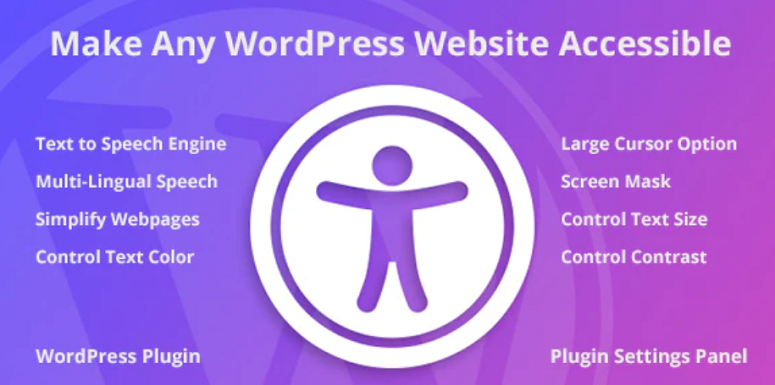
Uso Accessibility WordPress Plugin cuando los clientes atienden a audiencias internacionales o usuarios con dificultades de lectura.
El texto a voz se volvió esencial después de trabajar con un sitio de capacitación donde los estudiantes tenían problemas con el contenido escrito, pero absorbían la información perfectamente al escuchar.
Las discapacidades de lectura afectan a más personas de las que crees. La dislexia, la baja alfabetización y las discapacidades visuales se benefician de que el contenido se lea en voz alta.
Este complemento de accesibilidad detecta automáticamente el idioma de tu sitio y convierte el texto a voz sin requerir ninguna configuración.
Mi Experiencia
La configuración del complemento de accesibilidad de WordPress solo requirió subirlo y activarlo. El complemento ofreció inmediatamente a los visitantes discurso en su propio idioma.
Probé contenido en alemán y japonés, y ambos funcionaron sin selección manual. El bloqueador de distracciones despejó la pantalla para que los usuarios se concentraran solo en el contenido.
¿Qué lo hace diferente?
La detección automática de idioma te ahorra la gestión manual de traducciones.
Los visitantes escuchan el contenido en seis idiomas según tu sitio. Además de eso, el bloqueo de distracciones ayuda a los usuarios a concentrarse sin desorden visual.
►Pros
- Soporte multilingüe integral para audiencias internacionales
- La función de bloqueo de distracciones ayuda a los usuarios a concentrarse
- La detección automática de idioma no requiere configuración
- Pago único en lugar de tarifas de suscripción recurrentes
►Contras
- Precio premium sin versión gratuita disponible
- Limitado exclusivamente a funciones de texto a voz
- Requiere compra en CodeCanyon y configuración de cuenta
- Puede ser costoso para sitios pequeños con presupuestos ajustados
Mi Veredicto: Este plugin de accesibilidad para WordPress tiene sentido para sitios internacionales o empresas que atienden a usuarios con discapacidades de lectura. Sáltatelo si solo necesitas ajustes visuales básicos.
[Comienza con el Plugin de Accesibilidad para WordPress Aquí]
Precio: $19 por la Licencia
5. WP ADA Compliance Check⭐⭐⭐⭐
Instalaciones activas: Más de 3,000 | Ideal para: Informes de escaneo y cumplimiento

Saco WP ADA Compliance Check cuando los clientes piensan que su sitio es accesible pero quieren pruebas. El escáner detecta problemas en un sitio "conforme" que habrían causado problemas legales más adelante.
La mayoría de los propietarios de sitios no tienen idea de lo que está roto hasta que alguien se queja o los demanda. El escaneo muestra exactamente lo que está mal en los informes, y cualquiera puede entenderlo.
Mi Experiencia
Ejecutar el primer escaneo tomó minutos y reveló texto alternativo faltante, problemas de estructura de encabezados y problemas de contraste que había pasado por alto.
Los informes desglosan cada problema con explicaciones claras. Marcó publicaciones y páginas específicas en lugar de advertencias vagas.
Dónde Realmente Ayuda
Los informes detallados muestran exactamente qué páginas tienen problemas y qué necesita arreglarse. La versión gratuita maneja bien los sitios pequeños. La versión Pro escanea páginas ilimitadas y corrige automáticamente 28 errores comunes.
►Pros
- Versión gratuita disponible para empezar a identificar problemas
- Informes claros y accionables que cualquiera puede entender
- Compatible con los principales constructores de páginas como Elementor
- La versión Pro incluye correcciones automáticas para errores comunes
►Contras
- Versión gratuita limitada a solo 15 páginas
- Precio de la versión Pro más alto que algunas herramientas de la competencia
- Escaneo de archivos del tema solo disponible en Pro
- Las correcciones automáticas requieren una actualización de pago
Mi Veredicto: Empieza con la versión gratuita para encontrar problemas, luego actualiza a Pro si necesitas correcciones automáticas en todo tu sitio.
[Comienza con WP ADA Compliance Check Aquí]
Precios: Básico gratuito (15 páginas); Pro desde $179.99 por la licencia
6. Accesibilidad por UserWay ⭐⭐⭐⭐
Instalaciones activas: 80,000+ | Mejor para: Barra de herramientas para visitantes impulsada por IA
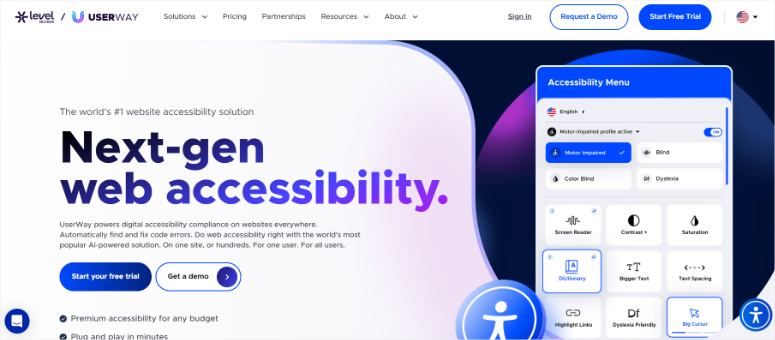
Considero UserWay para operaciones más grandes preocupadas por la exposición legal. Esta barra de herramientas se volvió valiosa después de que un cliente necesitara accesibilidad multilingüe que ningún complemento de corrección de código podía manejar solo.
Las barras de herramientas orientadas al visitante permiten a cada persona personalizar su experiencia sin reconstruir su sitio. La IA escanea el contenido cada 24 horas y genera automáticamente el texto alternativo faltante.
Empresas como Chevron y Verizon utilizan este enfoque, lo que demuestra la confianza empresarial en la tecnología.
Mi Experiencia
Al probar la versión gratuita, las opciones de contraste y tamaño de texto funcionaron de inmediato. La versión Premium desbloqueó la remediación por IA que detectó imágenes sin descripciones.
El soporte para litigios incluye consulta legal. Dicho esto, una demanda de 2024 cuestionó las afirmaciones de cumplimiento, así que comprenda las limitaciones.
Entendiendo la Realidad de los Overlays
Las barras de herramientas complementan un buen diseño pero nunca reemplazan un desarrollo accesible adecuado. El texto alternativo generado por IA ayuda, pero no es perfecto.
Los niveles Premium tienen más sentido para empresas que enfrentan demandas que para sitios que solo intentan ser inclusivos.
►Pros
- La autorremediación impulsada por IA escanea el contenido continuamente
- Versión gratuita disponible para funciones básicas
- Premium incluye consulta y soporte legal
- Utilizado por grandes empresas como Chevron
►Contras
- Precio Premium muy alto para pequeñas empresas
- Demanda de 2024 planteó dudas sobre las afirmaciones de cumplimiento
- Los overlays no solucionan problemas de código subyacentes
- Algunos usuarios reportan notificaciones persistentes del banner de administración
Mi Veredicto: UserWay funciona para empresas que necesitan soporte legal más que correcciones reales de accesibilidad. Comprenda lo que las superposiciones no pueden hacer antes de depender de ellas.
Precios: Versión básica gratuita; premium $490-$3,990/año
7. Ally by Elementor (anteriormente One Click Accessibility) ⭐⭐⭐
Instalaciones activas: 400,000+ | Mejor para: Barra de herramientas simple con configuración rápida
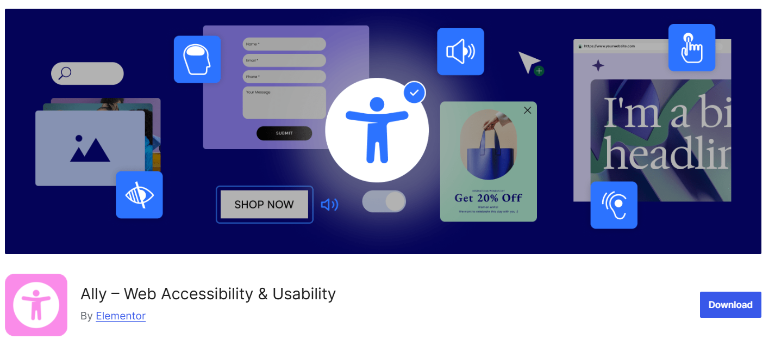
A menudo recomiendo Ally para usuarios de Elementor a pesar de que el cambio de marca de febrero de 2025 crea fricción.
El plugin pasó de ser "One Click Accessibility" a "Ally" y ahora requiere una cuenta de Elementor, lo que frustra a los usuarios de mucho tiempo que valoraban la simplicidad original.
El cambio de marca agregó escaneo de IA para detectar más de 180 problemas, mejorando significativamente la versión gratuita. Sin embargo, Elementor afirma que esto no es un sustituto de auditorías adecuadas y no hará que los sitios cumplan legalmente por sí solos.
Mi Experiencia
Incluso con el plugin independiente gratuito, la configuración de Ally ahora significa crear una cuenta de Elementor primero, lo que agrega un paso adicional.
Una vez conectado, apareció la barra de herramientas con ajustes de fuente, modos de contraste y resaltado de enlaces. El escáner de IA marcó problemas reales, aunque las funciones gratuitas cubren lo básico para la mayoría de los sitios pequeños.
Por qué lo simple a veces funciona
La base de más de 400,000 instalaciones demuestra que las personas quieren soluciones sencillas. Las funciones gratuitas cubren lo que los visitantes necesitan para la personalización visual. Simplemente no esperes que esto resuelva problemas graves de accesibilidad.
►Pros
- La enorme base de instalación demuestra estabilidad y compatibilidad
- Las funciones principales de la barra de herramientas funcionan sin pago
- Impacto mínimo en el rendimiento de la velocidad del sitio
- Proceso de configuración rápido, perfecto para principiantes
►Contras
- Ahora requiere cuenta de Elementor después del cambio de marca
- Reseñas mixtas tras el cambio de requisito de cuenta
- Explícitamente no es un sustituto de una auditoría profesional de accesibilidad
- Las funciones de IA están bloqueadas solo en los niveles premium
Mi veredicto: Elige esto si ya estás usando Elementor o solo quieres una barra de herramientas básica gratuita. No confíes en él para el cumplimiento.
Precios: Plugin independiente gratuito disponible; Viene con la versión gratuita de Elementor; Pro comienza en $7.99/mes como parte del plan de Elementor
¡Genial! Esa es mi lista de los mejores plugins de WordPress para accesibilidad. Pero también es importante que encuentres el plugin adecuado que satisfaga tus necesidades. Lo desglosaré a continuación.
Cómo elegir el plugin de accesibilidad adecuado
Elegir el plugin de accesibilidad adecuado depende de los problemas que realmente estés tratando de resolver. Aquí te explico cómo reducir tus opciones según tu situación.
Por presupuesto
Gratis/Empezando
- Combina WP Accesibilidad con la versión gratuita de WP ADA Compliance Check.
- Obtienes personalización visual para los visitantes y escaneo para identificar tus mayores problemas.
- Agrega WPForms Lite si necesitas formularios de contacto accesibles sin gastar nada por adelantado.
Negocio en crecimiento ($50-200/año)
- WPForms o Formidable Forms manejan tus necesidades de formularios correctamente.
- Si los visitantes necesitan opciones de personalización, la versión gratuita de UserWay agrega una barra de herramientas sin costo alguno.
- Esta combinación cubre la mayoría de los requisitos de accesibilidad para pequeñas empresas sin gastar una fortuna.
Preocupaciones empresariales/legales ($500+/año)
- UserWay Premium incluye soporte legal y consulta con abogados.
- Combínalo con WP ADA Compliance Check para correcciones automáticas en páginas ilimitadas.
- Esta configuración es más importante para empresas que enfrentan presión de cumplimiento o que operan en industrias altamente reguladas.
Por habilidad técnica
Principiantes absolutos
- WP Accesibilidad y Ally, anteriormente One Click Accessibility, se instalan en segundos y funcionan de inmediato.
- No configuras nada complicado ni escribes código.
- Los visitantes obtienen opciones de personalización mientras tú te enfocas en el contenido.
Usuarios intermedios
- WPForms o WP ADA Compliance Check te dan más control sin requerir habilidades de desarrollador.
- Las interfaces tienen sentido, los informes explican los problemas claramente y puedes solucionar los problemas tú mismo siguiendo la guía proporcionada.
Desarrolladores/Agencias
- Formidable Forms y WP ADA Compliance Check ofrecen la flexibilidad que necesitas.
- Obtienes control granular sobre las funciones de accesibilidad, mientras que las correcciones automáticas se encargan de las tareas repetitivas.
- Los informes de marca blanca de la versión Pro funcionan perfectamente para proyectos de clientes.
Por necesidad principal
Accesibilidad de formularios
- WPForms o Formidable Forms, dependiendo de tu presupuesto y requisitos de complejidad.
- Ambos manejan etiquetas ARIA, navegación por teclado y compatibilidad con lectores de pantalla automáticamente.
- Los formularios representan tu mayor riesgo legal, así que invierte aquí primero.
Ajustes visuales
- WP Accesibilidad da a los visitantes control sobre fuentes y contraste sin que tengas que reconstruir nada.
- Es gratis y funciona con todos los temas probados.
Barra de herramientas de personalización para visitantes
- UserWay o Ally dependiendo de si necesitas funciones de IA.
- Las versiones gratuitas cubren lo básico.
- La versión Premium solo tiene sentido si necesitas soporte legal o escaneo avanzado.
Escaneo de cumplimiento
- WP ADA Compliance Check identifica exactamente qué está roto y dónde.
- La versión gratuita se encarga de sitios pequeños.
- Actualiza a Pro cuando necesites escaneo ilimitado y correcciones automáticas.
Texto a voz
- El Plugin de WordPress de Accesibilidad de CodeCanyon maneja la conversión de voz multilingüe automáticamente.
- Vale la pena la inversión para audiencias internacionales o usuarios con discapacidades de lectura.
Protección legal
- UserWay incluye programas de consulta legal y apoyo en litigios.
- Esto es más importante para empresas preocupadas por demandas que para sitios que solo intentan ser inclusivos.
El mejor enfoque combinado
Ningún plugin resuelve todo.
- Recomiendo comenzar con WP ADA Compliance Check (gratis) para identificar problemas.
- Agrega WPForms (gratis Lite) para formularios de contacto accesibles.
- Luego agrega WP Accessibility (gratis) si los visitantes necesitan personalización visual.
Esta combinación no cuesta nada y cubre lo esencial.
Luego, actualiza piezas individuales a medida que tus necesidades crezcan en lugar de comprar paquetes premium caros por adelantado.
Preguntas frecuentes: Los mejores plugins de accesibilidad para WordPress
¿Pueden los plugins de accesibilidad garantizar el cumplimiento de WCAG?
Ningún plugin garantiza el cumplimiento total de WCAG por sí solo. Los plugins ayudan a solucionar problemas comunes, pero la accesibilidad real requiere un diseño adecuado desde el principio. Además, pruebas regulares con tecnologías de asistencia reales. Piensa en los plugins de accesibilidad como herramientas útiles, no como soluciones mágicas. Aún necesitarás revisiones manuales y posiblemente auditorías profesionales para asegurar que tu sitio realmente funcione para todos.
¿Necesito tanto un overlay como un plugin de corrección de código?
El mejor enfoque es combinar diferentes soluciones. Los plugins de corrección de código como WP Accessibility manejan problemas subyacentes de HTML. Los overlays como UserWay ofrecen opciones de personalización a los visitantes. Los formularios necesitan plugins especializados como WPForms. Combinar estos enfoques cubre más terreno que depender de un solo tipo de plugin.
¿Los plugins de accesibilidad ralentizarán mi sitio?
No, la mayoría de los plugins ligeros como WP Accessibility añaden un impacto mínimo en el rendimiento. Las barras de herramientas superpuestas con funciones pesadas de IA pueden aumentar ligeramente los tiempos de carga. WP ADA Compliance Check realiza escaneos en tu área de administración sin afectar la velocidad del front-end. Prueba la velocidad de tu sitio antes y después de la instalación para medir el impacto real.
¿Son suficientes los plugins de accesibilidad gratuitos?
Sí, los plugins gratuitos manejan bien muchos requisitos de accesibilidad. WP Accessibility, WPForms Lite y la versión gratuita de WP ADA Compliance Check cubren lo esencial para sitios pequeños. Actualiza a versiones premium cuando necesites escaneo ilimitado, correcciones automáticas o soporte legal, no solo porque lo gratuito parezca insuficiente.
¿Cuál es la diferencia entre superposiciones y correctores de código?
Las superposiciones añaden barras de herramientas que permiten a los visitantes personalizar su experiencia con tamaños de fuente, modos de contraste y otros ajustes. Los correctores de código cambian tu HTML real, añadiendo etiquetas ARIA, enlaces de omisión y marcado semántico adecuado. Las superposiciones ayudan a visitantes individuales. Las correcciones de código mejoran la base de tu sitio para todos los que usan tecnología de asistencia.
¿Qué plugin funciona mejor con WooCommerce?
WPForms maneja los formularios de pago y contacto de forma accesible. WP ADA Compliance Check escanea las páginas de productos e identifica problemas específicos de los diseños de comercio electrónico. Formidable Forms funciona si necesitas procesos de pago complejos de varios pasos. Combina plugins de formularios con herramientas de escaneo para una cobertura integral de accesibilidad en WooCommerce.
¿Los plugins de accesibilidad funcionan con constructores de páginas?
Absolutamente, la mayoría de los plugins de accesibilidad funcionan con Elementor, Beaver Builder, Divi y otros constructores de páginas importantes. WP ADA Compliance Check soporta explícitamente estas herramientas. One Click Accessibility (Ally) se integra directamente con Elementor. Prueba la compatibilidad con tu constructor de páginas específico antes de comprometerte con versiones premium.
¿Cómo sé si mi sitio es accesible?
Usa WP ADA Compliance Check para escanear problemas técnicos. Luego, prueba manualmente con lectores de pantalla reales como NVDA o VoiceOver. Navega por todo tu sitio usando solo el teclado. Mejor aún, contrata a alguien con discapacidades para que revise tu sitio y brinde comentarios reales sobre las barreras que encuentran.
Veredicto final: ¿Debo hacer que mi sitio de WordPress sea accesible?
Sí, deberías hacer que tu sitio sea más accesible al 100%.
¿Recuerdas a ese cliente en pánico que recibió la carta de demanda ADA? Su problema comenzó con un formulario de contacto inaccesible que bloqueaba a los usuarios de lectores de pantalla.
No necesitas esperar una carta legal para solucionar problemas de accesibilidad. Comienza con las herramientas gratuitas disponibles ahora mismo.
¿Lo más importante? Ningún plugin reemplaza el diseño accesible desde el principio. Prueba tu sitio regularmente con lectores de pantalla reales y navega usando solo tu teclado.
También te recomiendo que consideres contratar a personas con discapacidades para que revisen tu sitio e identifiquen barreras reales.
La accesibilidad no es una casilla que marcas una vez. Es un compromiso continuo para asegurarte de que todos puedan usar tu sitio independientemente de sus capacidades.
Centro de Recursos
La accesibilidad funciona mejor cuando se combina con otros aspectos de la gestión de un sitio WordPress exitoso. Aquí tienes algunos recursos que complementan lo que has aprendido sobre cómo hacer tu sitio más accesible.
Herramientas WordPress impulsadas por IA:
Las herramientas modernas de IA pueden ayudar a automatizar algunas mejoras de accesibilidad.
- Echa un vistazo a nuestra guía de los mejores plugins de IA para WordPress para ver cómo la inteligencia artificial puede complementar tus esfuerzos de accesibilidad.
- Si estás optimizando contenido, aprende cómo optimizar el SEO en la página con IA manteniendo los estándares de accesibilidad.
Comentarios de usuarios y analíticas:
Comprender cómo los visitantes usan tu sitio ayuda a identificar barreras de accesibilidad.
- Lee nuestra reseña completa de UserFeedback para ver cómo los mapas de calor y las encuestas revelan dónde los usuarios tienen problemas con la navegación o la interacción.
Creación y Diseño de Sitios:
Crear un sitio accesible desde el principio ahorra tiempo después.
- Compara los mejores constructores de sitios con IA que incluyen funciones de accesibilidad por defecto.
- Si estás rastreando el progreso del usuario, explora nuestra guía de plugins de barra de progreso para WordPress que funcionan bien con lectores de pantalla.
Mantenimiento y Comunicación:
Mantener su sitio accesible funcionando sin problemas requiere atención continua.
- Explora nuestra lista de servicios de mantenimiento de WordPress que entienden los requisitos de accesibilidad.
- Para una mejor comunicación con el usuario, aprende cómo configurar notificaciones por SMS y WhatsApp en WordPress como alternativas accesibles al correo electrónico.
Con estas guías, no solo aprenderá sobre cómo apoyar la accesibilidad para las personas con discapacidades, sino también sobre cómo mejorar su experiencia de usuario general.
¿Hay alguna herramienta de accesibilidad que me haya faltado? Deje un comentario y dígame cuál.
Gracias
Gracias por el esfuerzo de preseleccionar y hacer las descripciones.
Esperaba ver una tabla de las características clave del cumplimiento de ADA y qué tan bien cada una de las soluciones las maneja. Eso me ayudaría a acotar la elección.
Hola Zai, veremos si podemos agregar una tabla en la próxima actualización. Gracias por mencionarlo.
Tu número 2, Genesis Accessibility, no ha sido probado con las 3 versiones principales más recientes de WordPress. ¿Qué antigüedad tiene este artículo?
¡Gracias! Acabo de eliminarlo de la lista