My client’s online store was bleeding sales.
Customers were abandoning their carts, and I couldn’t figure out why.
Then I loaded the site on my phone during lunch. It took eight seconds to load. That’s how long I waited staring at a blank screen before the homepage appeared.
I checked the backend and realized the site had no caching plugin. The server was rebuilding every single page from scratch for every single visitor. No wonder people were leaving.
I installed a caching plugin that afternoon. As a result, the site’s load time decreased from 8 seconds to under 2 seconds. On top of that, cart abandonment dropped within a week.
Here’s what I learned: caching isn’t some technical nice-to-have. It’s the difference between keeping customers and losing them.
So, after researching, testing, and ranking, I have created a detailed list of the best WordPress cache plugins so that you don’t go through the same pain my client did.
Key Takeaways
- I list my top cache plugin pick for beginners who want zero configuration hassle
- For budget-conscious users, I talk about two solid options that deliver results
- We look at hosting platforms that offer packages with free cache tools
- I’ve personally tested all 12 caching plugins on real WordPress sites
- Here’s the honest breakdown of what actually works for speed
If you would like to skip directly to the plugin you want to read about, use the table of contents below to navigate.
How I Test WordPress Caching Plugins
🔍 Click to see my testing methodology
Here’s exactly how I evaluate each caching plugin:
- Installation Experience: How easy is it to find, download, and install?
- Setup Simplicity: Do I need to configure anything, or does it just work?
- Dashboard Clarity: Can I understand what each button does without reading documentation?
- Site Compatibility: Does it break any part of my site after activation?
- Noticeable Changes: Do pages feel snappier? Do images load differently?
- Rollback Safety: If something goes wrong, can I easily turn it off or undo changes?
- Day-to-Day Use: Does it require constant maintenance or does it run quietly in the background?
- Real-World Testing: I run each plugin on actual sites for 30+ days to see how it performs with real traffic
What I Look For:
Simple on/off switches if I need to troubleshoot
Plugins that work immediately without confusing settings
Clear explanations of what each feature does
No broken images, forms, or page layouts after activation
Visible improvements in how fast pages load
Why Trust IsItWP?
At IsItWP, we’ve been the WordPress community’s go-to resource since 2009, helping over 2 million users choose better tools and plugins.
Unlike many review sites that never actually use the products, we maintain active WordPress sites, run real client projects, and provide ongoing WordPress consultation.
Our caching plugin recommendations come from years of hands-on experience speeding up WordPress sites.
Best WordPress Caching Plugins Compared
I’ve tested dozens of caching plugins over the years. These 12 consistently deliver the best results for WordPress sites. Here’s how they compare at a glance.
In the table, you see who the cache plugin is best for, if it has a free version, the starting price, how easy it is to use, and the rating I gave it.
| Plugin | Best For | Free Version | Ease of Use | Rating | Starting Price |
|---|---|---|---|---|---|
| 🥇. WP Rocket | Beginners wanting premium support | ❌ | Very Easy | ⭐⭐⭐⭐⭐ | $59/year |
| 🥈. WP-Optimize | All-in-one optimization | ✅ | Easy | ⭐⭐⭐⭐⭐ | $49/year |
| 🥉. Speed Optimizer (Formerly SG Optimizer) | SiteGround users | ✅ | Easy | ⭐⭐⭐⭐⭐ | Free |
| 4. Sucuri | Security + caching | ✅ | Medium | ⭐⭐⭐⭐⭐ | $229/year |
| 5. WP Super Cache | Budget basics | ✅ | Medium | ⭐⭐⭐⭐ | Free |
| 6. W3 Total Cache | Advanced users | ✅ | Complex | ⭐⭐⭐⭐ | $99/year |
| 7. WP Fastest Cache | Simplicity seekers | ✅ | Very Easy | ⭐⭐⭐⭐ | $49 one-time |
| 8. Comet Cache | Membership sites | ✅ | Easy | ⭐⭐⭐⭐ | $39 one-time |
| 9. Cache Enabler | Minimalists | ✅ | Easy | ⭐⭐⭐⭐ | Free |
| 10. Hummingbird | WPMU DEV users | ✅ | Easy | ⭐⭐⭐ | $30/year |
| 11. LiteSpeed Cache | LiteSpeed server users | ✅ | Medium | ⭐⭐⭐ | Free |
| 12. Autoptimize | Code optimization focus | ✅ | Medium | ⭐⭐⭐ | $89/year |
With that out of the way, let’s dive in.
1. WP Rocket ⭐⭐⭐⭐⭐
Zero configuration caching for WordPress beginners | Best for: Site owners who want instant results

WP Rocket comes first in this list because it delivers premium caching features designed specifically for non-technical users.
The cache plugin includes automatic page caching with preloading, so your entire site gets cached without waiting for visitors to trigger it.
One way it does this is through automatic file optimization. CSS and JavaScript files get minified and combined to reduce loading time.
While Gzip compression shrinks your pages before sending them to browsers.
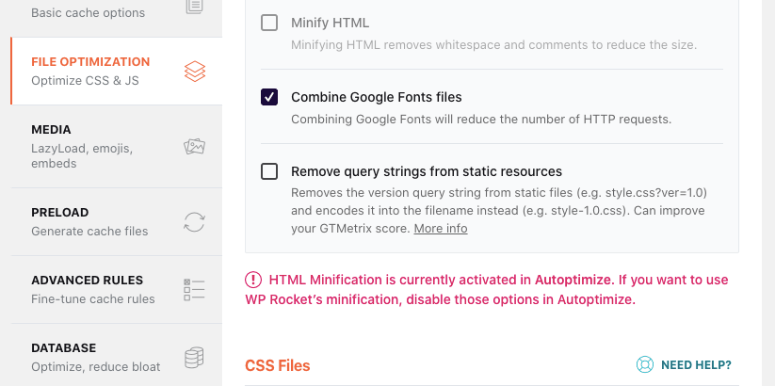
The lazy loading feature is one of the most dynamic I have used. It delays image and video loading until visitors scroll to them.
This speeds up initial page loads dramatically. Plus, database optimization tools remove post revisions, spam comments, and expired transients that bloat your database.
Why Is WP Rocket One of the Best Caching Plugins?
I like how WP Rocket automatically detects and excludes critical pages from caching. For example, shopping carts, user dashboards, and checkout pages stay dynamic without manual configuration.
This makes it perfect for eCommerce sites.
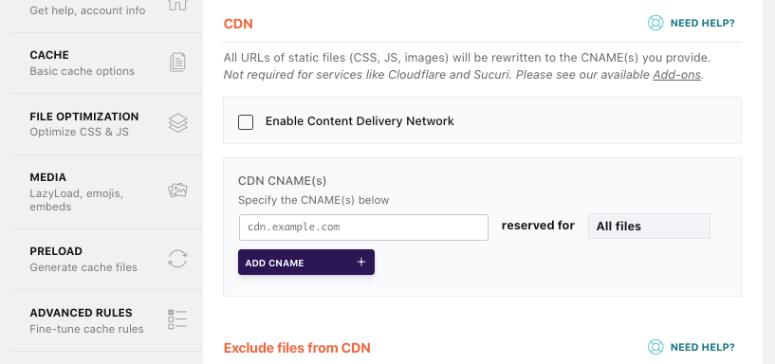
The WordPress plugin for caching integrates seamlessly with popular CDNs and works on any hosting provider. Regular updates keep it compatible with the latest WordPress version and popular plugins.
My Experience with WP Rocket
WP Rocket is the simplest cache tool I have used. I uploaded the plugin file, clicked activate, and caching started immediately. No setup wizard or configuration screens. It just worked.
Pages loaded noticeably faster right away. I tested it on a WooCommerce site during a sale, and everything functioned perfectly.
The cart updated in real time, checkout stayed dynamic, and customer accounts worked flawlessly.
Over three months, it ran silently in the background. I never touched the settings again. When I contacted support about CDN integration, they responded within two hours on a Saturday with clear instructions.
► Pros
- Works instantly without configuration
- Automatic cache preloading for all pages
- Premium support responds quickly with helpful answers
- Regular updates maintain compatibility
► Cons
- No free version available
- Annual subscription required
- Might be unnecessary for simple blogs
My Verdict: WP Rocket justifies its cost for business sites and online stores. The time saved on configuration and the reliable performance make it worth the investment.
Check out my WP Rocket review for more details.
Pricing: Starts at $59/year for a single-site license
Get started with WP Rocket here
2. WP-Optimize ⭐⭐⭐⭐⭐
Three tools in one plugin: caching, database cleanup, image compression | Best for: Site owners wanting all-in-one optimization
WP-Optimize comes second in this list because of how well-rounded it is as a top WordPress optimization plugin. It combines three essential optimization tools in a single plugin.
You get page caching, database cleanup, and image compression without installing multiple plugins that might conflict with each other.
The caching system stands out because it generates static HTML files and includes cache preloading for faster performance.
Plus, device-specific caching serves different versions to mobile and desktop users for better optimization.
Why Is WP-Optimize One of the Best Caching Plugins?
As mentioned, database cleanup removes unnecessary data automatically, but it does so much more.
It also cleans up post revisions, spam comments, trashed items, and expired transients on a schedule you control. This keeps your database lean and queries fast.
Image compression works on both existing images and new uploads. With this feature, the cache plugin reduces file sizes without noticeable quality loss.
Plus, it converts images to WebP format for even better compression.
Created by the UpdraftPlus team, WP-Optimize benefits from years of WordPress plugin development experience and has over 1 million active installations.
My Experience with WP-Optimize
Installation from the WordPress plugin directory took seconds. After activation, I clicked through the setup wizard that explained each optimization type clearly.
I enabled caching first and immediately noticed faster page loads. Then I ran the database cleanup and watched it remove 16% of unnecessary data.
But simplicity is why WP Optimize is so high up this list. The dashboard is clean and shows exactly what it deletes.
I could operate all its features on this one dashboard. Instead of jumping between three different plugins, I managed caching, database, and images from one place.
This gave me confidence that nothing would be forgotten.
The image compression feature processed about 200 existing images automatically. After this, I noticed that pages with heavy images loaded noticeably faster after compression.
The best part is that new uploads got optimized automatically without me doing anything.
► Pros
- Three optimization tools in one plugin
- Free version includes complete caching features
- Automatic database cleanup on schedule
- Image compression works on old and new uploads
► Cons
- Requires more initial setup than WP Rocket
- Premium features needed for lazy loading
- Database cleanup settings need careful review first time
My Verdict: WP-Optimize delivers the most value in a single cache plugin. Perfect for users who want caching, cleanup, and image optimization without managing multiple plugins.
Pricing: Free version available. Premium starts at $49/year.
Get started with WP-Optimize here
3. Speed Optimizer (Formerly SG Optimizer) ⭐⭐⭐⭐⭐
Free caching built by SiteGround | Best for: SiteGround customers

Speed Optimizer, formerly SG Optimizer, integrates directly with SiteGround’s server infrastructure for performance that generic caching plugins can’t match.
It taps into server-level caching features that only SiteGround customers can access.
With this, dynamic caching handles both static and dynamic content efficiently. File-based caching stores frequently accessed data, while Memcached speeds up database queries.
This combination delivers faster performance than standard page caching alone.
But I should point out that since it is a standalone WordPress caching tool, even if you are not on a SiteGround plan, you can still use it.
Why Is Speed Optimizer One of the Best Caching Plugins?
I like how this cache plugin automatically purges cache when you update content. So, if you publish a new post or edit a page, the cache refreshes instantly without manual intervention.
On top of that, you can also exclude specific URLs from caching if needed.
Image optimization converts images to WebP format automatically. This modern image format delivers better compression without quality loss.
The plugin handles both new uploads and existing images in your media library.
You get frontend optimization, which minifies HTML, CSS, and JavaScript files. It also combines CSS files and defers non-critical JavaScript to speed up initial page rendering.
Since it is built and maintained by SiteGround, the plugin receives regular updates optimized for their hosting environment. And yes, it’s completely free for all SiteGround customers.
My Experience with Speed Optimizer
I installed it from the WordPress plugin directory and clicked Activate. The plugin immediately connected to SiteGround’s servers and displayed a confirmation message.
Then, caching turned on automatically without me touching any settings. I refreshed a few pages and could instantly feel the difference.
Since it is built for beginners, I like how it keeps things simple. For starters, the Environment Optimization tab used green checkmarks to tell me the setup was correct.
Plus, each feature had a simple explanation, so I understood what was active.
► Pros
- Perfect integration with SiteGround servers
- Completely free for SiteGround customers
- Automatic cache management requires no maintenance
- WebP conversion happens automatically
► Cons
- Feature set smaller than premium alternatives
- Limited features if not on SiteGround hosting
- Advanced users might want more manual control
My Verdict: If you’re on SiteGround, use Speed Optimizer. The server-level integration delivers better results than any generic caching plugin, and it’s completely free.
Pricing: Free for SiteGround customers; Standalone plugin is also free
Get started with Speed Optimizer here
4. Sucuri Firewall ⭐⭐⭐⭐⭐
Security-first plugin with powerful caching | Best for: Sites prioritizing security alongside speed

Sucuri focuses primarily on security with caching as a bonus feature. But even as a bonus feature, the caching is proactive, and why Sucuri is high on this list.
The DNS-level firewall blocks threats before they reach your server, protecting your site from malware, DDoS attacks, and hacking attempts.
Now, caching happens at the firewall level. This means your content gets cached before requests even hit your hosting server. This reduces server load and speeds up delivery simultaneously.
Why Is Sucuri One of the Best Options?
I love how Sucuri includes four caching levels you can choose from based on your needs.
This means static content, pages with cookies, and dynamic content all get handled differently for optimal performance.
On top of that, CDN integration comes built in, distributing your content across global servers. This speeds up loading for visitors regardless of their location.
You get 24/7 site monitoring scans for vulnerabilities and alerts you immediately.
My Experience with Sucuri
I installed this cache and security plugin on a client site that had been hacked previously. Set up required pointing the domain to Sucuri’s servers, which took about 15 minutes following their guide.
The security dashboard was comprehensive but not overwhelming. I could see blocked attacks in real time, which gave the client peace of mind.
At the same time, pages loaded faster as a side benefit of the firewall-level caching.
► Pros
- Combines security and speed in one solution
- Firewall-level caching reduces server load
- 24/7 monitoring and threat detection
- Global CDN included
► Cons
- Expensive compared to cache-only plugins
- Setup more complex than dedicated caching plugins
- Free version lacks caching features
My Verdict: Choose Sucuri if security is your main concern and you want caching as an added benefit. Not the best pure caching solution, but unbeatable for security-conscious site owners.
Check out my updated Sucuri review for more details.
Pricing: Free basic version. Pro plans start at $229/year.
5. WP Super Cache ⭐⭐⭐⭐
Trusted caching from the WordPress.com team | Best for: Budget-conscious beginners
WP Super Cache comes from Automattic, the company behind WordPress.com and WooCommerce. This means the plugin is built by people who deeply understand WordPress in and out.
It offers three caching modes to match different technical skill levels.
Simple mode works for beginners without any configuration. Expert mode delivers faster performance for users comfortable with server settings. While WP-Cache mode sits in between.
Why Is WP Super Cache One of the Best Free Options?
Static HTML files get generated from your dynamic WordPress pages. When visitors arrive, they receive these pre-built files instead of forcing your server to process PHP and query databases.
This dramatically reduces server load.
As this works in the background, CDN support helps you integrate with content delivery networks if you want global speed improvements.
Then, garbage collection automatically cleans old cached files to prevent bloat.
My Experience with WP Super Cache
I installed it from the plugin directory and chose Simple mode during setup so I could see the beginner-level caching experience it offered.
Caching started immediately without requiring any technical knowledge, which was exactly what I was hoping for. This made pages load faster right away.
The interface felt dated compared to modern plugins, but functionality mattered more than looks. Everything worked reliably without breaking any part of the site.
I tested Expert mode on a different site and noticed even better performance. Setting it up required editing the .htaccess file, which might intimidate beginners.
Stick with Simple mode if you’re not comfortable with server files.
With that said, WP Super Cache ran quietly for months without needing attention. It’s not fancy, but it does the essential job well.
► Pros
- Completely free forever
- Backed by Automattic’s reputation
- Simple mode perfect for beginners
- Reliable performance
► Cons
- Interface looks dated
- Expert mode requires technical knowledge
- Fewer features than all-in-one alternatives
My Verdict: WP Super Cache is a solid free choice for budget-conscious users who want proven reliability. Best for blogs and small sites without complex requirements.
Pricing: Free.
Get started with WP Super Cache here
6. W3 Total Cache ⭐⭐⭐⭐
Powerful caching for developers and advanced users | Best for: Tech-savvy WordPress users
W3 Total Cache offers comprehensive caching that covers every aspect of WordPress performance.
This includes page caching, database caching, object caching, and browser caching, all work together for maximum speed.
It also integrates with popular CDNs like Cloudflare, and others.
This distributes your content globally for faster loading regardless of the visitor’s location. You get minification, which reduces file sizes by removing unnecessary characters from CSS, JavaScript, and HTML.
Why Is W3 Total Cache One of the Best Developer-Friendly Options?
Major sites like AT&T and Mashable use W3 Total Cache, proving it handles high-traffic situations effectively. The plugin for caching works equally well on shared hosting and dedicated servers.
W3 Total Cache offers AMP and SSL support to ensure compatibility with modern web standards.
The learning curve is steep, but the granular control is great for developers who want to fine-tune every performance aspect.
My Experience with W3 Total Cache
I installed it and immediately faced a wall of settings. The dashboard presented dozens of options without clear explanations for beginners.
I spent about an hour reading documentation and enabling features carefully. One wrong setting broke the site temporarily, but I rolled back easily by deactivating the plugin.
Once configured properly, performance improved noticeably. Pages loaded faster, and the server handled more visitors without slowdown.
It requires maintenance and understanding. You need to know what you’re doing or risk configuration mistakes that hurt performance instead of helping.
But once you understand W3 Total Cache, you realize that all the settings offer more control over the caching outcome.
► Pros
- Most comprehensive free caching plugin
- Granular control over every aspect
- Proven track record with major sites
- Works on any hosting environment
► Cons
- Steep learning curve for beginners
- Too many options can be overwhelming
- Configuration mistakes can break your site
My Verdict: Choose W3 Total Cache if you’re comfortable with technical settings and want maximum control. Beginners should start with simpler options like WP Super Cache or WP Rocket.
Pricing: Free version available. Pro version starts at $99/year.
Get started with W3 Total Cache here
7. WP Fastest Cache ⭐⭐⭐⭐
Simplicity meets effectiveness | Best for: Users wanting easy setup without sacrificing results

WP Fastest Cache focuses on simplicity without overwhelming users with options. Like other cache plugins on this list, it creates static HTML files automatically and serves them to visitors for faster loading.
Apart from this, minification reduces file sizes by compressing HTML and CSS. The plugin also combines CSS files to reduce the number of requests your browser makes. This speeds up initial page rendering.
Why Is WP Fastest Cache One of the Best Simple Options?
WP Fastest Cache uses Browser caching to store static files locally on visitor devices. When someone returns to your site, their browser loads these saved files instead of downloading everything again.
You get image optimization, database cleanup, and mobile-specific caching on the pro version.
But it is the WP Fastest Cache pricing model that truly sets it apart.
To help keep the cost down, you can purchase premium features individually or as a bundle, giving you flexibility in what you pay for.
Plus, the one-time payment option makes it more affordable long-term compared to annual subscriptions. Plus, premium can be purchased directly from your WordPress dashboard.
My Experience with WP Fastest Cache
I installed WP Fastest Cache from the plugin directory and saw a clean, simple dashboard. About eight checkboxes covered the main features. I checked the ones I wanted and clicked submit.
After this, caching started immediately. This resulted in pages loading faster without any complicated setup.
The interface felt intuitive, with clear labels explaining what each option did. This makes it great for beginners.
I tested it on a blog with moderate traffic and noticed consistent performance improvements. Nothing broke, no conflicts with other plugins, and visitors reported faster loading times.
The simplicity meant fewer features than comprehensive plugins, but that worked perfectly for straightforward sites without complex requirements.
► Pros
- Super simple setup with checkbox interface
- Clean, intuitive dashboard
- One-time payment for premium
- Good balance of features and simplicity
► Cons
- Advanced features require premium upgrade
- Fewer optimization options than competitors
- Some premium features available free elsewhere
My Verdict: Perfect middle ground between too simple and too complex. Great for users who want better results than basic plugins without WP Rocket’s price tag.
Pricing: Free version available. Premium starts at $49 one-time payment for 1 site.
Get started with WP Fastest Cache here
8. Comet Cache ⭐⭐⭐⭐
Membership and eCommerce specialist | Best for: Sites with logged-in users

Comet Cache specializes in caching for sites with logged-in users. Most caching plugins struggle with membership sites, user dashboards, and personalized content. Comet Cache handles these scenarios without breaking functionality.
The plugin caches different versions of pages for logged-in versus logged-out users. This means members see their personalized dashboards while public visitors get cached pages for speed.
Why Is Comet Cache One of the Best for Membership Sites?
Browser caching works with Apache servers to reduce round trips between visitors and your server. Static resources like images, CSS, and JavaScript get stored locally on user devices.
Cache statistics show exactly what’s getting cached and how much storage it uses. This transparency helps you understand the plugin’s impact on your site.
The plugin monitors server load and automatically adjusts cache behavior during traffic spikes. When your server gets busy, it temporarily disables certain cache expiration rules to reduce load.
CDN support includes integration with Amazon CloudFront and MaxCDN for global content delivery.
My Experience with Comet Cache
I tested it on a membership site with private user content. After installation, I enabled caching and logged in as a test member to verify functionality.
Member dashboards loaded correctly with personalized content. Nothing broke. Other members saw their own data, not cached versions from different users. The plugin handled logged-in user caching exactly as promised.
The free version worked well for basic needs. I noticed performance improvements without paying for premium features. The dashboard showed cache statistics clearly, which helped me understand what was happening behind the scenes.
Setup took about 15 minutes including testing different user scenarios. Once configured, it ran reliably without intervention.
► Pros
- Handles logged-in users better than most plugins
- Cache statistics provide transparency
- Server load monitoring prevents crashes
- One-time payment for premium
► Cons
- Free version somewhat limited
- Smaller user base than major competitors
- Documentation less extensive than alternatives
My Verdict: If you run a membership site, WooCommerce store, or any site where users log in frequently, Comet Cache’s specialized features make it worth considering over generic caching plugins.
Pricing: Free version available. Premium single site license: $39 one-time.
Get started with Comet Cache here
9. Cache Enabler ⭐⭐⭐⭐
Lightweight caching from KeyCDN | Best for: Minimalists wanting just caching
Cache Enabler focuses exclusively on caching without extra features that bloat other plugins. Developed by KeyCDN, the plugin creates static HTML files and serves them efficiently.
The lightweight design means minimal resource usage. Your WordPress admin dashboard stays fast because the plugin doesn’t run heavy processes in the background.
Why Is Cache Enabler One of the Best Lightweight Options?
My favourite feature is automatic cache clearing that happens when you update content.
Publish a new post or edit a page, and the relevant cached files get refreshed automatically. You can also manually clear the cache with one click.
Plus, WebP image support delivers smaller image files without quality loss. This is important because modern browsers load WebP images faster than traditional JPG or PNG formats.
Another interesting minimalist feature is WP-CLI support, which lets developers clear cache from the command line. This helps with automated deployments and server maintenance tasks.
The plugin works seamlessly with third-party plugins without conflicts. Its simple approach means fewer compatibility issues compared to complex caching solutions.
My Experience with Cache Enabler
I installed Cache Enabler on a simple blog that needed basic caching without extra complications. The settings screen had about five options total. I enabled caching and left everything else at defaults.
With this in play, pages loaded faster immediately. And the plugin does its job without getting in the way of site performance.
This means no broken layouts, no conflicts with existing plugins, and no confusing settings to decipher.
► Pros
- Extremely lightweight and fast
- Excellent documentation for a free plugin
- Great compatibility with other plugins
- WebP image support included
► Cons
- Very basic feature set
- No advanced optimization options
- Not suitable for complex sites with special requirements
My Verdict: Cache Enabler does one thing well: basic page caching. Perfect if you want simple caching without features cluttering your dashboard. Not ideal for sites needing comprehensive optimization.
Pricing: Free.
Get started with Cache Enabler here
10. Hummingbird ⭐⭐⭐
Speed optimization suite from WPMU DEV | Best for: WPMU DEV members
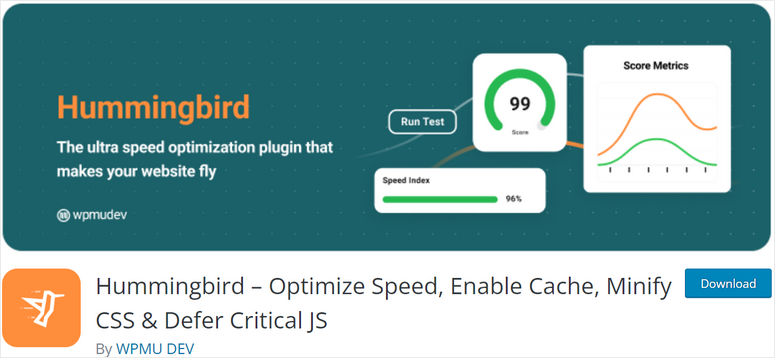
Hummingbird comes from WPMU DEV, the team behind popular plugins like Smush image optimizer. The cache plugin scans your site for speed issues and provides one-click fixes for common problems.
Full-page caching stores complete HTML versions of your pages. At the same time, browser caching and Gravatar caching reduce repeat requests.
Most importantly, asset optimization minifies and combines CSS and JavaScript files automatically.
Why Is Hummingbird One of the Best All-Around Solutions?
Hummingbird has one of the best lazy loading features I have used. It delays image loading until visitors scroll to them. This speeds up initial page loads without making your site look empty.
Apart from that, Cloudflare integration connects directly through the dashboard. You don’t need to configure Cloudflare separately since Hummingbird handles the connection automatically.
But before anything, the performance test scans your site and shows exactly what’s slowing it down.
In the end, the results include specific recommendations for improvement with one-click fixes for many issues.
My Experience with Hummingbird
I installed it and immediately ran the performance scan. The plugin analyzed my site and presented a detailed report showing what needed fixing.
The one-click optimization button fixed several performance issues instantly. While file minification, Gzip compression, and browser caching are enabled automatically.
All without me configuring individual settings.
► Pros
- Automatic site scanning finds issues
- One-click fixes save time
- Integrates perfectly with Smush
- Good value for WPMU DEV members
► Cons
- Free version has limitations
- Best features require WPMU DEV membership
- Might duplicate features from other optimization plugins
My Verdict: Hummingbird is a great choice if you’re already a WPMU DEV member or use their other plugins. Otherwise, standalone caching plugins might offer better value unless you want the entire WPMU DEV suite.
Pricing: Free version available. Pro starts at $30/year for 1 site as part of WPMU DEV membership.
Get started with Hummingbird here
11. LiteSpeed Cache ⭐⭐⭐
Server-level caching for LiteSpeed users | Best for: LiteSpeed server hosting

LiteSpeed Cache works exclusively with LiteSpeed web servers, delivering server-level caching that generic plugins can’t match.
The direct server integration provides speed improvements that software-only solutions struggle to achieve.
It offers features like built-in image optimization that compresses images automatically, and lazy loading to delay image and iframe loading until visitors scroll to them.
Why Is LiteSpeed Cache One of the Best Server-Specific Options?
LiteSpeed Cache offers multiple CDN support, connecting with popular content delivery networks. For example, Cloudflare API integration is simplified for both single site and multisite installations.
It also offers WebP image format conversion and database optimization.
Cache crawling automatically builds your cache in the background. This means even the first visitor gets cached pages instead of waiting for the cache to build.
What stands out for me is that the import/export settings feature lets you migrate configurations from other caching plugins. This makes switching from WP Rocket, W3 Total Cache, or other plugins easier.
My Experience with LiteSpeed Cache
I tested it on a site hosted with LiteSpeed servers. After installation, the plugin detected the server environment automatically and enabled optimized settings.
The dashboard had many features, but the default settings worked well immediately. As a result, pages loaded noticeably faster without me changing anything.
The server-level integration made a real difference compared to generic caching plugins I’d used before.
I enabled image optimization, and it processed existing images in batches, which was really helpful.
Plus, the WebP conversion happened automatically for browsers that support it. While older browsers still received standard image formats.
The plugin required more learning than other cache alternatives, but the performance gains justified the effort. After initial setup, it ran reliably for months without intervention.
► Pros
- Completely free with extensive features
- Server-level caching delivers exceptional speed
- Comprehensive optimization tools included
- Active development and regular updates
► Cons
- Only works on LiteSpeed servers
- Feature abundance can overwhelm beginners
- Requires LiteSpeed hosting to function
My Verdict: If your host uses LiteSpeed servers, this plugin is a no-brainer. The server-level integration delivers results that generic plugins can’t match, and it’s completely free.
Pricing: Free.
Get started with LiteSpeed Cache here
12. Autoptimize ⭐⭐⭐
Code optimization specialist | Best for: Sites needing script and style optimization

Autoptimize focuses specifically on optimizing your site’s code rather than providing full caching. The plugin aggregates, minifies, and compresses scripts and styles to reduce file sizes and HTTP requests.
Why Is Autoptimize One of the Best Code Optimization Plugins?
I like how CSS and JavaScript minification remove unnecessary characters like spaces and comments. This makes files smaller without changing functionality.
HTML minification compresses your page markup. Images can be lazy-loaded to speed up initial rendering. The plugin even optimizes Google Fonts loading for better performance.
Critical CSS generation helps render above-the-fold content faster. Visitors see your page layout immediately, while the rest loads in the background.
It also combines multiple files into single requests to reduce server load.
My Experience with Autoptimize
I installed it on a site already using a basic caching plugin. The goal was to add code optimization without switching caching solutions.
After activation, I enabled the main optimization features through simple checkboxes. CSS and JavaScript minification turned on easily.
I used the test mode first, which let me preview changes before making them live. After this, I tested the live site thoroughly to ensure nothing broke.
I noticed that pages rendered faster, especially on slower connections. The reduced file sizes made a noticeable difference.
One script conflicted with the optimization, but the exclude feature solved it quickly. I added the problematic script to the exclusion list and everything worked perfectly.
► Pros
- Free and powerful code optimization
- Works alongside any caching plugin
- Extensive customization options
- Great for developers who want control
► Cons
- Focuses on code, not full caching
- Requires testing to avoid breaking site functionality
- Settings need careful configuration
- Best used with a dedicated caching plugin
My Verdict: Autoptimize excels at code optimization but isn’t a complete caching solution. Use it alongside WP Super Cache, Cache Enabler, or another caching plugin for best results. Perfect for sites needing better code optimization.
Pricing: Starts at $89/year
Get started with Autoptimize here
Great! That’s my list of the best cache plugins for WordPress. But before we end the article, let us look at how to choose the one that best suits your needs.
As you have seen, each has its strengths, weaknesses, and target user.
How to Choose the Right Caching Plugin for Your Needs
With 12 solid options, choosing the right caching plugin depends on your specific situation. Here’s how to decide.
Choose Based on Your Hosting
Your hosting provider often determines the best caching plugin.
SiteGround users should use Speed Optimizer (Formerly SG Optimizer) without question. The server-level integration delivers better results than any generic alternative. Plus, it’s completely free.
LiteSpeed server users get the best performance from LiteSpeed Cache. The direct server integration provides speed that software-only plugins can’t match.
Any other hosting works with WP Rocket or WP-Optimize. You’re not limited by server requirements.
Choose Based on Your Technical Comfort
Your technical skill level matters when selecting a caching plugin.
Complete beginners should choose WP Rocket or WP Fastest Cache. Both work immediately after activation without confusing settings. You won’t need to read documentation or watch tutorials.
Intermediate users can handle WP-Optimize or Hummingbird. These plugins require some initial setup but offer clear instructions and helpful interfaces.
Advanced users and developers might prefer W3 Total Cache or LiteSpeed Cache. The granular control lets you optimize every detail, but you need technical knowledge to avoid mistakes.
Choose Based on Your Budget
Money available for optimization affects your options.
$0 budget gives you excellent choices. WP Super Cache, W3 Total Cache, and Cache Enabler all deliver solid caching without costing anything. Autoptimize adds code optimization for free.
For under $50/year, WP−Optimize is the best value for money with a yearly plan under $50 a year. WP Fastest Cache and Comet Cache offer a lifetime license for under $50 as well.
Premium budget makes WP Rocket the smart choice. The time saved on configuration and the quality of support justify the cost for business sites. Sucuri is another premium option that you can use for both security and caching.
Choose Based on Your Site Type
Different site types have different caching needs.
Simple blogs work great with WP Super Cache or Cache Enabler. You need basic page caching without complex features cluttering your dashboard.
Business websites benefit from WP Rocket or WP-Optimize. The automatic optimization and reliable performance matter more than saving money.
eCommerce stores should use WP Rocket or Comet Cache. Both handle dynamic cart pages and checkout processes without breaking functionality. Never cache checkout pages or cart contents.
Membership sites need Comet Cache or WP Rocket. Standard caching plugins struggle with logged-in users and personalized content. These specialized options handle member dashboards correctly.
High-traffic sites perform best with W3 Total Cache or LiteSpeed Cache (if on LiteSpeed servers). The comprehensive optimization handles thousands of concurrent visitors effectively.
Choose Based on Your Needs
Think about what matters most for your situation.
Want zero hassle? Choose WP Rocket. Activate it and forget about it. Everything works automatically without your attention.
Want all-in-one optimization? Choose WP-Optimize. Get caching, database cleanup, and image compression in one plugin instead of managing three separate tools.
Want maximum control? Choose W3 Total Cache. The granular settings let you optimize every aspect of performance if you know what you’re doing.
Want simplicity? Choose Cache Enabler or WP Fastest Cache. Both focus on basic caching without overwhelming you with features you won’t use.
Want security plus speed? Choose Sucuri. The firewall protection matters more than pure caching performance for vulnerable sites.
My Top 3 Recommendations
After testing all these plugins extensively, here are my top picks.
🥇 Best Overall: WP Rocket
WP Rocket wins for most users. The ease of use, automatic optimization, and excellent support make it my top cache recommendation.
🥈 Best All-In-One Solution: WP-Optimize
WP-Optimize delivers the most value per dollar. You get three tools in one plugin: caching, database cleanup, and image compression.
🥉Best Free: Speed Optimizer (Formerly SG Optimizer)
Speed Optimizer delivers professional-grade caching at zero cost. Perfect for SiteGround customers with deep integration, but works great as a standalone plugin for any host.
That’s it! You now have a complete list of the best WordPress cache plugins and understand how to choose the one that best suits your business.
If anything is unclear, check out the commonly asked questions below.
FAQs: Best WordPress Caching Plugins
What is the best caching plugin for WordPress beginners?
WP Rocket is the best caching plugin for beginners because it requires zero configuration. The moment you activate it, caching begins automatically with optimized settings already in place. You don’t need to understand technical terms or modify any files.
Do I need a caching plugin if I have good hosting?
Yes, even with excellent hosting, a caching plugin still helps significantly. Hosting provides server resources and infrastructure, but caching reduces how much those resources work on every page load. Good hosting handles traffic efficiently, but caching makes each visitor require less processing power. Your hosting can handle more concurrent visitors when caching reduces the server load per request.
Can I use multiple caching plugins at once?
No, never use two full caching plugins simultaneously. They’ll conflict with each other and potentially break your site or create worse performance than using just one. Page caching should only happen through one plugin. Running WP Rocket and W3 Total Cache together, for example, would cause both plugins to fight over cache management. One might clear cache while the other rebuilds it, creating an endless loop.
Will a caching plugin slow down my WordPress admin?
Most modern caching plugins won’t slow your admin dashboard because they focus on front-end performance. WP Rocket, WP-Optimize, and Cache Enabler all run efficiently without impacting your backend experience.
How much faster will my site be with a caching plugin?
Typical speed improvements range from 2 to 5 times faster load times. A site loading in 4 seconds might drop to 1 to 1.5 seconds with proper caching enabled. The exact improvement depends on several factors. Sites with lots of database queries see bigger gains because caching eliminates repeated database work. Simple sites with minimal database usage see smaller but still noticeable improvements.
What’s the difference between free and premium caching plugins?
Premium caching plugins like WP Rocket offer automatic configuration, advanced features, premium support, and regular updates focused on compatibility. You pay for convenience and reliability. Free plugins like WP Super Cache provide core caching functionality but require more manual setup. You’ll need to enable features yourself and troubleshoot issues through community forums instead of direct support.
Final Verdict: Should I Use Cache Plugins?
Yes, absolutely. A caching plugin is one of the easiest and most effective ways to speed up your WordPress site.
The question isn’t whether you should use caching. It’s which plugin fits your needs best. Every WordPress site with real traffic benefits from caching, regardless of hosting quality or site size.
Speed matters more than ever. Google ranks faster sites higher. Visitors expect instant loading. Customers abandon slow checkouts. These aren’t optional considerations anymore.
The good news? Installing a caching plugin takes 15 minutes and delivers immediate results. You’ll see faster page loads, better search rankings, and happier visitors.
Don’t overthink the decision. Pick a plugin from this list based on your hosting, budget, and technical comfort. Install and test it today. You’ll wonder why you waited so long to add caching.
Your visitors are already judging your site’s speed. Make sure they’re impressed instead of frustrated. A caching plugin is the simplest way to win that judgment.
Resource Center
Caching plugins are just one piece of building a fast WordPress site. Check out the posts below for a complete performance picture.
- Best WordPress hosting reviews help you choose a host with server-level optimizations that complement your caching plugin instead of fighting against it.
- How to create a WordPress test site shows you how to safely test caching configurations without breaking your live site when experimenting with advanced settings.
- How to set up a free CDN takes your caching strategy global by serving cached content from servers closest to your visitors worldwide.
- Best WordPress statistics plugins let you measure actual page load improvements after implementing caching so you can prove ROI with real data.
- How to optimize on-page SEO with AI teaches you how faster page speeds from caching improve search rankings while AI handles the technical optimization work.
- Best plugins for WordPress multisite networks cover cache management across multiple sites when you’re running a network that needs coordinated performance optimization.
These resources address the supporting systems that make caching most effective.
Cache plugins speed up page delivery, but hosting quality, CDN integration, and proper monitoring turn those speed gains into a better user experience and search rankings.
These articles help you build your complete performance stack one piece at a time.
Ready to speed up your site? Start today with the caching plugin that fits your technical comfort level and watch your load times drop immediately.

Not sure how long ago this was written, but I don’t see Jetpack / Jetpack Boost listed here. Would you recommend Jetpack Boost as well? Or are these plugins better than Jetpack? Thank you!
Now I’m creating a site and choosing a plugin for caching. Your article helped me a lot and answered many questions. Thank you!
Hey, we are glad this article helped you. For more such content, please follow us on Facebook and Twitter. 🙂