
TL;DR: I tested 7+ online collaboration tools. Nextiva and Slack lead for full-featured team communication, but I have free and specialized options for every team size below.
I watched a project fall apart because my team was juggling Slack, email, Zoom, and Google Docs all at once. Messages got lost. Files disappeared. Deadlines slipped.
The thing is, scattered tools kill productivity faster than anything else. Your team wastes hours switching between apps and hunting for information.
I tested dozens of collaboration tools to find ones that actually bring everything together. Below, you’ll see the best options for teams of every size and budget.
Key Takeaways
- I reveal which tools combine chat, video, and file sharing in one dashboard
- I tested free plans to find what works without spending a dollar
- Show you how to match collaboration features to your team size
- I identify which platforms integrate with WordPress and your existing tools
- I explain when specialized tools beat all-in-one solutions for specific workflows
The Best Online Collaboration Tools for Teams
Below, you’ll find our top 7 picks for the best paid and free online collaboration tools. Each tool may offer different features, so you can choose the best online collaboration software for team and customer communication.
Use the table of contents below to navigate through the article. You can see all the collaboration tools I have listed at a glance and click on any link to skip to that section.
Let’s get started.
1. Nextiva
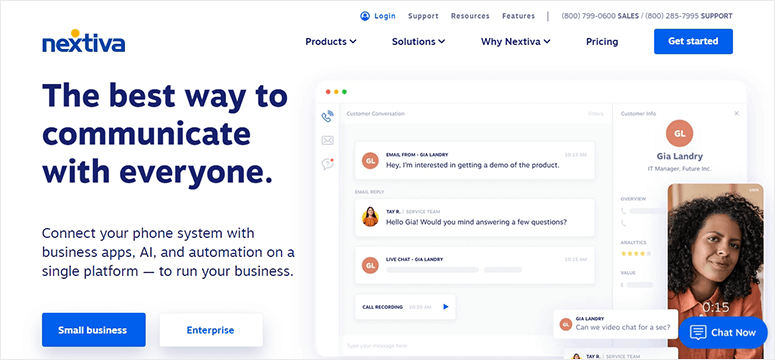
Nextiva is an all-in-one solution to all your communication and collaboration needs.
With Nextiva, you get access to powerful features that include:
- Desktop SMS
- Team chat
- Integrated calendars
- Video meetings
- Team rooms
- Files and attachments
You can work efficiently across projects and teams with searchable files, links, and context. Added to that, you can take notes on calls and get automatic transcriptions of your call.
Nexitva also has solutions for customer service that includes business phone, chat, conferencing, analytics, and more.
🟢► Pros
- All-in-One Communication: I have voice calls, video meetings, SMS, and team chat in a single dashboard without switching apps.
- Automatic Call Transcriptions: I get searchable text from every call, which saves me from taking notes during meetings.
- Integrated Calendar: I schedule meetings directly in Nextiva and see my team’s availability without opening Google Calendar.
- Team Rooms: I organize projects into dedicated spaces where files, chats, and calls stay together in context.
- Desktop SMS: I send text messages from my computer using my business number, which looks more professional than personal texts.
- Customer Service Tools: I have built-in analytics and call routing features that work great for support teams.
🔴► Cons
- Steep Initial Setup: I spent more time than expected configuring team permissions and phone settings before my team could start using it effectively.
- Premium Pricing: I found the cost higher than basic chat tools, which makes it tough for small teams on tight budgets.
My Experience with Nextiva
I found the learning curve steeper than expected when first setting up team rooms. The interface packs so many features that new users feel overwhelmed. But once I spent 30 minutes exploring, everything clicked. The call transcription feature alone saved me hours of note-taking during client meetings.
2. Slack

Slack is one of the most popular online collaboration tools for teams. It allows one-to-one messages, small group messages, voice calls, video calls, screen sharing, and much more.
It offers the flexibility to create public and private channels for topics, projects, teams, and so on. This helps organize your conversations and collaborate with team members.
For all your communications, Slack creates a searchable archive. This includes conversations and files automatically saved, indexed, archived, and made available in the search engine.
Slack also integrates with thousands of third-party apps and tools to streamline your workflows. Connect Google Calendar, Dropbox, and other popular apps to Slack for seamless collaborations. You can even integrate with plugins like Uncanny Automator to embed Slack in WordPress.
🟢► Pros
- Channel Organization: I create separate channels for projects, teams, and topics so conversations never get mixed up.
- Searchable Archive: I find old messages, files, and links instantly using Slack’s search, which beats digging through email threads.
- Massive Integration Library: I connected Google Calendar, Dropbox, Trello, and dozens of other tools without writing code.
- Screen Sharing Built-In: I share my screen during video calls without launching a separate app or sending meeting links.
- WordPress Integration: I use Uncanny Automator to send WordPress notifications directly into Slack channels for instant team updates.
- Mobile App: I stay connected to my team from my phone with the same features as the desktop version.
🔴► Cons
- Free Plan Limits: I lose access to messages older than 90 days on the free tier, which makes finding old decisions impossible.
- Notification Overload: I get bombarded with alerts from multiple channels unless I spend time customizing notification settings for each one.
My Experience with Slack
I hit the message archive limit on the free plan faster than I thought possible. Losing access to old conversations frustrated my team. But the channel organization and third-party integrations are unmatched. I connected 12 different tools to Slack, which eliminated constant app-switching for my remote team.
3. WPForms
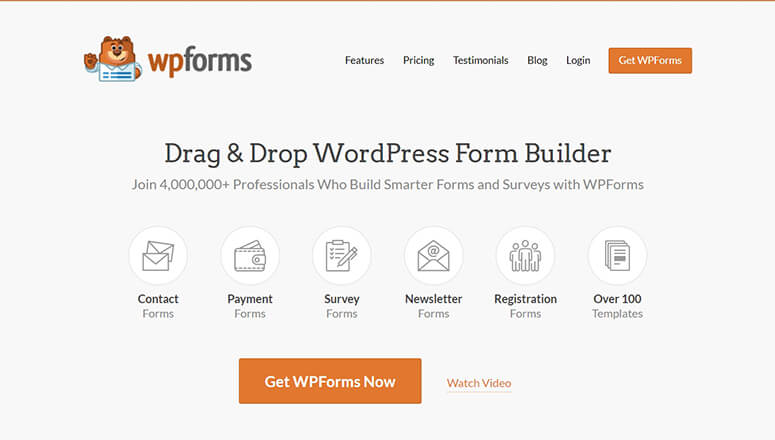
WPForms is the most beginner-friendly contact form plugin on the market. It allows you to create a team member invite form and team survey forms to collaborate with your team members.
With a powerful drag and drop form builder, it’s easy for an absolute beginner to create a WordPress form. It also offers ready-made form templates for survey forms, online polls, and new team member registration forms.
You can manage instant notifications for your team within a simple dashboard. All responses are stored in your website’s admin area, so you’ll know everything about your team members’ activity when needed.
🟢► Pros
- Drag-and-Drop Builder: I create team surveys and registration forms without touching code, which works perfectly for non-technical users.
- Ready-Made Templates: I have pre-built forms for polls, surveys, and team member invites that I customize in minutes.
- Instant Notifications: I get email alerts when team members submit responses, so I never miss important feedback.
- Built-In Storage: I view all form submissions in my WordPress dashboard without needing external databases or spreadsheets.
- Conditional Logic: I show different questions based on previous answers, which makes team surveys feel personalized and relevant.
- Mobile-Friendly Forms: I collect responses from team members on any device without formatting issues or broken layouts.
🔴► Cons
- Not Real-Time Communication: I can’t use WPForms for instant messaging or video calls, so it only handles asynchronous collaboration.
- Limited to WordPress: I need a WordPress site to use WPForms, which doesn’t help teams working outside that platform.
My Experience with WPForms
I didn’t expect a form plugin to work as a collaboration tool at first. But when I needed to collect team feedback and onboard new members, WPForms surprised me. The survey templates saved hours of setup time. I created a team satisfaction poll in under 5 minutes using the drag-and-drop builder.
4. OptinMonster
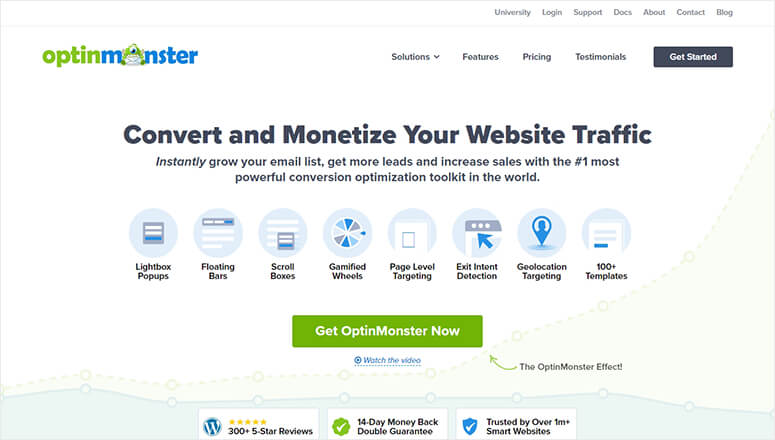
OptinMonster is the best lead generation and conversion optimization software on the market. So you might be wondering, “What’s this plugin doing on a list of team collaboration tools?”
OptinMonster lets you collaborate as a team and create marketing campaigns that convert your website visitors into customers.
When you sign up for a Pro plan or higher, you can add sub-accounts to your main OptinMonster account.
This allows you to give access to other team members. That way, different parts of your marketing team can create laser-focused optin forms to grow your list and drive more revenue.
You can create unlimited campaigns and target users based on their actions on your website. All data is available in an intuitive dashboard for your team to monitor the progress of your business.
🟢► Pros
- Sub-Account Access: I add team members to my OptinMonster account so multiple people can create campaigns without sharing passwords.
- Shared Analytics Dashboard: I see campaign performance data that my whole marketing team can access and discuss together.
- Unlimited Campaigns: I let different team members own specific campaigns without hitting limits or paying per user.
- Behavior-Based Targeting: I collaborate with my team to create targeted campaigns that show different messages based on user actions.
🔴► Cons
- Requires Pro Plan: I need to pay for a higher-tier plan to add sub-accounts, which makes team collaboration expensive for small businesses.
- Marketing-Specific: I can’t use OptinMonster for general team communication or project management beyond marketing campaigns.
My Experience with OptinMonster
I was skeptical about calling this a collaboration tool until I used the sub-accounts feature. My marketing team created campaigns simultaneously without stepping on each other’s work. The shared dashboard gave everyone visibility into conversion rates. It’s collaboration focused on results, not just communication.
5. Microsoft Teams
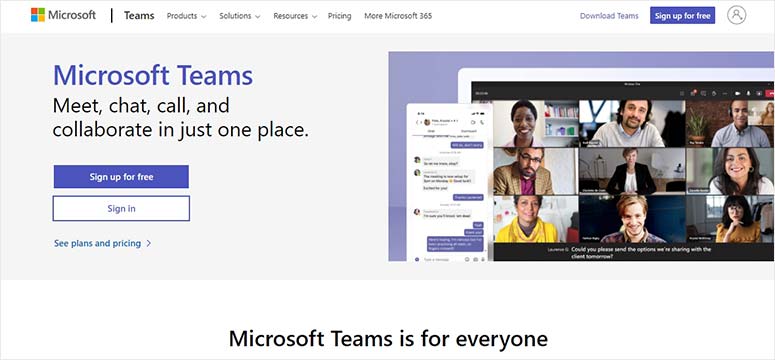
Microsoft Teams is a premium online collaboration tool for teams and organizations. It offers chat, call, and collaboration features in a single intuitive dashboard.
The tool is available on the desktop and mobile app to connect with your team from anywhere in the world. It allows you to shift your group chat to video call in just 1-click.
Connect with your team members and share files with Microsoft Teams quickly. It lets you manage notes, documents, and calendars within your account to stay organized all the time.
In the chat feature, you can use GIFs, stickers, and emojis. The calling option has advanced features like group calling, cloud voicemail, and call transfers.
And, the collaboration tool seamlessly integrates with Word, Excel, and PowerPoint to edit your documents along with your team members in real-time.
🟢► Pros
- Office 365 Integration: I edit Word, Excel, and PowerPoint files with my team in real-time without leaving the Teams interface.
- One-Click Video Calls: I switch from text chat to video meeting instantly without sending links or scheduling ahead.
- Desktop and Mobile Apps: I connect with my team from anywhere using the same features on my phone or computer.
- Advanced Calling Features: I have group calling, voicemail, and call transfers built-in, which replaces separate phone systems.
🔴► Cons
- Overwhelming Interface: I found too many tabs, buttons, and menus competing for attention, which confuses new users.
- Requires Microsoft Ecosystem: I get the most value only if my team already uses Office 365 and OneDrive for file storage.
My Experience with Microsoft Teams
I struggled with the cluttered interface at first because Microsoft packed too many features into one screen. But for teams already using Office 365, the integration is unbeatable. I edited Word docs with three team members simultaneously while on a video call, which eliminated the usual back-and-forth.
6. Google Workspace
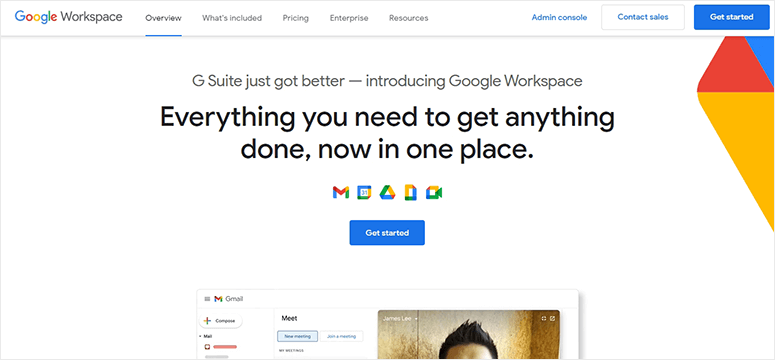
Google Workspace is an online collaboration tool for teams built by Google. It’s super flexible and offers tools to integrate, customize, and extend the app according to your business and team needs.
It works with all the apps from Google, including Gmail, Drive, Photos, Calendar, Hangouts, and so on. This means you can easily collaborate with your team members using your routine apps.
Google Workspace is fully compatible with docs, sheets, and slides. This lets your team share and edit the documents in real-time for collaborative content creation.
The video meeting length is 24 hours which is the maximum for any app or tool to offer. Other top features include a survey builder, shared notes, shared calendars, chat team messaging, and more.
🟢► Pros
- Familiar Google Apps: I use Gmail, Drive, Calendar, and Docs that my team already knows, which eliminates training time.
- Real-Time Document Editing: I work on the same Google Doc with multiple team members and see their changes instantly.
- 24-Hour Video Meetings: I run all-day workshops and training sessions without hitting time limits that cut off other platforms.
- Affordable Pricing: I pay just £5.90 per user monthly, which makes it budget-friendly for small teams and startups.
- Unlimited Storage Options: I get generous cloud storage for files and emails without constantly deleting old content.
- Built-In Survey Builder: I create team polls and feedback forms using Google Forms without needing separate survey software.
🔴► Cons
- Limited Customization: I can’t heavily customize the interface or workflows compared to specialized collaboration platforms.
- Google Account Required: I need everyone on my team to have Google accounts, which some organizations restrict for security reasons.
My Experience with Google Workspace
I loved how my team started collaborating immediately because everyone already knew Gmail and Google Docs. The 24-hour video meeting limit sounds excessive until you run an all-day workshop. Plus, it’s the most affordable full-featured option I tested for small teams.
7. Divi Team Members
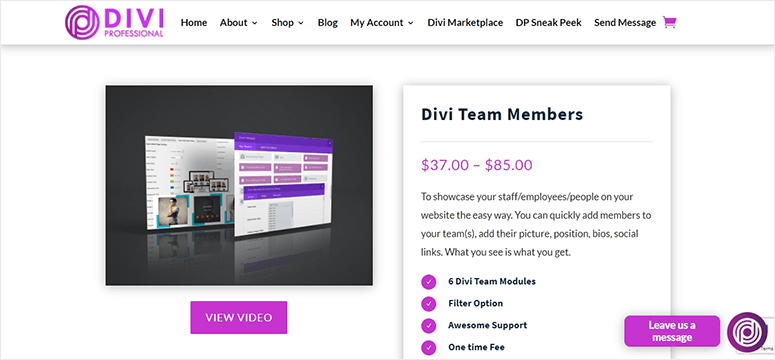
Divi Team Members is a professional online collaboration tool for teams. It allows you to showcase your team members on your website, add new members to the team, display member photos, and more.
It supports all modern browsers for teams to collaborate online. Unlike other team collaboration tools, this plugin helps present your team and get new projects online.
Divi also allows marketers to create landing pages without the help of developers. This means more bandwidth for your technical team and more freedom for your marketing team.
It comes with team features, including a frontend visual builder, social links, team display layouts, modules integrations, and more.
Divi Team Members is a WordPress plugin that works great with popular Elegant Themes Divi and Extra, out of the box.
🟢► Pros
- Visual Team Showcase: I display team member photos, bios, and social links on my website to build credibility with potential clients.
- Frontend Visual Builder: I let my marketing team edit the team page directly without learning code or asking developers for help.
- Multiple Display Layouts: I choose from different grid and list layouts to match my website design without custom CSS.
- Social Media Integration: I add LinkedIn, Twitter, and other social links for each team member to boost professional networking.
🔴► Cons
- Not for Internal Collaboration: I can’t use this plugin for team communication or project management, only for public team display.
- Requires Divi Theme: I need Elegant Themes Divi or Extra theme installed, which limits use if my site runs a different theme.
My Experience with Divi Team Members
I realized this plugin solves a different collaboration problem than chat tools. It showcases my team publicly to attract clients, not facilitate internal communication. The visual builder let my marketing team update our team page without bugging developers. It’s collaboration through autonomy, which freed up technical resources.
8. Project Panorama
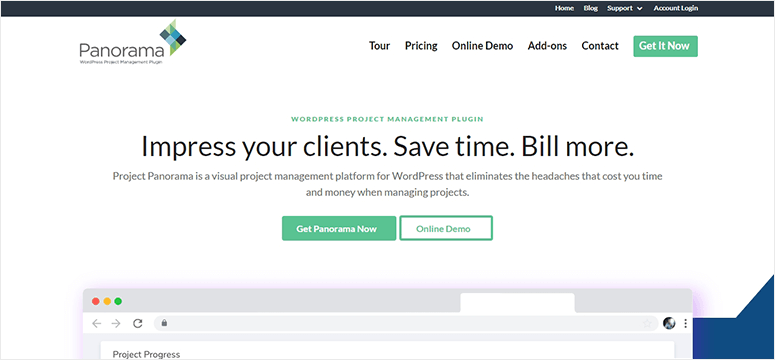
Project Panorama is a visual project management plugin for WordPress. It helps reduce the efforts of your team and allows them to manage projects within a single dashboard.
Your customers and team members can access the dashboard to monitor the progress and project status visually. Each customer will have a private dashboard, and they can only look into their own project.
On the other hand, your team members can collaborate on any project and get the work done. It also automatically tracks the progress and time spent on each task to improve work productivity.
🟢► Pros
- Visual Project Tracking: I show project progress with visual timelines and status bars that clients understand without technical explanations.
- Private Client Dashboards: I give each customer access to only their projects, which maintains confidentiality when managing multiple clients.
- Automatic Time Tracking: I see how long my team spends on each task without manual timesheets or honor-system reporting.
- WordPress Integration: I manage projects directly in my WordPress dashboard alongside my website content and plugins.
🔴► Cons
- WordPress-Only Platform: I can’t use Project Panorama if my team or clients work outside WordPress, which limits collaboration scope.
- Limited Communication Features: I don’t get built-in chat or video calls, so I still need separate tools for real-time team discussions.
My Experience with Project Panorama
I appreciated the client-facing dashboards that kept customers informed without constant status emails. The automatic time tracking revealed which tasks ate up hours, helping me price projects better. But I found the WordPress-only limitation frustrating when collaborating with external teams who don’t use WordPress.
FAQs: Best Online Collaboration Tools for Teams [Free Included]
What is the best free online collaboration tool for small teams?
Slack offers the best free plan for small teams with unlimited users and channels. You get group messaging, voice calls, screen sharing, and 90 days of searchable message history. The thing is, you’ll hit storage limits quickly if your team shares many files. Google Workspace also has free Gmail and Docs, but the full collaboration features require the paid £5.90 monthly plan.
Can I use collaboration tools with my WordPress website?
Yes, several tools integrate directly with WordPress. WPForms lets you create team surveys and registration forms on your site. Slack connects through automation plugins like Uncanny Automator to send notifications. Project Panorama runs entirely inside your WordPress dashboard. On top of that, you can embed Google Workspace calendars and Microsoft Teams chat widgets on WordPress pages.
Which collaboration tool works best for remote teams across time zones?
Google Workspace handles time zones best with its integrated calendar and 24-hour video meeting capacity. You see everyone’s local time automatically when scheduling. The shared documents let team members contribute asynchronously without needing live meetings. Plus, the mobile apps work reliably for team members joining from anywhere in the world.
Do I need technical skills to set up team collaboration software?
No, most modern collaboration tools require zero technical skills. Slack, Google Workspace, and Microsoft Teams have guided setup wizards that walk you through each step. WPForms uses a drag-and-drop builder that works like building with blocks. The thing is, more advanced features like custom integrations or automation might need help from WordPress developers or your IT team.
How much should I budget for team collaboration tools?
Free plans work for teams under 10 people with basic needs. Expect to pay £5-15 per user monthly for full-featured platforms like Google Workspace or Microsoft Teams. Specialized tools like Nextiva cost more but replace multiple subscriptions. I recommend starting with free tiers, then upgrading only when you hit specific limits that block your workflow.
Can collaboration tools replace email for team communication?
Collaboration tools reduce email volume but don’t eliminate it completely. I use Slack for quick team questions and project updates, which cuts internal email by 70%. But I still need email for external client communication, formal documentation, and vendor correspondence. The best approach combines both: email for external communication and collaboration tools for internal teamwork.
Final Verdict: Should I Use Online Collaboration Tools on My WordPress Site?
Yes, collaboration tools dramatically improve team productivity and project outcomes.
Remember that scattered communication across email, text, and random apps wastes hours every week. The right collaboration platform brings conversations, files, and project context into one searchable place.
Free options exist for small teams testing the waters. You’ll reduce missed messages, eliminate duplicate work, and ship projects faster.
Pick one tool that matches your team size and primary need, integrate it with your existing WordPress workflow, and measure how much time you save in the first month.
We hope this article has helped you find the best online collaboration tools for teams to succeed together.
You may also want to check out our guide on the best team chat apps for group communication.
These chat apps will help improve your internal team communication with instant messaging and quick collaborations.

Comments Leave a Reply