Building a WordPress website from scratch used to take weeks and cost thousands of dollars.
You’d hire a designer, wait for mockups, watch them code custom templates, and hope the result matched your vision.
But here’s what’s changed: AI can now generate a complete, functional WordPress site in minutes, not weeks.
I’ve tested three different methods of building WordPress sites with AI, and each one gets you to a live site faster than you’d think possible.
By the end of this guide, you’ll understand which method fits your situation best.
You will be able to build your own site using whichever approach makes the most sense for your budget and technical comfort level.
What You’ll Learn:
- How to generate a complete WordPress site with AI in under a minute
- The difference between page builder AI, hosting provider AI, and plugin-based AI features
- Which method works best for your budget and skill level
- How to customize AI-generated sites without writing a single line of code
- Where to add AI features to an existing WordPress site for targeted improvements
Key Takeaways
- I’ll show you three distinct methods to build WordPress sites with AI. Each solves the problem of setup time and design complexity
- I cover SeedProd for speed, hosting providers for all-in-one setup, and WordPress plugins for adding AI to existing sites
- Reveal the critical customization step: AI generates your foundation, but you maintain full control to make it truly yours
- I walk through the complete workflow for each method so you can have a published WordPress site in under an hour
What We’ll Accomplish in This Tutorial
By the time you finish this guide, you’ll have learned how to build a fully functional WordPress website using artificial intelligence.
Your site will be live, customizable, and ready to add your content. No coding required since every step is point-and-click, from initial setup through final customization.
The beauty of AI-powered site building is that it handles the heavy lifting: layout, initial copy, color schemes, and basic design elements are generated in seconds.
Your job is simply to review what the AI creates and make it yours through customization.
Check out the GIF below to see a sample of a WordPress site built completely with AI.
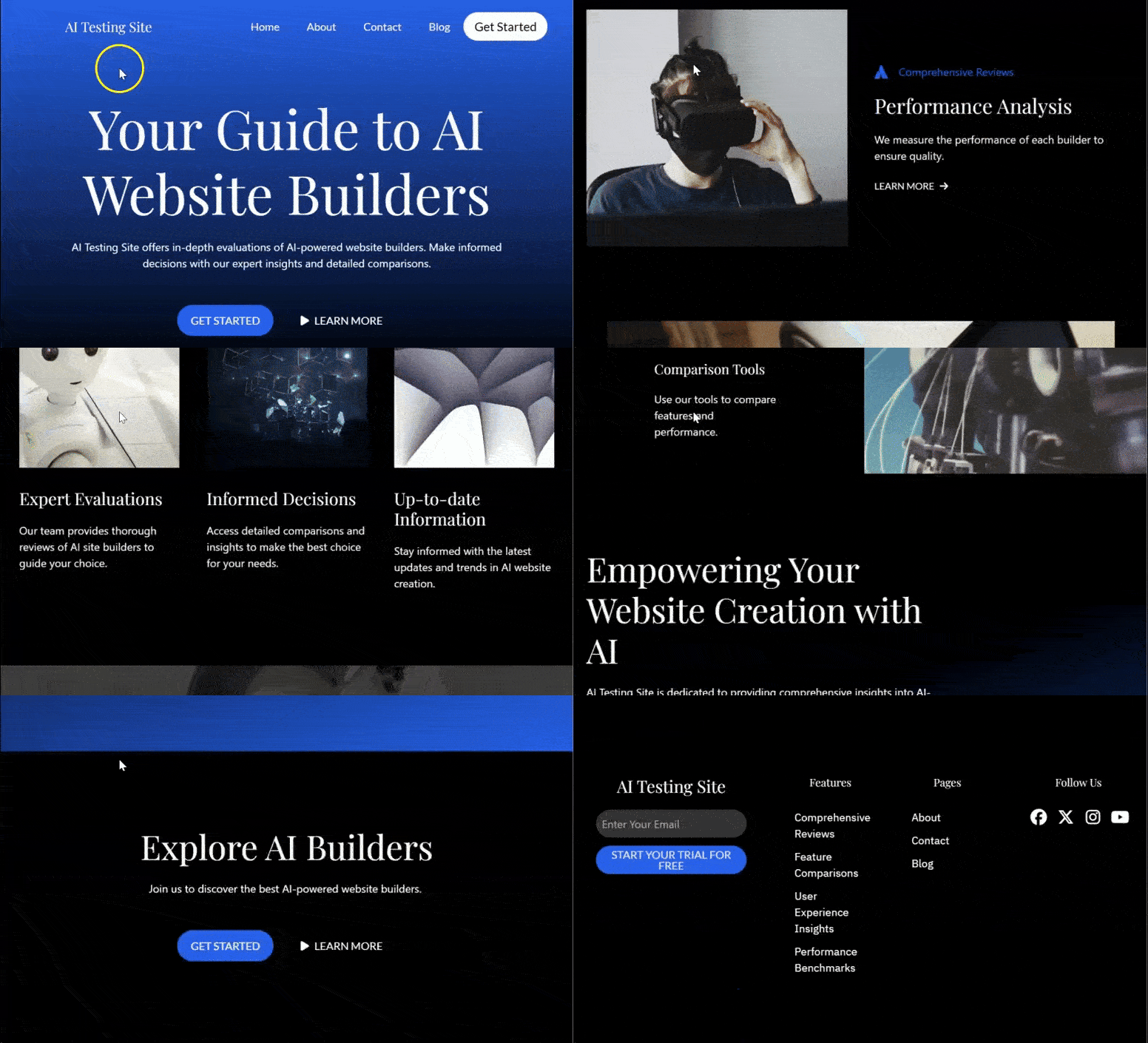
A completed WordPress website homepage built with AI, ready for content, and fully customized
What You’ll Need Before We Start
Skill level: Beginner
Time to complete: 30 – 45 minutes per method (60–90 minutes if you want to try all three)
Before we begin, here’s what you should know.
If you’re completely new to WordPress, don’t worry, we’ll walk through every step, and you won’t need to touch any code or deal with server settings.
Each method handles the hosting and WordPress installation differently, which is actually one of the biggest advantages of these approaches.
Some methods include hosting in the cost, while others assume you already have a WordPress site ready to go. No matter which path you choose, you’ll have a working website at the end.
Quick Comparison: All Four Methods
Here’s a quick side-by-side look at the four approaches so you can decide which fits your needs best:
| Feature | SeedProd | Divi | Bluehost | Hostinger |
|---|---|---|---|---|
| Ease of Use | ⭐⭐⭐⭐⭐ Very easy | ⭐⭐⭐⭐ Intermediate | ⭐⭐⭐⭐⭐ Very easy | ⭐⭐⭐⭐⭐ Very easy |
| Pricing | Free to test, Starts at $39.50/yr | Starts at $89/year | Starts at $2.99/mth | Starts at $2.69/mth |
| Best For | Speed & free testing | Maximum design control | All-in-one setup | Budget hosting + AI content |
| Key Feature | Full site in 60 seconds, free testing | Advanced page builder, design flexibility | Complete site at signup, includes hosting | AI content generator for posts/pages |
| Time to Live Site | ~20 minutes (if you have hosting) | ~30 minutes | ~15 minutes | ~20 minutes |
| Hosting Included | ❌ No (you buy separately) | ❌ No (you buy separately) | ✅ Yes (included) | ✅ Yes (included) |
| WordPress Required | ✅ Yes (but test free first) | ✅ Yes (required) | ✅ Yes (pre-installed) | ✅ Yes (pre-installed) |
| Customization | AI or drag-and-drop | Advanced drag-and-drop | AI or drag-and-drop | AI content + manual pages |
Method Comparison Breakdown
Choose SeedProd if: You want the fastest path to a complete AI-generated site and want to test it for free before paying for hosting. You’re willing to buy hosting separately.
Choose Divi if: You want maximum design flexibility and plan to build multiple sites. You’re comfortable with a more feature-rich page builder and can buy hosting separately.
Choose Bluehost if: You want everything in one place; hosting, domain, and a complete AI site builder all at signup. You prefer simplicity over customization options.
Choose Hostinger if: You want budget-friendly hosting and plan to generate individual posts and pages with AI rather than a complete pre-built site. You’ll build your site page-by-page.
How to Make a WordPress Website With AI
Now that you have an overview of everything you need, the time it will take you, and what each method offers, let’s begin diving into each method.
I have created a table of contents below to help you see all the steps at a glance. You can also click on any link below to skip to that section.
Method 1: AI Page Builders (Easiest and Fastest)
The easiest way to build a WordPress site with AI is through a page builder.
These tools let you describe what kind of site you want, and the AI generates the entire layout, design, and starter content for you in seconds. Then you customize it to match your vision.
SeedProd: Full AI Website in Under 60 Seconds (Plus Free Testing)

SeedProd was built specifically for WordPress-first site building. If speed is your priority and you want to test an AI-generated site for free before committing to hosting, this is the method I recommend.
What impressed me is that you can generate a complete, fully functional AI website in under 60 seconds on SeedProd’s own platform. No WordPress needed yet.
Then, test it, customize it, and only after you’re happy with it do you need to install WordPress and import your design.
Plus, the AI site generation is completely free for testing (you can create up to 3 sites), but to import your design into your own WordPress site, you’ll need the Pro version.
You can check out the full SeedProd review if you want to learn more about what it offers beyond AI site generation.
Step 1: Go to SeedProd’s AI Site Builder (No WordPress Needed Yet)
Open your web browser and visit SeedProd’s Official website. Then, on this page, select “Build My Site with AI Now-Free.” This will redirect you to ai.seedprod.com.
This is SeedProd’s standalone AI platform. It’s completely separate from WordPress.
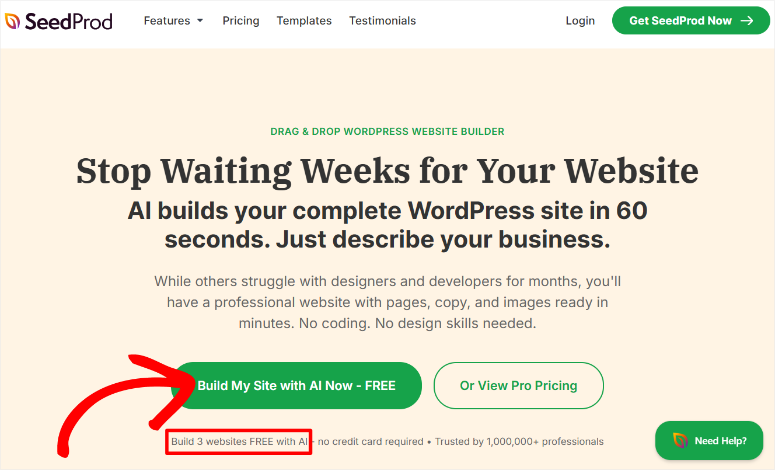
You can create a free account with just your email address. This free account lets you generate up to 3 complete websites with AI, totally free, no credit card required.
Once you enter your email address, select the “Continue” button to get started.

SeedProd’s AI site builder at ai.seedprod.com. Free to try
Step 2: Describe Your Business to the AI
After this, you will land in your AI sites dashboard. Then on this page select “Create Site with AI.”
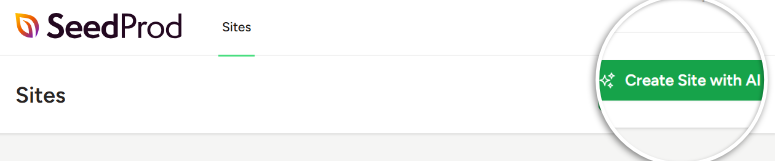
On the next screen, SeedProd will ask you for your business name and a brief description of what you do.
Here, you need to be as specific as possible. The more detail you give the AI, the better the result.
Instead of “I have a business,” try something like “I’m a freelance copywriter specializing in SaaS companies” or “I run a local dog-training business in Denver.”
Tell the AI what you offer and who you serve.
After this, you can select colors, but we will leave the Choose My Colors checked to fully automate the process of creating a site with AI.
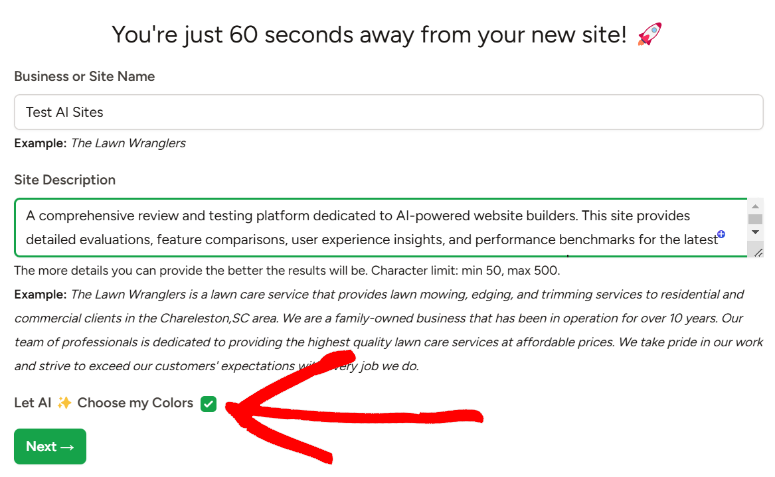
Describe your business to guide the AI. Be specific
Step 3: Let the AI Generate Your Complete Site
After you submit your description, SeedProd’s AI works its magic. You can monitor it through the progress bar displayed. This will also help you spot any errors.
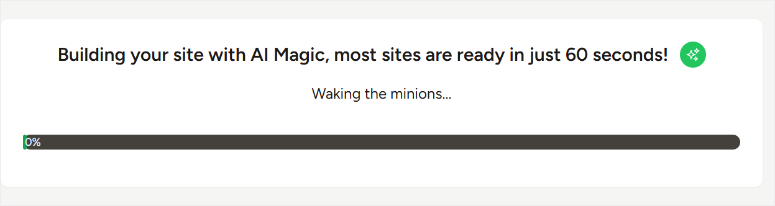
In about 60 seconds, you’ll see a complete website appear. My site took 32 seconds to build with SeedProd’s AI. After this, simply click the link displayed to be redirected to the website just built.

Here’s the advantage: As you can see, you can now actually visit and test this website.
SeedProd gives you a live preview of your AI-generated site, and you can click around, see how it looks on different devices, try the contact form, and everything else.
This is a fully functional website you can test before you invest in WordPress or hosting.
If you love it, great, move to the next step. If you want to see different options, you can tell the AI to regenerate and try again. Still completely free.
On the site I built, I had a homepage, about page, service pages, contact page, and footer.
The layout was professional, the copy is written, images are included, and colors are chosen. All in under a minute.
The first time I watched this happen, I was genuinely impressed. The AI understood my business description and created something that actually looked like a real website, not a template.
Check out the GIF below to see the site I built with AI.
Your complete AI-generated site appears in seconds
Step 4: Export Your AI-Generated Theme
Once you’re happy with your AI-generated site, you’ll export the theme files so you can import them into your own WordPress site later.
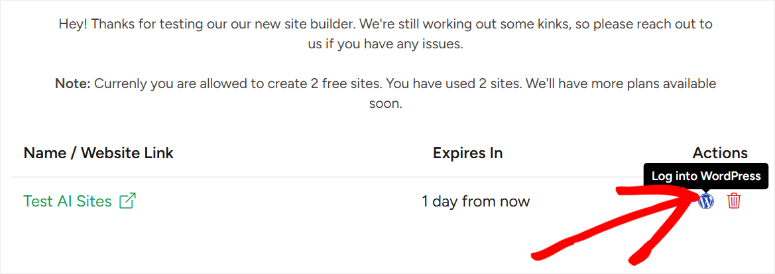
In the SeedProd dashboard, look for the WordPress icon (it looks like a “W”). Click it to access a temporary WordPress admin panel for your generated site.
From there, navigate to SeedProd » Import/Export and click Export Theme Files. This downloads a file to your computer. This is your design, ready to import into your WordPress.
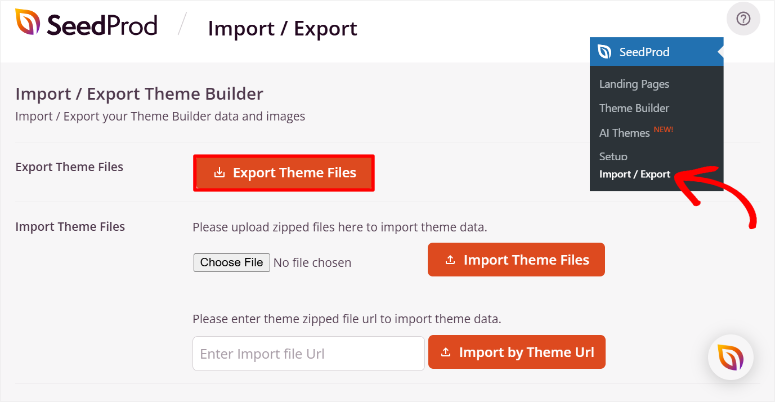
Export your theme files from the SeedProd dashboard
⚠️ Note: You don’t have WordPress yet. You’re just downloading the files for later. This is why SeedProd is so smart. You’re testing everything before you buy hosting.
Step 5: Set Up WordPress (Now That You’re Ready)
Now that you’ve tested your AI-generated site and you’re confident about the design, it’s time to set up WordPress.
Get hosting and a domain from any WordPress-compatible host like Bluehost, DreamHost, SiteGround, or any other provider. I compare the best hosting providers for beginners here to get you started.
Most hosts make WordPress installation automatic, so within minutes, you’ll have a blank WordPress site running on your domain.
Step 6: Install SeedProd Plugin and Import Your Theme
Next, you’ll need to purchase a SeedProd Pro license to access the import feature. The Pro version is what lets you import your AI-generated theme from the earlier steps.
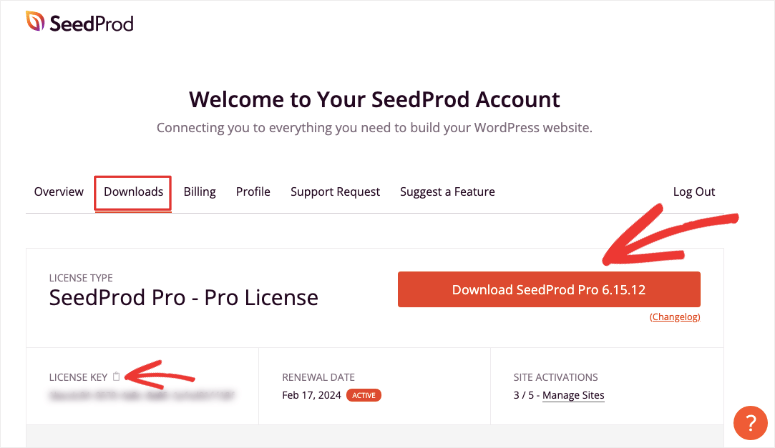
Once you purchase SeedProd Pro, log in to your account, download the file, and copy the License key. You will need it to activate the pro version.
Then, go to your WordPress site and install and activate SeedProd like you would any other plugin. If you face any issues here is a step by step tutorial on how to install plugins.
Plus, here is a guide on how to install SeedProd.
Once set up, you’ll be asked to log in with your SeedProd account (the same one you used at ai.seedprod.com).
Then, go to SeedProd » Import/Export in your WordPress dashboard and upload the theme files you exported in Step 4.
Click Import Theme Files. SeedProd will install your entire AI-generated design into your WordPress site.
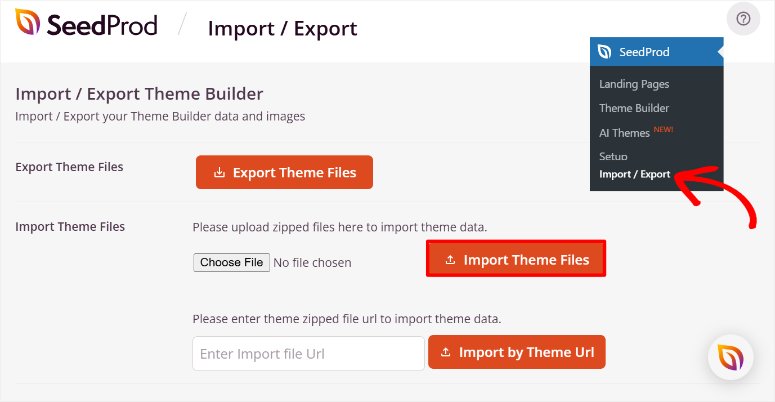
Import your AI-generated theme into WordPress
Step 7: Customize with AI Further or Use Drag-and-Drop
Now your AI design is in WordPress, and here’s the powerful part: you’re not locked into what the AI generated. You have two paths for customization.
Option A: Use SeedProd’s AI tools to refine further.
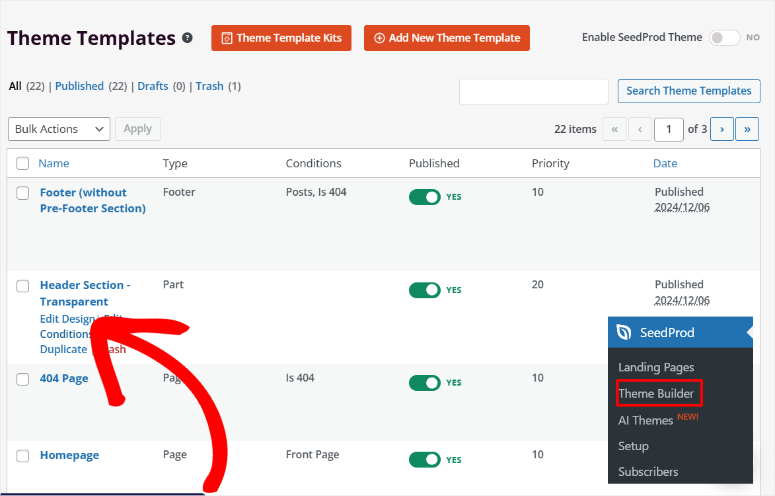
Go to SeedProd » Theme Builder » Edit design.
Here, you can ask the AI to rewrite sections, change the design direction, regenerate specific pages, or adjust colors.
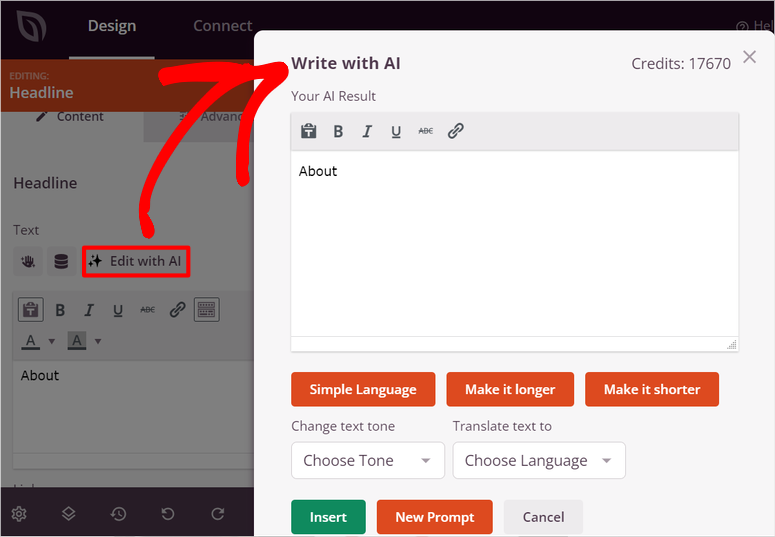
If you don’t like the AI’s copy on a particular section, select it and ask the AI to rewrite it in a different tone. You’re steering the AI in new directions, still benefiting from its speed.
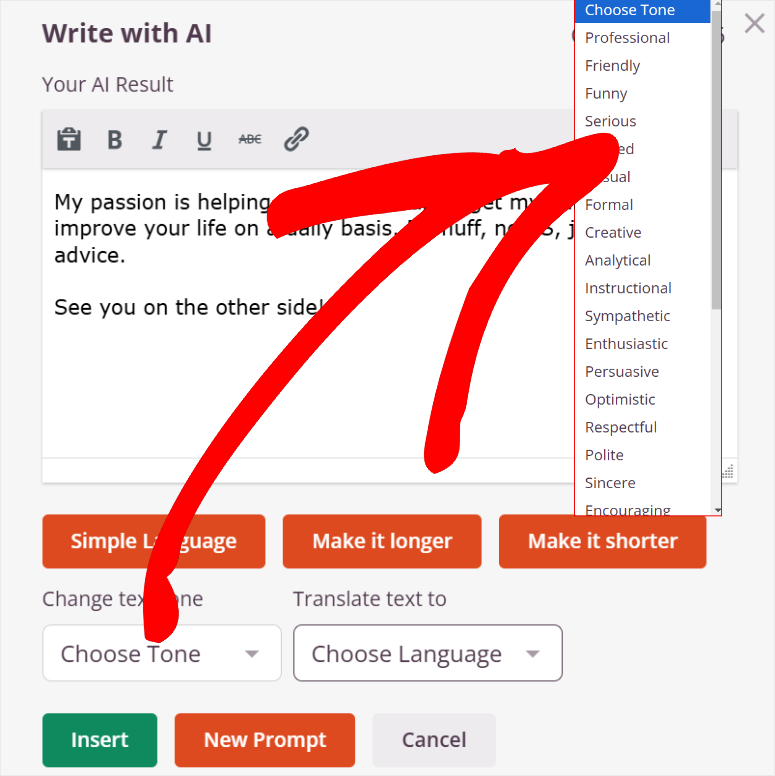
I have a full breakdown on how you can customize your custom theme with AI here.
But it’s not just the content you can change or customize with AI, it’s the images too. You will use the same process you used with content. Select the image you want to customize.
Then hit the “Add with AI” button.
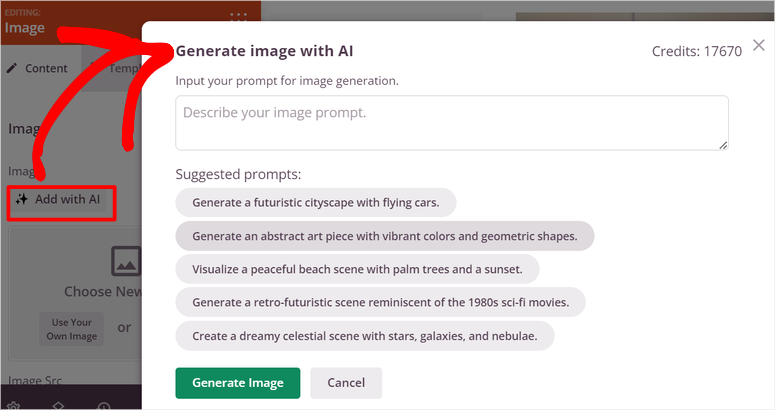
Here is a full breakdown on how to create WordPress images with AI.
Option B: Use the traditional drag-and-drop builder.
Open the page editor and customize manually. Change colors, move blocks, add your own images, rewrite copy exactly as you want it, and adjust fonts and spacing.
Everything is editable by dragging, dropping, and clicking.
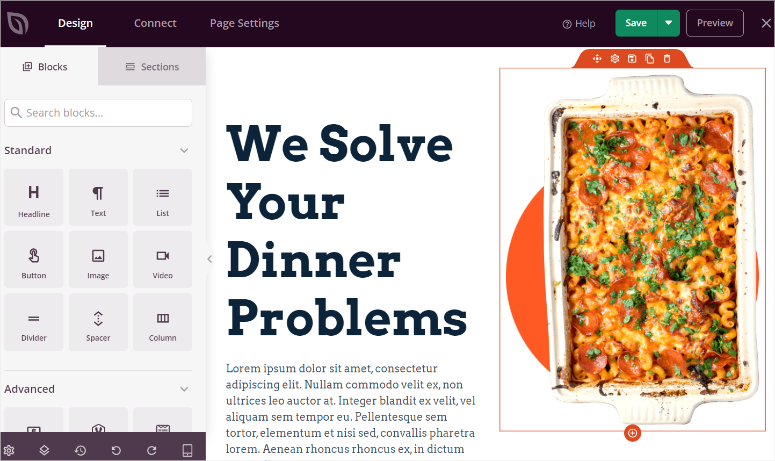
Most people combine both approaches. You might use AI to refine the headline and main copy, then drag-and-drop to adjust colors and add your logo. You’re always in control.
Step 8: Add or Edit Your Content
Your site now has the structure and starter content from the AI. This is where you make it truly yours.
Go through each page and replace the generic text with your real business information, actual photos, and real services or products.
Update the contact information to yours. Customize forms with the information you actually want to collect.
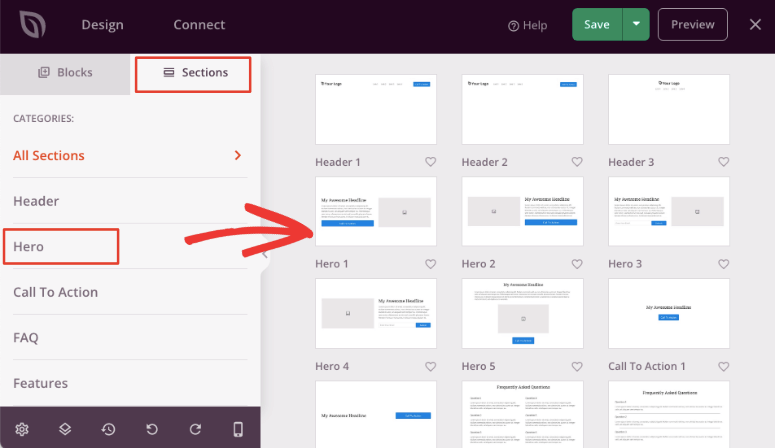
You don’t need to rewrite everything from scratch; the AI’s structure and copy give you a template. Keep what works, change what doesn’t.
The AI created a solid foundation; you’re just making it authentic to your business.
Step 9: Publish Your Site
Once everything looks right and sounds like your business, “Save” and Publish it. Your site is now live at your domain. People can visit it, click around, fill out forms, and interact with whatever you’ve built.
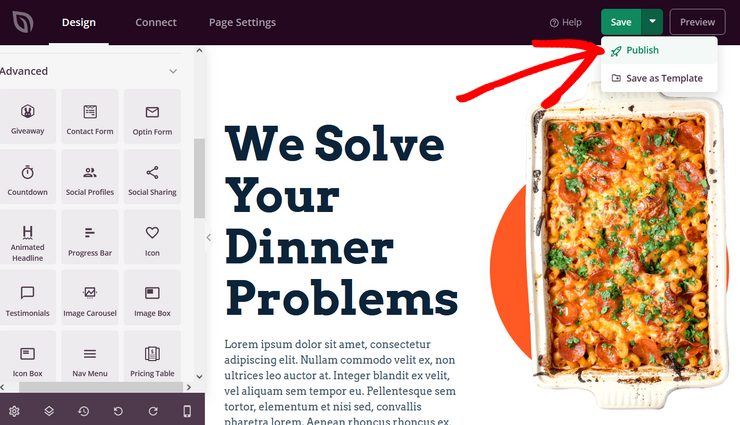
⚠️ Quick Check: Visit your live site from an incognito browser window. Click through pages, test any forms, and view it on your phone. Everything should work smoothly.
Divi: Page Builder with AI Site Generation
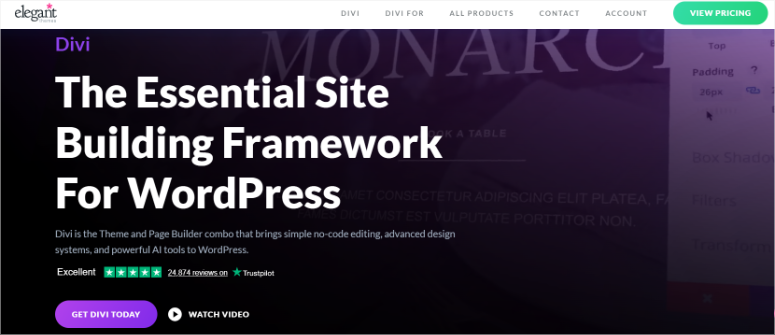
Divi‘s Quick Sites feature brings AI into the builder experience. Divi is owned by Elegant Themes and powers millions of WordPress sites.
It offers more complex features, but the AI component makes it easier to get started.
Divi Quick Sites generates a complete site just like SeedProd does, but then you customize it within Divi’s full-featured page builder.
If you think you might want to build multiple sites or need serious design customization down the road, Divi might be your tool.
You’ll need WordPress installed first, just like with SeedProd. Once you have WordPress running, here’s the Divi path.
Step 1: Install and Activate Divi
Now, you can either get the Divi Page Builder as a standalone plugin, which only comes with the visual builder. This can help you design individual pages or an entire site with AI.
But we want to show you how to create an entire site with custom themes using AI. So, we will use the Divi Theme & Page Builder plan for this tutorial.
To get started, head to Divi’s official website and purchase a plan. Then, head into your Divi dashboard and select Account » Product Downloads.
Here, download the theme ZIP file to your PC.
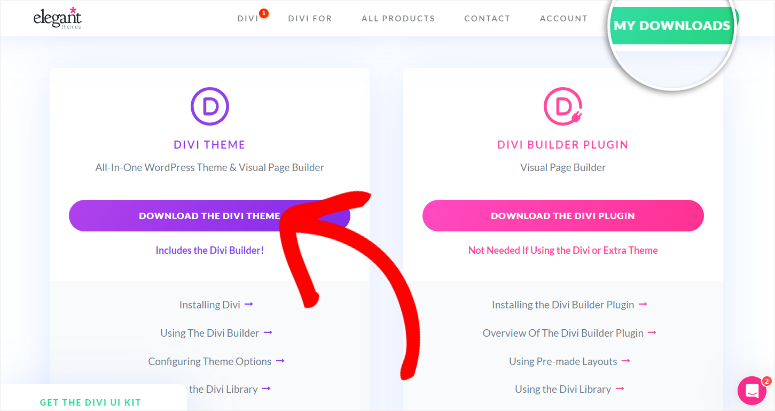
Then, go to your WordPress dashboard and navigate to Appearance » Upload Theme. Install and Activate Divi Theme & Page Builder, like you would any other.
Remember, if you purchase only the page builder, you will install it as a plugin.
After installation, Divi will ask you to log in to your account to connect it to WordPress. This will also create a new Key in your Divi account.
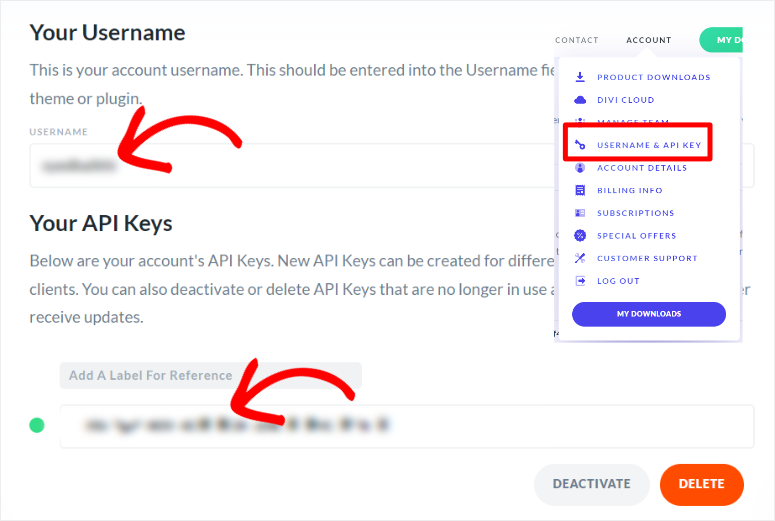
That’s it, you are ready to use Divi.
Step 2: Use AI to Build Your Site
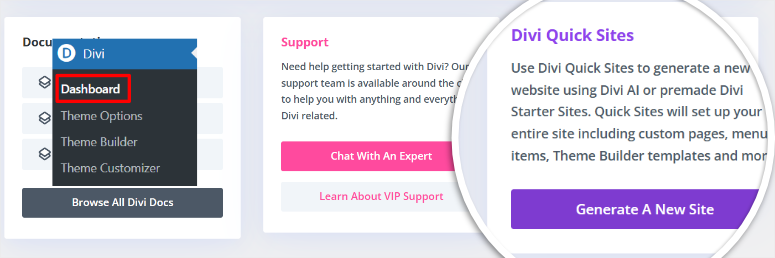
Next, head to Divi » Dashboard and select Generate a New Site.
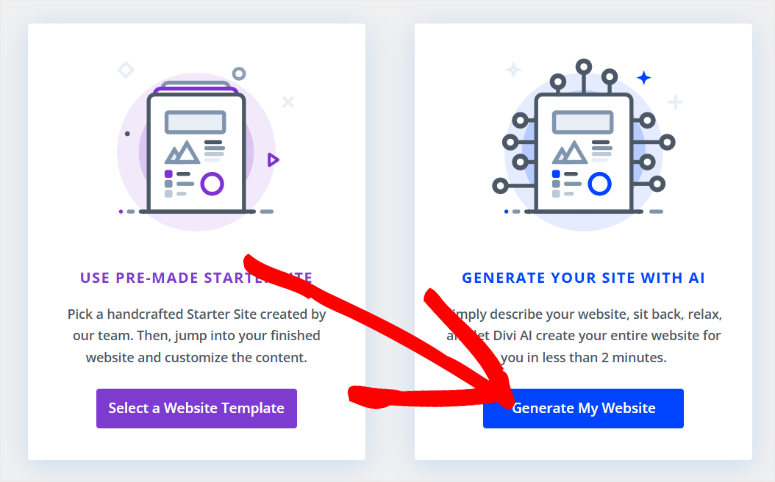
On the next page, you have the option to build a site with the Select a Website Template.” But for this tutorial, we will select “Generate My Website.”
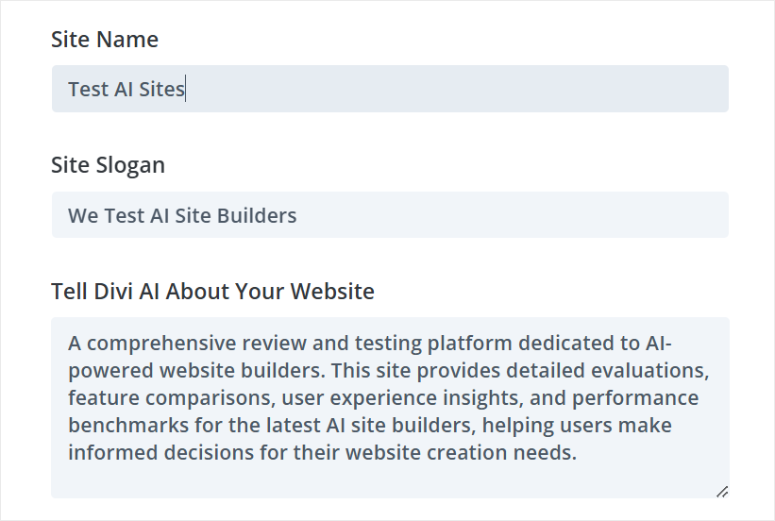
Then, in the next popup, enter the site name and site slogan and type the description of your site to Divi AI.
Tip: If you want a better description to import to Divi AI, we suggest you use ChatGPT. Tell ChatGPT about the site you want to build, and it will create a proper description.
After pasting your site description under “Tell Divi AI about your Website,” scroll to the eCommerce section. Here, check the Install and Configure WooCommerce” if you want to generate an AI eCommerce store.
Then move to Images and use the checkboxes to choose between Use Stock Images which will ensure your site is built faster with AI. If you plan to insert your own photos, check the box “Use placeholder images.”
But for our website, we will go with “Generate Images with AI.” Since generating AI images takes more processing power, this option takes more time to build the website for you.
But it will ensure that our website is fully built with AI, sticking to the main aim of this tutorial.
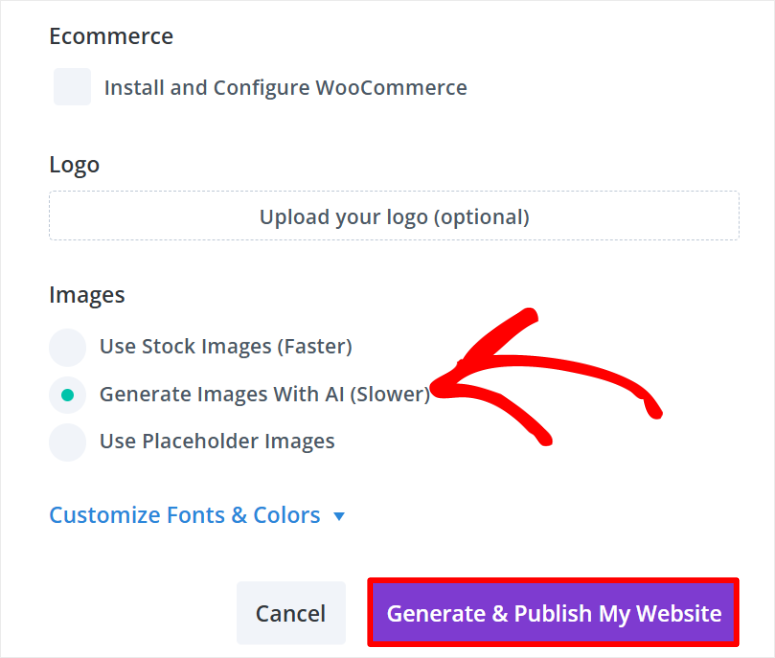
Finally, hit “Generate & Publish Website.”
Give Divi AI a few minutes to generate your site. Once complete, Divi will reload the page and give you the option to view your new AI created WordPress site.
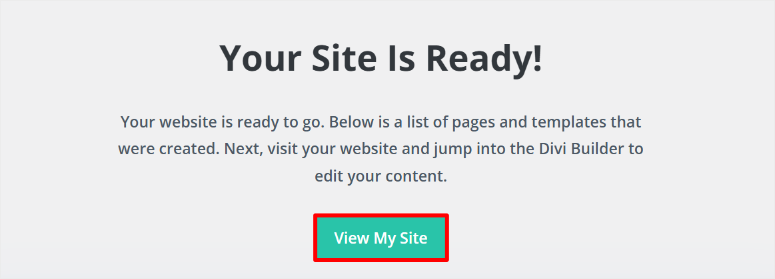
It is that simple.
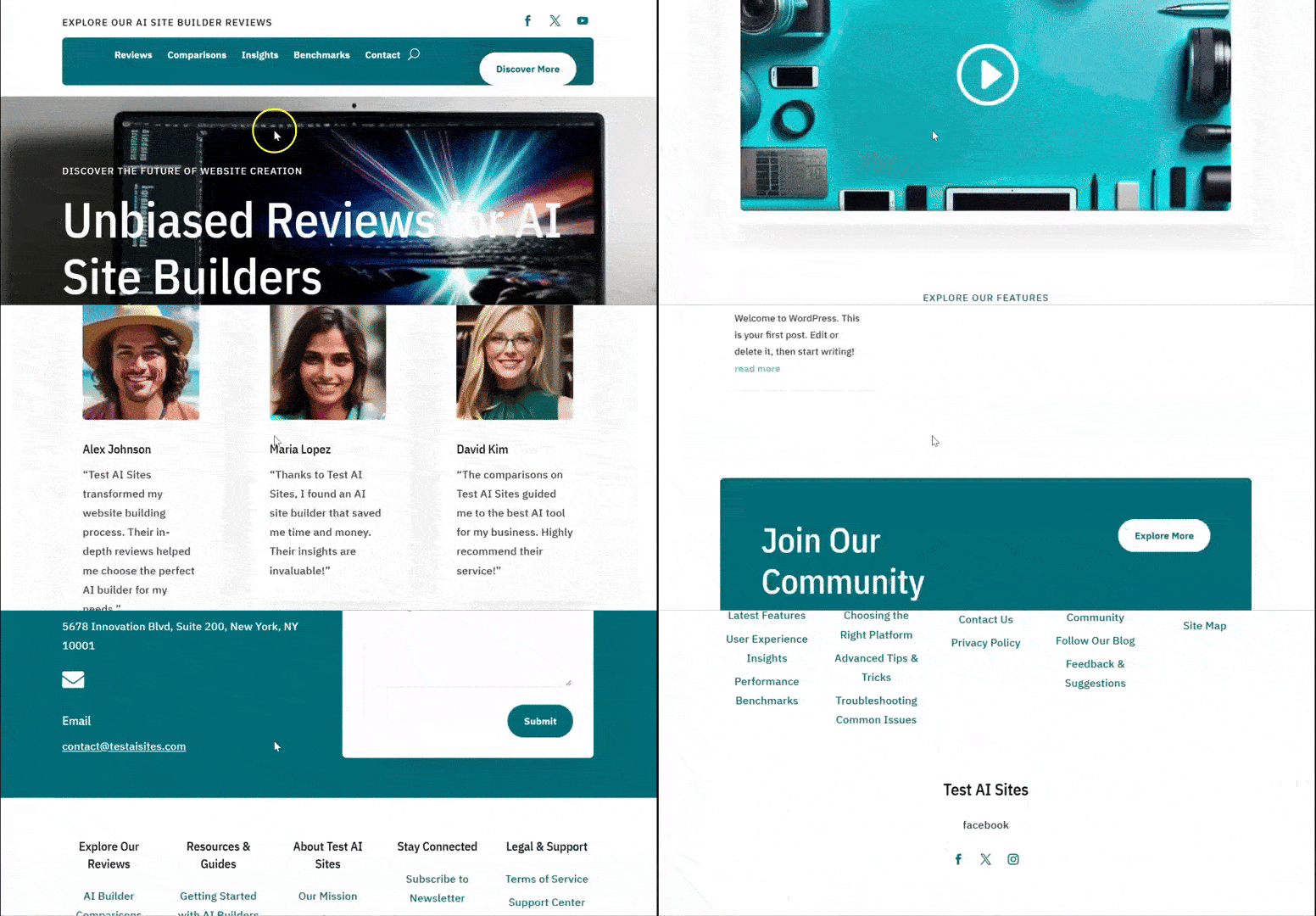
Every site will be different depending on the description you provided Divi AI. For example, Divi created several pages and page sections according to the description we gave for our AI site.
It automatically embeds a YouTube video, which takes some coding experience to do. On top of this, it created service, review, blog, and community forum pages.
Divi AI also designed page sections like a Contact Us form, footer notes, a Header, social media icons, and more.
Each link takes us to a well-populated page with page modules, content, and images already populated. For example, Divi Ai generated first-hand reviews, star ratings, quotes, an FAQ section, and more.
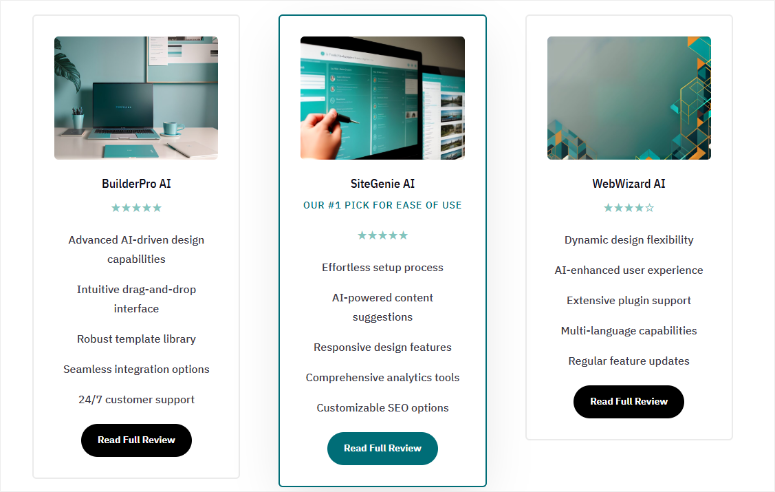
That’s it! You can now create an AI website with Divi. Now, you can customize the pages and theme to your liking.
Step 3: Customize AI WordPress Site
Just like SeedProd, Divi allows you to customize the theme files to add global and site-wide changes. Or simply customize the pages to add unique designs for individual pages. Let us walk you through both.
To customize your AI-generated theme using this site builder, go to Divi » Theme Builder.
Here, you can use the Divi theme Builder to customize the site’s overall layout with a drag and drop interface. Each part of the theme is well arranged on this page, allowing you to quickly select what you want to change.
You can personalize the default Website Template, All category Pages, all Author Pages, 404 Page, All Posts, and Search Results. If any site section is missing in the theme, Divi allows you to create one by selecting Add New Template.
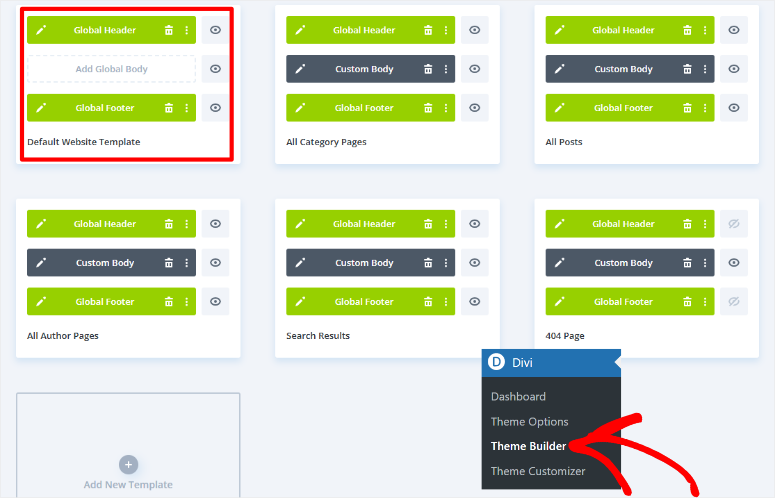
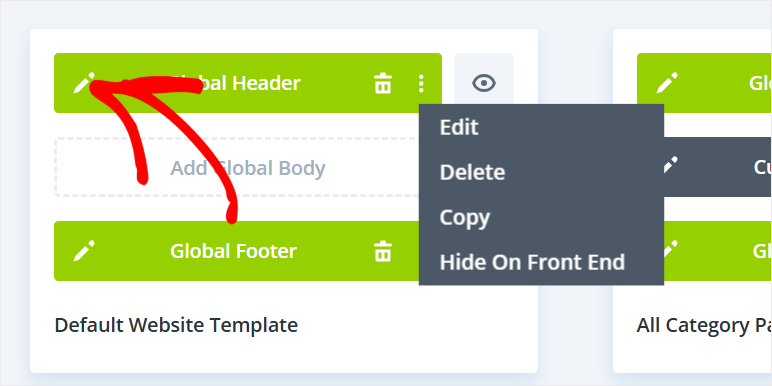
You will use the same process to customize any of these theme sections with Divi. But for our tutorial, we will customize the Global Header in the “Default Website Template.”
This allows the same header to appear across all pages on your AI site.
To do this, hover over the tab, which allows you to drag and drop the different sections to a new position. You can delete the theme section by selecting the trash can icon if you do not want it.
To customize the theme section, select the pencil icon to open the drag and drop builder.
Since we are only customizing the global header, that is all that will appear in the visual builder, making it easier for you to edit.
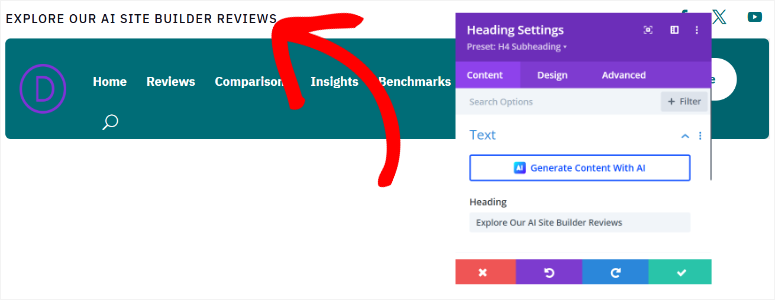
With Divi, you can edit the content on the page by selecting the text section and typing what you want. On top of this, you can use AI to customize any content you want.
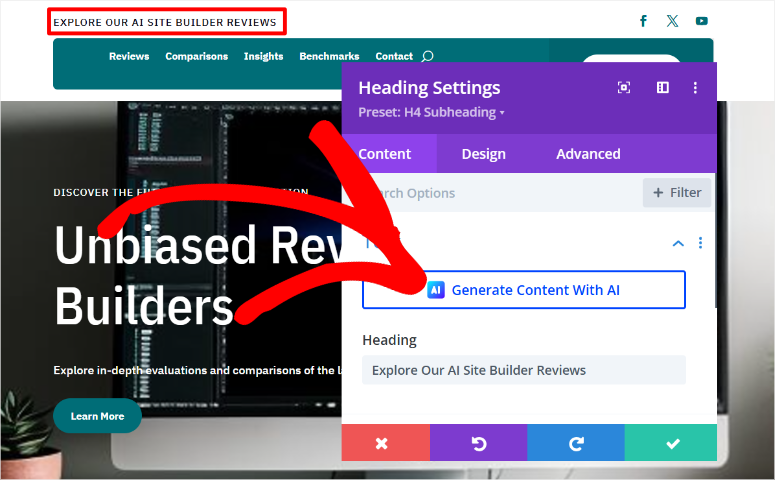
To customize a module on the theme section, select it to open a settings popup. Here, you can customize the text color, font style, font size, spacing, and more. You can also add links to the text or buttons in the section.
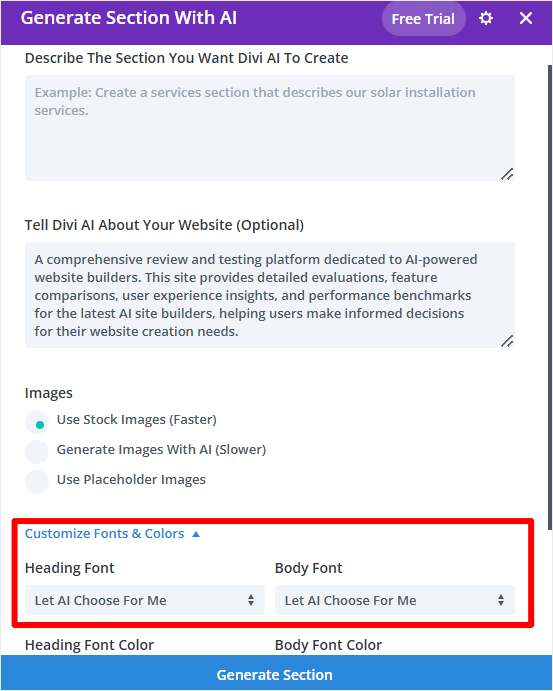
To add a new section, select the Plus (+) icon below the header section. You can add the section from your library or use AI to generate it.
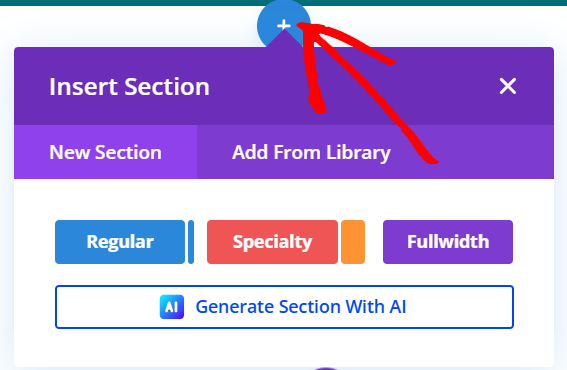
Again, you will provide a detailed description to Divi to generate the section you want. But since Divi has created an AI website for you already, it has started learning what you need.
So at this point, go to Customize Fonts & Colors and select “Let AI Choose for Me.”
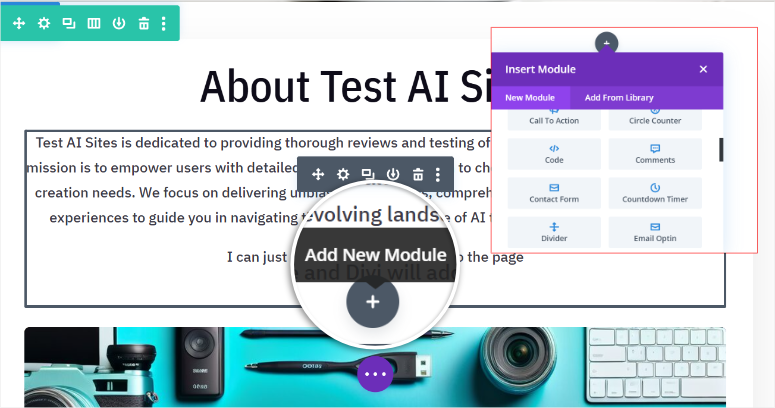
Once you create a new section, you can again use the Plus (+) icon to add modules to it. You can add modules like Call to Action, blog, Comments, Contact Form, countdown Timers and more.
Once you are happy with the theme changes, hit Save at the bottom of the page to apply it to your site.
Next, let us see how to customize a page with Divi.
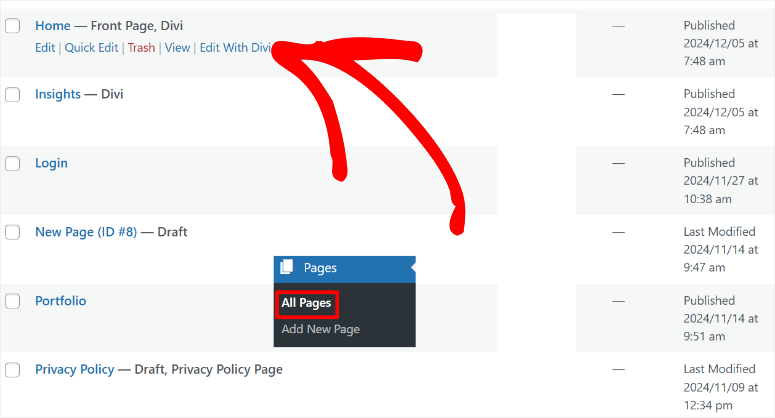
To do this, go to Pages » All Pages in your WordPress dashboard. Here, you will find a list of all the pages generated by Divi AI during the site building process.
Let us edit the homepage for this tutorial. To do this, go through the list of pages and find the one labeled Home – Front Page, Divi.
Then, hover it and select Edit with Divi to open the drag and drop page builder.
For consistency, you will use the same process to edit your pages as you did customizing the theme sections. So, you will use the plus (+) icon to add new modules. You can then edit them using the settings popup window when you select a module on the page.
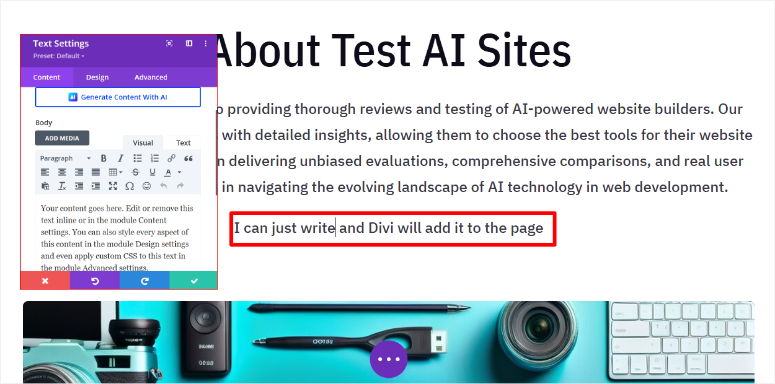
Once again, you can add content manually or generate it with AI. On top of this, you can regenerate the AI images created during site building.
Check out this article on how to create AI images in WordPress to learn more.
When you are happy with your page changes, use the Save button at the bottom of the page to make them live.
That’s it. You can now create a complete WordPress site with AI using Divi. You can also customize it by combining Divi AI features with its drag and drop builder.
Method 2: Hosting Providers with Built-in AI (All-in-One Setup)
If you don’t have hosting yet and want the simplest possible experience, some hosting providers include AI site builders directly in their setup process.
You buy hosting, choose your domain, and instead of getting a blank WordPress install, you get walked through an AI site builder that creates your site as part of the hosting setup.
This approach is great because it combines hosting, domain registration, WordPress installation, and site building into one streamlined process.
You don’t have to install plugins or deal with WordPress settings. Everything happens in the hosting company’s interface.
Bluehost: AI Site Builder at Signup

Bluehost‘s AI site builder is built into their WordPress hosting signup. When you buy a Bluehost hosting plan, you immediately get access to the AI builder.
The Bluehost approach is excellent if you’re starting completely from scratch. You sign up for hosting, get a domain, let the AI build your site, and you’re done.
This means no separate plugin installation, no WordPress settings confusion.
You can read the full Bluehost review to see what else the hosting includes, and if you want to save money, check out our Bluehost coupon.
Step 1: Choose Your Bluehost Plan and Domain
First, you need to purchase a hosting plan from Bluehost. If you do not have a domain, do not worry; you also get a free domain with the IsItWP coupon.
Next, visit the Bluehost official website and find a plan that works for you.
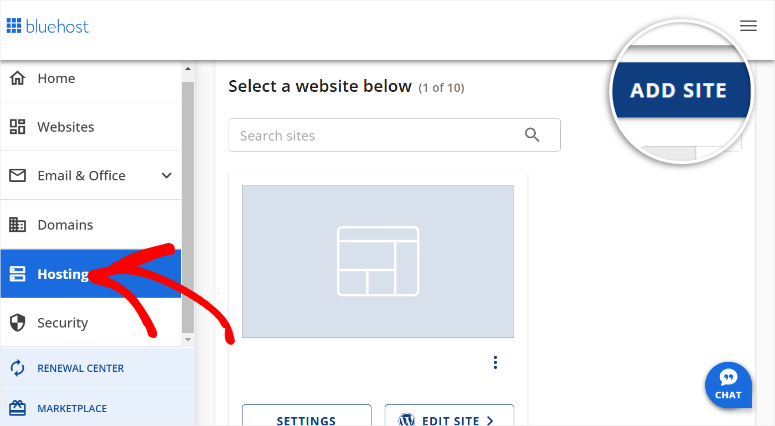
After this, log in to your Bluehost account and go to Hosting » Add Site.
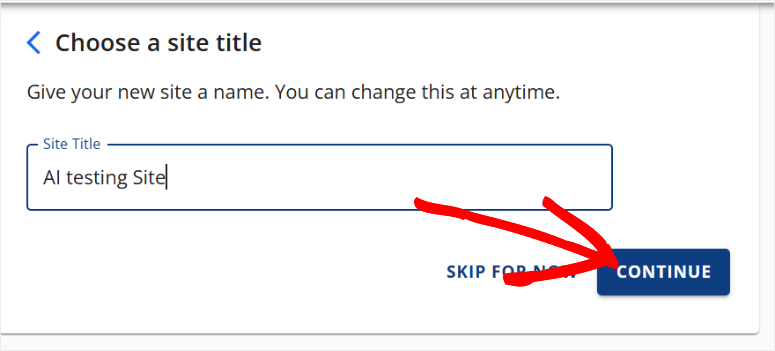
After this, add your domain and choose a site title for your website. Hit Continue to go to the next step.
Step 2: Access the AI Site Builder During Setup
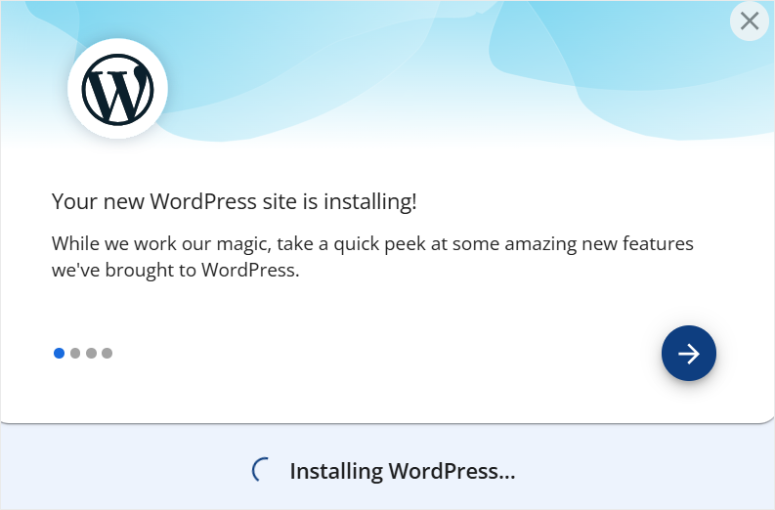
Next, enter your domain name and hit continue and let Bluehost install WordPress.
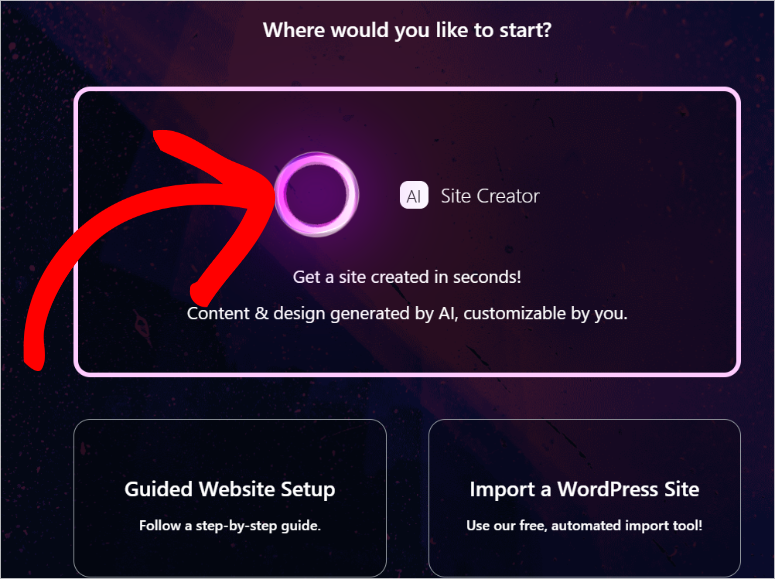
On the next screen, select AI Site Creator to start the website generation process.
Step 3: Tell the AI What Kind of Site You’re Building
We will use the AI site description for this Bluehost tutorial once again.
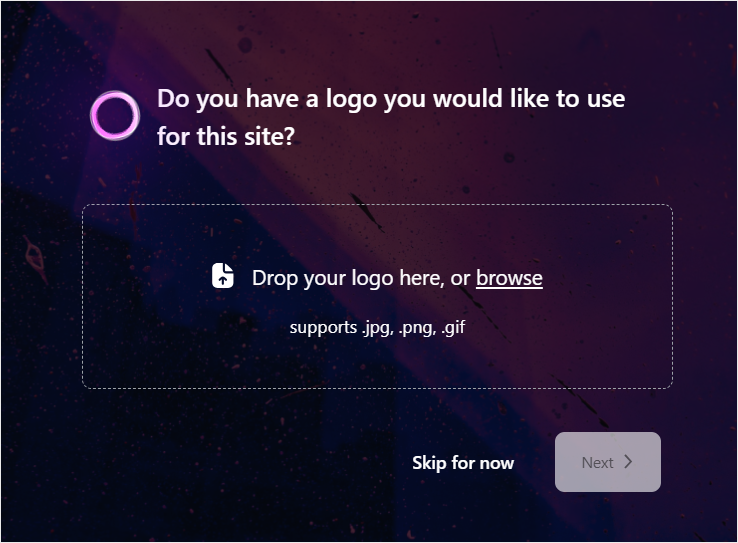
If you have a logo, upload it in the next page and select Next.
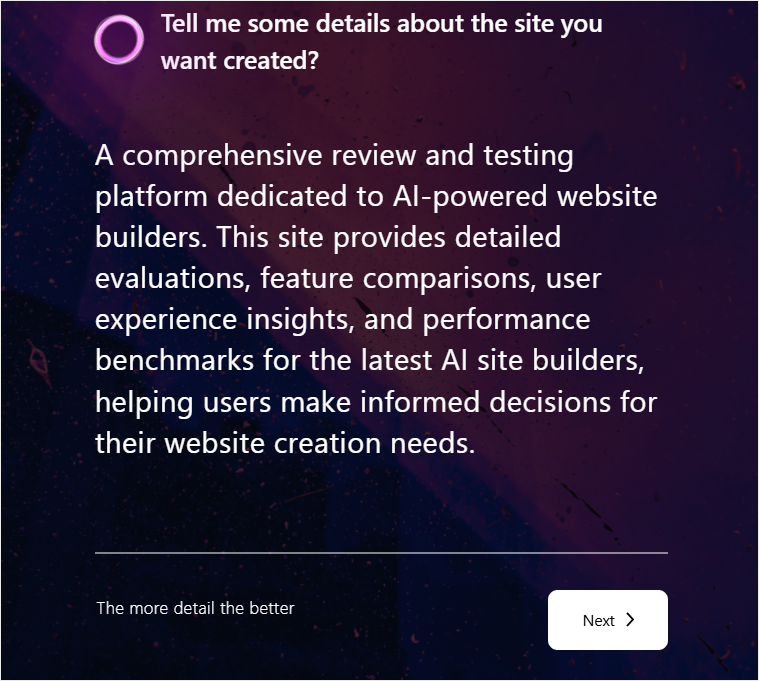
On the next page, describe the website you want to build on the text area. Once again, we will use the description we used above to ensure consistency.
Once done, hit Next to start the AI site-building process.
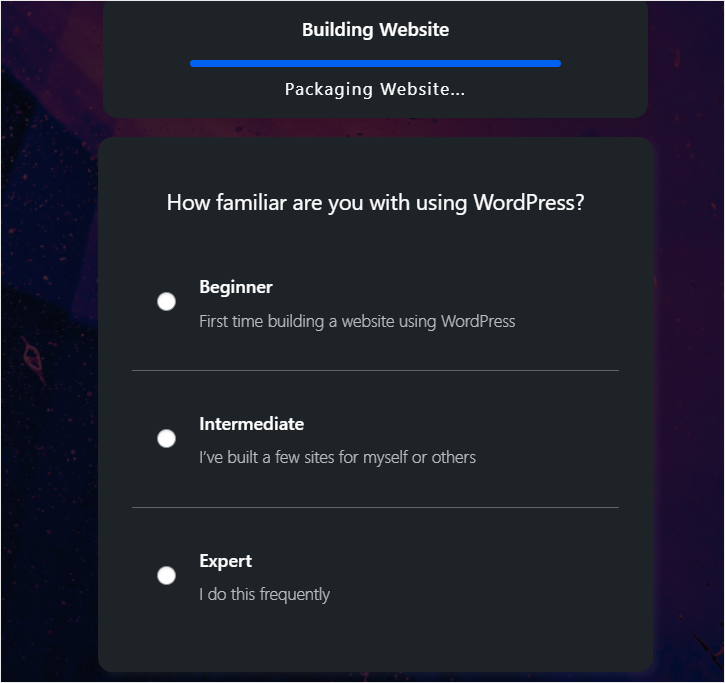
As your site is being generated with AI in the background, tell Bluehost your familiarity with WordPress using checkboxes. You can choose between Beginner, Intermediate, and Expert.
Step 4: Choose from Generated Design Options
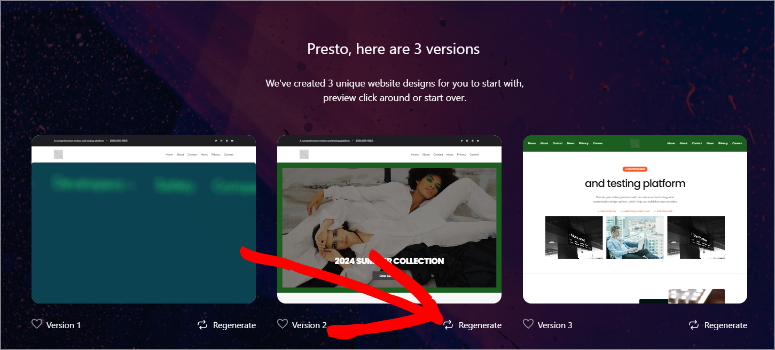
Now, Bluehost will generate 3 versions of the AI website using the description you gave it. If you do not like any of the options, select the Regenerate button under the version.
Step 5: Customize Colors, Text, and Layout
After selecting a design, you can immediately start customizing.
Change colors to match your brand, edit text to be more specific to your business, and adjust the layout if needed. The customization happens in Bluehost’s visual builder. Drag and drop, click to edit, all visual.
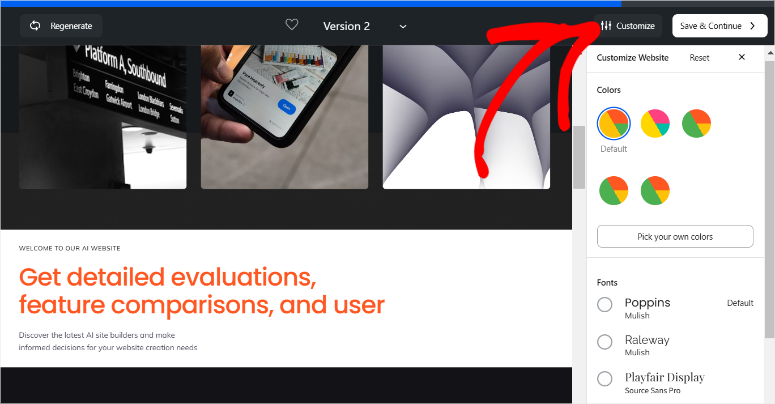
You can also use Bluehost’s AI tools to refine the design further or use traditional drag-and-drop editing to make precise adjustments. You’re in control.
Step 6: Confirm and Activate
After selecting one option, hit Save & Continue to complete the site-building process.
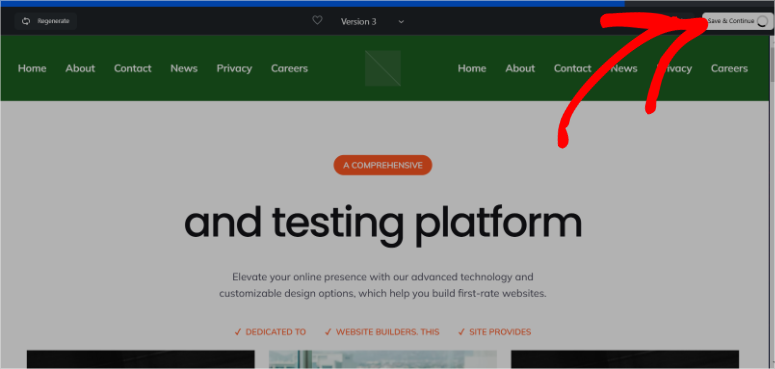
The site Bluehost generated with AI was also quite nice. The header contained Home, About Us, Service, Contact Us, Demo, and Get Started.
It generated AI content for the website. But unlike the other 2 options mentioned above, it used stock images instead of AI images.
It also included social media icons and links to site pages at the bottom.
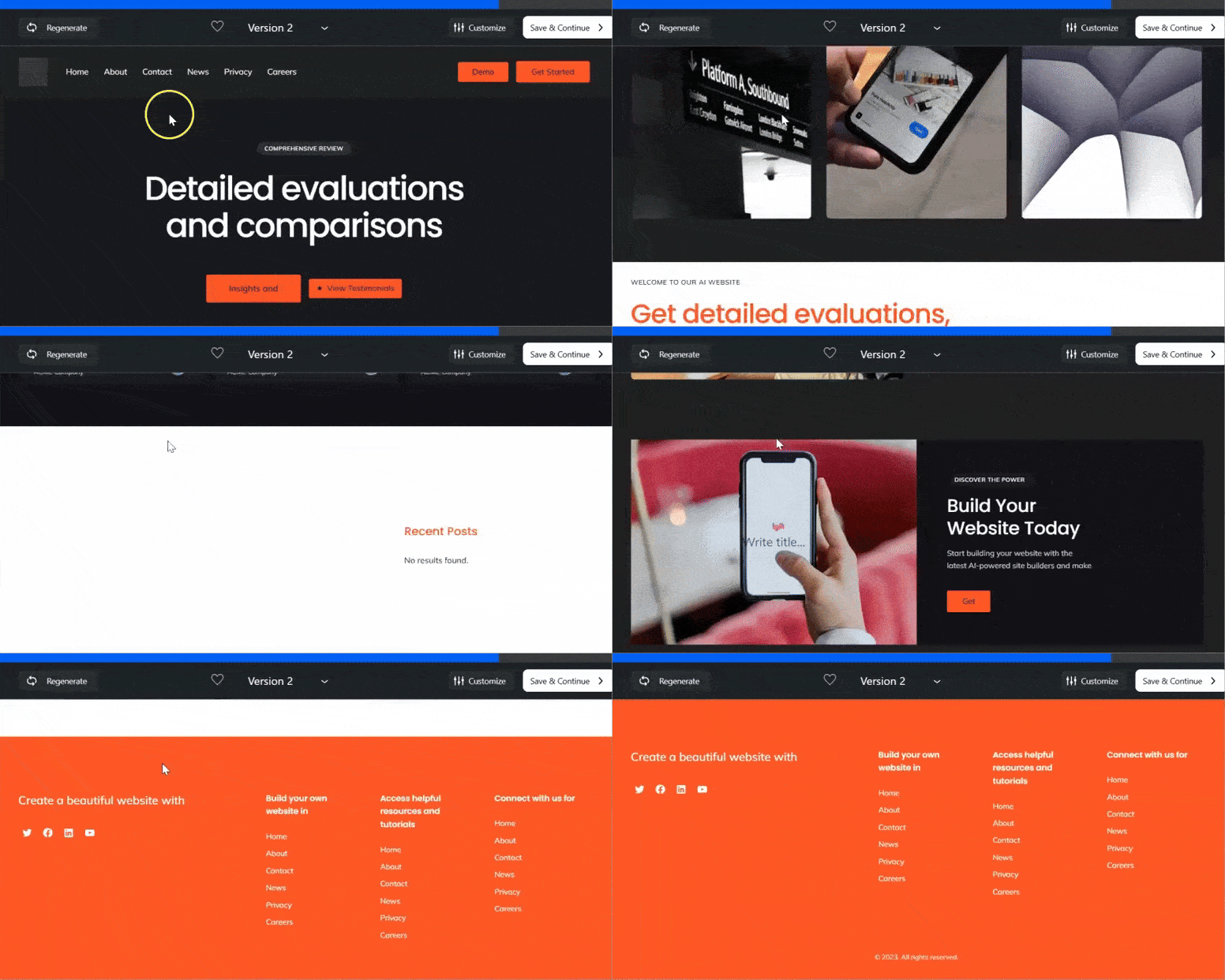
When you are happy with your Bluehost AI website, hit Save to continue to go to your new WordPress dashboard.
With Bluehost, when you install WordPress, it comes preloaded with important plugins like WPForms, OptinMonster, Jetpack, Yoast SEO, and more.
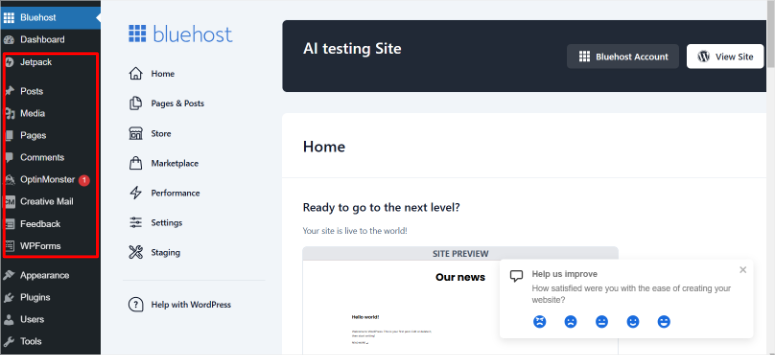
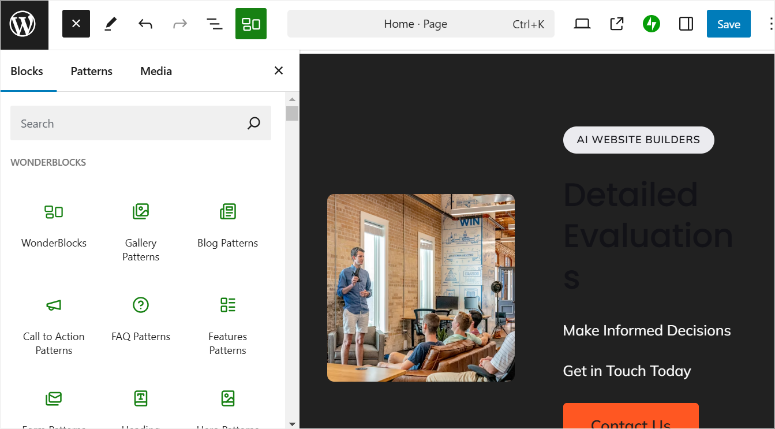
It also comes preloaded with Wonder Blocks, allowing you to customize the AI pages to suit your needs. But if you are more familiar with other page builders like SeedProd, Divi, Thrive Architect and more, you can also install them.
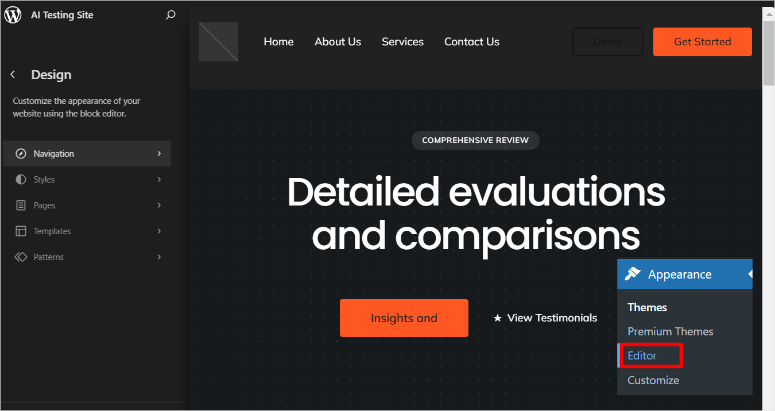
To edit the theme, go to Appearance » Editor, which will take you to the default WordPress theme editor. Here, you can change Navigation, Styles, Pages, Templates, Patterns, and more.
⚠️ Quick Check: Your site is now live at your domain. Visit it from your phone and desktop to verify everything looks and works correctly.
Hostinger: WordPress Hosting with AI Content Generator
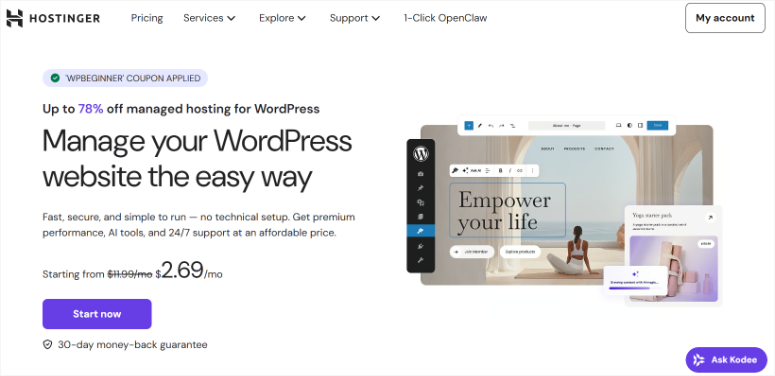
Hostinger is a hosting provider that includes WordPress with a built-in AI content generator.
Unlike the full site builders in Bluehost or SeedProd, Hostinger’s AI tool is designed to help you generate individual pages and posts after WordPress is installed.
It’s excellent if you want hosting at a budget price and prefer building your site structure manually while getting AI help with content.
You can check out my Hostinger review for more details about their hosting features.
After setting up WordPress on Hostinger, you’ll access the AI content generator from your WordPress dashboard. Here’s how to use it to create pages and posts with AI assistance.
Step 1: Access the Hostinger AI Content Generator
In your WordPress dashboard, look for “Hostinger” in the left sidebar menu and click on it. Then select “Generate content” from the Onboarding tab. This opens Hostinger’s AI-powered content generator.
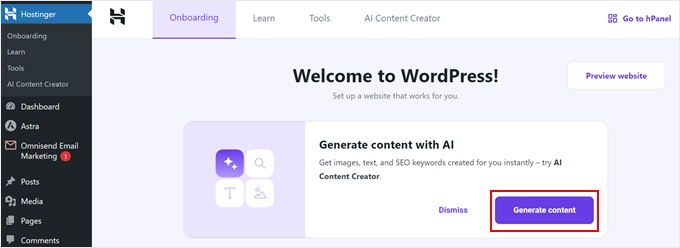
Accessing the Hostinger WordPress AI Assistant from your dashboard
Step 2: Choose Your Content Type
The first step is deciding what you want to create. Select whether you’re generating a post or a page.
Posts are great for blog content and news, while pages are better for static content like services, about, or contact information.
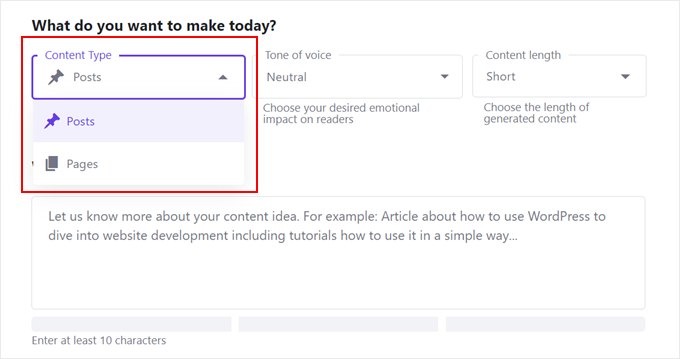
Choose between creating a post or page
Step 3: Select the Tone of Voice
Next, pick the tone you want the AI to use when writing.
Your options include neutral, formal, trustworthy, friendly, or witty. Choose the tone that best matches your brand voice. You can select multiple tones if you want the AI to blend different styles.
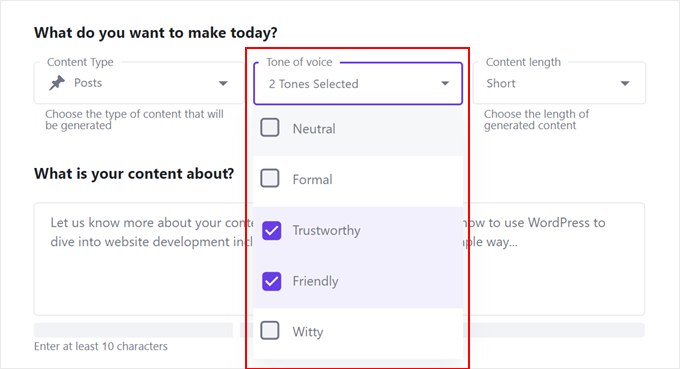
Select the tone of voice for your AI-generated content
Step 4: Specify Content Length
Choose how long you want the content to be: short, medium, or long.
This helps the AI understand the depth and detail you need. A “short” post works well for quick updates or announcements, while “long” is better for comprehensive guides or detailed service descriptions.
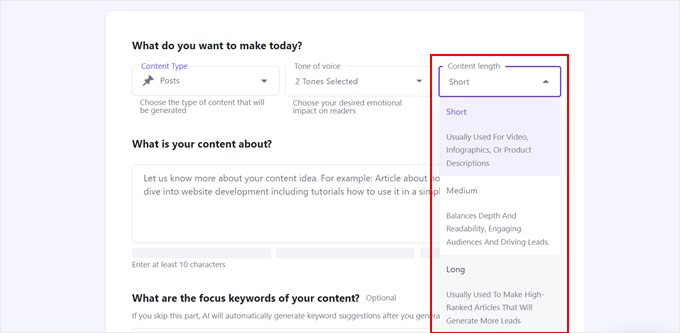
Choose the length of your content
Step 5: Write Your Content Description
Now describe what you want the AI to create. Be specific about the topic, what information you want included, and who it’s for.
For example: “Create a page about my dog training services in Denver, mentioning puppy training, obedience classes, and behavioral issues.” The more detail you give, the better the result.
You can also add keywords you want the AI to naturally incorporate into the content.
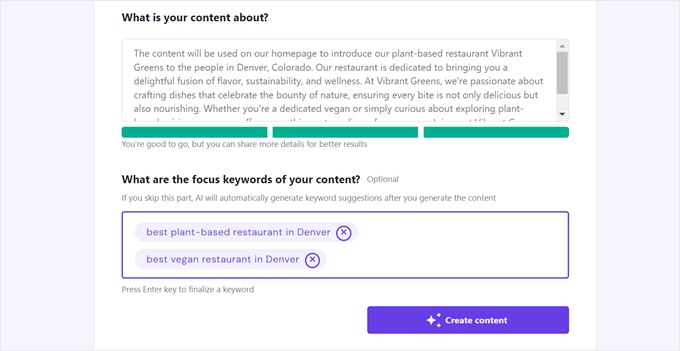
Describe what you want the AI to generate
Step 6: Review the Generated Content
The AI generates a complete piece of content, including a headline, featured image, meta description, and body text. Review what was created.
If you like it, proceed to editing. If you want something different, you can regenerate with adjusted parameters.
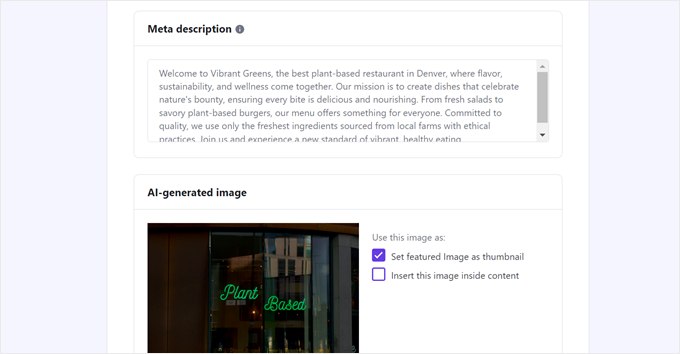
Review the meta description and featured image the AI created
Step 7: Edit and Customize in WordPress
Click “Edit as a draft” to open the content in the WordPress block editor.
Here you can refine the AI-generated text, adjust formatting, add or remove sections, upload your own images, and customize everything to match your exact needs.
The AI did the initial heavy lifting, and now you’re making it perfect for your site.
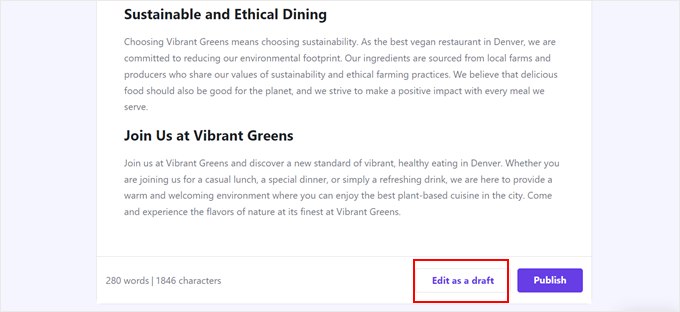
Edit the AI-generated content in WordPress
Step 8: Publish
Once you’re happy with the final result, publish the post or page.
It goes live immediately on your site. You can repeat this process for each page and post you need to create, building your entire site page by page with AI assistance.
That’s it. You can now build AI with a page builder or through your host provider. But sometimes you don’t want to build the entire site with AI.
You just want to use AI to create very specific features on your WordPress site. That’s what we’ll discuss next.
Bonus: Build Your WordPress Site in Sections with AI-Powered Plugins
What if you already have a WordPress site or prefer to build manually but still want to leverage AI?
AI WordPress plugins can add intelligence to specific parts of your site, like your SEO, your forms, your analytics, without requiring a full site builder.
This approach is perfect if you already have a WordPress site running and want to make it smarter with AI, or if you prefer building your site design manually but want AI assistance with specific features.
AIOSEO: AI-Powered SEO Content Optimization
AIOSEO uses AI to optimize your content for search engines.
Instead of guessing whether your article is optimized for your target keyword, AIOSEO’s AI analyzes your content and tells you exactly what to add, remove, or change to rank better.
When you write a new post or page, AIOSEO appears in your editor with AI suggestions. In fact, it can even help you add AI-generated metadata to improve click rate.
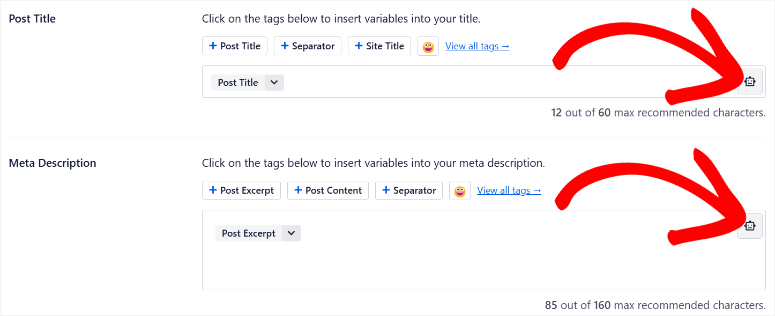
Write your content, and the AI tells you if you’ve explained your topic well enough, used your keyword naturally, answered common questions, and more.
It’s like having an SEO expert reviewing every page you write.
There’s an AIOSEO review if you want to learn more about everything it can do.
WPForms: AI-Assisted Form Building
WPForms lets you build contact forms, survey forms, and application forms easily. The AI component helps if you’re not sure what form fields you need.
Tell the AI what kind of form you want (“I need a contact form for my agency”), and it generates the field suggestions for you.
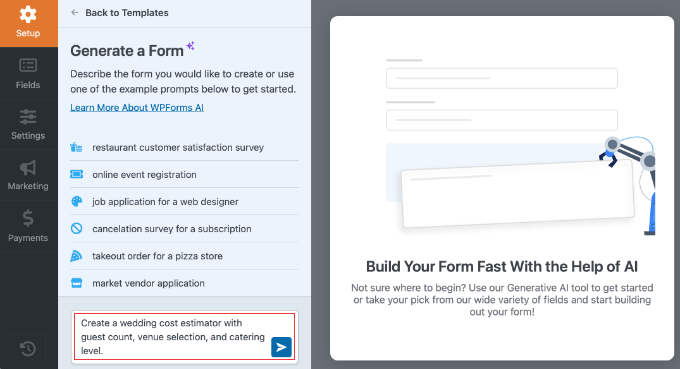
In a nutshell, you can simply create a new form and use the AI form builder to describe what kind of form you need.
WPForms suggests the fields and layout, and you can customize from there with the drag and drop builder.
The WPForms review has full details about what each plan includes.
MonsterInsights: AI Analytics Dashboards
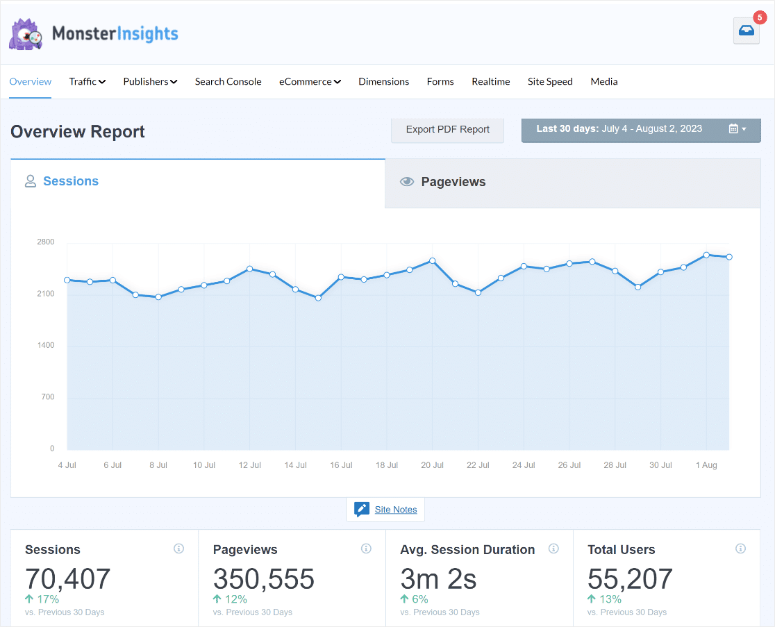
MonsterInsights connects Google Analytics to your WordPress site and uses AI to generate actionable insights.
Instead of staring at raw analytics data, MonsterInsights’ AI tells you what your numbers mean and what to do about them.
Once connected, MonsterInsights displays a dashboard in your WordPress admin that shows your traffic, popular posts, visitor behavior, and AI-generated insights about what’s working on your site.
The MonsterInsights review explains what each plan offers.
Common Issues and Quick Fixes
As much as I love AI site builders, they’re not perfect. Here are the most common problems you might encounter and how to fix them.
Problem: My site looks different on my phone than it does on my desktop.
This is actually quite common and is usually not a serious problem.
Web design responsive means the layout changes to fit different screen sizes. Check that everything is still readable and buttons are still clickable on mobile.
If something looks truly broken (text overlapping, buttons off-screen), you can adjust the layout in the page builder by switching to mobile view and tweaking elements specifically for phone screens.
Problem: I don’t like the AI-generated copy, and it doesn’t sound like my business.
This is normal and expected. AI generates a starting point, not a final product.
Edit the copy directly in your page builder or in your post/page editor. Change headlines, rewrite paragraphs, adjust tone. You own this site, make it sound like you.
The AI did the hard part (structure and layout), and now you’re just making it authentic.
Problem: The AI didn’t generate pages for everything I offer.
If you’re a consulting business and the AI only created a “Services” page, but you want separate pages for each service type, add them manually.
Create new pages in Pages » Add New and either duplicate the existing page as a template or build it from scratch using the same page builder you already learned.
Problem: My domain name isn’t connecting to the site, or people see an error page when they visit.
This usually means your domain’s DNS settings haven’t updated yet or aren’t pointing to your hosting server.
If you bought your domain from the same place as your hosting (like Bluehost or Hostinger), this usually happens automatically.
If you bought the domain elsewhere, you’ll need to update the DNS records to point to your hosting server. Check your hosting company’s help docs or contact their support team.
This normally resolves itself within 24 hours.
Well done. You can now create a full WordPress website with AI using your preferred method and troubleshoot it. If anything is unclear, check out the commonly asked questions below.
FAQs: How to Make a WordPress Website With AI
Can I customize an AI-generated site after it’s created?
Absolutely. Every method in this guide includes a page builder (SeedProd, Divi, or your hosting provider’s builder) that lets you customize anything about the site. You can change colors, rearrange sections, rewrite copy, add pages, and remove pages. The AI gave you a starting point, but the site is completely under your control.
Do I own the site the AI builds for me?
Yes. If you’re using SeedProd, Divi, or a hosting provider’s AI builder, you own the WordPress site, the domain, the content, everything. AI is just a tool that helps you build faster. This is different from some AI website builders (like Wix or Webflow), where you don’t fully own the site. With WordPress, you’re always the owner.
Is AI-generated content good enough for my site, or should I hire a writer?
AI-generated content is a great starting point. The structure and core ideas are solid. However, I recommend editing the copy to match your voice, add specific details about your business, and ensure the tone is authentic. You don’t need to hire a writer to replace everything, but read through it and personalize it. That’s what sets your site apart.
Can I use these AI methods with a WordPress.com site?
WordPress.com has some AI features built in, but the methods in this guide (SeedProd, Divi, hosting AI builders) work with self-hosted WordPress.org sites, not WordPress.com. If you want to use these specific tools, you’ll need self-hosted WordPress. WordPress.com sites are simpler to use but offer less control and customization.
What if I want to hire a designer to customize the AI site further?
You can absolutely do this. Hand off your AI-generated site (built on SeedProd, Divi, or your hosting provider’s builder) to a designer, and they can take it from there. The site is already functional, so a designer will focus on fine-tuning the design, maybe adding custom sections, or optimizing for conversions. Starting with AI actually saves you money because the designer doesn’t have to start from a blank canvas.
How much does AI site building cost?
It depends on the method. SeedProd’s AI is free to try but costs $99–$199/year for full access. Divi is around $89/year. Hosting providers like Bluehost and Hostinger start around $2–$12.99/month and include the AI builder. The WordPress plugins (AIOSEO, WPForms, MonsterInsights) have free versions with basic features, and paid versions around $99–$299/year. So you can build an AI site for as little as $3/month (hosting only) or invest more if you want additional features.
Can I switch between methods later? If I start with SeedProd, can I move to Divi?
Yes, though it requires some work. Each builder stores your site’s content and design differently, so switching means exporting your content and reimporting it into the new builder. Most WordPress sites use standard content formats, so the export-import usually works pretty smoothly. Definitely ask your builder’s support team about the best way to migrate if you think you might switch.
Final Thoughts
You’ve now learned three distinct methods for building a WordPress site with artificial intelligence. SeedProd gives you the fastest path from idea to live site, with incredible AI-first design.
Divi brings AI into a more powerful page builder for those who want more design flexibility. Hosting providers like Bluehost and Hostinger give you an all-in-one setup where everything happens in one place.
The key thing to remember is that none of these methods lock you into the AI’s initial output. Each one gives you full customization control.
The AI generates your foundation, layout, copy, design direction, even images, and then you take that foundation and make it yours.
Change colors, rewrite headlines, add pages, adjust spacing, and add your real information. This combination of AI speed plus human customization is what makes these tools so powerful.
The WordPress ecosystem continues to evolve with AI features, and these tools will only get better.
Whatever method you choose, you now have a functioning WordPress site built in a fraction of the time it would have taken a few years ago.
Resource Hub
Explore these articles to deepen your WordPress knowledge and take your AI-powered site to the next level:
- Best WordPress Page Builders Compared – A comprehensive comparison of page builders beyond Divi and SeedProd
- Bluehost Review – Learn more about Bluehost’s hosting features, customer support, and find current discount codes
- Hostinger WordPress Hosting Review – See what makes Hostinger a popular choice for budget-conscious site owners
- Best WordPress Plugins Guide – Discover additional plugins to extend your site’s functionality beyond what the AI builder provides
- How to Make a Website From Scratch – A more traditional guide for those who want to build sites manually without AI
- 9 Best WordPress Import Export Plugins – Use these tools to import files to and from WordPress without breaking anything.
- How to Create a Dynamic Landing Page in WordPress – Get more and better leads by building a landing page that converts.
Comments Leave a Reply