Do you want to update your website with the latest version of WordPress? The new version releases help maintain the security, speed, and compatibility of your WordPress website.
They also offer new, exciting features for your site as well.
In this article, we’ll show you how to properly upgrade WordPress both from your admin dashboard and manually, in 3-4 simple steps.
Why Should You Upgrade Your WordPress Website?
Upgrading to the latest WordPress version will keep your website secure from any malicious code or content. It also makes your website faster. The newest version of WordPress always comes with additional features and it usually fixes any issues from the previous versions.
You’ll get a notification to update your website on the admin dashboard whenever there’s a new update available. The notification has a link to update to the latest WordPress version. It also sends an email to the site administrator about the newest version release.

Apart from updating your website from the admin dashboard, you can also manually upgrade WordPress by downloading the latest version from the official WordPress.org website. To do this, you’ll need to upload the WordPress files on your web hosting server using an FTP client. If you don’t have access to FTP, then you can simply stick to the admin dashboard method.
That being said, let’s take a look at how to properly upgrade WordPress, step-by-step.
Step 1: Make a Full Backup of Your Website
Before you begin upgrading WordPress, it’s important to make a full backup of your website. If your website crashes after the update for any reason, then you’ll have a backup to restore your site back to normal. The full backup includes your content, images, database, and other useful WordPress files.
To make a full backup, including your database, you can use a third-party WordPress plugin. There’re many WordPress backup plugins on the market. We recommend you use Duplicator or UpdraftPlus. These backup plugins will not only help you create the backup, but you can also use them to restore your WordPress website should anything go wrong.
You can follow our step-by-step guide on how to easily backup your WordPress website for more information.
Step 2: Update Your WordPress Themes and Plugins
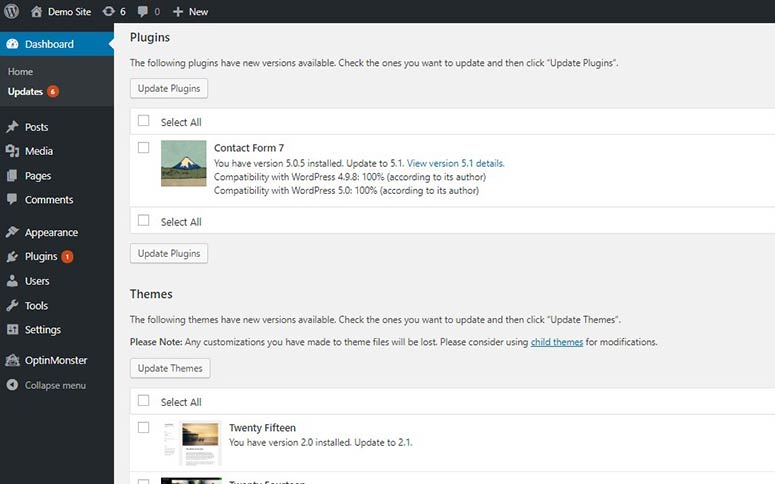
Next, you’ll need to update all your themes and plugins. Sometimes the older version of a theme or plugin may not be compatible with the newest WordPress release. In this case, your website may crash or show errors upon updating to the latest WordPress version.
To update your themes and plugins, you can go to Dashboard » Updates in your WordPress admin area.
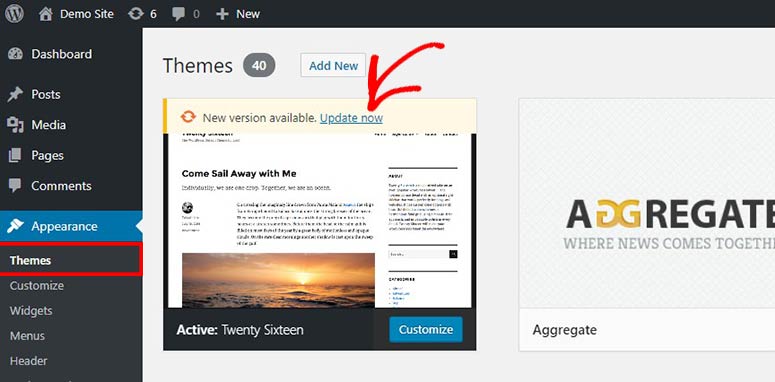
You can also update your themes or plugins separately. For themes, you can go to Appearance » Themes and update your themes one-by-one.
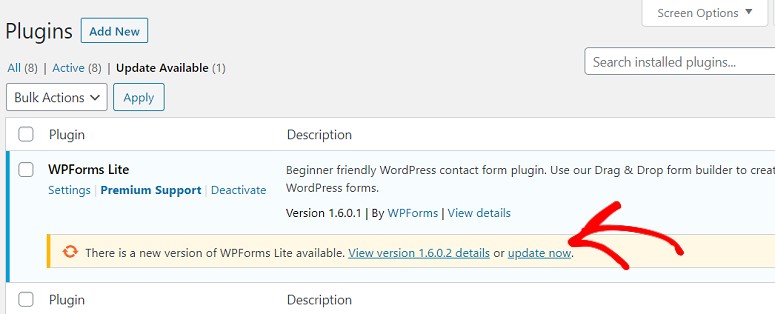
Similar to your themes, you can go to the Plugins » Installed Plugins page in your WordPress admin area to update your plugins one-by-one.
After updating your themes and plugins, you’re ready to start the process of upgrading WordPress.
Step 3 (A): Upgrading WordPress from Admin Dashboard (Easy Way)
This is the simple way to update your WordPress website. You can click on the ‘Update Now’ link in your admin dashboard. It’ll show you the WordPress Updates page. Since you already created a complete backup of your WordPress site, you can simply click on the ‘Update Now’ button.
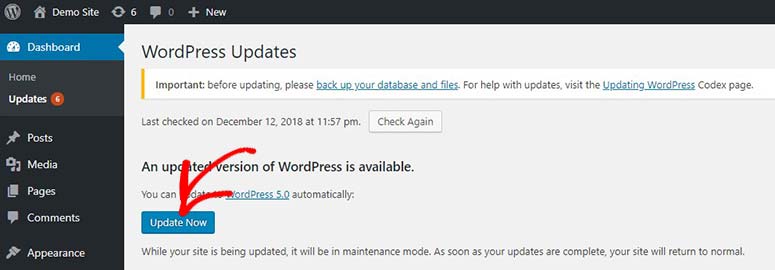
Note: If you’re not the site administrator, then the notification will ask you to inform the admin about the new version release.
Once the update is done, you’ll see a welcome page to the new and latest WordPress dashboard. You can visit your website to enjoy the new and latest WordPress version.
Step 3 (B): Manually Upgrade WordPress by Uploading Files
To manually upgrade WordPress by uploading files on your hosting server, you’ll need to follow the steps below:
Download the Latest Version of WordPress
The first thing you need to do is to download the latest version of WordPress. The official website will always show the most recent version available. You can click on the ‘Download WordPress’ button to get it for free.
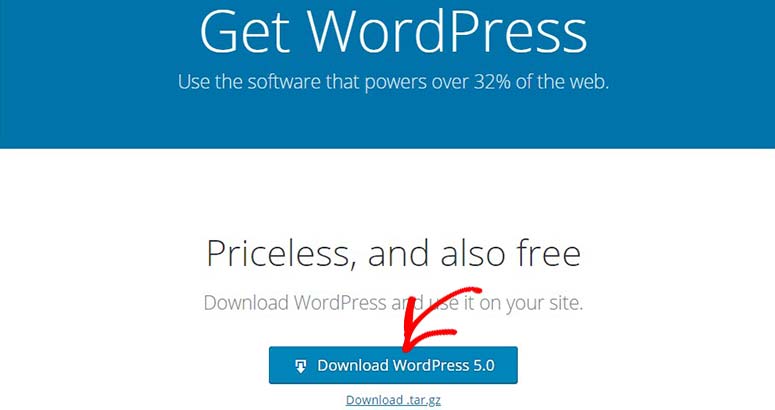
A zip file will be downloaded. You can extract the files on a folder to upload them to your server manually. Simply log into an FTP client like FileZilla or SmartFTP with your username and password to connect to your website.
After that you can upload and overwrite the WordPress core files to upgrade your website to the latest version.
Upload and Overwrite WordPress Core Files
You’ll need to upload all of WordPress’ core files from the folder that you extracted previously to your WordPress hosting server. Once you upload the files, it’ll open up a window that asks if you want to overwrite files. Simply select the overwrite option and click on the ‘OK’ button.
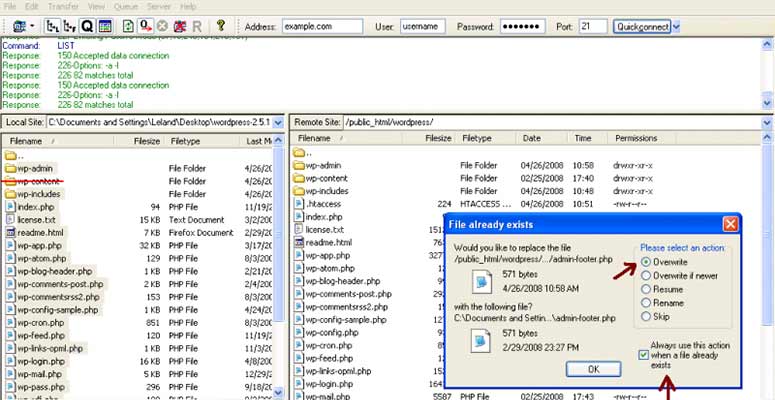
Make sure to skip the ‘wp-content’ folder. This folder contains your themes, plugins, uploads, and other useful files. Since you manually updated your themes and plugins, this folder can remain as-is.
Once all the files are uploaded, you can go ahead and visit your website to see if everything’s working as it has to be.
Step 4: Run the Database Upgrade Script (Optional)
If you’re upgrading from a much older version of WordPress, then there’s a slight chance you’ll see a screen like this:

It happens when you try to access your WordPress admin panel. This looks a lot scarier than it actually is. It’s a very quick process and your database upgrade will be successful in few minutes.
Note: It may or may not be necessary depending on which versions you’re updating between.
Things You Should Do After Upgrading WordPress
If everything’s working as it should be, then you’re done with properly upgrading WordPress to the latest version.
Falls Sie einen Fehler mit Ihrer Datenbank sehen, können Sie unseren Leitfaden zur Fehlerbehebung bei der Datenbankverbindung in WordPress prüfen. Verpassen Sie auch nicht unsere handverlesene Liste der Must-Have WordPress Plugins.
Das ist alles. Wir hoffen, dieser Leitfaden hat Ihnen geholfen zu lernen, wie Sie WordPress richtig aktualisieren. Wenn Sie diesen Beitrag nützlich fanden, möchten Sie vielleicht auch unseren Leitfaden zu den besten Content-Marketing-Tools und Plugins für WordPress-Websites lesen.

Ich habe mich davor gefürchtet, ein paar Websites mit der neuen Version von WP zu aktualisieren. Ihre Anweisungen waren absolut die besten. Danke! Warum können sie keine so einfachen Anweisungen auf der WP-Website veröffentlichen? Fantastisch. Nochmals danke!
Kann diese Einstellung WordPress von 2.3.1 auf 2.8.4 aktualisieren? Ich muss meiner Mutter dabei helfen. Bitte antworten Sie freundlich, danke!
Vielen Dank… Das war wirklich hilfreich!
[...] auf 2.8 (downloaddddd). Für Upgrade-Anweisungen, siehe hier (lassen Sie sich nicht abschrecken)... also siehe hier. Es ist super einfach. Viel einfacher als man glauben würde. Der wichtige Teil [...]
Hallo, danke für die Info, es ist wirklich einfach zu aktualisieren. Ich hoffe, Sie oder jemand anderes weiß, wie man eine WordPress-Installation aktualisiert, die in WP Direct erstellt wurde. Ich habe beschlossen, meine Dateien von dort zu kopieren und sie selbst zu verwalten, aber jetzt kann ich sie nicht aktualisieren. Das Fehlerprotokoll zeigt compat.php-Fehler. arrggghhh.
Wenn jemand weiß, was mit WP Direct-Installationen los ist, lassen Sie es mich bitte wissen.
Danke!
Cheryl
Hallo,
Danke für den Leitfaden. Er hat mir wirklich geholfen, als ich nicht auf mein Admin-Cpanel zugreifen konnte (sodass ich den Auto-Updater nicht verwenden konnte). Dieser Beitrag hat mich gerettet :)
Vielen Dank für den Beitrag. Es war so einfach, wie Sie berichtet haben. Traurig, dass ich das Upgrade immer wieder aufgeschoben habe, weil es völlig schmerzlos war. Ich glaube, ich hatte Angst, dass mein Theme kaputt gehen würde und dass es viel Arbeit für mich bedeuten würde. Tatsächlich war es genau das Gegenteil.
@Nate: Es kann notwendig sein oder auch nicht, die Datenbank zu aktualisieren, wenn das Ihre Frage ist.
@faidon: Sind Sie sicher, dass alle Dateien ordnungsgemäß hochgeladen wurden?
Du lässt es so einfach klingen….
Hier ist, wie es wirklich ist:
Warnung: require_once(../wp-load.php) [function.require-once]: failed to open stream: No such file or directory in /home/polyant9/public_html/mysite/wpe/wp-admin/admin.php on line 7
Fatal error: require_once() [function.require]: Failed opening required ‘../wp-load.php’ (include_path=’.:/usr/lib/php:/usr/local/lib/php’) in /home/polyant9/public_html/mysite/wpe/wp-admin/admin.php on line 7
Irgendwelche Ideen?
[…] WordPress aktualisieren […]
Ich kann die Informationen „WordPress aktualisieren“ im Admin-Panel nicht finden, nachdem ich den Datei-Überschreibungsprozess über meinen FTP durchgeführt habe.
Hilfe?
Ich benutze nur ein Plugin, um ein Upgrade in nur 5 Minuten durchzuführen. Es hat bei über 20 WordPress-Installationen ohne Probleme funktioniert. So aktualisieren Sie WordPress 2.5 in 5 Minuten
[…] wp-admin/includes/media.php und wp-admin/media.php, wenn Sie nur die geänderten Dateien ersetzen möchten. Theme Lab bietet eine einfache Upgrade-Anleitung für dieses Upgrade. Im Upgrade enthalten sind Korrekturen für Internet Explorer […]
[…] und wp-admin/media.php, ob Sie nur die geänderten Dateien ersetzen möchten. Theme Lab bietet eine einfache Upgrade-Anleitung für dieses Upgrade. Im Upgrade enthalten sind Korrekturen für World Wide Web […]
[…] wp-admin/includes/media.php und wp-admin/media.php, wenn Sie nur die geänderten Dateien ersetzen möchten. Theme Lab bietet eine einfache Upgrade-Anleitung für dieses Upgrade. Im Upgrade enthalten sind Korrekturen für Internet Explorer […]
[…] wp-admin/includes/media.php und wp-admin/media.php, wenn Sie nur die geänderten Dateien ersetzen möchten. Theme Lab bietet eine einfache Upgrade-Anleitung für dieses Upgrade. Im Upgrade enthalten sind Korrekturen für Internet Explorer […]
[…] wp-admin/includes/media.php und wp-admin/media.php, wenn Sie nur die geänderten Dateien ersetzen möchten. Theme Lab bietet eine einfache Upgrade-Anleitung für dieses Upgrade. Im Upgrade enthalten sind Korrekturen für Internet Explorer […]
Vielen Dank!!
[…] Web-WatchWarum sollte der Teufel alles gute Musik haben?Xtreme BibelstudienPC und stolz!RSS mit Google Reader verwendenVintage JesusWebentwickler werdenNitechurch Live-CDGott keine Ehre stehlenJeder Mann…WP Upgrade Tutorial […]
[…] hat noch kein WordPress 2.5.1… hier ist ein Artikel, wie man ein manuelles Upgrade einfacher macht. So aktualisieren Sie WordPress-Tutorial – Das Aktualisieren von WordPress ist einfacher, als Sie denken | Theme Lab __________________ Grüße, James Hostican || Unbegrenzt […]
[…] wp-admin/includes/media.php und wp-admin/media.php, wenn Sie nur die geänderten Dateien ersetzen möchten. Theme Lab bietet eine einfache Upgrade-Anleitung für dieses Upgrade. Im Upgrade enthalten sind Korrekturen für Internet Explorer […]
@Hanne Sena: Ja, aber in diesem ZIP ist keine wp-config.php-Datei, es ist ein Beispiel. Aber Sie haben Recht – Sie sollten die Konfigurationsdatei auch "aktualisieren", behalten Sie einfach die Datenbankinformationen bei.
Danke fürs Kommentieren!
Ähm, ich glaube, Sie haben vergessen, die wp-config-Datei zu erwähnen. ^^P
Einfacher Weg, Ihr WP zu aktualisieren?…
Sicherlich haben alle selbst gehosteten WordPress-Blogger die neue Aktualisierung von WordPress.org bemerkt
die Veröffentlichung der neuen Version.
Aus irgendeinem Grund habe ich diesen nervigen gelben Hinweis oben in meinem Dashboard
hat mich wirklich dazu gebracht, die letzte Version herunterzuladen und u…
Schön, das ist größtenteils das, was ich heute gemacht habe.
Und ehrlich gesagt, die letzten Updates haben wirklich behoben
einige Probleme mit dem Medien-Uploader, die ich mit der älteren Version hatte